Recurring memberships bring in regular revenue, and ROLLER collects each payment on the member's schedule without staff chasing it. When a payment fails, ROLLER retries it, and you can help the member update their card.
This guide shows you how to update a member's payment details, apply credit and follow up failed payments.
How it works
Knowing what ROLLER does at each payment helps you answer members' questions about their emails, status and next charge. You can sell recurring memberships at POS or add them to online checkouts for guests to buy themselves.
The permission required to manage recurring memberships (eg apply credit or cancel a membership) is Can manage memberships. The administrator and manager roles have this permission enabled by default.
Membership payment
Members get their membership details by email as soon as they buy, without staff sending anything. When a guest buys a membership:
ROLLER sends them two emails: Order confirmation and Membership details.
Their membership status is set to Current, or Pending activation if it starts on a future date.
ROLLER charges each payment on the schedule set in the membership product (eg monthly). Guests choose their start date when they buy online or at POS.
Renewal process
A member whose membership expired or was terminated can rejoin by buying a new recurring membership, which starts a new payment schedule. Recurring memberships run until they're canceled or for a set number of payments.
To learn how guests can upgrade and renew memberships from their online account, see the guide Encourage guests to self-serve membership upgrades, renewals and cancellations.
Update a member's payment details
Updating a member's card before their next payment helps stop it failing. How you update it depends on your payment provider.
From Venue Manager, find and open the membership booking.
Select the Payments tab.
Select Update payment details, then follow the steps for your payment provider.
To learn how for ROLLER Payments and third-party payment providers, including updating card details at POS, see the guide Update recurring membership payment details from POS or Venue Manager.
Apply and manage credit for recurring memberships
You can add credit to a recurring membership to reward or retain valuable guests. ROLLER uses the credit before it charges the member's card for their next payment. You can edit or void credit until the date ROLLER applies it.
To learn more, see the guide Apply credit to a recurring payment membership.
View membership credit
Seeing a member's credit on their booking lets you answer questions about their next payment on the spot. From Venue Manager, find and open the booking with the membership:
Select the Payments tab to see each credit under Credits.
The Activity tab shows when credit was created, edited or voided.

To get membership data through the ROLLER API, see the guides API overview and Reporting API overview.
Manage failed membership payments
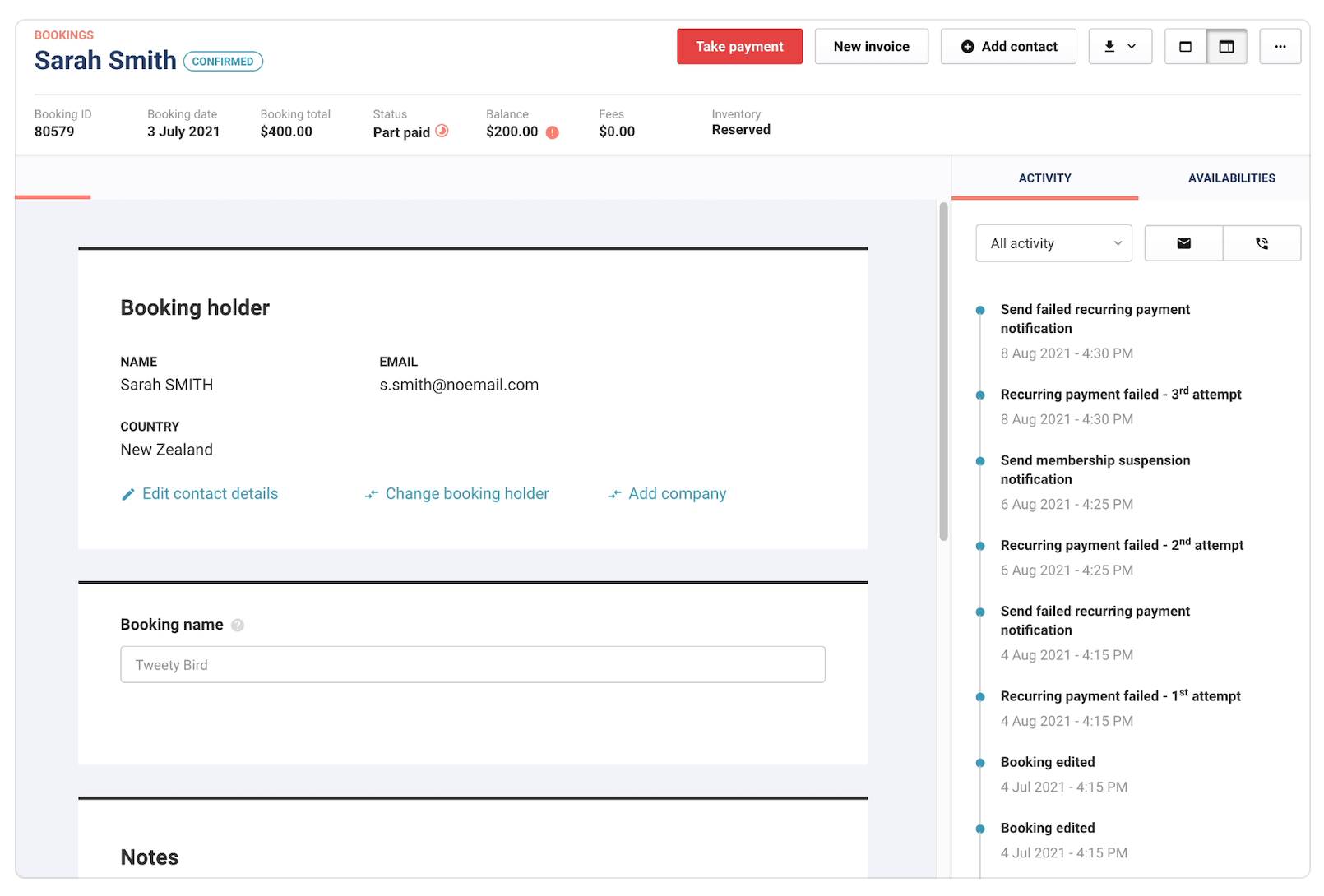
Automatic retries give a failed payment more chances to go through, so fewer members drop off because of a declined card. ROLLER retries a failed recurring payment and emails the member when it fails. After the second failed attempt, the membership moves to Declined Payment until the payment goes through.
If the member visits your venue, you can update their card at POS.
To update a member's card, see the guide Update recurring membership payment details from POS or Venue Manager. Smart Dunning is on by default for venues using ROLLER Payments. To learn how it retries payments, or how to turn it off, see the guide Maximize recurring membership revenue with Smart Dunning.
Track failed payment attempts
Spotting failed payments early lets you contact members before their membership lapses. Each failed attempt shows on the member's booking, and two reports list them across your venue.
See failed attempts on the booking
Check a member's booking before you call them, so you know what's already happened. While ROLLER is retrying a payment, the booking's Activity tab lists each failed attempt and each email sent to the member. The booking's Status shows Pending or Partially paid.
Membership Status Log report
Filter the Membership Status Log report by New status to list the members whose payment was declined and when. When a payment goes through, the report shows the membership moving back to Current.
Recurring Payment Log report
The Recurring Payment Log report lists every recurring payment attempt in a date range, successful or failed, with its status and amount. Use it to check failed payments across your venue instead of one booking at a time.
FAQs
How is the next recurring payment date calculated after a successful payment retry?
The next payment date stays on the original schedule. For example, a monthly membership bought on January 1 has a payment due February 1. If that payment fails and a retry goes through on February 3, the next payment is still due March 1.
Can members update their own payment details?
Yes, if your venue uses online accounts. Members can sign in and change their saved payment method. Otherwise, staff send them a secure link to enter their new card details (ROLLER Payments venues). The failed payment emails ask members to contact your venue. You can change that wording in your email templates.