Offer guests extras with the products they book, like grip socks with a jump pass, skate hire with a skating session or an extra game of laser tag. Set each one up once for every product it goes with, and see them all on one add-ons page. You can also set how many of each add-on guests can add, so quantities match the group size and staff don’t have to fix them afterward.
An add-on is any product you offer alongside another product in the online checkout, like a stock item, a session pass or a membership. We recommend using these instead of the add-on product type, which is only available on request.
The add-ons page is available on request. To enable it, contact your customer success manager or the support team.
How it works
Setting up an add-on once and attaching it to many products saves you from adding the same extra to every product one by one. You can also set quantity rules, so guests get the right quantity for their group at checkout.
The add-on: Any product except a party package.
What it's attached to: Specific products or reporting categories. You can attach an add-on to memberships, packages, party packages, session passes and standard passes. When you attach it by reporting category, products you add to that category later get the add-on too.
Added automatically: The add-on is added to the cart when a guest selects an attached product. Guests can still remove it.
Quantity rules: By default, the product’s own quantity settings decide how many of the add-on a guest can add to their cart. You can override this with a minimum, a maximum or a fixed quantity, per guest or per booking.
Stock periods: You can choose to offer an add-on only during specific stock periods (eg weekends from 11am to 2pm).
If the product you choose is the add-on product type, it keeps the forced or optional setting and quantities from its own product settings, so the Added automatically and Quantity options don't show.
Before you begin
Create the product you want to sell as an add-on (eg a stock item for grip socks).
To attach an add-on by reporting category, set the reporting category on your products first. See the guide Set up reporting categories and GL codes.
To limit an add-on to certain days and times, create the stock periods first, under Products > Stock > Stock periods.
The permission required to create and change add-ons is Can edit products. The administrator and manager roles have this permission enabled by default.
Manage your add-ons in one place
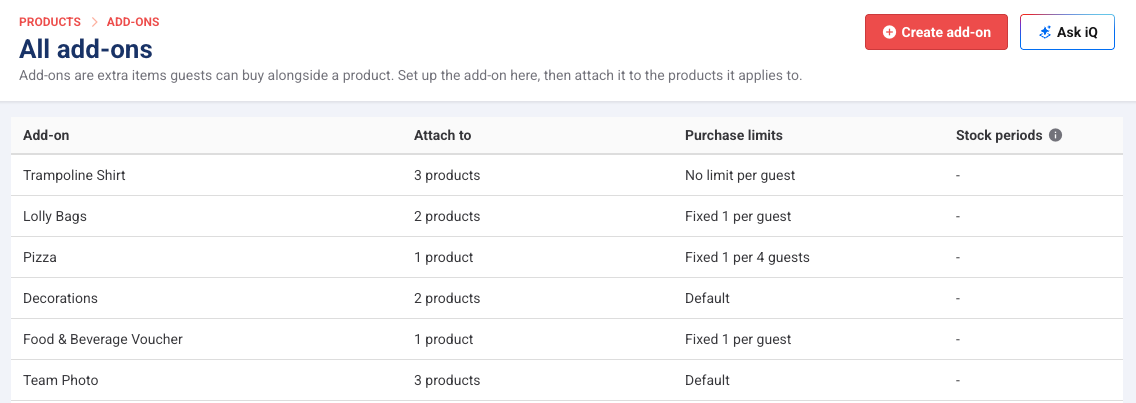
All your add-ons are listed together, so you can check what's attached where and how many of each add-on guests can add, without opening each product.
From Venue Manager, go to Products > Add-ons > All add-ons.
The list shows:
Add-on: The name of the product sold as the add-on.
Attach to: How many products or reporting categories it's attached to.
Purchase limits: The quantity rules you’ve set for the add-on (eg Fixed 1 per guest or Max 1 per booking). Default means the product’s own quantity settings apply.
Stock periods: When the add-on is sold, if you've limited it to stock periods.
From the list, you can also:
Select Create add-on to set up a new one.
Select the options menu (3 dots) for an add-on, then select Edit to change it or Delete to stop offering it.
Create an add-on
Create an add-on once and attach it to every product it goes with, so it shows up whenever guests add one of those products to their cart.
Select the hotspots below to see an interactive demo.
From Venue Manager, go to Products > Add-ons > Create add-on.
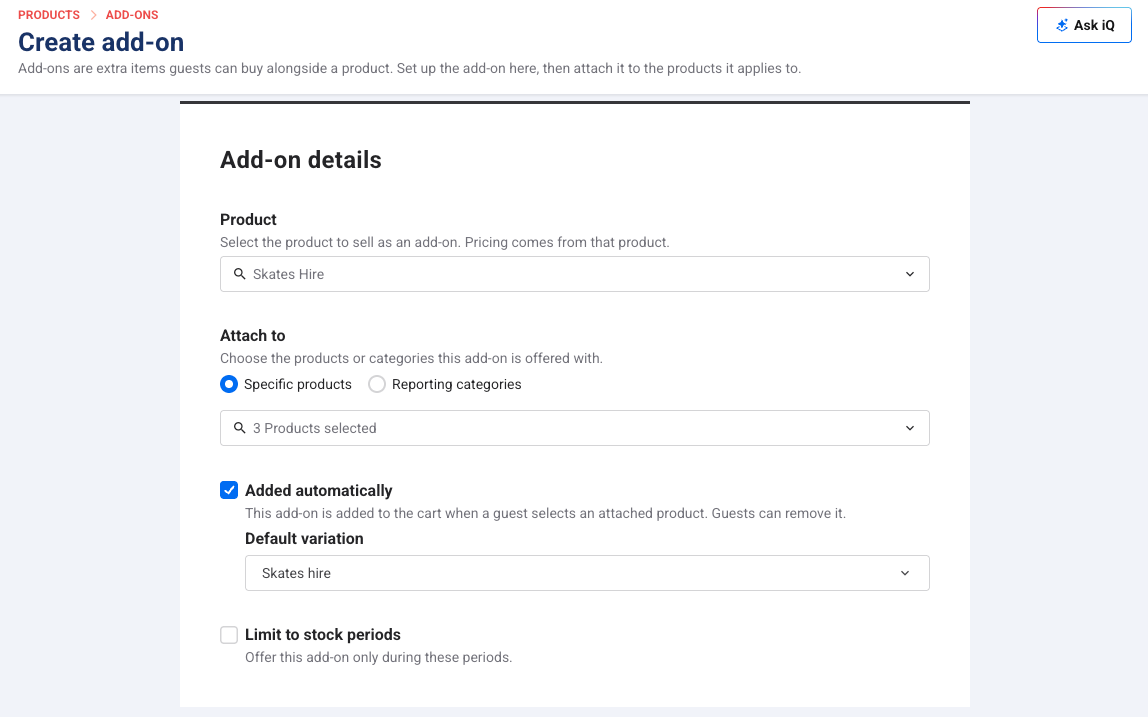
From the Product drop-down, select the product to sell as an add-on.
Under Attach to, select Specific products or Reporting categories, then select the products or categories to offer the add-on with.
(Optional) To add any extras to cart for guests, select Added automatically. Then from the Default variation drop-down, select the variation to add. Guests can still remove it.
(Optional) To offer the add-on only on certain days and times, select Limit to stock periods, then select the stock periods.
(Optional) To set quantity rules, select Override the product's quantity settings, then follow the steps in Set quantity rules later in this guide.
Select Save.
The add-on will appear on the All add-ons list. Once set up, it shows up in the online checkout whenever guests add an attached product to their cart.
Set quantity rules
Quantity rules keep add-ons in line with the size of the booking (eg 1 pair of skates for every guest), so your team doesn’t have to add or remove extras after guests complete their booking. These rules override the product’s own quantity settings for this add-on only.
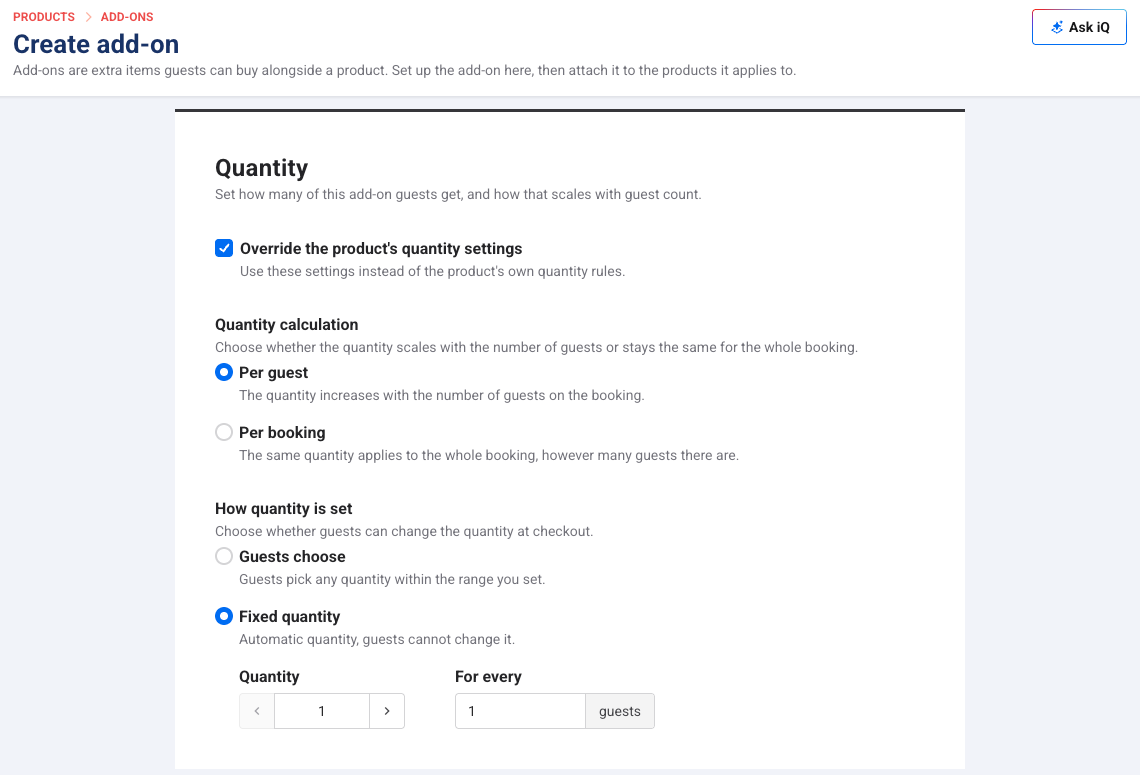
On the add-on, select Override the product's quantity settings.
Under Quantity calculation, select Per guest or Per booking.
Select Per guest when the quantity should go up with the number of guests (eg drink tokens for each player).
Select Per booking when the quantity should stay the same, however many guests there are (eg 1 platter per booking).
Under How quantity is set, select Guests choose or Fixed quantity.
Select Guests choose to let guests pick a quantity within the range you set. Then select Min. quantity, Max. quantity, or both, and enter the quantity. With Per guest, you can also select Default to guest count so the quantity automatically starts at the number of guests in the booking.
Select Fixed quantity to set the quantity yourself. Guests can't change it. Enter the Quantity. With Per guest, also enter the number of guests in For every (eg 2 for every 1 guest).
If For every is more than 1, select a Rounding option.
Round up adds the add-on even when there are fewer guests than the number you entered.
Round down only adds another one once the booking reaches that number of guests.
Select Save.
What guests see
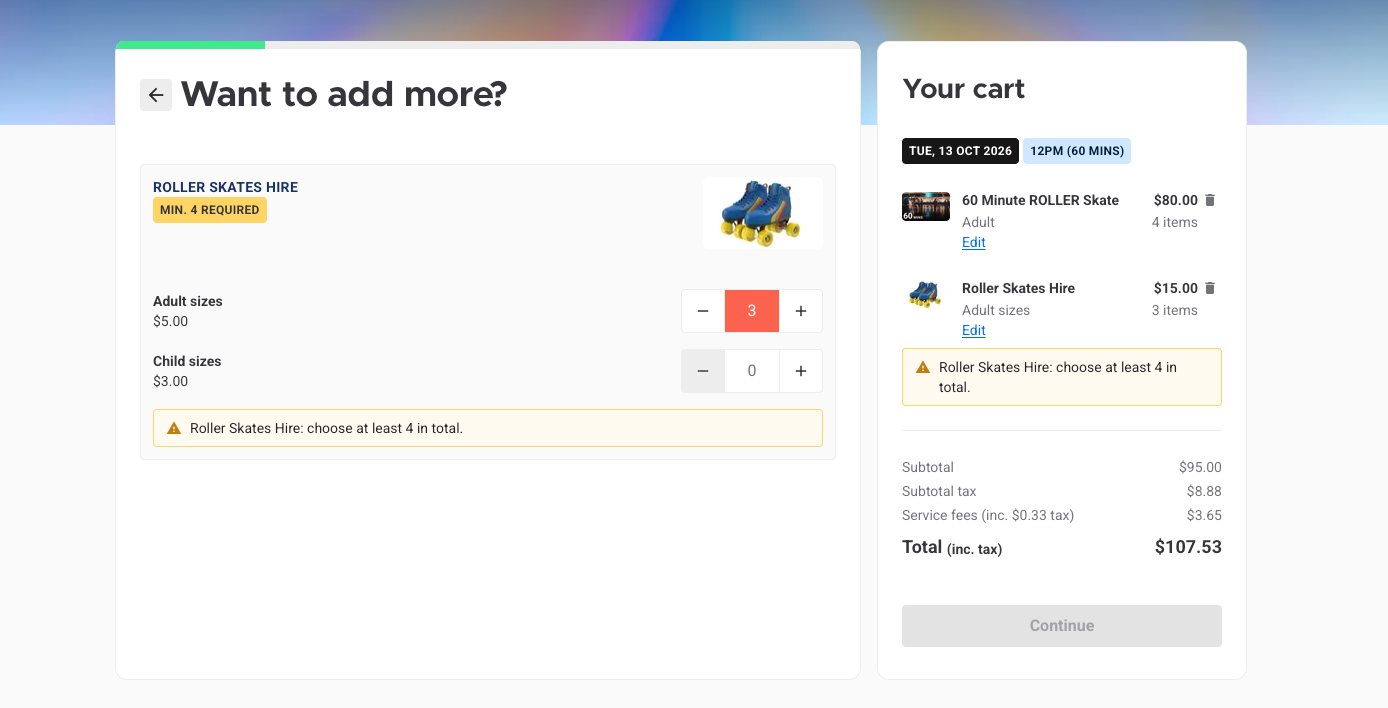
Guests are prompted to add the add-on with the product it's attached to, and the minimum is already set for them.
Minimum: Guests see the minimum quantity required when they’re prompted to select the add-on. A per-guest minimum (eg a minimum of 1 for every guest) goes up with the number of guests. For example, if a guest adds 4 adult skating admissions to their cart, the roller skate hire add-on shows Min. 4 required.
Below the minimum: If guests add less than the minimum required to their cart, a message shows the total they need, and they can’t continue until they meet it.
Not interested: Guests who don't want the add-on can leave the quantity at 0 and select Skip.
To choose whether add-ons show on the product's details page, on a page of their own before checkout or both, see Add-ons in the guide Create your online checkout.
See and change the add-ons on a product
Each product lists the add-ons attached to it under Additional options, so you can check what guests are offered and add anything that’s missing without leaving the product.
From Venue Manager, go to Products and select the product.
Go to Additional options > Add-ons.
You'll see each add-on, and any purchase limits and stock periods.
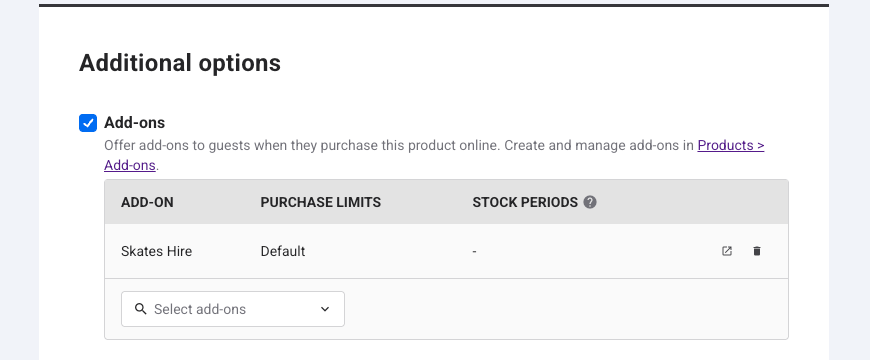
To attach an add-on you've already created, select it from Select add-ons, then select Save.
To remove an add-on from this product, select the delete icon next to it, then select Save.
To change an add-on's settings, select the edit icon next to it.
Add-ons attached by reporting category can't be removed from the product. To stop offering one, change its Attach to setting on the add-on.
FAQs
Does this include the add-on product type?
Yes. The add-on product type is available on request. If your venue has it, you can select add-on products here like any other product. They keep the forced or optional setting from their own product settings. We recommend using other products as add-ons instead, like stock items for physical goods.
Can guests remove an add-on that was automatically added to their online checkout cart?
Yes, guests can remove it.
Can I offer a party package as an add-on?
No. You can attach add-ons to a party package, but a party package can't be an add-on itself.
What happens to the add-ons I’ve already set up on my products?
They’re already in the All add-ons list, so you don’t need to set them up again. You can still attach and remove add-ons on each product, and change their quantity rules and stock periods from the add-ons page.