Guests who book through a reseller (eg a hotel concierge or tour operator) often don’t pay at your front desk. POS shows your staff whether there’s anything to pay, so they can check those guests in without charging them for something the reseller covers. Instead, the reseller pays you when they book in your reseller portal, by bank transfer or when your venue invoices them on a credit account. Some resellers have their guests pay when they arrive.
Use this guide to find a reseller’s booking, check the guests in and handle extras. It works the same whether the reseller booked in your reseller portal or your team booked for them in Venue Manager.
Advanced Channel Management add-on
The Reseller Portal is now in early access for venues on the Pro, Premium or Enterprise plan. To use it, you need the Advanced Channel Management add-on. The add-on also gives you access to Online Travel Agents (OTAs). You pay a small percentage of reseller booking revenue, billed monthly after the bookings happen, so there’s nothing to pay up front.
To get started, request early access to the Reseller Portal.
Find a reseller’s booking
Reseller guests may arrive without a booking number. They might have the tickets the reseller passed on, a confirmation from the reseller or just the reseller’s name.
From POS, select Search in the left-side menu. The Bookings tab is selected by default.
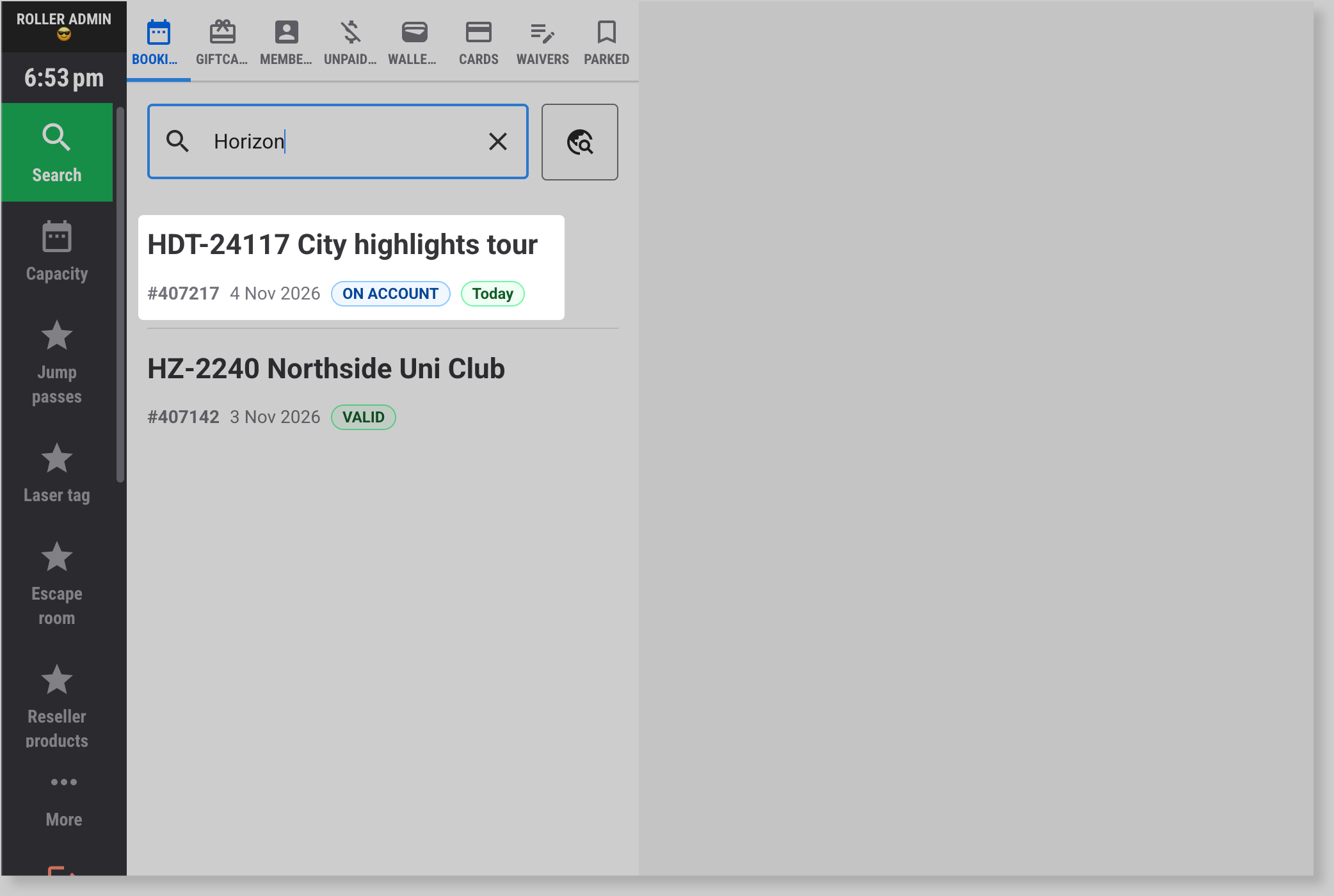
Enter the booking number, a ticket ID, the reseller’s name or the reseller’s own reference. Resellers may use their own reference as the booking name. You can also scan the QR code on the guest’s ticket. To find a booking by the reseller’s name, POS needs at least five letters of the name.
Select the booking to open it. If you entered a booking number or ticket ID, it opens straight away. If you searched by the reseller’s name, today’s and upcoming bookings are listed first. A PENDING label means the booking is for a later date. It doesn’t mean anything is owing.
Check whether there’s any payment to take
Check the booking before you redeem anything, because guests shouldn’t pay for what the reseller covers. The label next to the booking number and the totals at the bottom of the main panel tell you whether anything is owing. The reseller’s name shows on the booking too.
The amounts show what the reseller pays you, not what the guest paid the reseller. Don't quote them to the guest.
What POS shows | What to do |
|---|---|
ON ACCOUNT, and Total with no Total owing | Don’t take payment. Your venue invoices the reseller later |
Total with no Total owing, and Charge grayed out | Don’t take payment. It’s already paid |
Total owing, highlighted in yellow | Select Charge and take payment from the guests. This is how a pay on arrival booking shows |
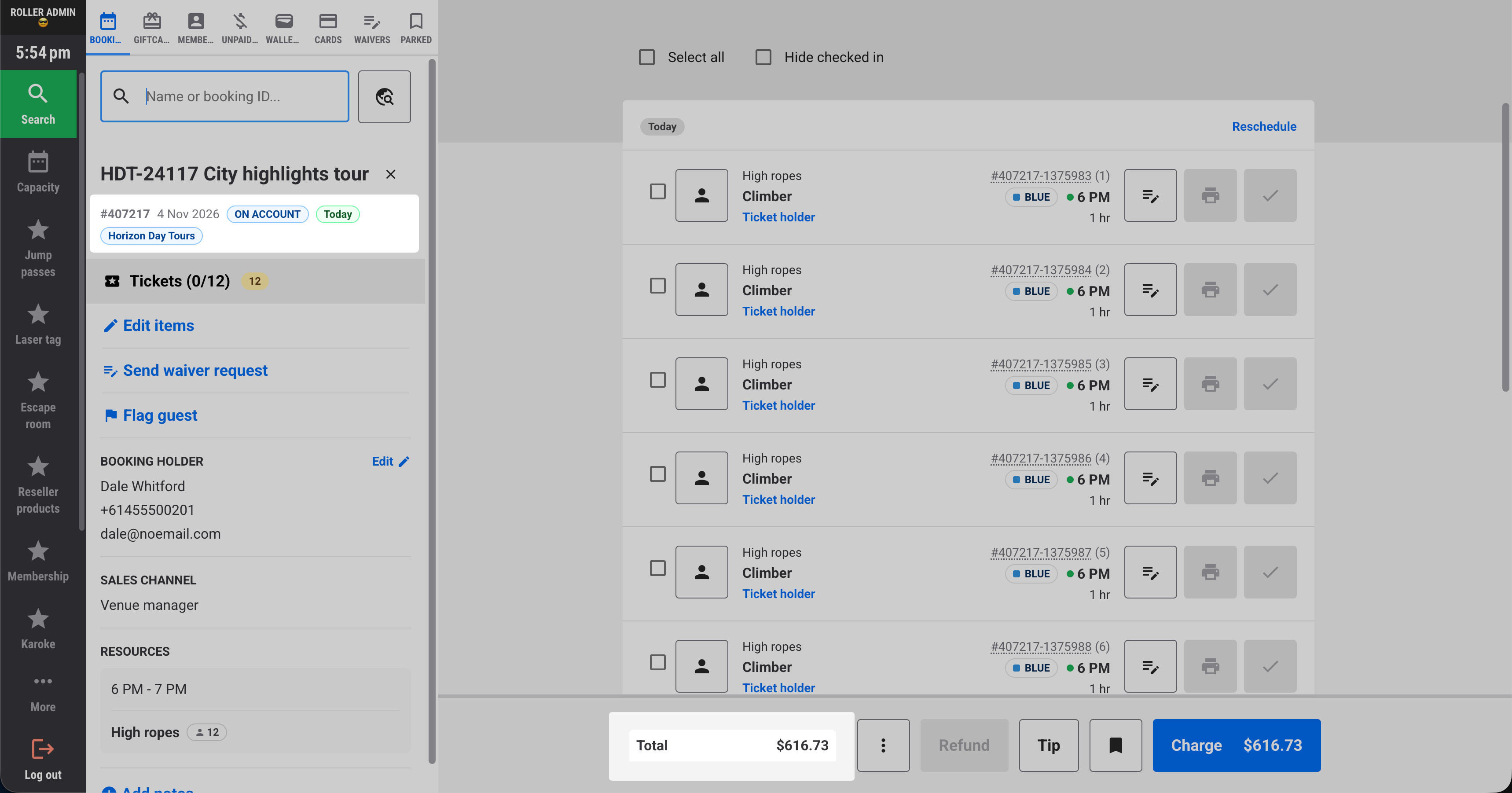
If the reseller wants to pay for an ON ACCOUNT booking at your venue, you can select Charge (eg Charge $616.73) and take their payment. Once it’s paid in full, the booking shows as paid.
Resellers who pay by bank transfer usually pay before the visit, and your team then marks the booking as paid in Venue Manager. If a booking still shows Total owing and the guests say they’ve already paid the reseller, check with your manager before you take payment, because the reseller’s transfer may not be recorded yet.
Then redeem the tickets and assign any waivers the same way as for any other booking.
To learn how, see the guide Redeem tickets and assign waivers at POS.
Add extras for the group
If the reseller is paying for extras for their group (eg their tour guide orders drinks for everyone), add the extras to the reseller’s booking. This may be an ON ACCOUNT booking, where your venue invoices the reseller later. Do this only when the reseller asks for it, not the guests.
Products with a reseller price rule use the reseller’s rate. Everything else is priced as usual.
From the booking, select Add items (or Edit items, if Enable edit booking is turned on in your POS settings).
Add the items to the cart. You won’t see gift cards, memberships, wallets, multi-passes or cashless cards, because those can’t go on a reseller booking.
Select Continue (or Update, if you selected Edit items). POS opens payment for everything still owing on the booking, not just the extras.
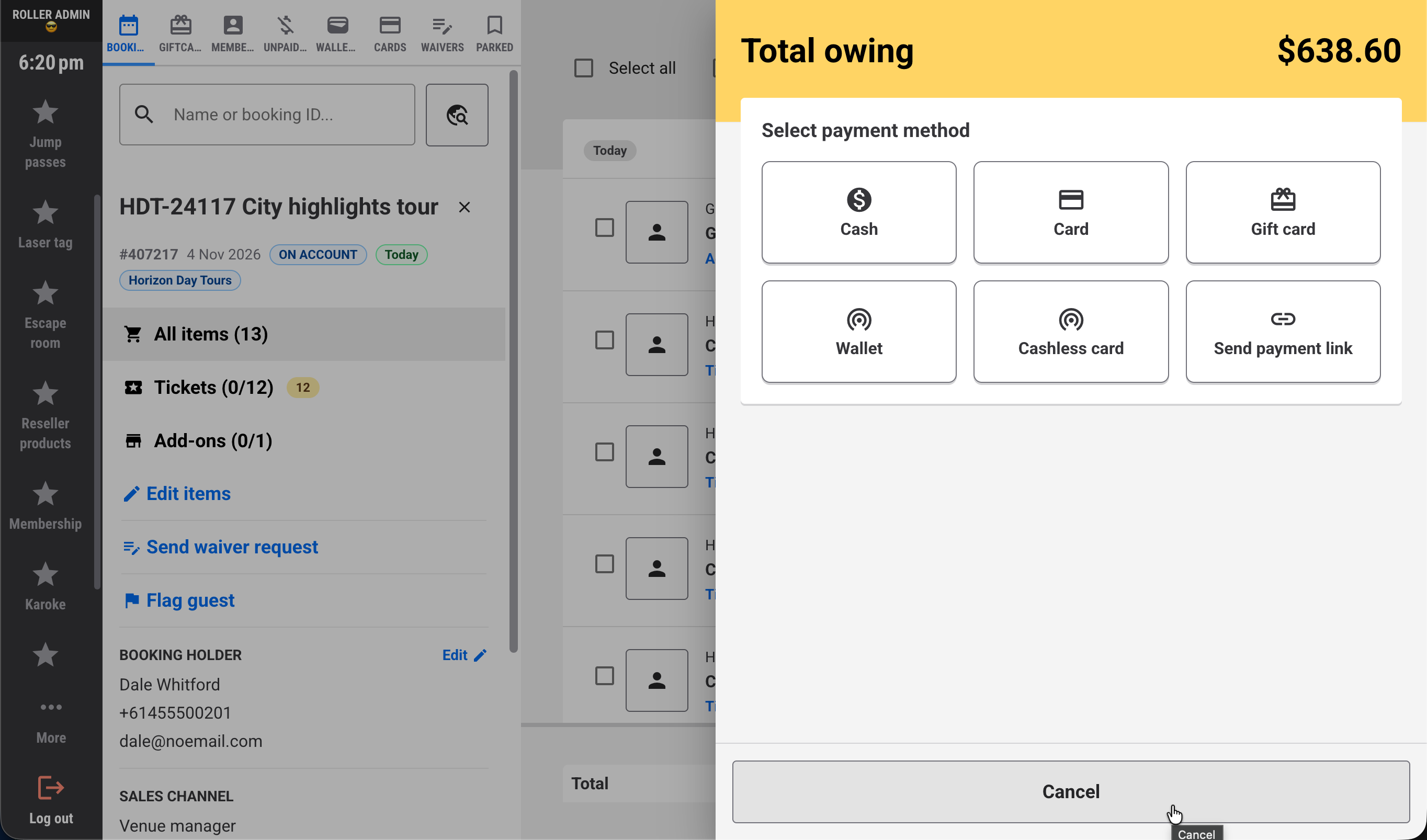
On an ON ACCOUNT booking, select Cancel. The extras go on the reseller’s bill. On any other booking, take payment as usual.
Sell extras a guest pays for
If a guest wants something for themselves (eg a drink), sell it to them as a separate sale. Don't add it to the reseller's booking. The guest pays you, and the reseller's bill stays as agreed.
To learn how, see the guide Sell items and redeem discounts and memberships at POS.
The same goes for upgrades (eg from a standard ticket to VIP). For ON ACCOUNT bookings, sell the upgrade in a separate sale rather than changing the ticket in the reseller’s booking. Otherwise, the reseller ends up paying for the guest’s upgrade.
FAQs
Can I create a reseller booking at POS?
Reseller bookings are made in Venue Manager, or by the reseller in your reseller portal. Staff then find and redeem them at POS. To learn how, see the guide Create and manage reseller bookings in Venue Manager.
Can I move a reseller booking to another day at POS?
Yes, you can reschedule a reseller booking at POS the same way as any other booking (eg when a guest booked for tomorrow but arrives today).
When you choose the new date, POS may show a price difference, even when the reseller’s price is the same on both days. This happens because the reschedule screen works out the new price without the reseller’s rate. The button then shows the difference (eg Charge $10.00 difference).
Select that button to confirm the new date. Even though it says Charge, it doesn’t take a payment. ROLLER saves the booking at the reseller’s price for the new date.
If the price is the same on both days, the booking total doesn’t change.
If the reseller’s price is different on the new date, the booking total updates to match, and on an ON ACCOUNT booking the difference goes on the reseller’s bill.