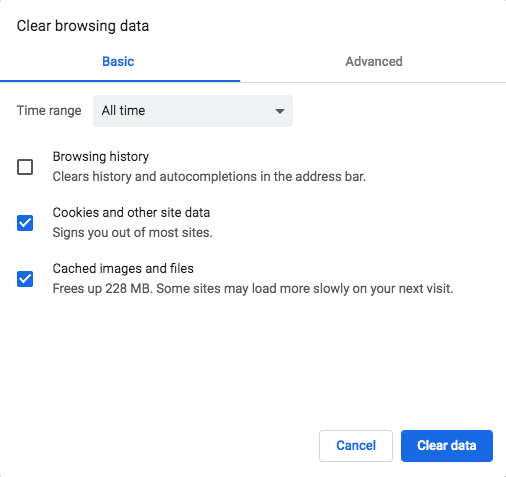
You can fix most loading, formatting and sign-in problems in ROLLER yourself by clearing your browser's cache and cookies.
Clear them outside operating hours where you can, because clearing cookies signs you out of ROLLER.
When not to clear your cache and cookies
Don't clear your cache and cookies when:
POS is running in offline mode. Clearing your cache and cookies causes data loss. See Use ROLLER POS in offline mode.
A transaction is in progress. Clearing your cache and cookies won't cancel it. This applies at POS, in Venue Manager and at self-serve kiosks.
You have unsaved work in Venue Manager. Clearing cookies signs you out, so save and close what you're working on first.
Clearing cookies ends the POS session. Staff without access to hardware settings will need a manager PIN to select the device again. See Why is my POS device asking for a manager PIN at login?
Clear your cache and cookies in Chrome
On your computer, open Chrome.
At the top right, select More > Delete browsing data.
Choose a time range. To delete everything, select All time.
Select Cookies and other site data and Cached images and files.
Select Delete data.
Close and reopen Chrome.
Sign in to ROLLER again at launchpad.roller.app.