If a staff member can't sign in to Venue Manager, the cause is almost always one of four things: their email or password, their browser, multi-factor authentication (MFA) or their access permissions. Work through the checks below in order — most sign-in problems are fixed in the first two.
Common symptoms
They enter their email and password but can't sign in.
They don't receive the password reset email.
They're stuck on the MFA verification code screen.
They can sign in but can't see the venue or features they expect.
They see an access denied error.
Check their email and password
Start here — most login problems are the wrong email or password, or an account that hasn't been activated yet.
First, ask the staff member to reset their own password at launchpad.roller.app using the Forgotten your password? link. For the full steps, see How do I reset my ROLLER password?
If they don't get the reset email, the email may be mistyped or there may be no staff account for it. An administrator can send a reset link from Venue Manager:
Go to Settings > Staff > All staff.
Find the staff account, select the options menu (three dots) and select Edit.
In the Security section, under Password, select Send reset link.
If no account exists for the staff member, an administrator can create one. You need administrator access to manage staff accounts, send reset links or reset MFA.
Rule out browser issues
A cached browser session or an incorrect device clock can stop sign-in from completing. Try this next:
Sign out of ROLLER and close the ROLLER browser tab.
Close any other open tabs, then open a new tab and try again.
If it still fails, clear the browser's cached images and files and its cookies, then reopen and sign in.
Check the device's date and time are correct — an incorrect clock can block sign-in.
To fix the clock on Windows, right-click the clock in the system tray, select Adjust date/time and turn on Set time automatically, then select Sync now if it's still wrong. For the full cache steps, see How do I clear my cache and cookies?
Check multi-factor authentication (MFA)
If MFA is enabled for your venue, each staff member sets it up the first time they sign in. If they're stuck at the verification step, they may not have finished enrolling, or they may need their MFA reset.
An administrator can reset their MFA:
Go to Settings > Staff.
Find the staff member and select the options menu (three dots).
Select Reset staff MFA. They set up MFA again next time they sign in.
For setup help, see Log in to Venue Manager with multi-factor authentication (MFA).
Check their role and venue access
If the staff member can sign in but can't see the venue or features they expect, the cause is usually their role, role permissions or venue access.
Go to Settings > Staff > All staff.
Select the options menu (three dots) next to the staff member and select Edit.
Check their Role and adjust it if needed, then select Save changes.
The default system roles are administrator, manager, booking agent, pos operator and dashboard, and each has a different level of access. If they're missing a venue they should see in a multi-venue account, an administrator can grant that venue access from their staff profile.
If they see an access denied error
An access denied error means the staff account doesn't have rights to that ROLLER app or environment. It often appears when a staff member moves from the live venue to the Playground venue but their staff account doesn't exist in the Playground.
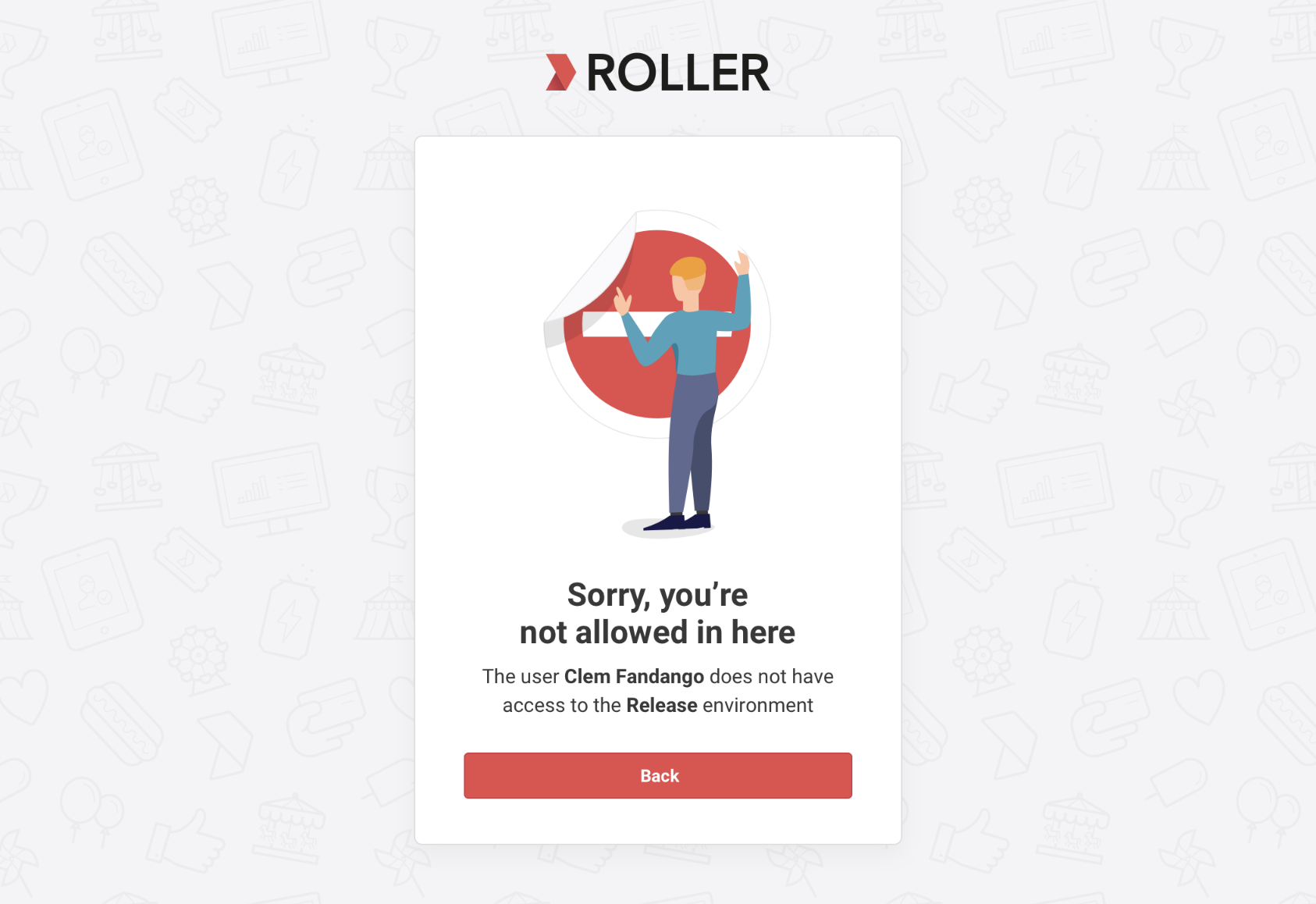
Switching to the Playground venue
The Playground is a sandbox copy of the venue where staff can test configuration and imported data without affecting the live venue. Staff switch to it from within Venue Manager:
Select the account icon (person) at the bottom of the left-side menu.
Select Switch to Playground venue.
Two things are worth knowing: the Playground won't always mirror every product and configuration from the live venue, and it's commonly used to test imported data before go-live.
If they don't have Venue Manager access
Switching to the Playground starts from within Venue Manager, so a staff member without Venue Manager access can't switch in that way. The one exception is staff with ROLLER POS-only access, who log in to the POS Playground directly at pos.play.roller.app. There's no other separate Playground login or URL.
If they're blocked from the Playground
An access problem is usually down to permissions — check that the staff member's role gives them the access they need in the live venue.
Playground staff accounts don't carry over automatically. The sync is one-way (live to Playground), and each update clears the Playground and re-copies the live data. An administrator can refresh it from Settings > Account > Venue settings > Update Playground so the latest live staff accounts and permissions sync across.
How do I confirm it's fixed?
Ask the staff member to sign in again at launchpad.roller.app and confirm they can reach Venue Manager and see the venue and features they need.
Still can't log in?
If the staff member still can't sign in after these checks, contact your customer success manager or the support team.