Venues like trampoline parks and other session-based attractions often sell packs that cover a set number of bookings — for example, 5 sessions a guest can book online whenever they like. This guide shows you how to set that up using a standard pass paired with a discount code.
Guests buy the standard pass, then receive a discount code by email that they use to book their sessions online. The standard pass covers the cost; the discount code does the redeeming.
If your venue offers multi-visit passes, we recommend using the multi-pass product type rather than standard passes, as it lets you track and redeem individual visits against a single purchase. This applies when you're using progressive checkout — see the guide Create multi-pass products.
Why use discount codes issued on purchase?
Standard passes can't be used to book multiple sessions online. The discount code fills that gap. It:
Is automatically sent to the guest after purchasing the standard pass multi-pass in an email. The guest can't use the standard pass ticket to redeem anything, but it covers the cost of the multi-pass.
Allows the guest to redeem a number of sessions online using the discount code (you set the number of times).
Works like a digital punch card — each booking uses one “visit”.
How it works
Here’s what the guest experience looks like:
The guest purchases a standard pass (multi-pass) ticket.
ROLLER sends the guest a unique discount code by email for use for a number of sessions you set.
They use the code to redeem the number of sessions online (or quote it over the phone/in venue).
Each booking made with the discount code counts as one use.
You track usage via Discounts in Venue Manager.
With this setup, discount codes are not time sensitive. Guests purchase a standard pass and are issued a unique discount code that they can use to book the number of sessions ahead of time.
Step 1: Create a standard pass placeholder product
This product takes payment and triggers the code. Guests can't redeem it for anything.
From Venue Manager, go to Products.
Select Create product and select Standard pass
Set the ticket name and price (eg 10 Visit Pass – Child)
If you're offering multiple pass options (eg 5-visit and 10-visit) with different pricing, create a separate product for each one.
Set expectations clearly
Since the standard pass won’t be redeemed directly, use a text override to explain how the pass works.
Example override text
"This pass cannot be used to redeem anything. You will receive a separate email with a discount code that will allow you to book in for your visits."
Include this in:
The product instructions
The override message
This helps prevent confusion at the point of purchase.
Step 2: Create the discount code
This is the code that guests will use to book sessions.
From Venue Manager, go to Products > Discount codes.
Select Create discount code.
Set up the discount
Setting | What to do |
|---|---|
Name | Name it clearly (eg 10x Multi-Pass) |
Code type | Select Issue codes on purchase |
Product to trigger code and email | Select the ticket type from the multi-pass (eg standard pass) |
Discount type | Set to 100% off (percentage) |
Applicable products | Select the products the code can be used for.
|
Usage limits | Set to the number of uses allowed (eg 10) and select Across selected products. |
Booking restrictions (optional) | You can limit which days or date ranges guests can book, but this requires ongoing maintenance. Use with caution. |

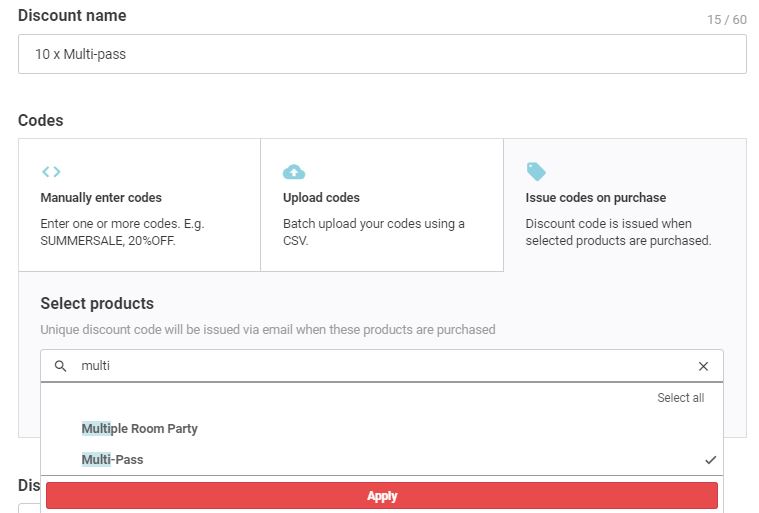
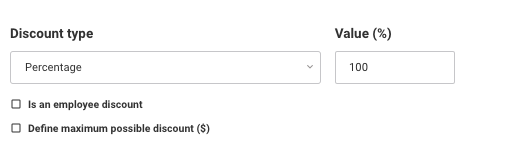

Select Save to create the discount code.
Repeat this process for each different multi-pass product or ticket type.
How the guest receives the discount code after purchase
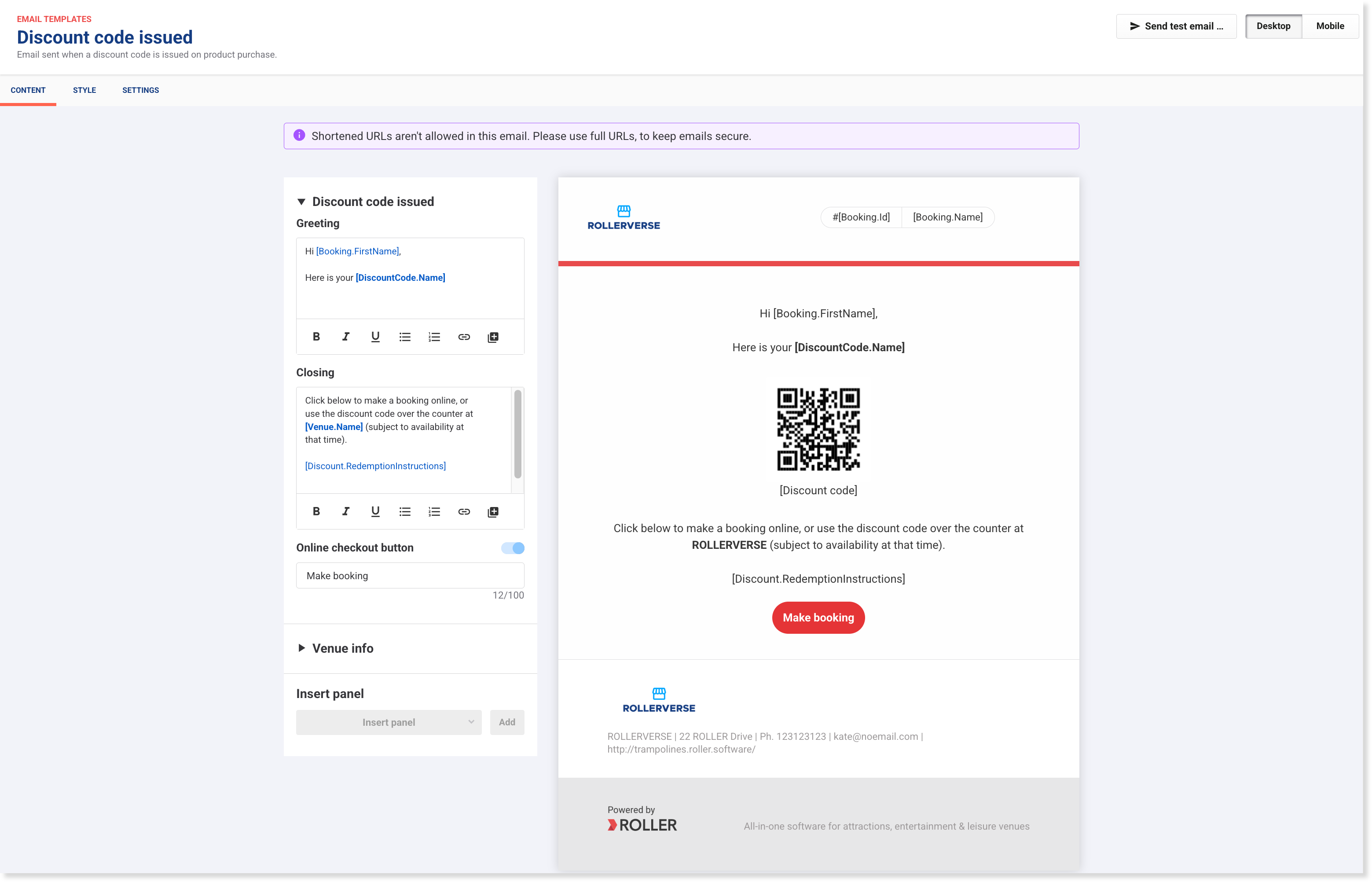
When a guest purchases the ticket online, they will receive a booking confirmation email as well as a separate email with their unique discount code to use for the standard pass (multi-pass) they've purchased.
You can also customize this email template from Venue Manager. Go to Settings > Design > Email templates.