Managing POS menus across multiple venues can quickly get out of sync. HQ POS templates let you define menus once in HQ and automatically push them to all linked devices.
This guide explains how HQ POS templates work, how to create and update them and how changes flow to managed venues.
HQ subscription
Available for all HQ venues. To get started, contact your customer success manager or the support team.
What is an HQ POS template?
An HQ POS template controls which products appear in POS menus and how they are structured across managed venues. When saved in HQ, updates automatically sync to all linked POS devices.
HQ product: The master product definition created and managed in the HQ account. Managed venues access HQ products via venue tags.
Venue product: A product record stored in a managed venue account, created when the venue adds an HQ product to their product list.
HQ Product Management: The tools for editing an HQ product and publishing the change, including pricing, to selected managed venues either immediately or at a scheduled time. See the guide Edit products from HQ and publish changes now or on a schedule.
Who does what
HQ venue | Managed venues |
|---|---|
Create and manage POS templates in HQ. Assign templates to venues using venue tags. | Apply HQ templates to new or existing POS devices. Configure local device settings (eg device name, till float). |
Update POS template menus in HQ — changes sync automatically to linked devices. | Cannot edit HQ POS template menus. |
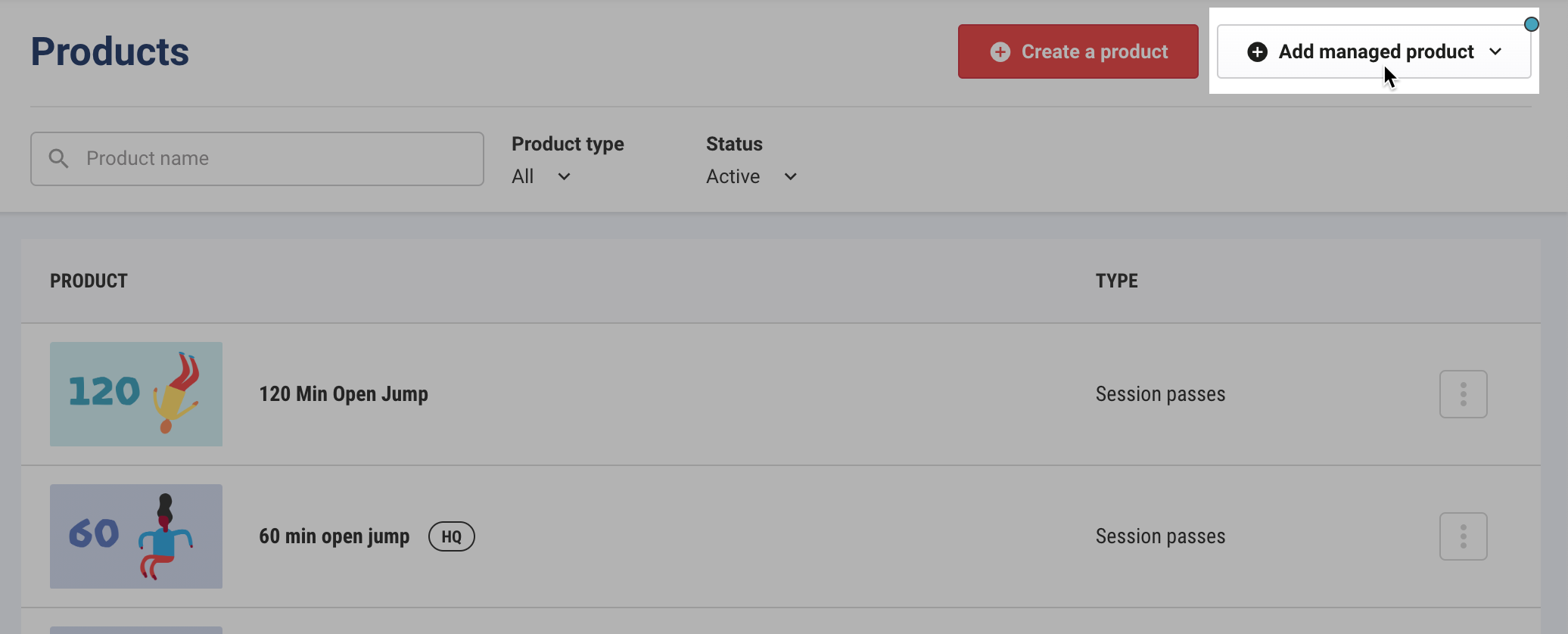
Provide access to HQ products using venue tags. | Add HQ products to their product list before selling. |
Control venue permissions (eg allow or restrict venues from creating their own POS templates). | If permitted, create their own POS templates. |
Provide access to HQ stock products and include them in templates. | If permitted, duplicate an HQ stock variation and customize it for the venue (eg change the name or price from Coke to Pepsi). |
Managed venues on a Lite plan can’t see or apply HQ POS templates.
How HQ POS templates work
An HQ POS template defines the structure of a POS menu and which products appear in it across managed venues.
When you update a template — for example by adding products, changing layout or reorganizing folders — and select Save, the changes automatically push to all linked POS devices.
HQ POS templates control menu structure and product visibility.
Pricing and variation settings are stored in each managed venue account and are not controlled by the template. To update pricing across venues, edit the HQ product and publish the change to those venues.
Product availability
For a product to appear on a managed venue POS device using an HQ template, two things must happen:
You must give the venue access to the HQ product using venue tags.
The venue must add the HQ product to their product list.
If the venue hasn't added the product yet, it appears as Product unavailable in the template preview in Venue Manager. This placeholder appears in the preview only — it does not appear on the live POS device.
Once the venue adds the product to their product list, it appears automatically on devices using that template.
Before you start
Before creating an HQ POS template, make sure you:
Have created the HQ products you want to include.
Have given venues access to these products using venue tags.
Managed venues must also add HQ products to their product list before those products appear on POS devices linked to HQ templates.
Create your HQ POS template
From your HQ Venue Manager:
Go to Apps > Point of Sale > Templates.
Select Create a template.
Enter a unique template name.
Select the venue tags that can access the template.
You can change who has access at any time, and changes are applied once saved.
Add new managed venues to the appropriate venue tags as needed.
Select New menu.
Select Save.
You must create at least one POS menu to save your POS template.
Managed venues can identify an HQ template by its HQ label.
Apply an HQ POS template at a managed venue
The following steps are performed by a managed venue user, not in your HQ account.
From the managed venue’s Venue Manager, go to Apps > Point of Sale > Devices.
To create a new device from a template:
Select Create a device.
Select New device using a template (recommended).
Select the template from the dropdown.
Select Continue, configure device settings, then select Save.
To apply a template to an existing device:
Select the options menu (3 dots) next to the device.
Select Apply template.
Select the template you want to link.
Select Apply, then confirm.
Once linked, updates made to the template in HQ sync automatically to that device.
Update your HQ POS template
From your HQ Venue Manager:
Go to Apps > Point of Sale > Templates.
Select the options menu for a template.
Select Edit.
Select Unlock to make changes.
Make your changes to the template settings or menus.
Select Save.
Any changes made to the template sync automatically to all POS devices linked to that template.
If a POS device menu is edited directly in a managed venue, it will unlink from the template. Future template updates will not apply to that device.
How product updates and pricing changes work
HQ POS templates display the version of products that exist in each managed venue.
If you update product details in HQ (eg name, description or variation price):
Edit the HQ product and make your changes.
Select Select Venues and choose the managed venues the change applies to.
Select Publish now, or add the change to a collection to release it at a scheduled time.
Once the change publishes, the updated product details appear automatically in POS menus on devices using the HQ template at those venues. For a scheduled collection, that happens at the scheduled time rather than when you save.
A venue that was not included in the change continues displaying the product configuration currently stored in that venue account. While a change is still scheduled, you can select Change target venues to add more venues to it. Once it has published, you need a new change.
For the full editing and publishing flow, including how to group changes into a collection, see Edit products from HQ and publish changes now or on a schedule.
Permissions and template control
From your HQ venue, you can control whether managed venues can create and edit their own POS templates using the Can create templates venue permission.
If the permission is enabled: Managed venues can create and edit their own POS templates in addition to applying HQ templates.
If the permission is disabled: Managed venues cannot create or edit templates, but can still apply HQ templates to existing devices or create new POS devices from an HQ template.
To manage this permission, see Manage HQ venue permissions.
Allow managed venues to duplicate stock variations
If you want managed venues to customize stock variations locally (eg change brand name or price), enable the Can edit stock variations venue permission.
When enabled, managed venues can:
Duplicate an HQ stock variation
Modify the duplicated variation locally
Save the variation without affecting the HQ master product
As long as the HQ stock product is included in the POS template and added to the venue’s product list, duplicated variations appear automatically in menus on devices using that template.
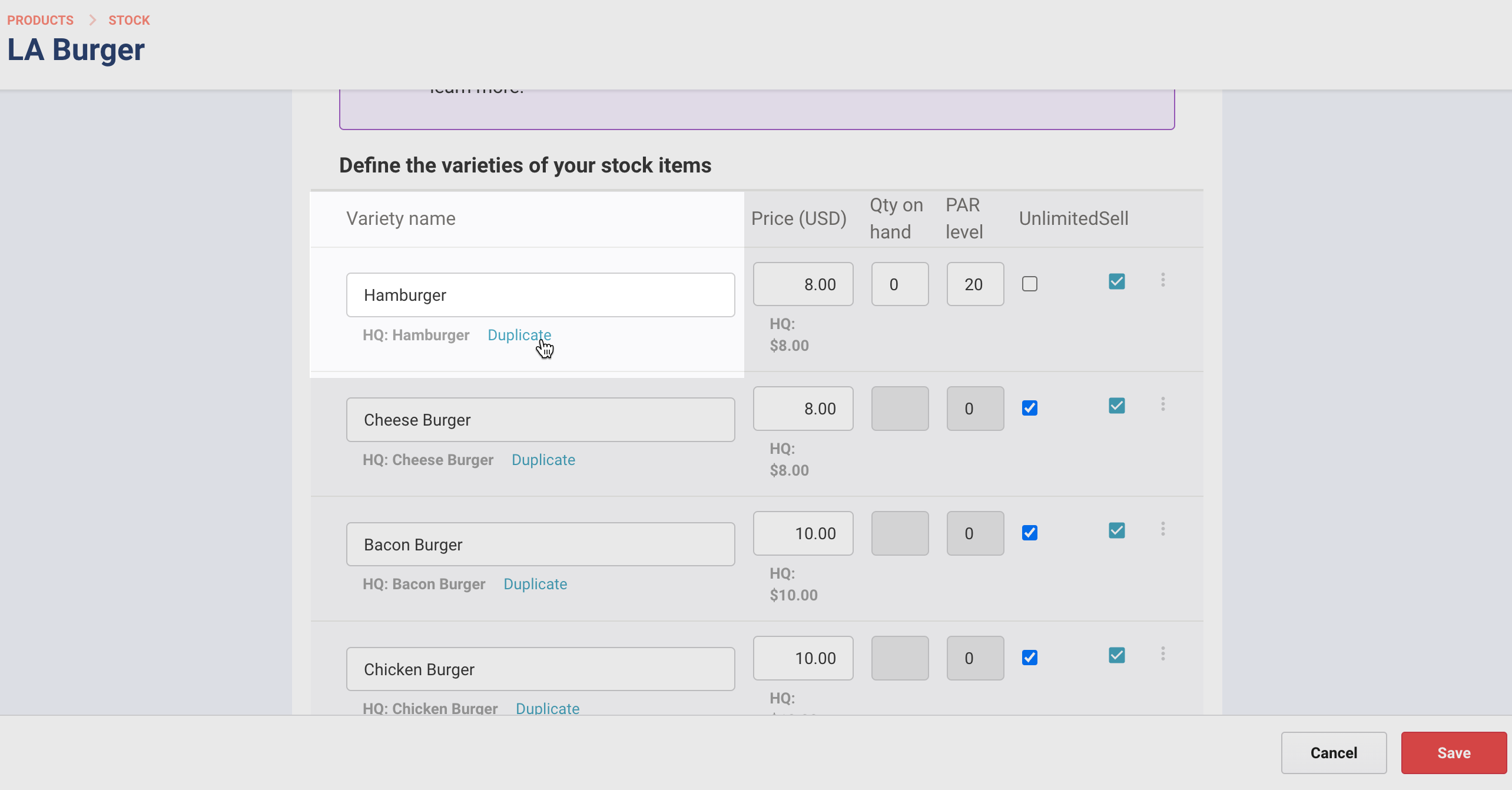
To duplicate a stock variation:
Go to Products > Stock.
Select a stock item.
Select Duplicate under an HQ variation.
Make changes.
Select Save.
Common scenarios
Add a new product to all venues
Create the HQ product.
Provide access to the product using venue tags.
Ensure each managed venue adds the product to their product list.
Add the product to the HQ POS template.
Select Save.
Update pricing for one region
Edit the HQ product and change the pricing.
Select Select Venues, then choose the venues in that region.
Select Publish now, or add the change to a collection to release it at a scheduled time.
The updated price appears on POS devices using the HQ template at those venues.
Other venues continue using their existing pricing.
Allow a venue to customize a stock item
Enable the Can edit stock variations permission (if needed).
The venue duplicates the HQ stock variation in the stock product setup.
The venue customizes the variation (eg name or price).
Select Save.
As long as the stock product is included in the template and added to the venue, the venue can create their own customized variations and they will appear in the template.
Troubleshooting
Product shows as “Product unavailable”
Confirm the product has been assigned to the correct venue tags.
Confirm the venue has added the product to their product list.
Price shown on POS is different from HQ
Open the HQ product in HQ.
Update the product pricing.
Select Select Venues and choose the correct managed venues.
Select Publish now, or add the change to a collection to release it at a scheduled time.
POS devices display the product configuration that exists in each venue.
Changes to the template are not appearing on a device
From Venue Manager, go to Apps > Point of Sale > Devices.
Confirm the device is linked to the correct HQ template.
If needed, use Apply template to re-link the device.
A device stopped syncing after editing
Reapply the template to the device.
Or manage menu changes from the template instead of the individual device.
FAQs
Common questions about HQ POS templates.
What happens if I haven't provided a managed venue access to an HQ product?
If an HQ product hasn’t been assigned to a venue using venue tags, it appears as Product unavailable in the template preview because the product is not available in that venue account.
Even if access has been provided, the product will not appear on POS until the venue adds it to their product list.
Once added, it appears automatically in menus on devices using that template.
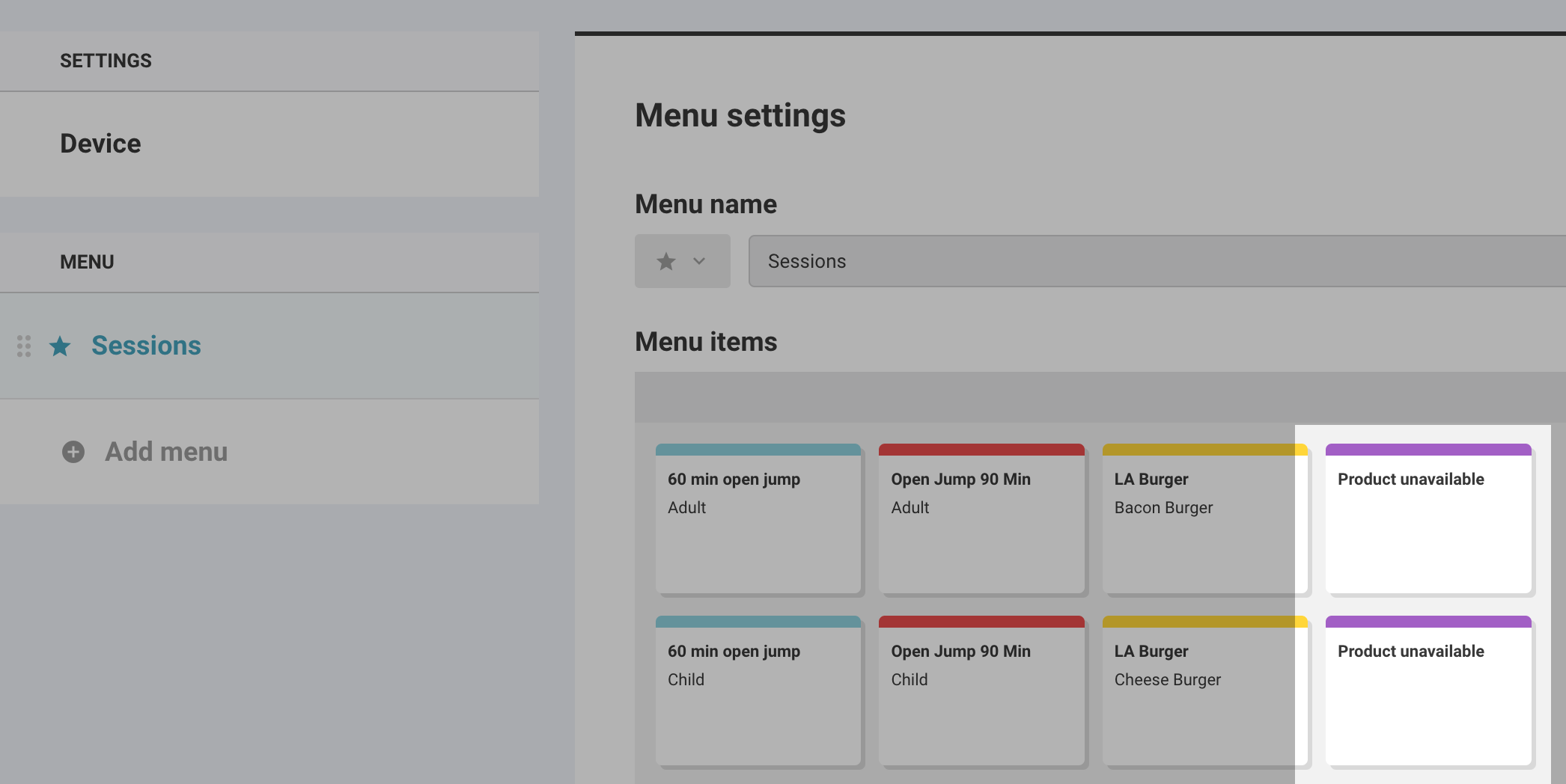
Why does a product I've shared with a venue appear as "Product unavailable" in the HQ template?
The venue has likely not added the HQ product to their product list.
Managed venues must add HQ products locally before they appear in POS menus. Once added, the product displays automatically in the template and on linked devices.
Can managed venues create and modify their own POS templates?
Yes — if the venue permission Can create templates is enabled.
If disabled, venues cannot create or edit templates but can still apply HQ POS templates to their devices.
Will editing an HQ product update the POS device menus at my venues that use HQ POS templates?
Yes.
Publishing a product change from HQ sends it to the venues you select. Once it publishes, the updated product details appear automatically in POS menus using the HQ template.
Does a controlled venue show the correct venue-specific price on POS?
Yes.
Each venue’s POS shows the price configured for that venue. If you publish a price change to a specific set of venues, only those venues see the new price.
HQ POS templates control menu structure and product visibility, not pricing.