Guest surveys in ROLLER are a powerful tool to collect, monitor and action guest feedback. The HQ experience enables multiple venue operators to monitor the experience their guests are receiving at scale. At a glance, you can:
View what guests feel about the experience they receive at your venues.
Compare the performance of your venues.
Monitor that negative guest experiences are actioned.
Track response times to action guest feedback.
Review individual venue performance and recent guest feedback.
HQ subscription
Available for all HQ venues. To get started, contact your customer success manager or the support team.
Review overall performance
From HQ Venue Manager, go to GX Score.
A list of all your venues appears for the selected date range.
A high-level summary for all your venues is presented including:
An aggregate GX Score rating ranging from -100 to 100.
Overall performance for each GX Score rating category (average stars per response).
The number of guest surveys sent and responses received via email, QR code or URL.
The survey response rate (%).
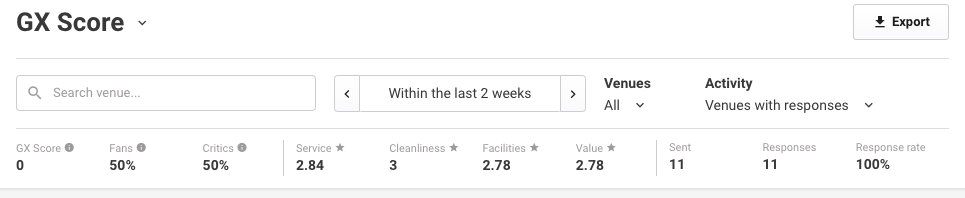
Filter and customize the list of results
Filter the list of results
You can use the filters at the top of the GX Score page to find venues that meet your desired criteria.
For example, you can:
Search for a specific venue.
Rank and compare GX Score results for a group of venues.
Identify venues that have not activated the GX Score.
Filter type | Description |
Date selector | View venues for responses sent or received on or between a specific date range. |
Search venue | Search for a specific venue to pull up its record. |
Venues | View results for a group of your venues by selecting one or more venues or a venue tag. |
Activity | Show only venues that received responses for a selected date range. |
Customize the list of results
You can sort, show and hide columns in the results list to identify more information about your venues. To sort, click a column title to order in ascending or descending order (eg the GX Score column).
Available columns include:
Venue | The name of the venue |
GX Score | The GX Score of the venue for the selected time period |
Service | The average service rating provided by guest responses for the selected time period |
Facility | The average facility rating provided by guest responses for the selected time period |
Cleanliness | The average safety and cleanliness rating provided by guest responses for the selected time period |
Value | The average value rating provided by guest responses for the selected time period |
Action req’d | This is the number of one-star responses received by the venue which have not yet been marked as actioned for the selected time period:
|
Avg. response time | This is the average time taken between receiving a critic’s one-star response and marking that response as actioned for the selected time period.
|
Survey sent | The number of guest surveys sent to guests by email or accessed by guests by QR Code or URL for the selected time period |
Responses | The number of guest surveys received by guests for the selected time period |
Response rate | The rate at which sent guest surveys are responded to (survey sent divided by responses) |
Sending status | Sending status outlines the sending and subscription status of the venue:
|
Right-click the list of venues to quickly add or hide columns from the venue list.
Investigate individual venues
You can also get more detailed insights into individual venues by reviewing recent GX Score responses and comments and tracking how many responses have been received this month.
To review individual venues:
From HQ Venue Manager, go to GX Score.
Use the filters to refine your search and identify a venue to investigate further.
Click the options menu (3 dots) for the relevant venue and choose from the following menu options:
View | Opens a venue panel showing an overview for the venue, including responses received and recent comments from guests |
Go to venue | You will be logged out of the Venue Manager window for the current HQ venue and taken to the Venue Manager for the selected venue. You will only see this option if you have permission to access the related venue. |
Activate GX Score | You will be logged out of Venue Manager for the current HQ Venue and taken to the GX Score settings page for the selected venue. Here, you can activate the GX Score for the venue. You will only see this option if you have permission to access the related venue. |
Export your data
To further analyze and investigate your data, you can export it:
From HQ Venue Manager, go to GX Score.
Use the filters to refine your search and identify the venues you would like to export.
Click the Export button to generate a downloadable copy of your data.
You’ll be notified when your export is ready to be downloaded.