Membership cards provide a seamless check-in experience when redeeming memberships at POS. By scanning the QR code, ROLLER assigns the member as the booking holder and automatically applies relevant discounts.
Follow the guide below to print membership cards at POS.
Print membership cards at POS
From POS, go to Search.
Select the Members tab in the top navigation bar.
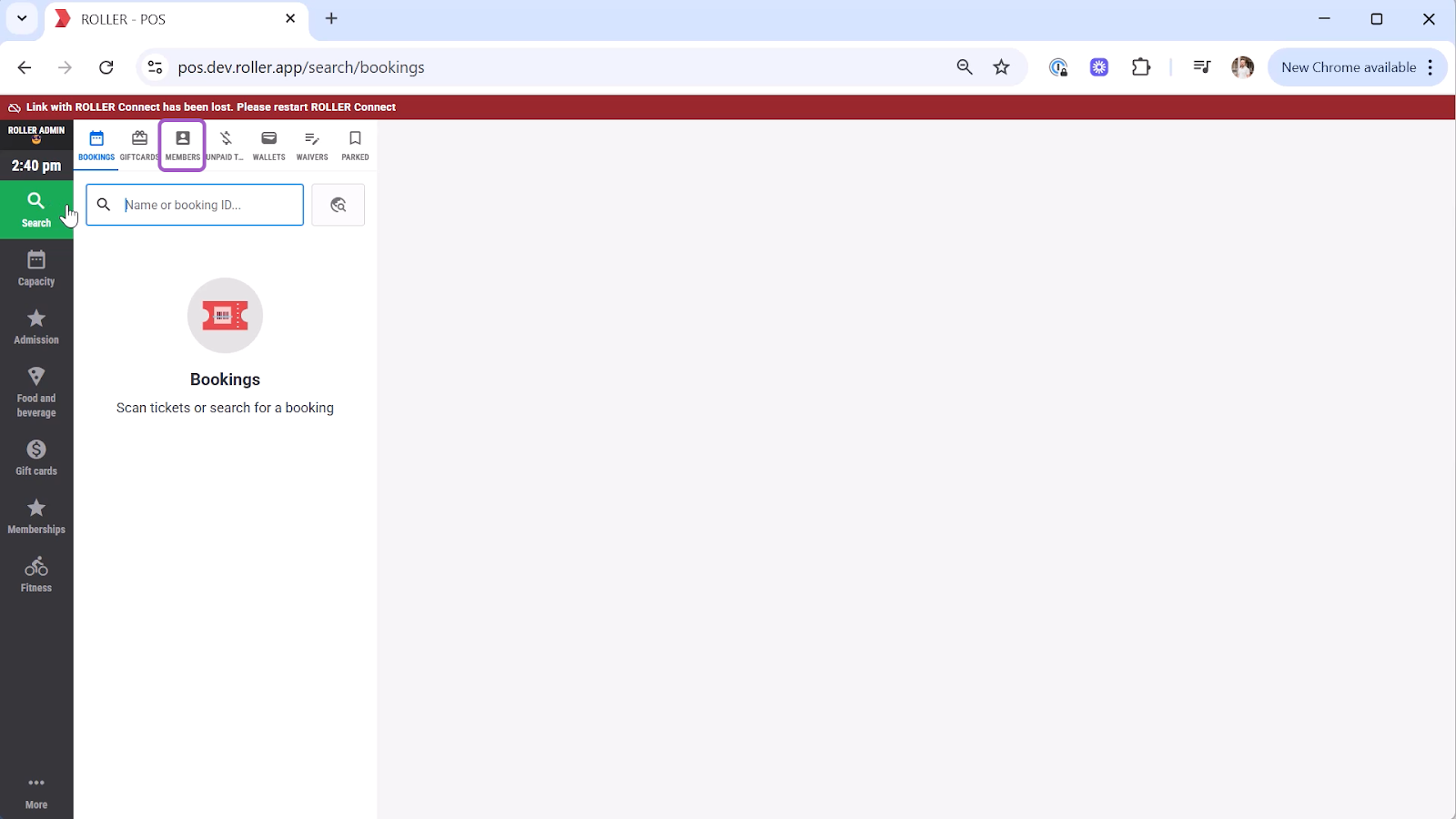
In the search bar, enter one of the following:
Member’s name
Membership ID
Name of the person who purchased the membership
Select the membership from the search results.
Select the Guest tab.
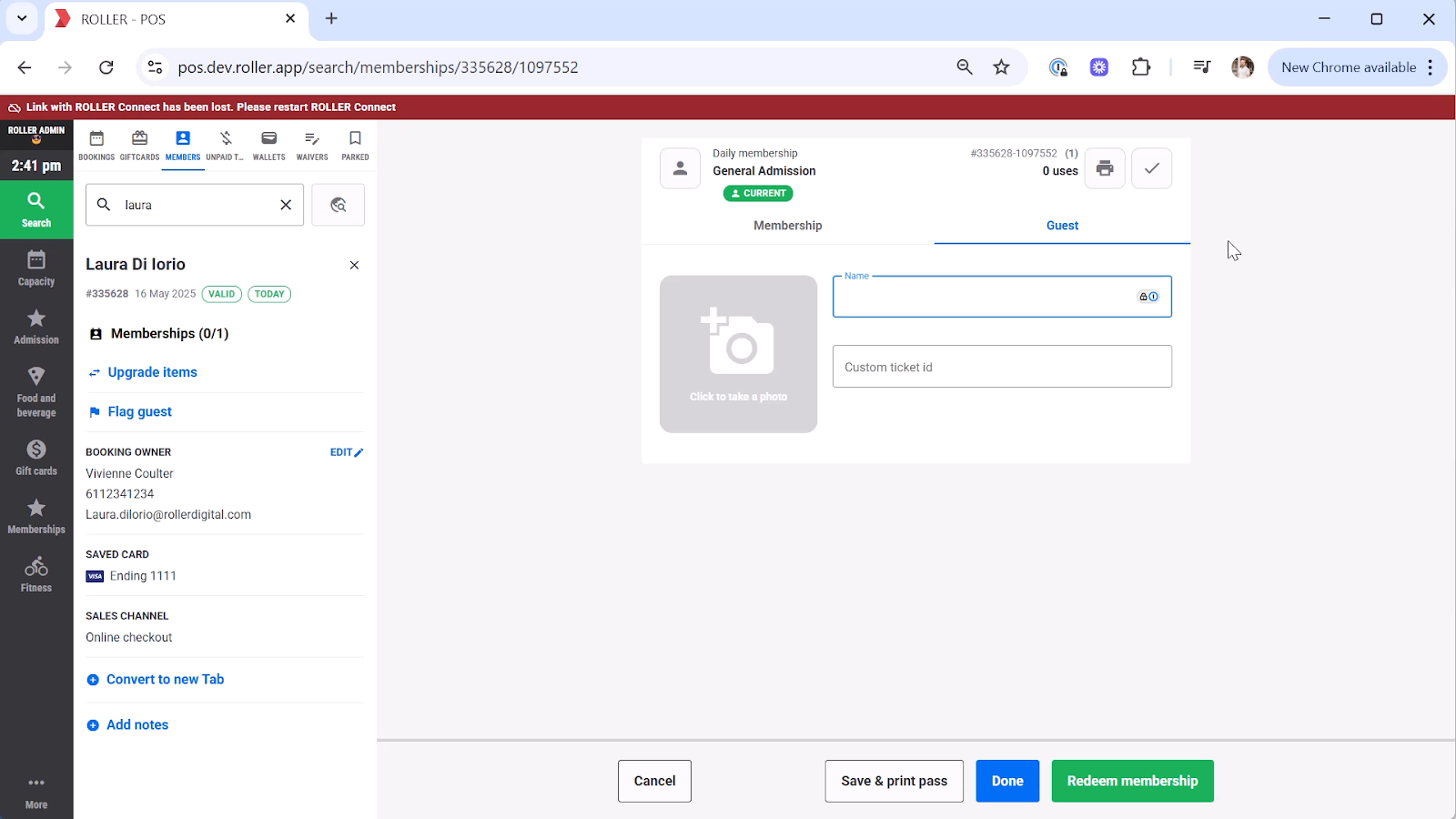
Make sure these fields are complete:
Name
Custom ticket ID
Photo
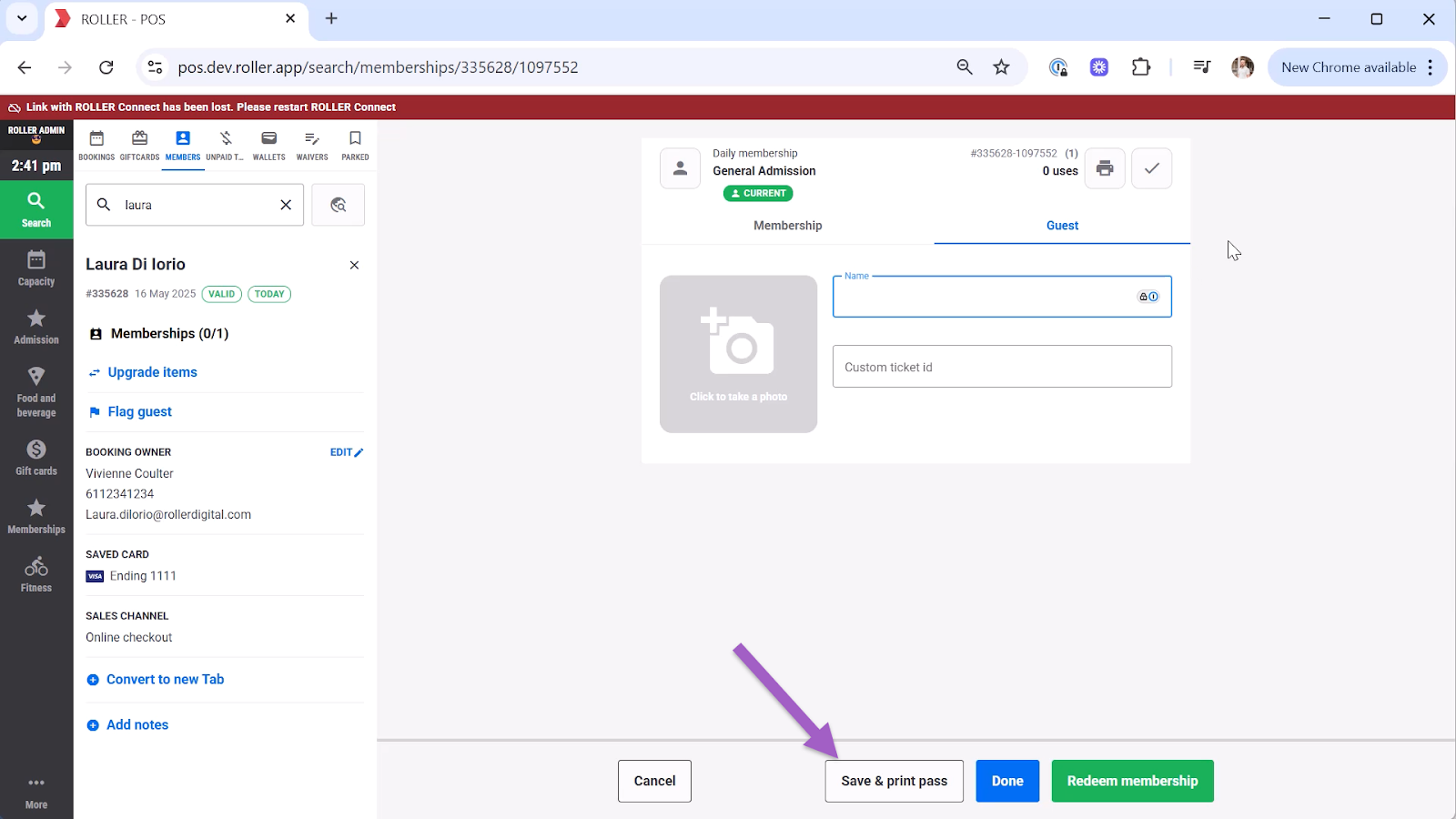
Select Save & print pass.
Select Print.