Print session stickers from ROLLER POS so your front-of-house staff can identify guests, sessions and age categories at a glance. This guide covers the hardware you need, what prints on a sticker, the template's fixed limits and how to add your own branding.
Sticker printing requires the ROLLER Connect for printing app. If your venue uses cloud printing, you can run ROLLER Connect alongside it just for sticker printing.
What you need
Requirement | Detail |
|---|---|
Operating system | A supported Windows device. See Minimum hardware and operating requirements for ROLLER. |
Sticker printer | Boca Lemur S, or Zebra ZD410. Other models may work but aren't supported. |
Printer setup | Drivers installed on the POS computer, and a successful Windows test page. |
ROLLER Connect | Installed and running on the POS computer. |
Sticker media | Loaded in the printer and sized to suit the template. See Sticker template size and media below. |
Each POS device links to one sticker printer, set up as an alternate ticket printer in POS under More > Settings > Hardware.
The ROLLER template: what prints on a sticker ticket
Supported products: session passes and party packages.
Not supported: standard passes and annual passes.
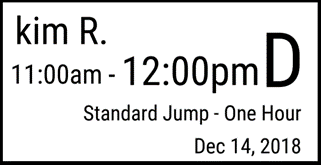
Each sticker shows:
Waiver name (the guest's name)
Product name (not the ticket type name)
Session date
Session start and end time
The guest's age category, calculated from the date of birth on the waiver
Age categories
The letter printed on the sticker refers to the guest's age category.
Letter | Age range |
|---|---|
A | 0 to 4 |
B | 5 to 10 |
C | 11 to 15 |
D | 16 and over |
Sticker template size and media
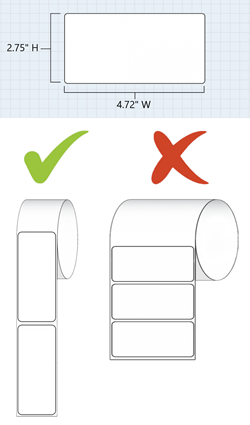
The sticker template is a fixed size of 12 cm x 7 cm (120 mm x 70 mm). You can't resize or rotate it.
When choosing sticker media:
Media slightly larger than the ROLLER template is fine. The extra area prints blank.
Media smaller than the template will cut off parts of the sticker.
The template can't be rotated, so the media has to feed through the printer in the direction that fits the template.
Media size and orientation are set in the Windows print driver, and the correct values depend on your printer model. Follow the setup guide for your printer, then run a test print and check the alignment before you turn sticker printing on for any products.
Add your branding with custom sticker rolls
You can't change what ROLLER prints on the sticker (the template), but you can print onto pre-branded sticker rolls to add your logo, colors or messaging.
When designing your rolls, keep logos and text clear of the areas where the template prints, so both stay readable.
Turn on sticker printing for a product
From Venue Manager:
Go to Products > All products.
Select the session pass or party package you want to print stickers for.
Scroll to Additional options > Alternative printer.
Select This product uses alternate ticket printer, then select Save.
Repeat for each product you want to print stickers for.
Important: Don't turn this on for standard passes. ROLLER Connect stops working if it's asked to print a sticker for a standard pass.
FAQs
Can I change what's printed on the sticker?
No. The template is fixed, and nothing can be added, removed or adjusted.
Can I print stickers for only some products?
Yes. Sticker printing is set per product, so you can turn it on for as few or as many products as you like. You can't turn it on or off for individual ticket types within the same product.
Can I connect several POS computers to the same sticker printer?
Yes, as long as your printer supports shared connections. Each POS device links to one sticker printer, so devices can share a printer or each have their own.
Can I connect one POS computer to several sticker printers?
No. Each POS device prints to one sticker printer only. If you need tickets going to different printers based on session time, wristband printing may suit your venue better.