Documentation Index

Fetch the complete documentation index at: https://mysupport.roller.software/llms.txt

Use this file to discover all available pages before exploring further.

Create an early bird price rule

Prev Next

Early bird price rules automatically adjust ticket prices based on how far in advance a guest books. They’re a proven way to reward early commitment, build hype and secure bookings ahead of time — so you can lock in revenue earlier and plan with more confidence.

Prices update automatically across checkout, POS and Venue Manager.

Why use early bird price rules

Use early bird rules when you want to:

Goal

Venue example

How to use it

Encourage earlier bookings

Seasonal festival

Offer “Book 7+ days early and save 15%” to smooth pre-opening demand

Protect margins while driving advance sales

Waterpark or theme park

Add multiple lead-time tiers (eg 30+ days and 7–29 days) to manage pricing by booking window

Simplify group bookings

School trips or corporate events

Give groups a clear advance-purchase incentive, such as 10 percent off when booking 14+ days ahead, so you can lock in numbers and plan for group bookings earlier

Pull demand forward for busy periods

Day attractions or experiences

Use lead-time tiers (eg 30+ days –10%, 7–29 days –5%, 0–6 days standard)

How early bird pricing works

Early bird rules use lead-time tiers — price bands based on how far in advance guests book. ROLLER automatically applies the correct tier once the rule is linked to a product.

Ticket type

30+ days

7–29 days

0–6 days

Adult

$25

$27

$30

Child

$18

$20

$22

If the date of the booking (visit date) is updated later, either by the guest through online accounts or by staff in Venue Manager or at POS, the early bird price stays locked to the original booking date.

Check compatibility before you start

Supported product and ticket types:

  • Session passes, standard passes and party packages ).

    • For party packages, price tiers apply to party tickets only. Inclusion prices (food, drinks, merch) stay the same across all tiers.

  • Standard admission tickets (eg Adult, Child).

  • Group ticket variations (eg "Family of 4," "Group of 10"). This allows you to fine-tune group pricing and reward guests who book ahead.

Not currently supported with:

  • Packages (package pricing overrides price rules)

  • Discounted consecutive sessions

  • Legacy checkout and self-serve kiosks

Step 1: Create an early bird rule

Define your lead-time tiers, meaning how far in advance a booking must be made to qualify for a lower price.

  1. From Venue Manager, go to Products > Price rules.

  2. Select Early bird pricing.

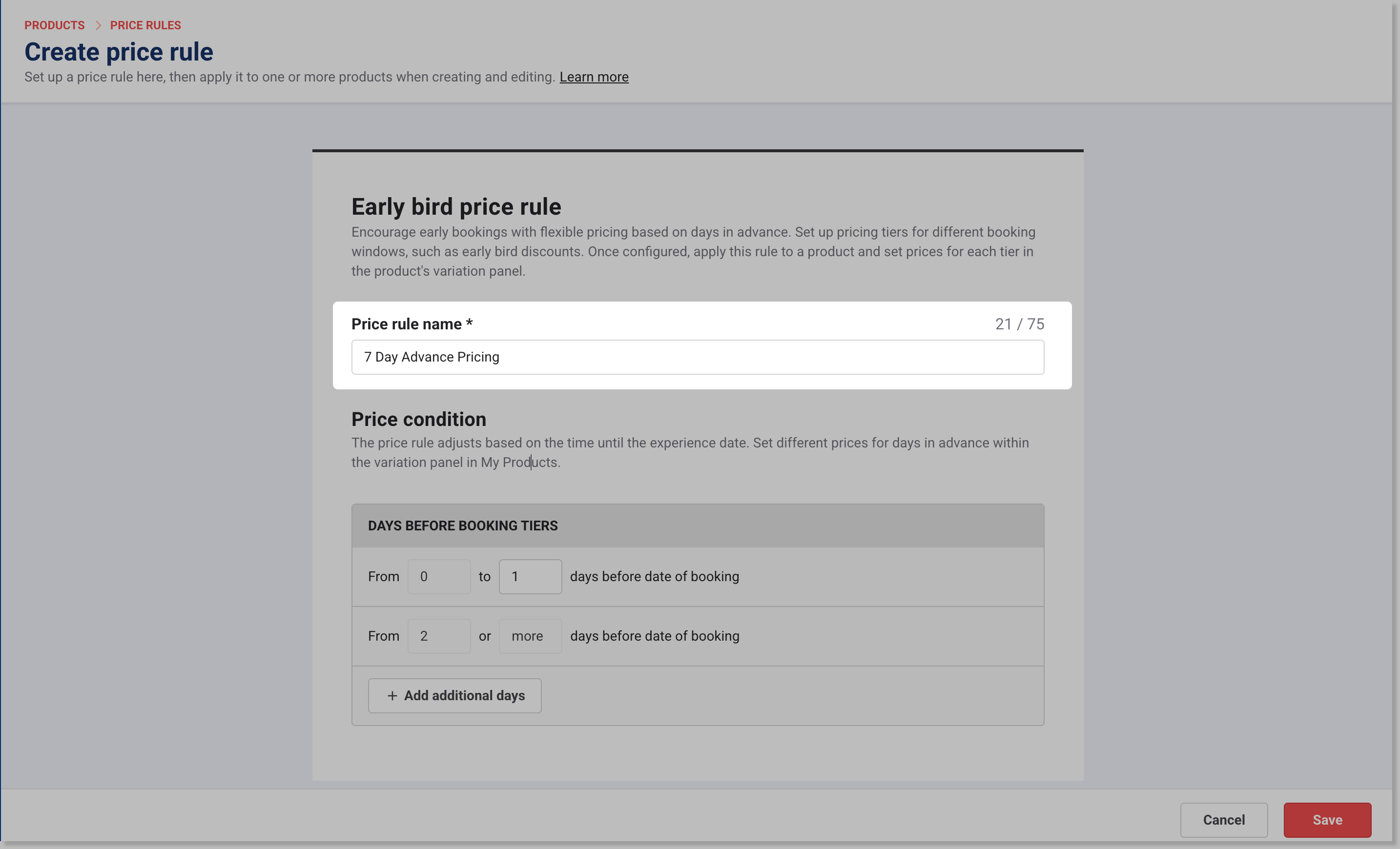
  3. Give the rule a name (eg “7 Day Advance Pricing”).

  4. Set the Days before booking tier(s) to trigger the early bird price. For example: 

    • 0 to 6 days before the date of the booking (for standard ticket pricing)

    • 7 or more days before the date of the booking (for early bird ticket pricing)
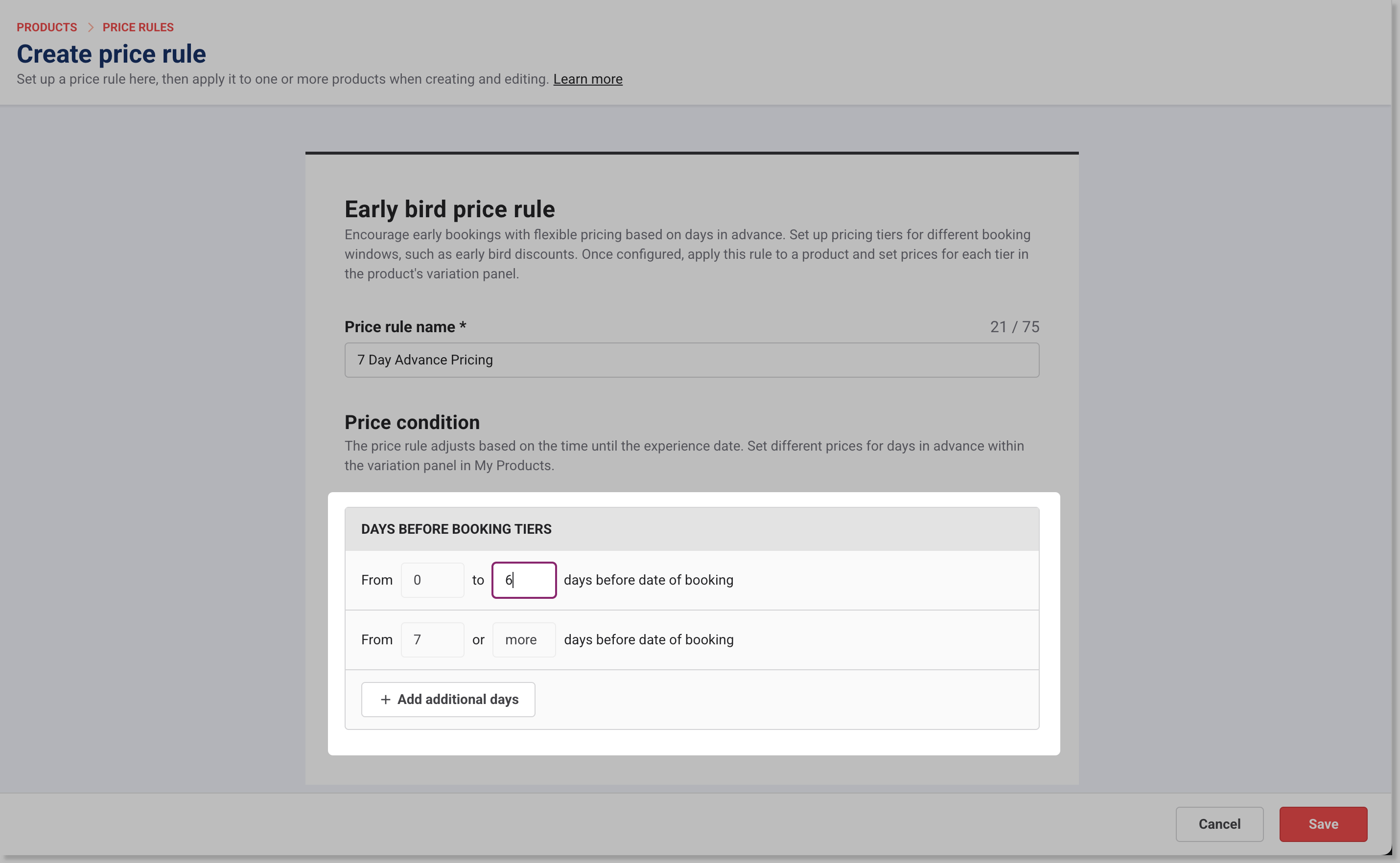
  5. Select Save. Your rule is now ready to apply to products.

Step 2: Apply the rule to products and set prices

  1. Go to Products > All products.

  2. Select a product (eg “Holiday Festival Admission”).

  3. Scroll to Session pass detailsStandard pass details or Price rule, depending on the product type.

  4. Choose your early bird rule from the Price rule drop-down.

  5. In the variations table, enter the price for each ticket variation (eg Adult, Child or Family of 4) per tier.

  6. (Recommended) Turn on Highlight early bird pricing on checkout (toggle under the variations table) to prompt guests to check the calendar for future dates and save by booking in advance (currently applies to session passes only).

  7. Save the rule.

Highlight early bird pricing on checkout

Turn on Highlight early bird pricing on checkout to help guests spot value and choose lower-priced future days. You can enable this in the session pass product settings (see above for how).

When this feature is on, the checkout displays an estimated savings message for eligible sessions when there is a cheaper future date available. This helps guests choose better-value future days, so more sessions fill ahead of time. This feature currently applies to session pass products only.

How it works

  • ROLLER compares the price for the selected date with the cheapest available future ticket.

  • The difference displays as an estimated savings percentage (eg Saturday $19 vs Saturday next week $16 = save up to 15%).

  • The message disappears once guests choose the lowest-priced future day, because there’s no cheaper option left to compare.

  • When guests choose View dates, cheaper future sessions are highlighted automatically.

This feature incentivizes guests to book a day further in advance, giving you more lead time and filling more sessions ahead of time.

How prices display

  • The comparison and the prices shown on session time buttons and in the calendar use the price for that day from the first ticket variation listed in product variations (eg Adult), even if another variation is cheaper (eg Child).

  • When Highlight early bird pricing on checkout is enabled, remaining ticket/resource counts on session time buttons (when enabled in checkout options) are replaced by the price of the first listed ticket variation for that day, rounded up to the nearest dollar.

  • The checkout homepage and product previews display the minimum ticket price across all ticket variations and tiers (eg From $12.95) for both product-led and date-led checkouts (when enabled in checkout setup options).

Test and refine your price rule

Preview your rule

  • From the online checkout, make a test booking to confirm the early bird price appears when booked far enough in advance.

  • From POS and Venue Manager, create a test booking to check the correct price applies automatically.

Review and adjust

  • Set meaningful discounts (eg 15–30% off to motivate changes).

  • Communicate the deadlines clearly (eg “Early bird ends May 31 — book now to save.”)

  • Skip sessions or dates that already sell out at full price

  • Offer flexibility (eg rebooking without losing the discount)

Manage early bird price rules

Manage early bird rules as your advance-sales strategy evolves. Before peak periods or campaigns, review your lead-time windows (eg 30+, 7–29, 0–6 days) and discount levels. Pause the rule on products/dates that reliably sell out at full price.

  1. To view all price rules and linked products, go to ProductsPrice rules > All rules.

  2. A table lists every product using each rule, so you can easily confirm where it’s applied and review your price rules on a regular basis.

  3. Select an early bird price rule to view or edit it.

image.png

Rename a rule

Rename anytime to clarify purpose (eg Day Pass Early Bird 7+ days).

Edit or delete tiers

Early bird tiers are based on Days before visit. To change tier boundaries or add/remove tiers, the rule must not be applied to any products.

To make changes:

  1. Remove the rule from all products (switch those products back to Fixed price).

  2. Return to ProductsPrice rules > All rules to view and edit the specific rule or delete it.

Update prices and dates

Adjust prices per lead-time tier in the product’s variations table (includes group ticket variations, which early bird supports).

  • Changes affect new bookings only; existing bookings keep original prices.

  • Early bird pricing is locked to the original booking date. If a booking is edited later (by staff or guests in online accounts), the early bird rate remains.

FAQs

Can I apply one time-based rule to multiple products?

Yes. A single rule can be reused across multiple products.

What happens if a guest reschedules their booking?

The early bird price is locked to the original booking date pricing. Staff or guests can edit the booking later without changing the rate.

Can I edit prices after a rule is applied?

Yes. Prices per tier can be edited in each product variation pricing table. Changes only affect new bookings. To delete a rule, you’ll first need to remove it from all products using it.

Learn more