Venues operating in Germany must meet fiscal compliance requirements to ensure every sale is securely recorded, digitally signed and available for audit by the tax authority.
This guide explains how ROLLER supports compliance through its integration with Fiskaly, setup steps required to register and manage POS systems correctly and other recommended configurations for German venues.
ROLLER is responsible for:
Accurately recording a venue’s financial transactions and tax associated with those transactions in the platform.
Providing reports and exports standard formats that venues can use for use in financial accounting and share with their Steuerberater.
Providing a POS platform designed to support German fiscal requirements including an integration with Fiskaly.
Assisting with onboarding and enabling the Fiskaly integration for the venue
A venue and their tax advisor's role:
Ensuring that the venue meets all fiscal compliance obligations.
Registering and deregistering each POS system with the Finanzamt.
Completing recommended configuration tasks
Recommended configuration for German venues
This guide contains information and recommended setup tasks for German venues using ROLLER.
About the ROLLER + Fiskaly integration for KassenSichV compliance.
Add transaction and cancellation columns to Till Reconciliation report.
ROLLER + Fiskaly: KassenSichV compliance
The ROLLER fiskaly integration is compliant with legal requirements in Germany.
The German KassenSichV regulation requires all point-of-sale devices processing sales to have an officially certified technical security system (TSS) that records and digitally signs all transactions and tax information for auditing purposes.
To make sure our German venues are compliant with the regulation, ROLLER has integrated with fiskaly to provide a simple, safe and officially certified cloud solution without the need for hardware devices.
About the fiskaly integration
A TSS must be officially certified to meet the legal requirements of KassenSichV in Germany.
Fiskaly have obtained the necessary certifications with their Cloud-TSS V2 solution. Learn more about fiskaly and its certification.
Benefits of a KassenSichV-TSS cloud solution
Software updates are automatic and invisible.
You always have semi-live access to your transaction and tax data via your fiskaly account dashboard.
Performance is monitored by fiskaly.
Get started with the Fiskaly integration
When your venue moves to ROLLER, the team will ensure that the Fiskaly integration is enabled as part of the onboarding process.
If you’re running a venue in Germany, and you’re not currently using ROLLER's fiskaly integration, reach out to your customer success manager or the support team.
Registration requirements for POS systems
The POS registration requirement applies to each POS terminal (hardware) or POS software instance used in a German venue. This includes every ROLLER POS device (eg. tablets or terminals) that process transactions.
While ROLLER cannot register POS devices for venues (this must be done by the venue) the below table provides guidance for where to find the necessary data to complete this process in ELSTER (or via manual form submission) to the Finanzamt.
Every POS system must be registered with the Finanzamt within 4 weeks of being put into use. If a POS system is replaced or deactivated, it must also be deregistered within 4 weeks.
Note: Venues should consult their tax advisor to ensure they have the correct information before they submit information to the Finanzamt.
Field | Description |
|---|---|
Manufacturer | The manufacturer of the POS device (eg. Dell). Can be found in System Information on Windows. |
Type of system | Type of cash register system (eg. PC, tablet). |
Make / model | The make / model of the POS device (eg. Dell 5540). Can be found in System Information on Windows. |
Unique Serial number for the system | From the POS device hardware e.g. XYC123. Can be found on the bottom of a laptop or CPU on a desktop. |
Number of systems in use | Indicate the number of systems in use. |
Date of purchase | Indicate the date the system was purchased. Found in your records. If the device is leased, indicate the contract start date. |
Date of first use | Indicate the date the system was first used. |
TSE manufacturer or TSE provider | Fiskaly and ROLLER. |
TSE serial number | The TSE serial number can be found on a receipt printed from POS. |
Software version of the TSE | Software version shown on your Fiskaly dashboard. For help with Fiskaly contact Fiskaly support. |
Cloud-based TSE (yes/no) | Yes. |
Assigned business address | Indicate the address of the company. |
Business location | Business location where the POS system is being used. |
Name of the reporting company | Indicate the company name. |
Company tax number | Indicate your company tax number. |
BSI certificate ID | Indicate the BSI certificate version. To find this, see the article: SUBMIT DE or for more help with this contact Fiskaly support. |
Changes | Indicate whether this submission is a registration, modification or de-registration for the system. |
POS receipt settings to enable for German Venues
Updates have been made to POS receipts to support Fiskaly compliance for German venues. These enhancements only apply to German venues and are available when the Fiskaly integration is enabled. Follow the steps in the guide to configure these settings.
What’s new for German venues:
POS receipts now have enhanced German language support for the VAT field labels (has been renamed to MWSt).
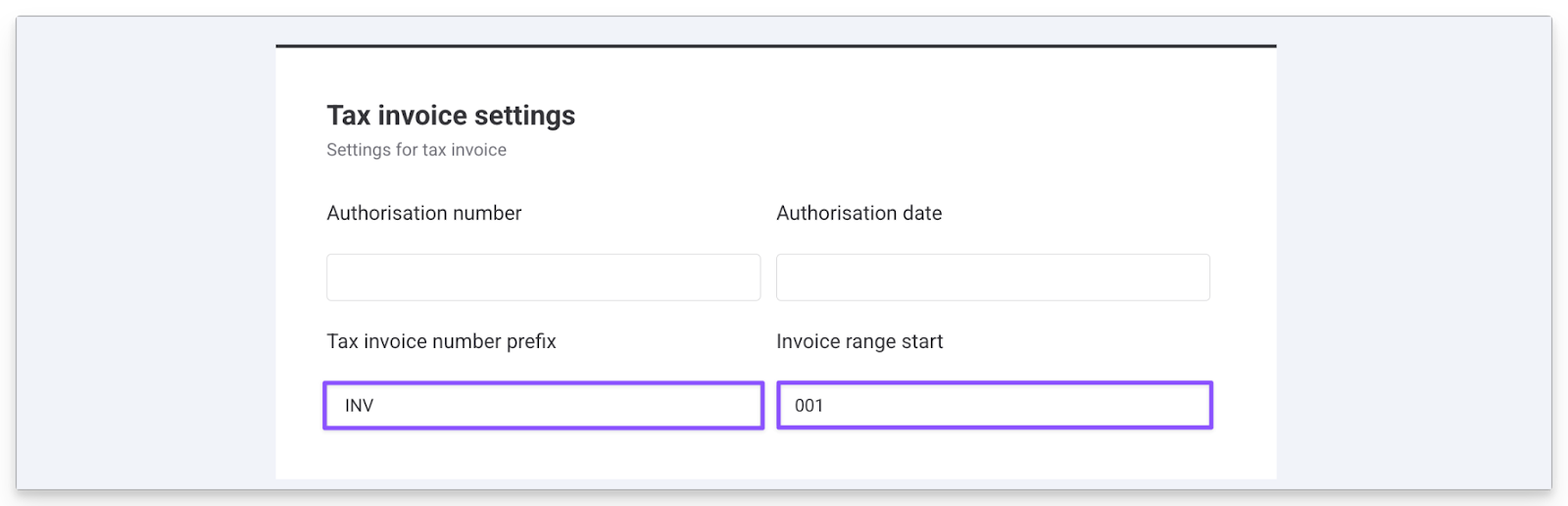
Unique sequential numbering can be set up to display on receipts across all devices in a venue. Venues can customize the prefix and set the start point for numbering.
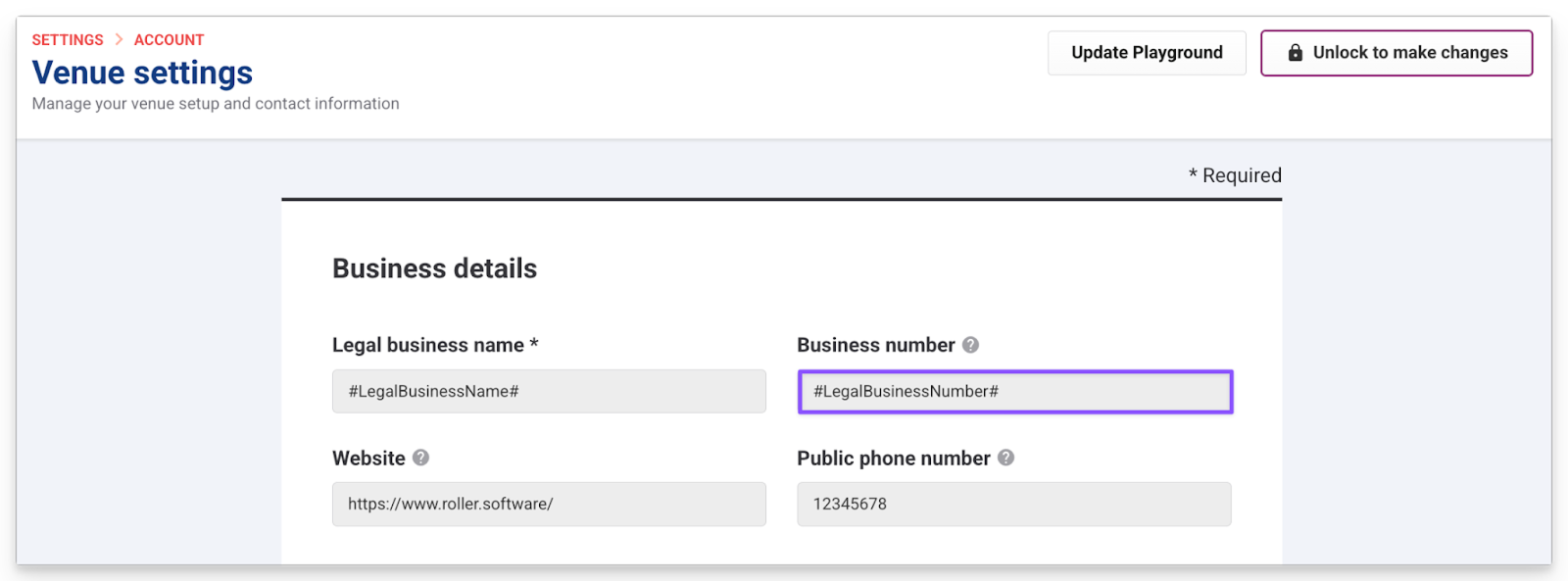
Venues can set their business number to display on the document.
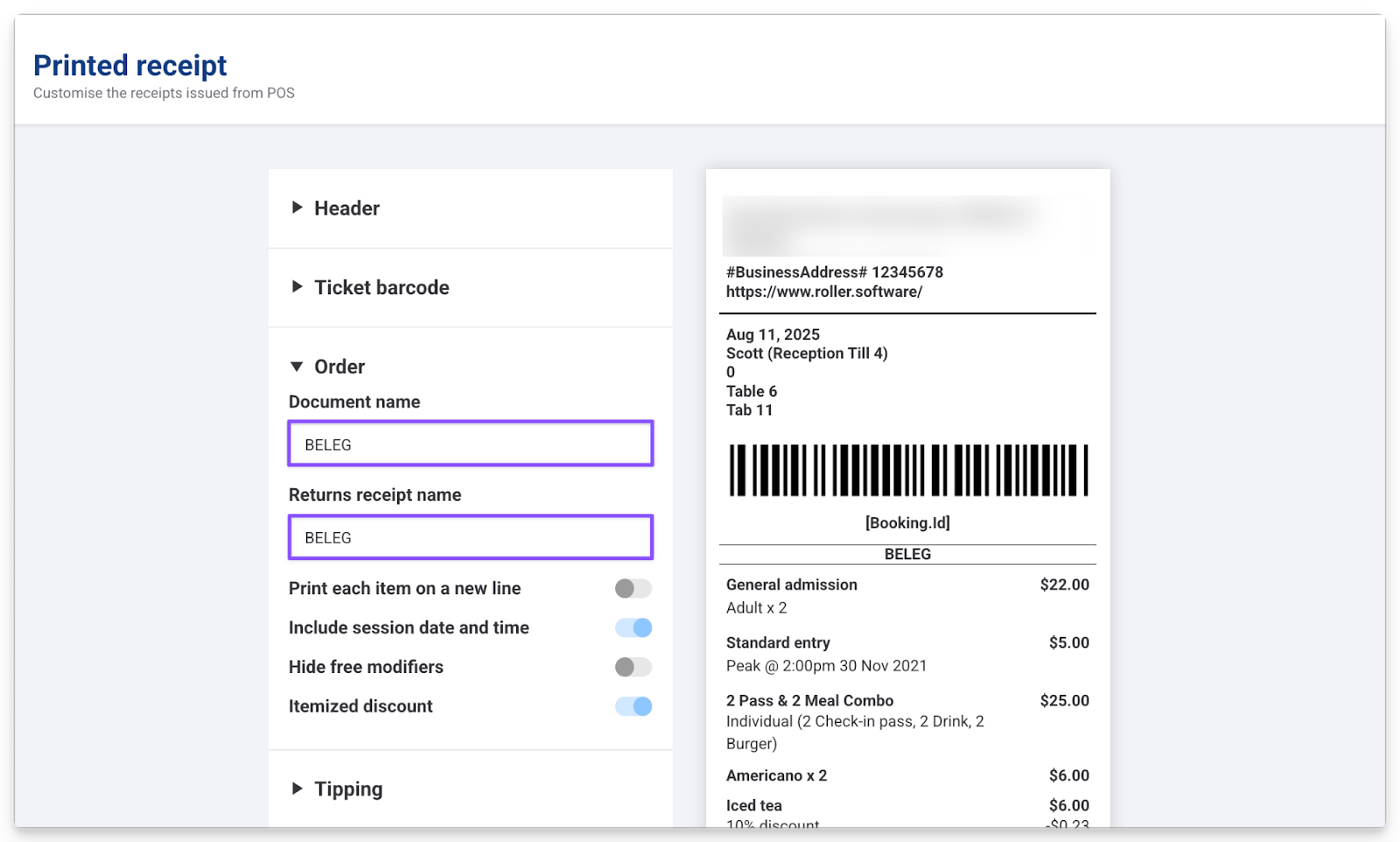
Venues can set the label of the receipt to Beleg.
To ensure the business number is ready to display
Confirm the business number is correct:
From Venue Manager, go to Account > Venue Settings and the heading Business details to ensure that the venue Business number field has the correct number.
Update if necessary and select Save.
If there is a value in this field, then it will now show on the POS receipt.
Enable sequential numbering
Set the start point for sequential numbering, from Venue Manager:
Now, go to Account > Tax and fees.
Scroll down to Tax invoice settings and enter a prefix in the Tax invoice number prefix.
To set where the sequential numbering begins from, add a value in the Invoice range start field.
Select Save.
Update the receipt document name to BELEG:
Rename the POS receipt document name to BELEG. From Venue Manager:
Go to Settings > Design > Receipt templates.
For Printed receipt, select the options (3 dots) on the left and select Edit template.
Select the Order toggle.
Enter BELEG in both the Document Name field and the Returns Receipt name.
Select Save.
Add transaction and cancellation columns to the Till Reconciliation report
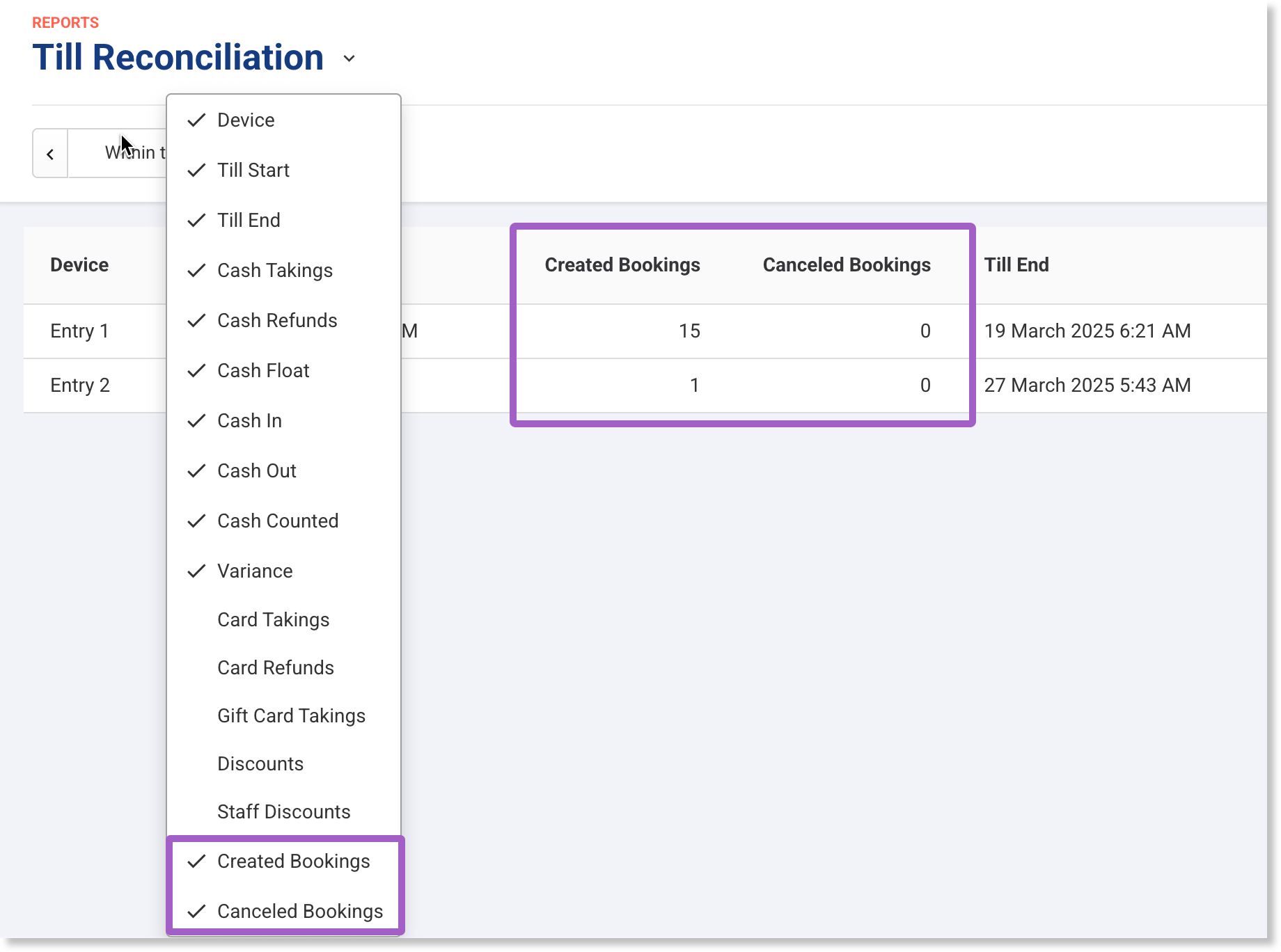
The Till reconciliation report in Venue Manager can be set up to provide transaction and cancellation counts, a key part of Z-Bon (end-of-day) reporting. These new fields appear to add to the report when the Fiskaly integration is enabled for German venues
When Fiskaly is enabled this extends access to historical data beyond the usual 7-day POS summary printout.
Follow the instructions below to add these columns to the report in Venue Manager:
To access the report, from Venue Manager, go to Reports > Till Reconciliation.
To add the new columns to the report, right-click the table and select Created Bookings and Canceled Bookings.
Save the report as a new view so the table always loads with the new columns. Select Save new view from the drop-down arrow next to the report title, then set it as the default view.
FAQs:
Is there anything I need to do to have the fiskaly integration enabled in ROLLER?
If your venue is based in Germany, and you're not using the fiskaly integration, reach out to the support team or your customer success manager to enable it for you. Any updates we make to the integration are then automatically included once this is enabled.
What is ROLLER doing to stay compliant?
We’re making a series of updates to ROLLER to ensure German venues are compliant.
Updates that have already been made are:
In March 2025, updates were made to the Till Reconciliation report in Venue Manager. This now includes transaction and cancelation counts – a key part of the Z-Bon report required for end-of-day tax reporting. Learn how to add the new columns for Created Bookings and Canceled Bookings to the report.
In May 2025, updates were made to the Till closure report in POS, making it fiscally compliant for German venues. Fields in this report have been added or updated with enhanced German language support to make the Till closure report compliant with Z-Bon reporting requirements (eg time updated to 24 hour format). Learn how to print this report after closing tills from POS.
In July 2025, updates were made to POS receipts, supporting fiscal compliance for German venues. German language enhancements have been added (eg. VAT label has been renamed to MWSt). Support for sequential numbering, showing tax ID and configuring the document name to ‘Beleg’ has also been added. Set up is required to enable these features. Learn how to set this up here.
In August 2025, updates were made to POS refund receipts. POS receipts for refunds have been updated to show a negative value next to the line item. If the venue has the tax breakdown switched on, then the items in the tax table will also show negative values.
This list will be updated as enhancements are rolled out for fiskaly enabled venues.
Is ROLLER responsible for ensuring POS devices are registered?
It’s the responsibility of the venue to ensure POS devices are registered with the German tax authority. However, ROLLER and Fiskaly support this process by providing some of the necessary inputs. See the guide for information that you’ll likely need for your submission.
When do I need to register a POS device?
Every POS system must be registered with the Finanzamt within 4 weeks of being put into use.
If a POS system is replaced or deactivated, it must also be deregistered within 4 weeks.
Do I need to register every POS device?
Yes. Each POS terminal (hardware or software instance) that processes sales in Germany must be registered separately.
Does ROLLER automatically register POS devices?
No. Registration must be completed by the venue operator via ELSTER or manual submission. ROLLER and Fiskaly provide the necessary details to make registration easier.
What happens if my POS device is replaced or removed from the venue?
It must be deregistered with the Finanzamt within 4 weeks.
Does ROLLER integrate with DATEV for accounting?
ROLLER does not integrate directly with DATEV systems and does not push data to DATEV. ROLLER provides exportable financial data that venues and their tax advisors can use in DATEV-based accounting workflows. Learn more in the guide Using ROLLER data with DATEV for German venues (coming soon).