When a guest, business or reseller pays you by bank transfer or check, record the payment on their booking in Venue Manager. ROLLER doesn't detect bank transfers or checks on its own. Until you record the payment, the booking shows an amount owing. Recording it clears the balance and puts the payment in your reports, so your books match what's in the bank.
This guide shows you how to record a payment on a booking, mark an invoice as paid, mark off reseller bookings on account, take a check payment at POS, fix a payment recorded by mistake and find these payments in your reports.
Record a payment on a booking
Use Take payment for a bank transfer or check payment that isn't paying an invoice you sent from ROLLER.
Choose the method the guest actually paid with. Your reports and accounting exports total each method separately. For example, a bank transfer recorded as Cash makes your cash total higher than the cash you actually took.
From Venue Manager, search for the booking by the guest's name or booking ID and open it.
Select Take payment.
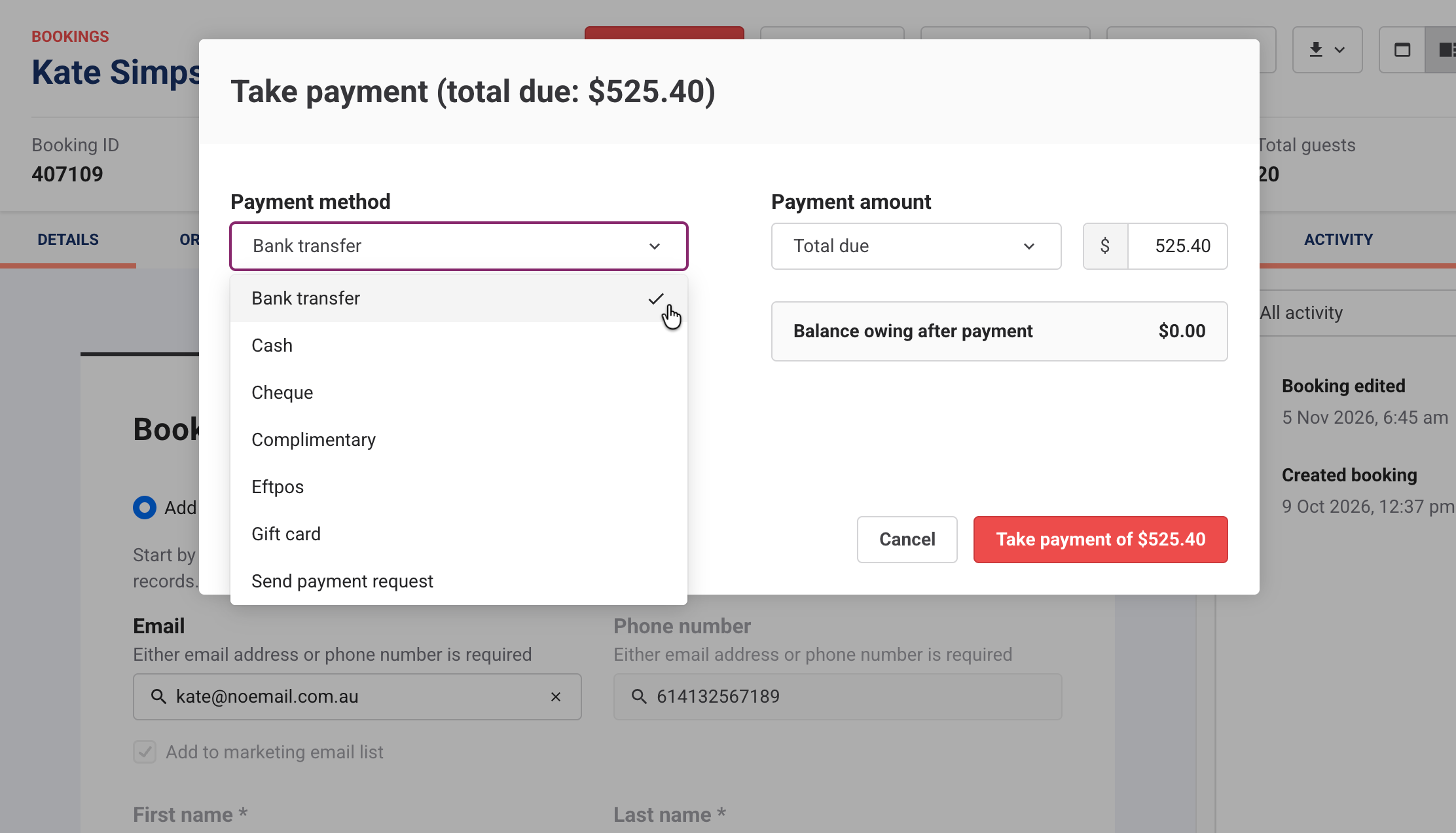
In Payment method, choose Bank transfer or Check.
In Comment, add the bank reference or check number. Your finance team can use it to match the payment later.
In Payment amount, keep Total due if they paid the full balance. If they paid part of it, change the amount. Balance owing after payment shows what's left.
Select Take payment of [amount].
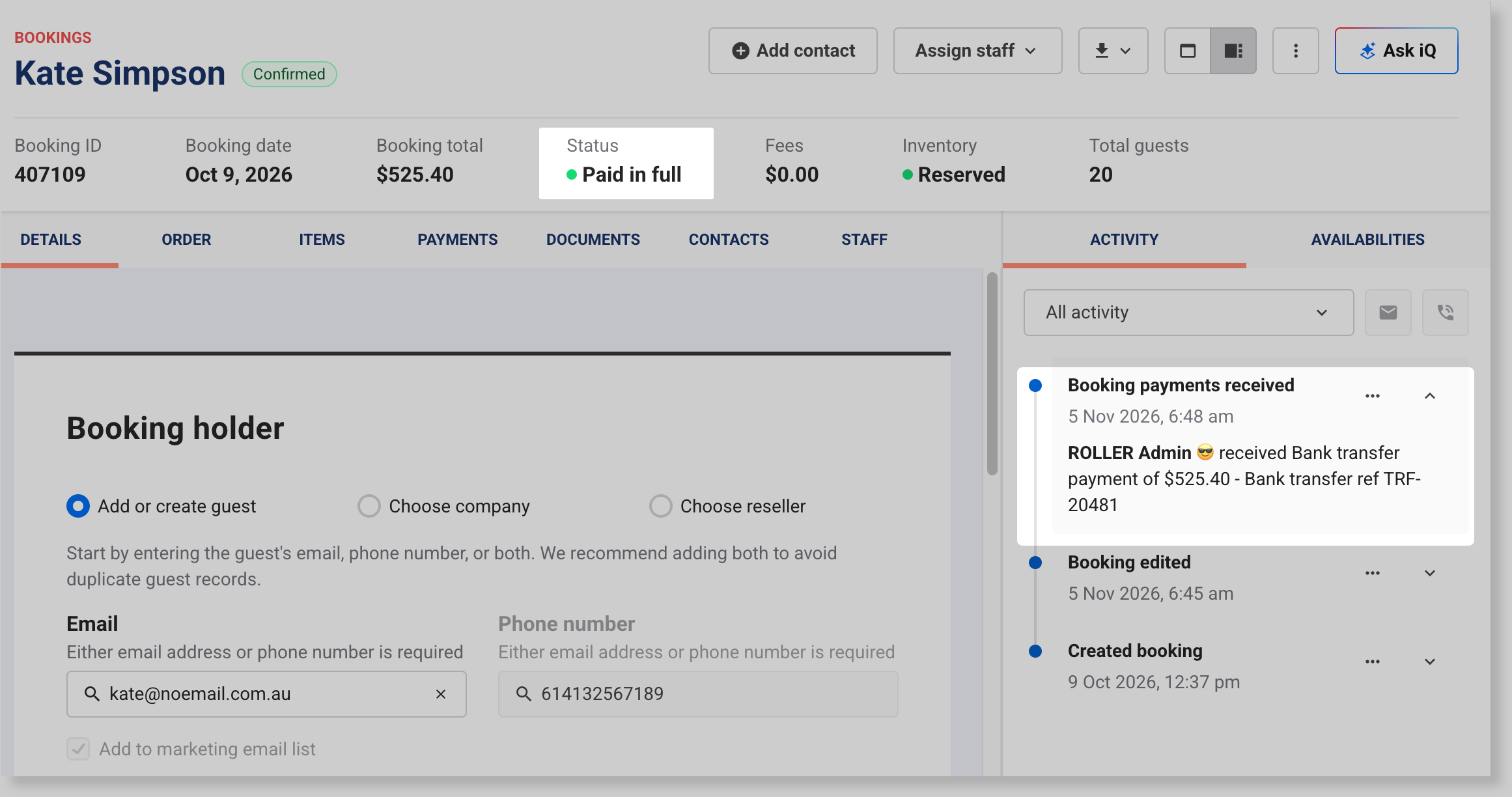
The booking's Status shows Paid in full once nothing is owing, or Part paid if there's still a balance. The payment and your comment show on the Activity tab under Booking payments received.
Mark a guest invoice as paid
When a guest pays an invoice you sent by bank transfer or check, mark the invoice as paid. This records the payment on the booking for the invoice amount. You don't need to use Take payment as well.
From Venue Manager, open the booking the invoice was sent from.
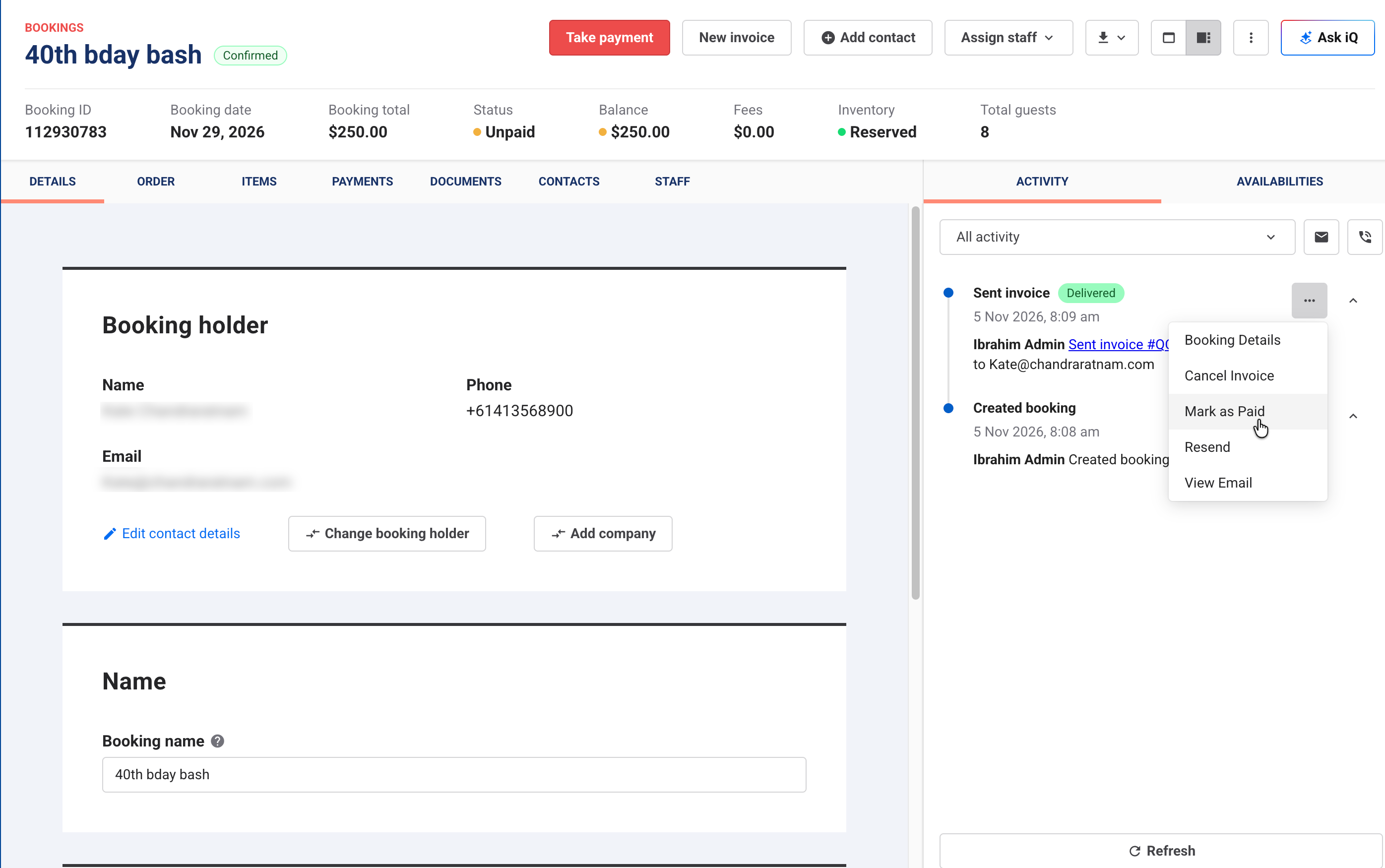
On the Activity tab, hover over Sent invoice.
Select the options menu (3 dots), then select Mark as Paid.
Select the date and time the payment arrived.
In Payment method, choose Bank transfer or Check.
Confirm.
The invoice shows as paid, and the payment appears on the booking.
If you marked an invoice as paid by mistake, select Undo for that invoice on the Activity tab. The invoice goes back to unpaid, and ROLLER reverses the payment on the booking. Then mark it as paid again with the right details.
To learn how to send invoices and add your bank details to them, see the guide Send and manage guest invoices. To follow up invoices that haven't been paid, see the guide Invoices report (guest invoices).
Mark off reseller bookings on account
Some resellers book now and pay you later, when you invoice them from your own accounting system. When they pay your invoice, record the payment in ROLLER so their bookings show as paid.
Until then, their bookings show as On Account. That means the reseller owes you for the booking. Nothing was paid when it was made, and their guests check in at POS without paying.
Find what a reseller owes
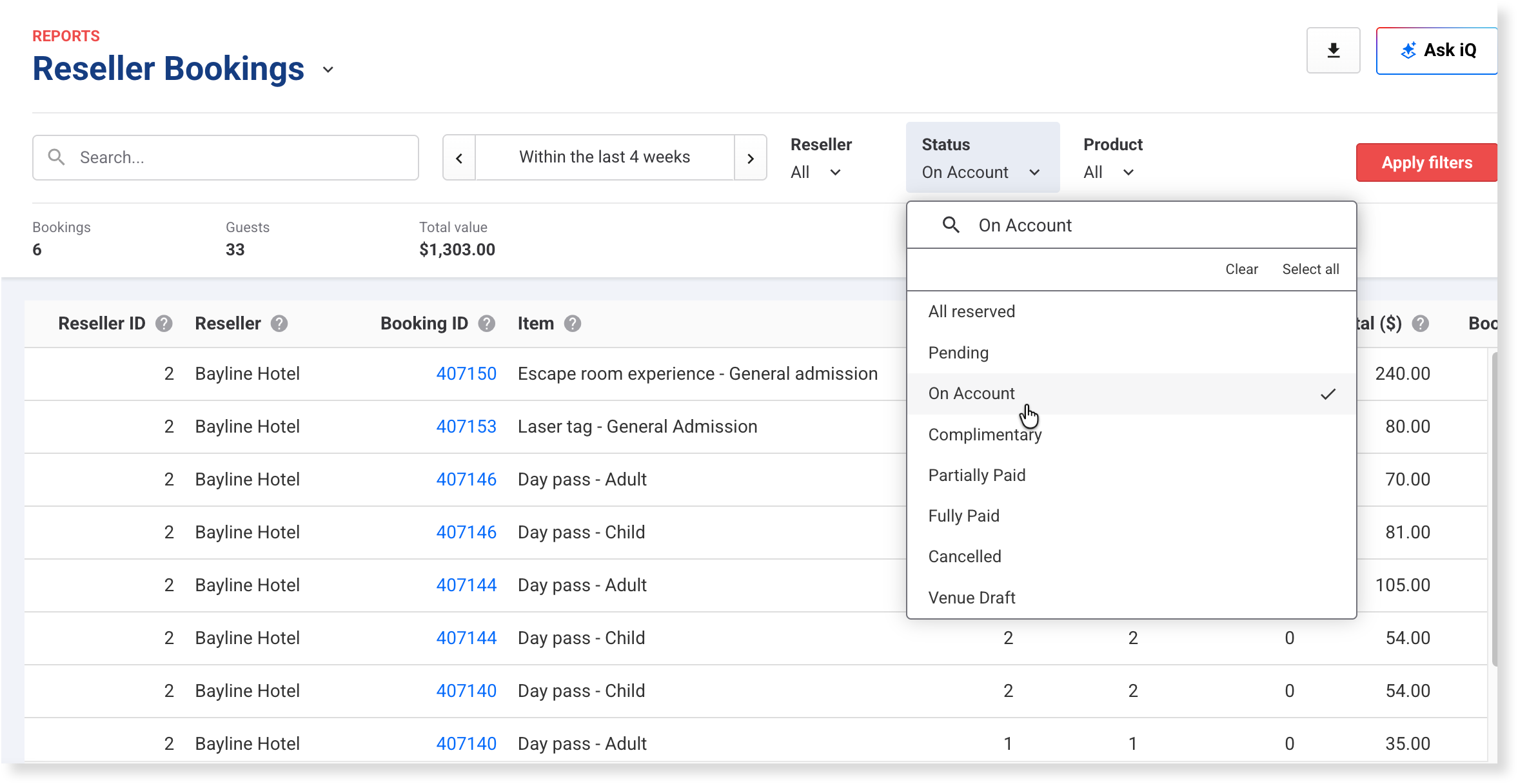
From Venue Manager, go to Reports > All reports and select Reseller Bookings.
Choose the dates for your billing period.
In Status, select On Account.
Select Apply filters.
To export the report, select the download icon at the top right.
Use the export to invoice the reseller from your own system.
Record the reseller's payment
When the reseller pays, open each booking on the invoice and follow the steps in Record a payment on a booking in this guide. Choose the method they paid with (eg Bank transfer).
If you record the full balance, the booking moves to Paid in full.
If you record part of it, the booking stays On Account until the rest is paid.
Bookings a reseller makes in the reseller portal with Bank transfer as the payment option show as Pending until you record their payment the same way.
To learn how to set up reseller payment options, see the guides Set up your global reseller settings and Create a reseller record and contacts.
Take a check payment at POS
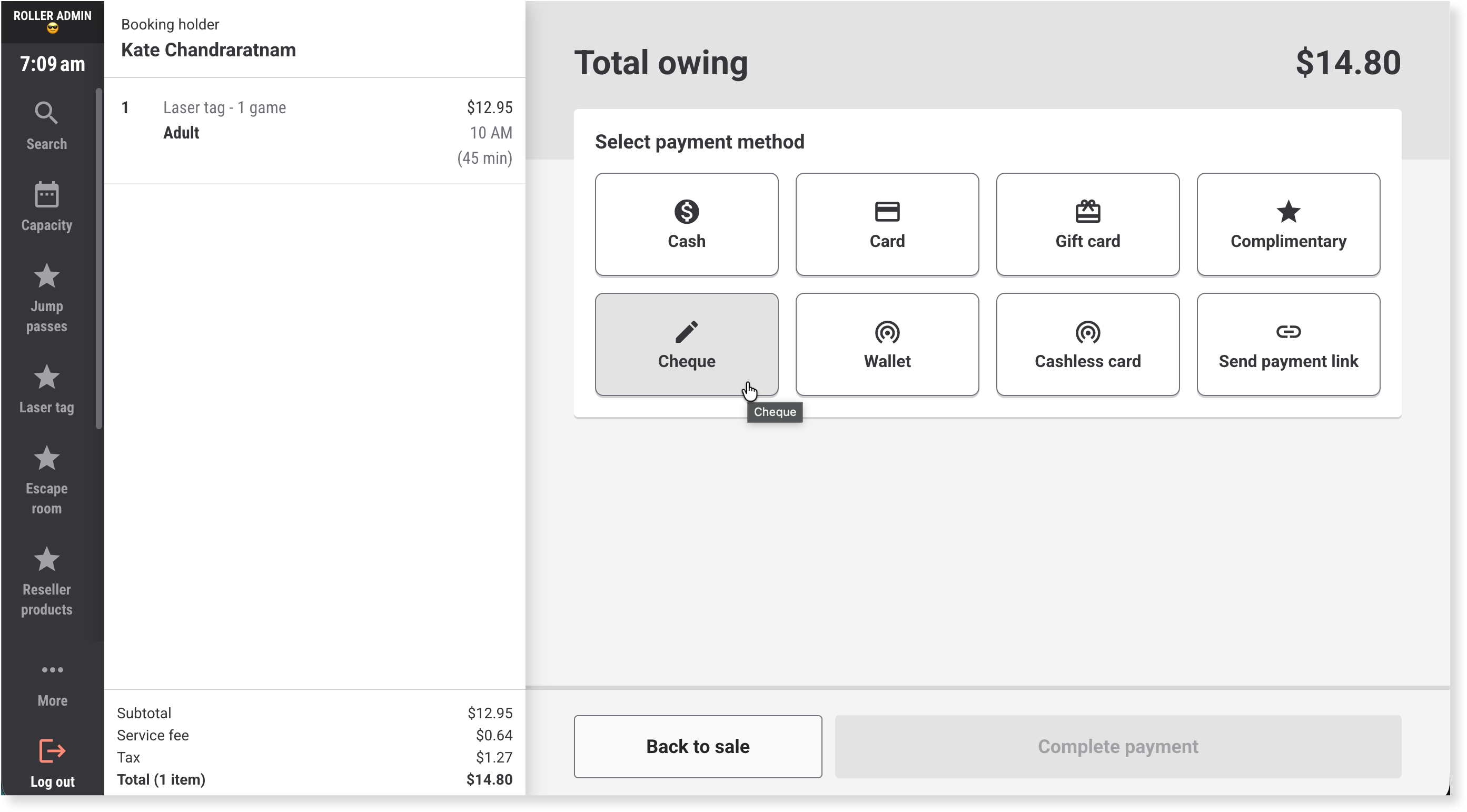
When a guest pays by check at the counter, record it at POS as part of the sale. Check shows as a payment method once ROLLER turns on check payments for your venue. If you don't see it, contact your customer success manager or the support team to turn it on.
In POS, add the items to the sale or open the booking, then go to payment.
Under Select payment method, select Check.
In Enter check number, enter the number on the check, then select Tender.
Select Complete payment.
POS doesn't have a Bank transfer payment method. To record a bank transfer, use Venue Manager.
Fix a payment recorded by mistake
If you chose the wrong method or amount, refund that payment in Venue Manager, then record it again correctly. A recorded payment can't be deleted, so the refund is how you correct it. No money moves when you refund a bank transfer or check payment.
The permission required to refund a payment is Can refund. The administrator and manager roles have this permission enabled by default.
Open the booking and select the options menu (3 dots), then Refund.
In Refund method, choose the same method you recorded (eg Bank transfer).
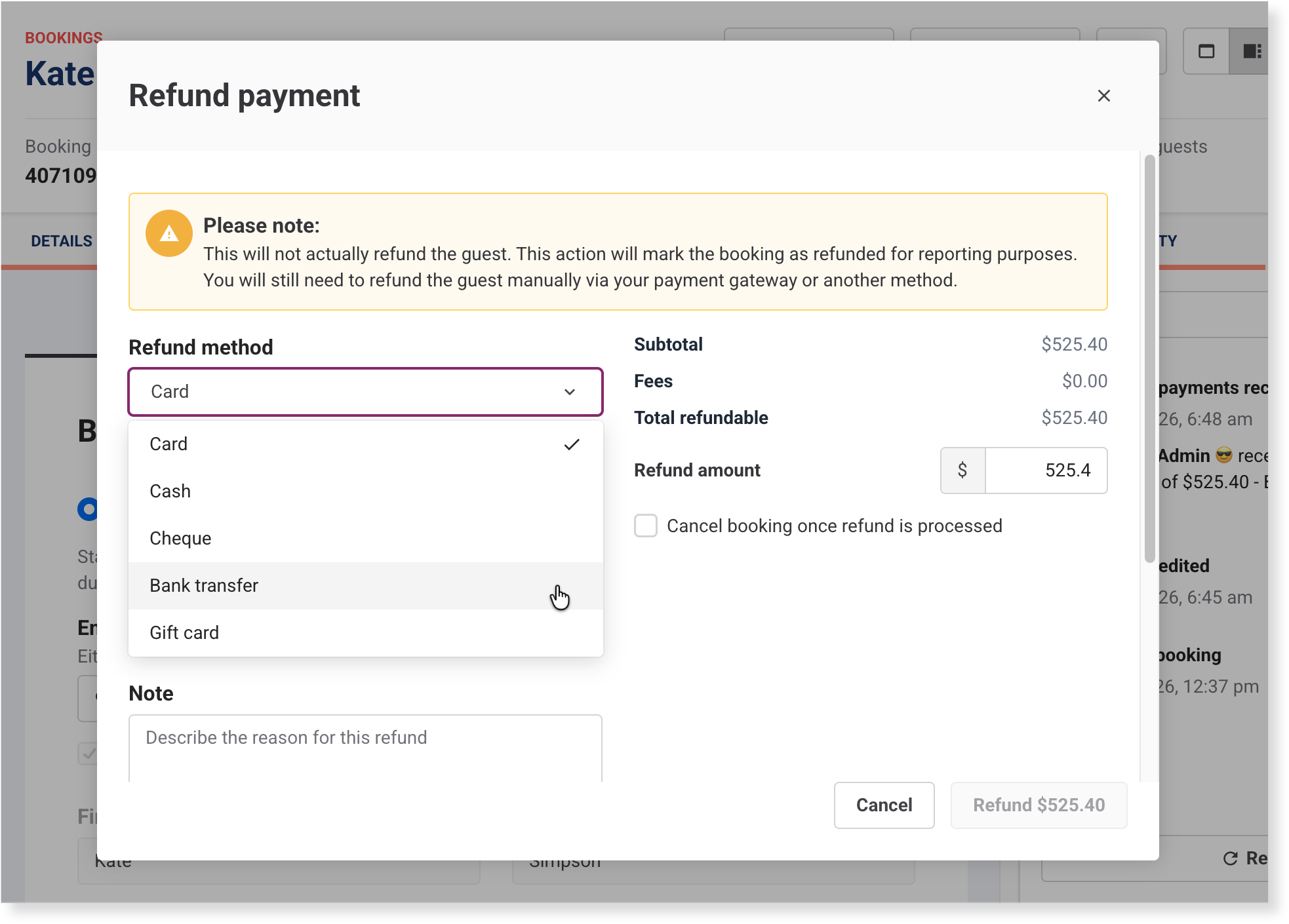
In Refund amount, enter the amount you recorded by mistake.
Make sure Cancel booking once refund is processed is turned off. If it's on and you can't turn it off, stop and contact your customer success manager or the support team.
In Note, add the reason (eg Recorded with the wrong payment method).
Select Refund [amount].
Follow the steps in Record a payment on a booking in this guide to record it correctly.
The refund window shows a Please note message that the guest won't actually be refunded. That's expected for this kind of correction.
Find these payments in your reports
Use the Detailed transactions report to see bank transfer and check payments when you reconcile. They aren't part of ROLLER Payments, so they don't appear in your payouts or the ROLLER Payments payout export.
From Venue Manager, go to Reports > All reports and select Detailed transactions.
Choose your dates.
In Payment method, select Bank transfer or Check, then apply the filter.
The Trial balance report also shows totals by payment method. If you export to Xero or NetSuite, bank transfers and checks have their own lines.