When a reseller calls because they can't sign in, can't find a product or are paying the wrong rate, the fix is usually a setting in their reseller record or your reseller checkout. Finding it quickly gets them booking for their guests again, with every booking coming into ROLLER rather than back to email.
Use this guide to fix sign-in problems, missing products, wrong prices and grayed-out payment options, starting with the quickest check for each.
Exigence d’ajout
Le portail revendeur est en accès anticipé pour les lieux sur les forfaits Pro, Premium ou Enterprise . Pour l’utiliser, vous avez besoin de l’extension Advanced Channel Management . Cette extension vous donne également accès à des agences de voyage en ligne (OTA).
ROLLER facture un pourcentage du revenu de vos réservations de revendeurs. Les réservations de chaque mois sont facturées sur la facture du mois suivant.
Pour manifester votre intérêt pour l’accès anticipé, contactez votre responsable du succès client ou l’équipe de support.
Why can't my reseller sign in?
Resellers sign in with the email address or mobile number in their contact record, using a verification code instead of a password. When sign-in fails, the message they see tells you where to look.
What the reseller sees | What it means |
|---|---|
Sorry, we don't recognize this account | Their email address or mobile number doesn’t match a contact for an active reseller. The contact may be missing or have different details, or the reseller may be deactivated. Work through the steps in this section. For a mobile number, ask them to check they’ve chosen the right country code too. |
Sorry, that code didn't work | The code has expired or has already been used. Each code works once, so ask them to sign in again to get a new one. |
Sorry, this account has been locked | Someone at your venue locked the guest online account for this contact’s email address or mobile number (eg because they’re also a guest). Unlock it in their guest profile. To learn how, see the guide Manage guest online accounts. To stop a reseller booking, suspend or deactivate the reseller instead. |
No Sign in with phone option | ROLLER doesn't send SMS in some countries (eg New Zealand), so resellers at venues there sign in with email. |
The permission required to change a reseller record is Can manage resellers. The administrator, manager and booking agent roles have this permission enabled by default.
From Venue Manager, go to Guests > Resellers and open the reseller.
Check the status next to the reseller's name at the top of the record. If it's Deactivated, their contacts can't sign in. To let them back in, select the options menu (3 dots) at the top right, then select Reactivate. In the Are you sure? dialog, select Reactivate again.
Select the Contacts tab and find the person who's trying to sign in.
If they aren't listed, they don't have access yet, because resellers can't sign themselves up. Select Create contact, enter their details, then select Create contact again to save. If you see This contact is already linked to a reseller, that email address belongs to a contact for another of your resellers, so use a different email address for this one.
If they're listed, compare their Email and Contact Number with what they're typing in the portal. To correct them, select the options menu (3 dots) on their row, then select View contact. Their guest profile opens, where you can update their details.
Check they're using your venue's link. A reseller who books with more than one venue signs in to each venue's reseller checkout separately. To copy your link, go to Apps > Progressive checkouts > All checkouts, select the options menu (3 dots) next to your reseller checkout, then select Copy to clipboard.
Ask the reseller to sign in again:
They open your reseller checkout link and select Sign in with email or Sign in with phone.
They enter the email address or mobile number in their contact record, then select Continue.
On Verify to continue, they enter the code they're sent, then select Continue.
They're in when the portal's Products page opens.
Why can my reseller sign in but not book?
A suspended reseller can still sign in and see their bookings, but Products is hidden and they can't make or change a booking. The portal shows them a banner saying their account is suspended. Your team can still book for them in Venue Manager while their access is paused.
The permission required to change a reseller's status is Can manage resellers. The administrator, manager and booking agent roles have this permission enabled by default.
From Venue Manager, go to Guests > Resellers and open the reseller.
If the status next to their name is Suspended and you're ready for them to book again, select the options menu (3 dots) at the top right, then select Reinstate.
In the Are you sure? dialog, select Reinstate.
The reseller's status changes to Active. Ask them to refresh the page or sign in again, and Products shows in the portal.
If an active reseller can book but can't find one particular product, see Why can't my reseller see a product? in this guide.
Why can't my reseller see a product?
A reseller sees a product only when it's assigned to their reseller record and included in your reseller checkout. It needs to be in both, and its add-ons need to be assigned to their record too.
Some product types never show in the portal. Memberships, gift cards, multi-passes, wallets and cashless cards can't be sold through the reseller portal, as products or as add-ons. ROLLER leaves them out even when they're in a tag or category you've added.
The permissions required are Can manage resellers to change a reseller record and Can manage online checkouts to change your reseller checkout. The administrator and manager roles have both permissions enabled by default, and the booking agent role has Can manage resellers.
From Venue Manager, go to Guests > Resellers and open the reseller.
On the Details tab, under Commercial terms, check that Products includes the product's tag, its category or the product itself. If it doesn't, add it and select Save.
If the missing item is an add-on, check it's assigned here as well (eg in the same tag as its main product). Resellers see a product's add-ons at checkout only when the add-ons are assigned to their record.
Go to Apps > Progressive checkouts > All checkouts and open your reseller checkout.
On the Products tab, check that a section includes the product, by its tag, its category or by name. If none does, add it to a section and select Save.
If you add products by tag, check the product is in that tag. Go to Settings > Product tags and select the tag. Products lists the products in it, and Checkouts lists every checkout that uses it.
Ask the reseller to choose a date on Products again. The product shows once it's in both their record and your checkout.
Why is my reseller paying the base price?
If a reseller is paying the product's base price, their record is still on Base for that price rule, or their tier has no price in the product's variations table. Once both are set, new bookings charge the rate you agreed.
The permissions required are Can manage resellers to change a reseller record and Can edit products to change a product's prices. The administrator and manager roles have both permissions enabled by default, and the booking agent role has Can manage resellers.
From Venue Manager, go to Guests > Resellers and open the reseller.
On the Details tab, under Price tiers, check each reseller price rule has the reseller's tier selected (eg Gold). A rule left on Base charges the base price. Select their tier, then select Save.
Go to Products and open the product.
Check the Price rule setting shows your reseller price rule. A product uses one price rule at a time, so if it shows another rule (eg a time-based rule for guests), create a reseller version of the product. See the guide Set up and tag your reseller products.
In the variations table, check every variation has a price in the reseller's tier column, and enter any that are missing.
Select Save.
To check the rate, sign in to your reseller checkout as a test reseller on the same tier and add the product to your cart. See Test your reseller checkout in the guide Set up and share your reseller checkout.
Why can't my reseller change or cancel a booking?
Resellers change and cancel their own bookings within the booking management rules you set for your progressive checkouts. When a booking doesn't show Edit booking or Cancel booking in the portal, the booking falls outside those rules.
Resellers can cancel a booking only when nothing has been paid on it and it hasn't started. Bookings charged to their account, and bank transfer and pay on arrival bookings that show as Pending, count as unpaid. If any of the booking has been paid, even part of the total, cancel it for them in Venue Manager.
The permission required to set booking management rules is Can manage online checkout settings. The administrator role has this permission enabled by default.
From Venue Manager, go to Apps > Progressive checkouts > Settings.
Select the Online accounts tab.
Under Booking management, find the rule that covers the product (eg Party packages). If no rule covers it, select Add rule and create one. See Let resellers change their own bookings in the guide Set up and share your reseller checkout.
Check the change the reseller wants is selected (eg Allow guests to cancel unpaid bookings (Reseller Portal only)), and how long before the booking it closes.
Select Save.
Ask the reseller to open the booking from Bookings > Manage booking in the portal. Edit booking or Cancel booking shows when the rules allow the change.
If a change would leave you owing the reseller money (eg they move to a cheaper session), they may not be able to finish it in the portal. Make the change for them in Venue Manager and refund them from the booking. See the guide Refund bookings from Venue Manager.
Why is a payment option grayed out in a reseller record?
A grayed-out payment option is set by the reseller's payment terms or by your global reseller settings, and the line under it says which. A grayed-out option that's selected still works, alongside any other options you select.
Payment option | Line under it | What it means |
|---|---|---|
Pay at booking | Always included for pre-pay terms | Resellers on Pre-pay required can always pay when they book, and you can't turn it off. You can still add Bank transfer or Pay on arrival. |
Charge to Account | Requires credit account | To offer it, change the reseller's Payment terms to Credit account. |
Charge to Account | Always included for credit account terms | Resellers on Credit account can always charge bookings to their account. |
Bank transfer or Pay on arrival | Disabled in venue settings | Turn it on in your global reseller settings, then select it in the reseller's record. |
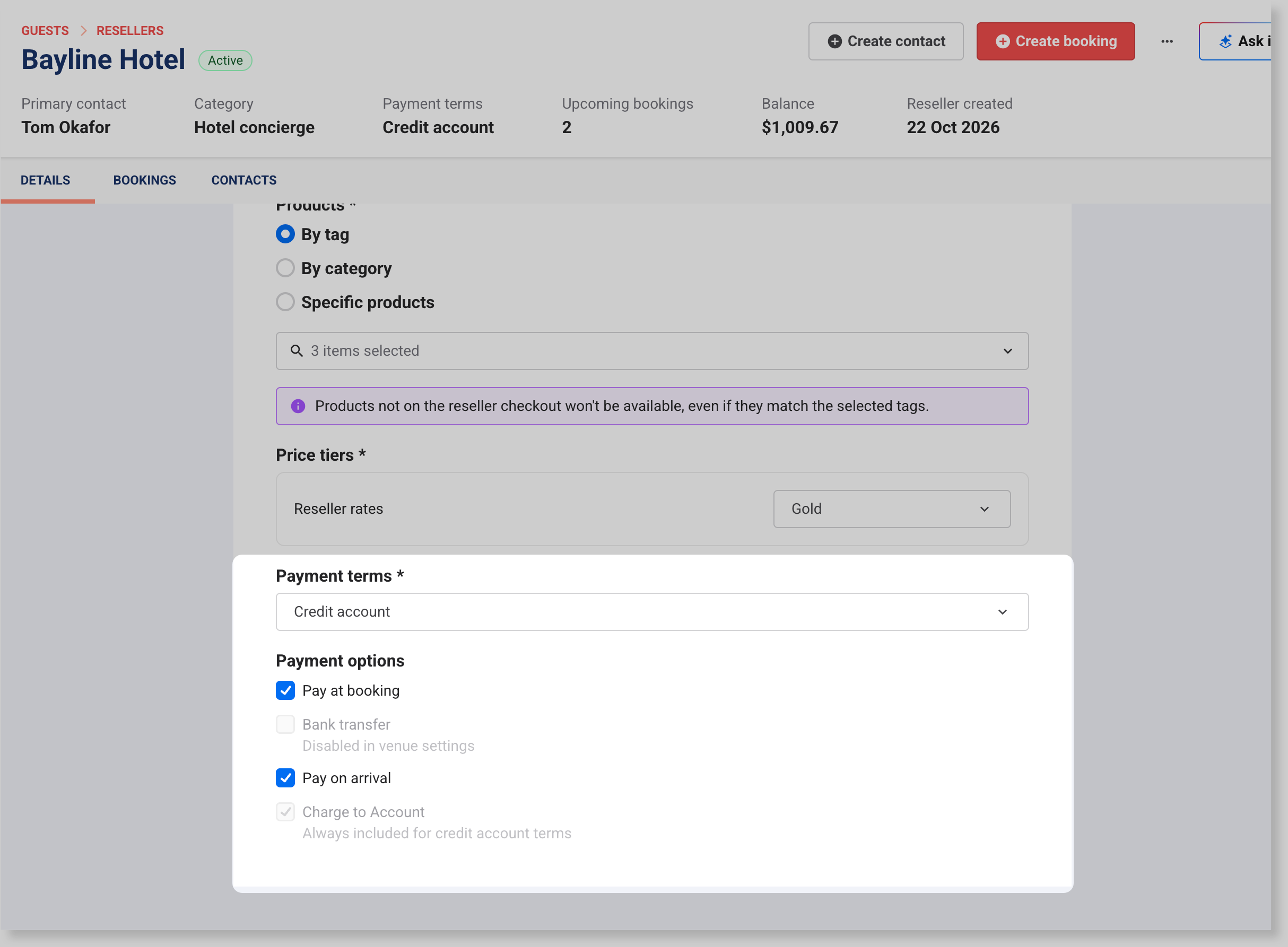
The permission required to turn on payment options in your global reseller settings is Can access reseller settings. The administrator role has this permission enabled by default.
From Venue Manager, go to Settings > Channel management > Resellers.
Under Payment options, select Bank transfer, Pay on arrival or both.
Enter a Display name and Payment instructions for each one. Resellers see these at checkout and in their confirmation email.
Select Save.
Go to Guests > Resellers, open the reseller and select the payment option under Payment options. Then select Save.
The option is no longer grayed out, and the reseller sees it at checkout in the portal.
Why doesn't my reseller's confirmation email show what they owe?
Resellers who pay by charge to account, bank transfer or pay on arrival haven't paid when they get their confirmation email. The email shows the total still to pay once you turn on Amount due in your Order confirmation email template, which is off by default.
To learn more, see Show the amount owing in confirmation emails in the guide Set up your global reseller settings.
Get more help with your reseller portal
If you've worked through the checks for what your reseller is seeing and they still can't sign in or book, contact your customer success manager or the support team.