Track your daily cash inflows and identify their sources. This dashboard displays the amount of money you earn from each sales channel, reporting category, product type, and payment method. This information can help you in making informed decisions about where to prioritize your sales and marketing efforts.
Questions answered
Where is our money coming from?
Which products are generating the most money?
How are guests paying for their purchases?
The amounts shown in this dashboard show funds received. This is the money received at the time of purchase from all payment types in ROLLER within the time period selected, in line with cash accounting principles. Learn more
Actionable insights
Identify which sales channels are bringing in the most money.
Look for opportunities to cross-sell or upsell your most profitable products or activities.
Understand guest preferences for payment methods.
Access the dashboard
The permission Can access Analytics is required to view dashboards and reports. Administrator and manager system roles have this permission enabled by default.
From Venue Manager, go to Analytics > Dashboards.
Search for and select Funds received.
To set this dashboard as the default dashboard, select Set as default in the top right. This means every time you go to Analytics, this dashboard opens.
Dashboard metrics and calculations
Review the metrics and data shown in the dashboard, then refer to the table below to understand how they are defined and calculated.
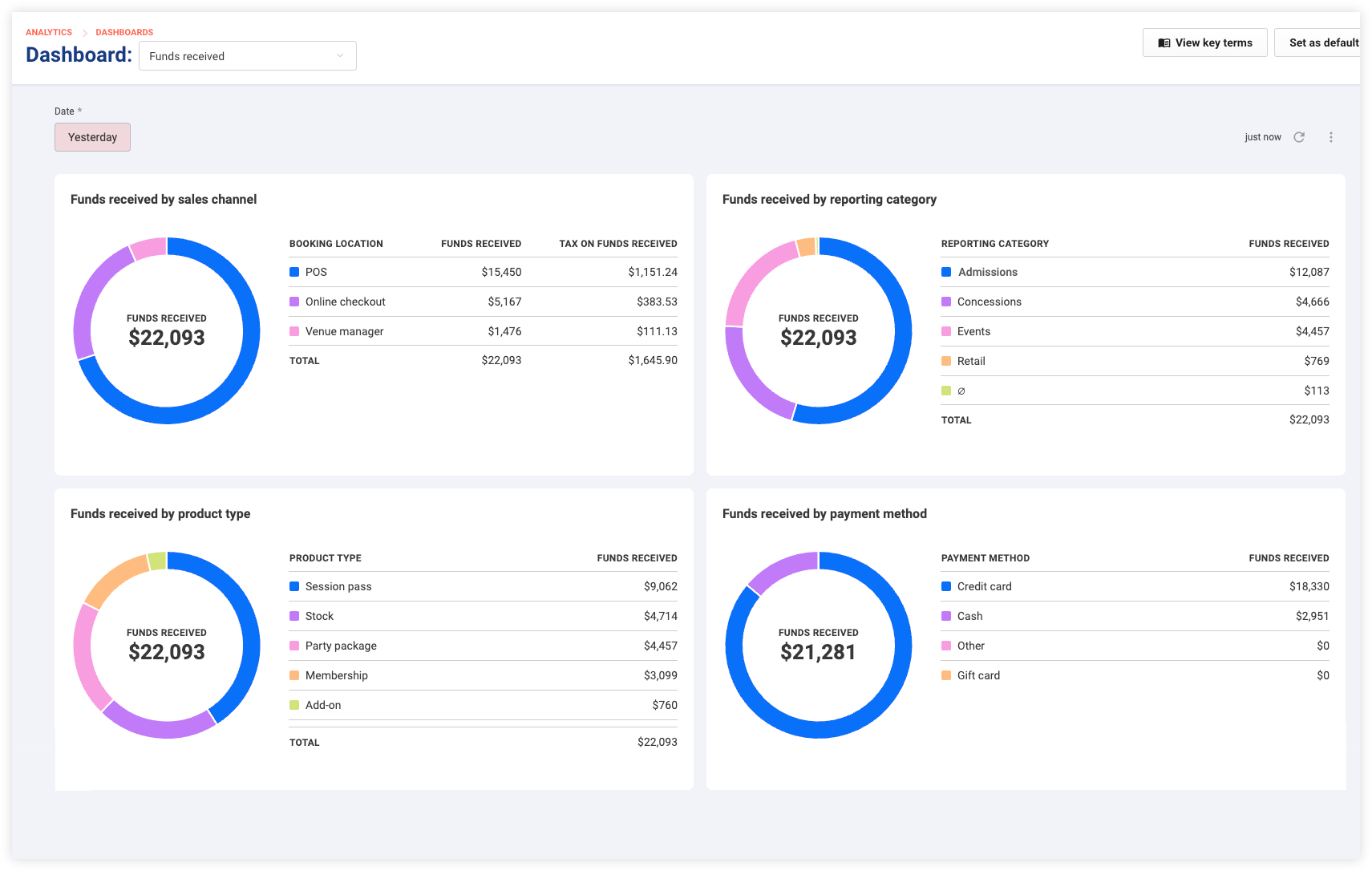
When a booking payment is received in ROLLER, it generates funds received. This is the total value of transactions (gross sales less any discounts, including any fees and taxes) and any booking adjustments for the time specified.
Metric | Definition / calculation |
|---|---|
Funds received by sales channel |
|
Funds received by reporting category |
|
Funds received by product type | This pie chart illustrates how revenue is divided among different product types in ROLLER, such as session passes, stock, party packages, memberships and add-on product types. |
Funds received by payment method | A pie chart showing the distribution of funds received by payment methods, such as "Credit card", "Cash" or "Gift card". |
Filter the timeframe
The dashboard is set to show data for yesterday by default. This allows you to easily stay updated on the most recent sales activity.
You have the option to modify the timeframe by filtering for specific dates or time periods. This can help you understand trends and the impact of any changes such as new promotions.
To choose a timeframe, use the Date filter at the top of the page. It allows you to select preset days and timeframes, or specify custom dates and date ranges.
Remember to select the highlighted Update icon to refresh the data.
Your filtered results display.
Modifying these filters will only temporarily affect your current view and will not affect the filter settings of other users.
The next time you load the dashboard the default filters will return.
Or, you can select the options menu in the top right to select Refresh filters.
Find out more about how to filter for specific timeframes, interact with the charts and download the data.
FAQs
I'm a cash accounting venue. How can I set this as dashboard as the default dashboard?
From Venue Manager, go to Analytics > Dashboards.
Select Funds received to open the dashboard.
Select Set as default in the top right.
Can I see a breakdown of funds received for a specific day or event?
Yes, you can filter the dashboard by date to analyze funds received for particular days or events.