ROLLER's wallet feature is a means of assigning a monetary value to a scannable object such as a swipe card or RFID fob that can be used to provide payment at a POS terminal.
This guide demonstrates how to sell or top up wallets and how guests can redeem their wallet balance when completing a transaction via ROLLER POS.
Sell a wallet
To sell or top up a wallet in POS, you must first create a wallet product in Venue Manager, then add the Wallet product to a POS menu.
From POS, select the menu with the wallet product.
Select the wallet type you want to issue:
If you select a shared wallet you will be prompted to add the number of people sharing the wallet balance before you can proceed.
If you're issuing a custom amount wallet, you will be prompted to manually enter a wallet balance before proceeding.
Assign a wallet ID by scanning the object such as RFID fob or swipe card. You'll be prompted to repeat this step for each guest if you're selling a shared wallet.
The guest will need to provide the wallet ID number via a scanner or manual entry to redeem the wallet balance.
The ID number is typically a barcode, QR code or RFID, or you can create your own.
You can use a scanner to scan the card number, or enter the ID number manually.
Select Pay Total to complete the transaction at POS.
We highly recommend adding a guest record to each booking in POS so that you can easily find the wallet if a guest forgets their ID or loses their wallet.
Top up a Wallet
To top up a wallet:
Repeat the same steps above for Selling a wallet.
When you're prompted to assign a wallet ID, scan or enter the ID number of an existing wallet.
Select Top up Wallet > Pay Total, then complete the transaction in POS.
Redeem a wallet at POS
You can redeem wallets by selecting them as a payment method during the payment process in POS.
At POS, add the items the guest wishes to purchase in the cart.
When all items have been added to cart, click Pay total and navigate to payment page.
Select Wallet as your payment method.
Enter or scan the guest's wallet number.
Tender the amount you want to redeem from the wallet balance.
Complete the transaction.
Check a wallet balance, expiry and purchase history at POS
From the POS search menu, select the Wallets menu option.
Enter or scan the wallet ID or enter the guest's name if this was captured at the time of purchase.
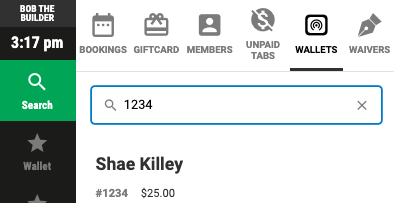
Select the wallet ID/guest name once it appears.
This will show you the expiry date, remaining balance, and the purchase history for the wallet.
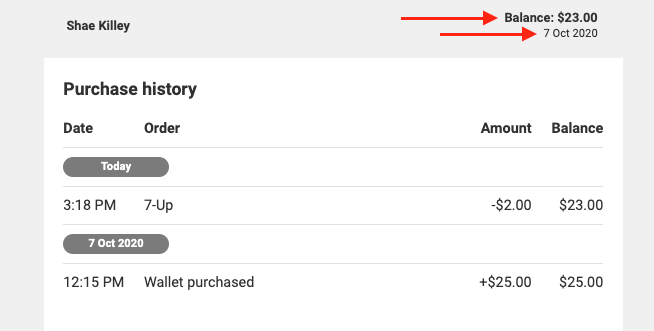
Guests can also use a self-serve kiosk to view the balance and purchase history of their wallets. For information on configuring self-serve kiosk settings, see Create your self-serve kiosk device