See every recurring membership payment ROLLER attempted, whether it went through and why it failed, so you can follow up with members whose payment was declined.
The permission required to open this report is Can access Transactions reports. The administrator and manager roles have this permission enabled by default.
Open the report
To check recent recurring payments:
From Venue Manager, go to Reports > All reports.
Search for and select Recurring Payment Log.
Filter the report
Narrow the report to the payments you need to follow up.
Filter | What it does |
|---|---|
Search | Finds payments by booking ID or the booking holder's name. |
Date selector | Shows payments attempted in the date range you choose. To learn how, see Choose a date range in the guide Filter, customize and download a report. |
Payment status | Shows All, Successful or Failed payments. |
After you change a filter, select Apply filters.
To download this report, see the guide Filter, customize and download a report.
What the report shows
Use the totals to see how much was collected and how much failed, and the columns to see what happened to each payment. Each row is one payment attempt.
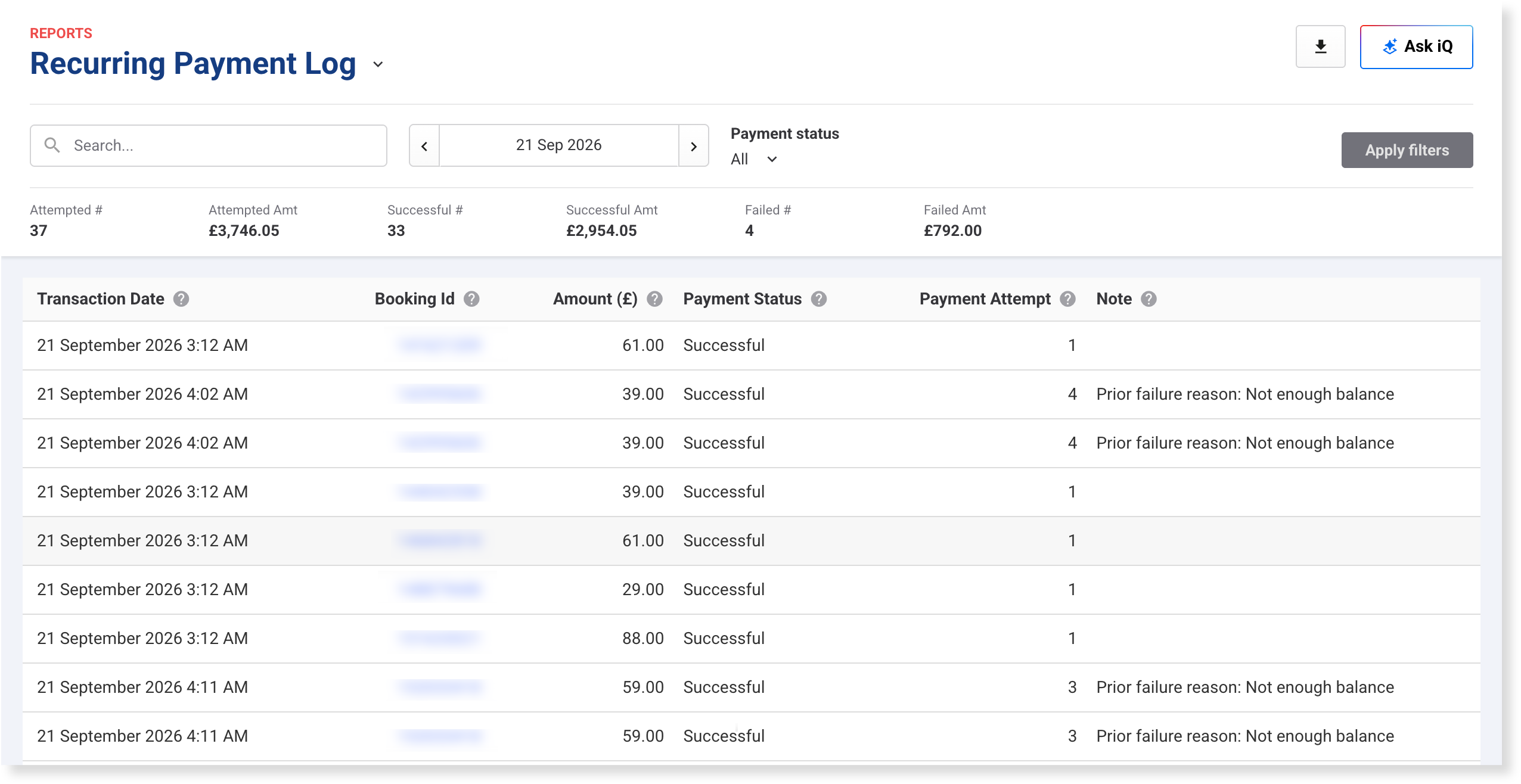
The totals at the top cover the date range you select.
Total | What it shows |
|---|---|
Attempted # | The total number of payments attempted during the selected date range. |
Attempted Amt | The total value of payments attempted during the selected date range. |
Successful # | The total number of successful payments during the selected date range. |
Successful Amt | The total value of successful payments during the selected date range. |
Failed # | The total number of failed payments during the selected date range. |
Failed Amt | The total value of failed payments during the selected date range. |
The columns show each payment attempt.
Column | What it shows |
|---|---|
Transaction Date | The date and time ROLLER tried to charge the card linked to the membership, in your venue's time zone. |
Booking Id | The ID of the booking linked to the membership. Select it to see a summary of the booking, then select Go to booking to open the full booking. |
Booking Name | The name of the booking holder linked to the membership. |
Amount | The amount ROLLER tried to charge to the card. |
Payment Status | Successful or Failed. |
Payment Attempt | Which attempt this was for the payment (eg 1 is the first attempt and 2 is the first retry). How many times ROLLER retries a failed payment depends on whether you use Smart Dunning (see the guide Manage payments for recurring memberships). |
Note | The error message from the payment gateway when a payment fails (eg Not enough balance). When a payment goes through after an earlier failure, the note starts with Prior failure reason: and gives the earlier message. The wording depends on the gateway. |
Transaction Id | The payment gateway's reference for the payment. |
Find out why a membership payment failed
Find out why a member's payment was declined, so you can contact them and update their payment details.
Under Payment status, select Failed, then select Apply filters.
Search for the booking ID or the booking holder's name.
Check the Note column for the reason (eg Not enough balance).
Select the Booking Id, then select Go to booking and update their payment details.
FAQs
Why does one payment show more than one row?
Each failed attempt has its own row, and so does the attempt that collects the payment, including a payment Smart Dunning collects. Payment Attempt shows which attempt each row was.