Running a loyalty program across multiple venues means keeping rules, rewards, and point values consistent everywhere — without logging into each venue to make changes. From your HQ account, you can configure your program once and push it to as many managed venues as you want. If you enable cross-venue redemption, guests can earn and redeem loyalty points across multiple venues.
ROLLER Loyalty is available for HQ venues and requires a loyalty add-on for each managed venue, charged in addition to their monthly plan. It will launch in early access. Register for early access.
You control the program from HQ
Your program is configured from the HQ account and pushed to selected managed venues. Staff at managed venues can view the program but can't change it. All edits are made from HQ.
When you save changes, you'll be asked to confirm the push to all selected venues at once.
Choose your rule type
Before you configure your program, decide which rule type fits your goal. You can run multiple rules at the same time.
Rule type | Best for | How it works |
|---|---|---|
Per $1 spent (points-based) | Making every purchase feel rewarded | Guests earn points on qualifying purchases and redeem them as a dollar discount at checkout. You set the point value. |
Cumulative spend (spend-based) | Encouraging guests to return and spend more over time | Guests earn a reward when their total spend across visits hits the threshold you set. The balance resets after the reward unlocks. |
Product purchase (stamp card) | Driving repeat visits for a specific product | Guests earn a reward after purchasing a product or products a set number of times. The count resets after the reward unlocks. |
To learn more, see the guide Choose the right loyalty rule for your goal (early access).
Decide if you want to use multi-venue enrollment and redemption
Turning on cross-venue earning and redemption lets guests use one loyalty account across every venue in the HQ-managed loyalty program. Points and earning progress build up from purchases at any participating venue, and guests can redeem their points and rewards across those venues.
How it works
When cross-venue earning and redemption is on:
Guests are linked across participating venues by email address. A guest enrolled at one venue is linked automatically at any other participating venue when they create a guest account or make a purchase, so they don't need to enroll again.
If a guest is in invited status at one venue, they receive a new invite when they make a purchase at another participating venue. Accepting either invite enrolls them and links their accounts.
Points and earning progress from every participating venue contribute to one loyalty account.
Free product rewards are only available at venues that sell the reward product (eg a 60-minute jump pass reward shows at a venue that sells that pass, but not at a venue that doesn't).
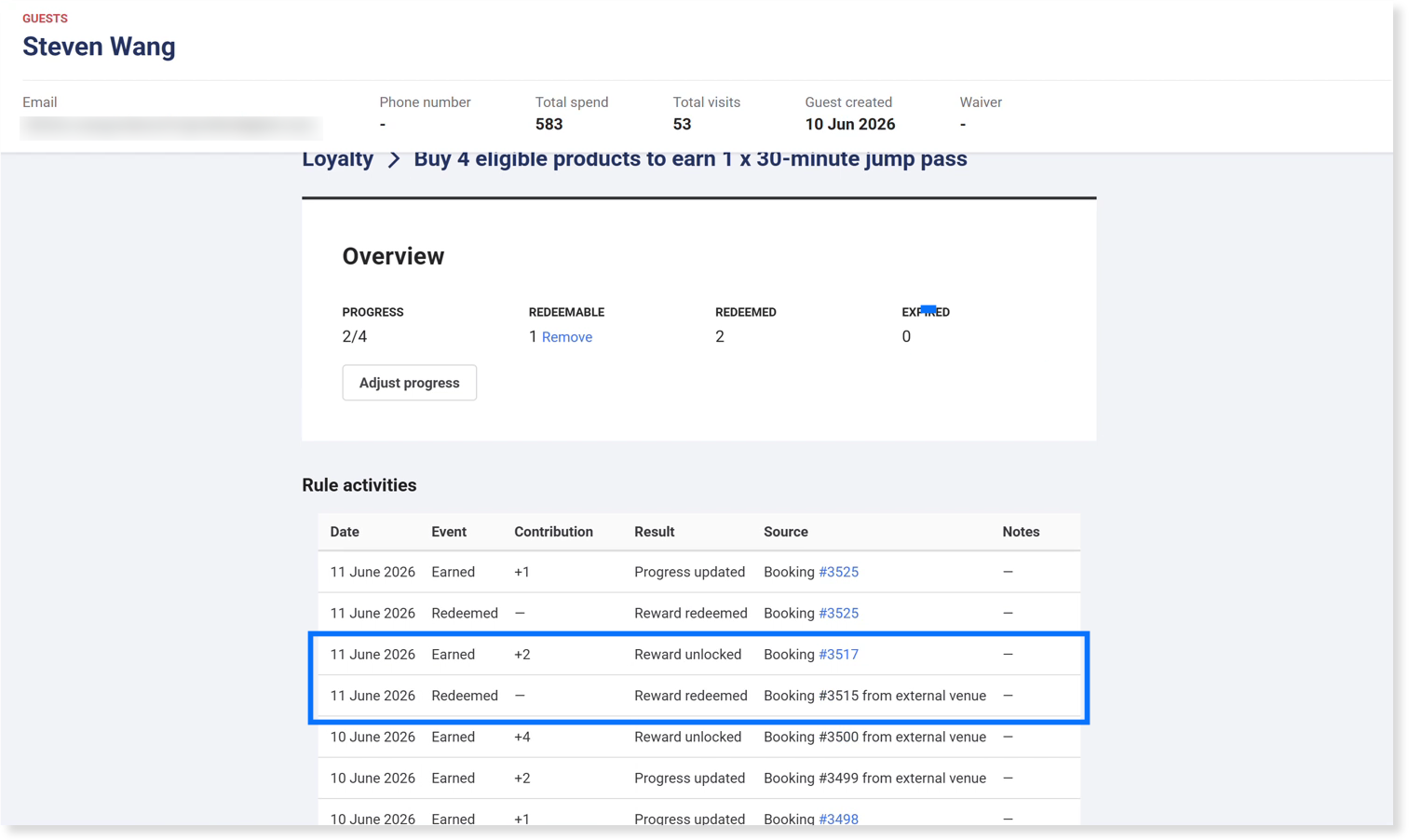
In a guest's loyalty history, activity from another venue shows as coming from an external venue rather than as a booking link.
Before you turn it on
Cross-venue earning and redemption is a one-time action. Once you turn it on, it can't be turned off, so review the following before you activate:
Activating merges existing loyalty accounts that share the same email address into one account. Their points, rewards and earning progress combine, and the duplicate accounts are closed.
If your venues operate under a franchise or revenue-sharing model, think through how cross-venue redemption affects the way venues recover redemption revenue from each other before you activate.
Each participating managed venue needs progressive online checkout and online guest accounts enabled.
You run one loyalty program from HQ, and program rules can only use HQ products. Guests at a venue where a required product isn't available won't progress toward rules that depend on it.
To turn on cross-venue earning and redemption, contact your customer success manager or the support team to enable it for your HQ account first. Once it's enabled, set up and activate your rules as part of setting up your program below.
Set up your loyalty program from HQ
Configure your program from your HQ account, then push it to all selected venues at once. Changes you make here apply across every venue you've included.
You need the Can edit loyalty settings permission to set up loyalty from HQ.
From HQ, go to Loyalty > Settings.
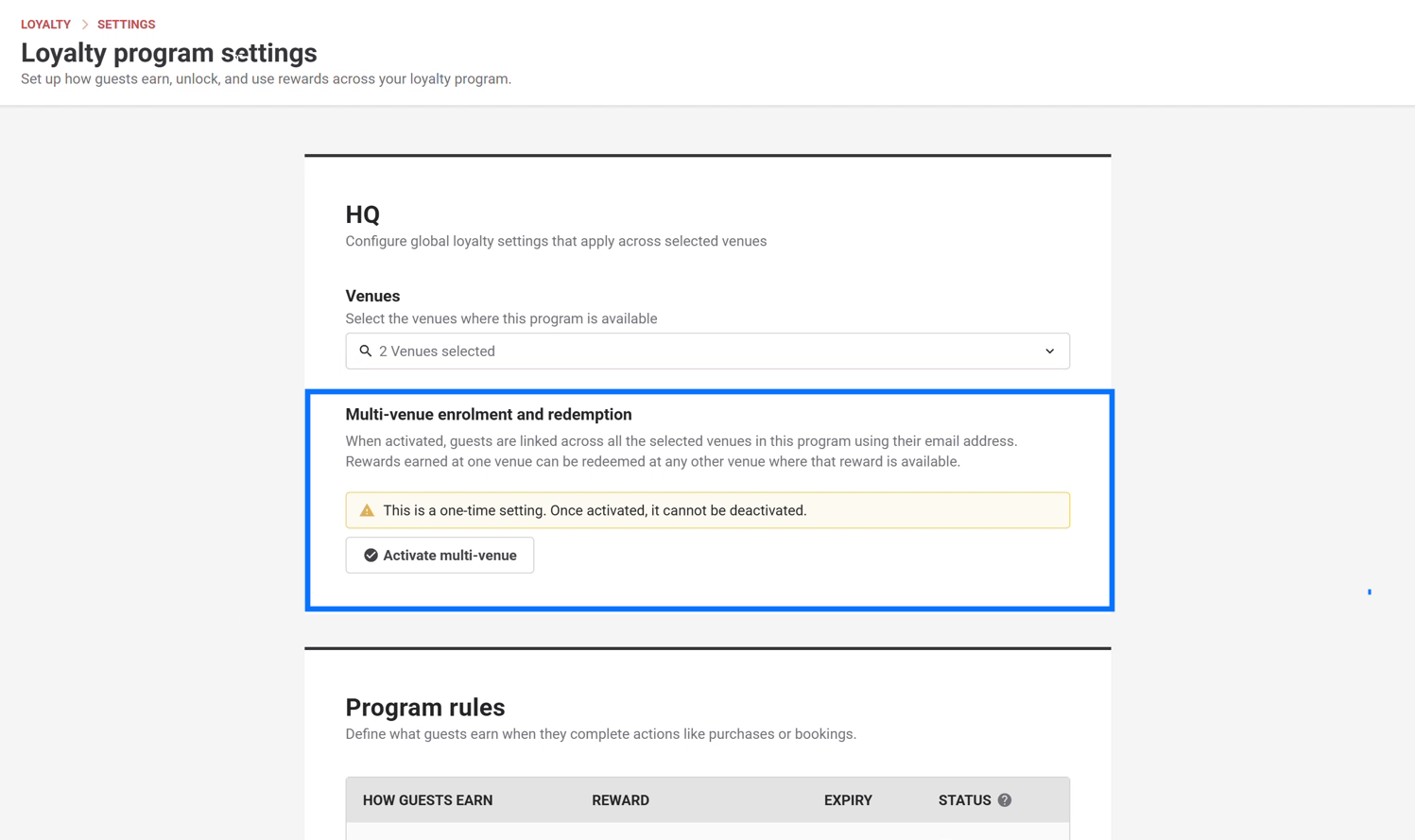
For Venues, choose where the program applies. Choose Select all to include all managed venues, or select venues individually.
(Optional) If you're using cross-venue earning and redemption, go to Multi-venue enrollment and redemption and select Activate multi-venue. This option only appears once it's been enabled for your HQ account, so if you don't see it, see Before you turn it on above. Activation can't be undone, so check you've reviewed the considerations there first.
For Program rules, set how guests earn rewards when they buy items. You can customize the preset rules to get started quickly or build new rules from scratch.
Gift card, cashless card, wallet and membership products are excluded from earning across all rule types. For how stored-value products earn and reward limits, see Set up loyalty rules and rewards in Venue Manager.
To edit a preset rule, select the options menu (3 dots), then choose Edit reward rule.
To create a new rule, select Add reward rule, choose the rule type, then select Next.
Only one Per $1 spent rule can exist in a program.
Program rule
What it does
How to configure
Per $1 spent (points-based)
Guests earn points on every dollar of qualifying spend. One per program. Available as the Every $1 spent preset.
Applies to: keep All products (excl. gift cards) or choose Selected products.
Reward: Points only, set the earn rate (points per dollar).
Set expiry for this reward (optional).
Select Apply.
Cumulative spend (spend-based)
Guests earn a reward once total qualifying spend hits a threshold. Count resets after it unlocks. Available as the Spend a total of $250 preset.
Unlock reward after spending: enter the total spend.
Applies to: All products (excl. gift cards) or Selected products.
Reward: default Fixed amount discount ($10 off), or Points or Free product.
Expiry (optional).
Select Apply.
Product purchase (stamp card)
Guests earn a reward after buying a set quantity of specific products. Count resets after it unlocks. New only, no preset.
Enter the number of purchases required, then select the products.
Reward: Points, Free product or Fixed amount discount.
Expiry (optional).
Select Apply.
For Bonus reward rules, you can issue a reward when a guest enrolls, once per guest, with no purchase needed. This rule runs separately from your earning rules.
Select the options menu (3 dots) next to the Sign-up / Welcome rule, then choose Edit reward rule.
For Reward, choose Fixed amount discount ($10 off), Points or Free product.
Set expiry for this reward (optional, default 30 days).
Select Apply.
When your program and bonus rules are ready, select the Active checkbox next to each rule you want live.
If any active rule uses Points as the reward type, the Point redemptions section appears.
Set the Point value to define how much one point is worth as a dollar discount at checkout (eg 1 point = $0.01).
This is a program-level setting.
Select Save. When prompted with Push updates to linked venues?, select Yes, update to apply the program across your selected venues.
For the full rule-by-rule detail, see the guide Set up loyalty rules and rewards in Venue Manager.
Update your loyalty program
When you need to change reward rules, adjust point values, or update which venues are included, make your changes in Loyalty > Settings in your HQ account.
Take care when updating settings that affect guest value, such as reward expiry or point-to-dollar conversion rates. Before you make changes, review your loyalty terms and program rules and update them if needed.
From HQ, go to Loyalty > Settings.
Update the relevant rules or settings.
To edit a rule, select the options menu (3 dots) next to the rule and choose Edit reward rule. Make your changes, then select Apply.
To add a rule, select Add reward rule under Program rules or Bonus reward rules.
Select Save.
When prompted with Push updates to linked venues?, select Yes, update.
Guests can earn and redeem rewards straight away
After you select Yes, update, the configuration is pushed to all selected venues. Selected venues show the loyalty program as active. Guests can start earning and redeeming rewards straight away, and staff at managed venues can view the program rules but can't edit them.
If a venue isn't showing the program, check that it was included in the Venues selector.
FAQs
Can I turn off multi-venue enrollment and redemption after activating it?
No. It's a one-time action that can't be turned off. Reverting is not a standard support service, so review your program rules before you activate.
What happens to existing loyalty accounts when I turn it on multi-venue enrollment and redemption?
Existing loyalty accounts that share the same email address are merged into one account. Their points, rewards and earning progress combine, and the duplicate accounts are closed. Merged accounts can't be separated.
Do guests need to enroll at each venue for multi-venue enrollment and redemption?
No. Guests are linked across your selected venues by email address. A guest enrolled at one venue is linked automatically at any other selected venue when they create a guest account or make a purchase.
Where can guests redeem their rewards when multi-venue enrollment and redemption is enabled?
Guests can redeem points and fixed-amount discount rewards at any participating venue. Free product rewards can be redeemed only at a venue that sells the reward product. If a venue doesn't sell the product, the reward won't appear there.
Why does some loyalty history show activity from an external venue?
When a guest earns or redeems at a different venue, their loyalty history shows that activity as coming from an external venue rather than as a booking link. The points and progress still update on their single account.
What happens if I don't turn on multi-venue enrollment and redemption?
Guests have a separate loyalty account at each venue, even when the same HQ program runs at multiple venues.
Can I add or remove venues after activating multi-venue enrollment and redemption?
To add a venue, update the Venues selector and save again.
Removing a venue is more complex because accounts are shared. After you remove a venue from an HQ program with cross-venue redemption enabled, you have two options:
Keep the loyalty program running at that venue. The venue keeps loyalty, and the existing merged cross-venue accounts stay active there.
Run a separate loyalty program at that venue. Deactivate the loyalty rules for that venue, then contact your customer success manager or the support team to help you set it up as a standalone program.
Can I report on multi-venue loyalty activity?
Per-venue loyalty data is available. HQ-level reporting that combines cross-venue loyalty activity into a single view isn't available yet.
Learn more
Get started with ROLLER Loyalty: what the program does and what to set up first
How loyalty works seamlessly in the background: how guests earn, progress and redeem rewards
Choose the right loyalty rule for your goal: compare rule types and pick the best fit for your venue
Set up loyalty rules and rewards in Venue Manager: configure each rule type and reward in detail at the venue level
How guests join your loyalty program: the ways guests enroll and how staff can support sign-ups
Redeem loyalty rewards at POS and online: how staff apply rewards at POS and how guests redeem online
Manage a guest's loyalty profile from Venue Manager: check a guest's points balance, history and loyalty status
Measure the impact of your loyalty program with Analytics: track enrollment, redemption and overall program performance
Track loyalty activity with loyalty reports (early access) — detailed, exportable enrolment, earning and redemption data