You can view linked, signed waivers from the guest's booking in Venue Manager, or search for a signed waiver in the guest waiver holders grid.
Add-on feature
Protect your venue against liability and improve the guest experience with digital waivers. To unlock the waivers add-on, contact your customer success manager or the support team.
View who has signed waivers for a booking
The permission Can access and send waivers is required for staff members to view and send new waiver requests (without the ability to modify waivers). Administrator, manager and booking agent system roles automatically have this permission enabled, as do any custom roles based on these roles.
Verify who has signed waivers for an upcoming booking, especially for large groups. This lets you know if you need to remind the booking holder to get more waivers signed before the event. More signed waivers beforehand mean less time redeeming tickets and shorter entry lines.
From each booking, you can see the guests who have signed waivers by using the booking's unique waiver link. This includes waivers signed post online checkout, through booking confirmation and reminder emails, party package reminder emails, and waiver request emails or text messages sent from Venue Manager.
To view signed waivers linked to a booking:
From Venue Manager, go to Bookings > All bookings.
Search for and select the booking.
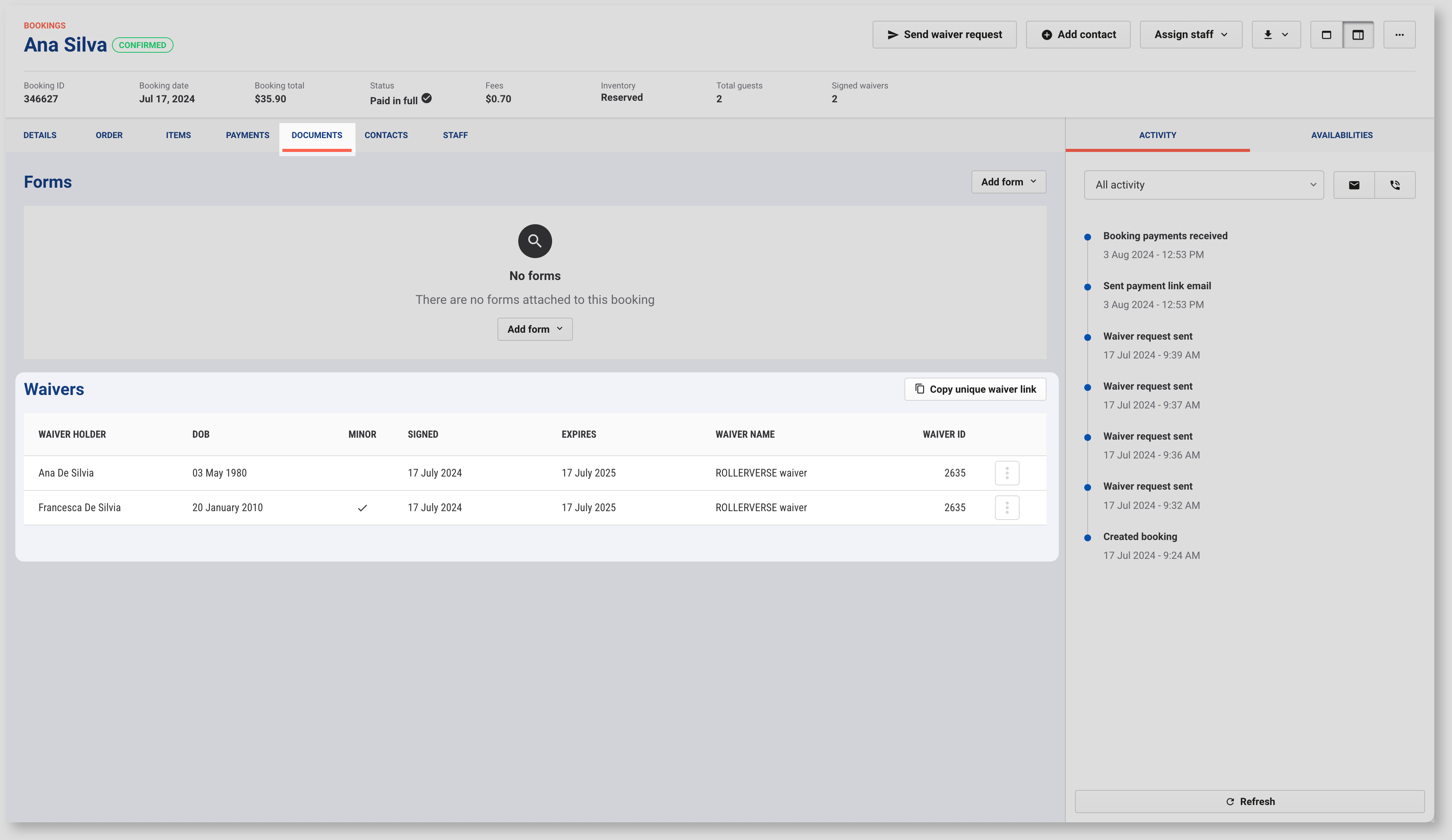
Select the Documents tab to view a list of linked waivers.
Signed waivers will also be linked here if the booking holder's email matches the email used to complete a waiver.
Learn more about the different ways you can get waivers signed by guests.
Search for a signed waiver in Venue Manager
You can search for signed waivers from the Waiver holders page.
From Venue Manager, go to Guests > Waiver holders.
Search for the signed waiver by name, or filter by the date the waiver was signed and status (Active, Expired (set expiry date reached), Deactivated (no longer valid)).
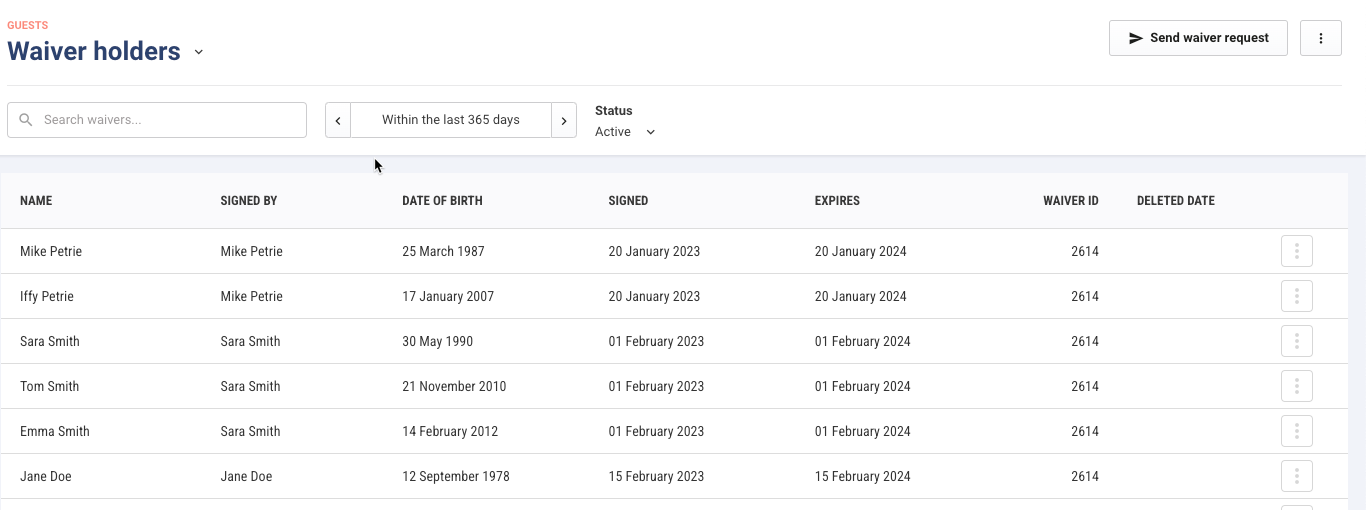
From here, you can see information relating to:
Name of the waiver holder
Name of the signee (different from waiver holder if it is a parent or guardian signing for a minor)
Date of birth of the waiver holder
Waiver expiry date
Signed waivers are stored indefinitely in ROLLER, even when you deactivate them or they expire.
Access and manage signed guest waivers
From the Waiver holders page in Venue Manager you can also open a signed waiver document (PDF), email a signed waiver to a guest or send a new waiver request (eg if it needs renewal) to the guest.
From Venue Manager, go to Guests > Waiver holders.
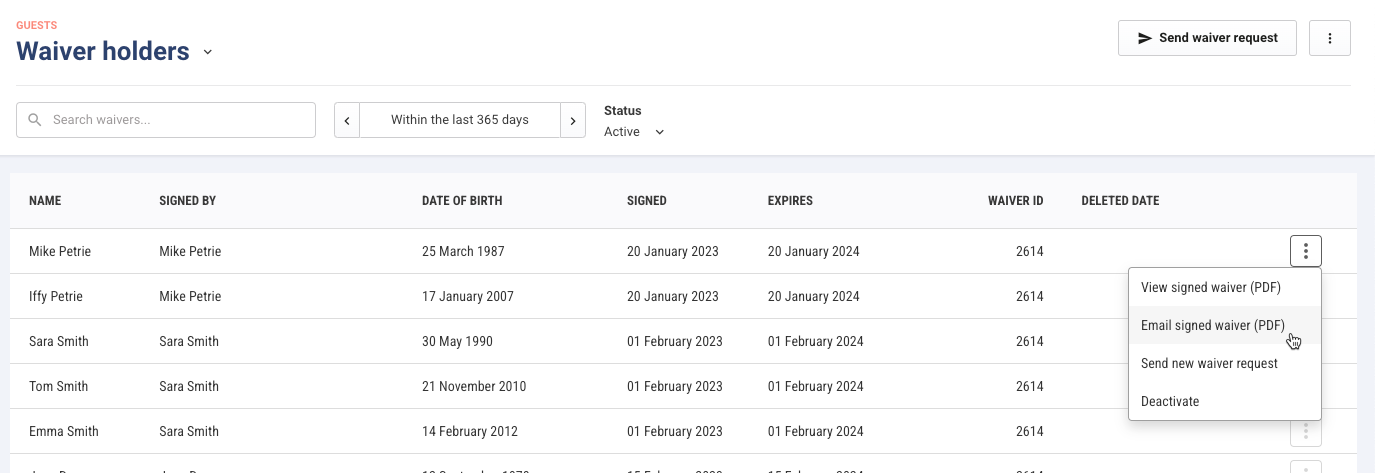
Search for and select the options menu (3 dots) for a specific waiver to:
View signed waiver (PDF). If the waiver was signed in an alternative language, you'll see the language that they signed it in.
Email signed waiver (PDF) to the guest.
Send new waiver request (if it needs renewal) to the guest.
Deactivate waiver (if you no longer want it to be valid).
Export waiver data
You can export a filtered list of guest waiver information to a CSV file, such as a list of all guests whose waivers have expired, then use a third-party email tool to ask them to re-sign their waivers with a link to the waiver.
To export a CSV file of filtered guest waiver information:
From Venue Manager, go to Guests > Waiver holders.
Filter the waiver holders as needed (eg Status = Expired).
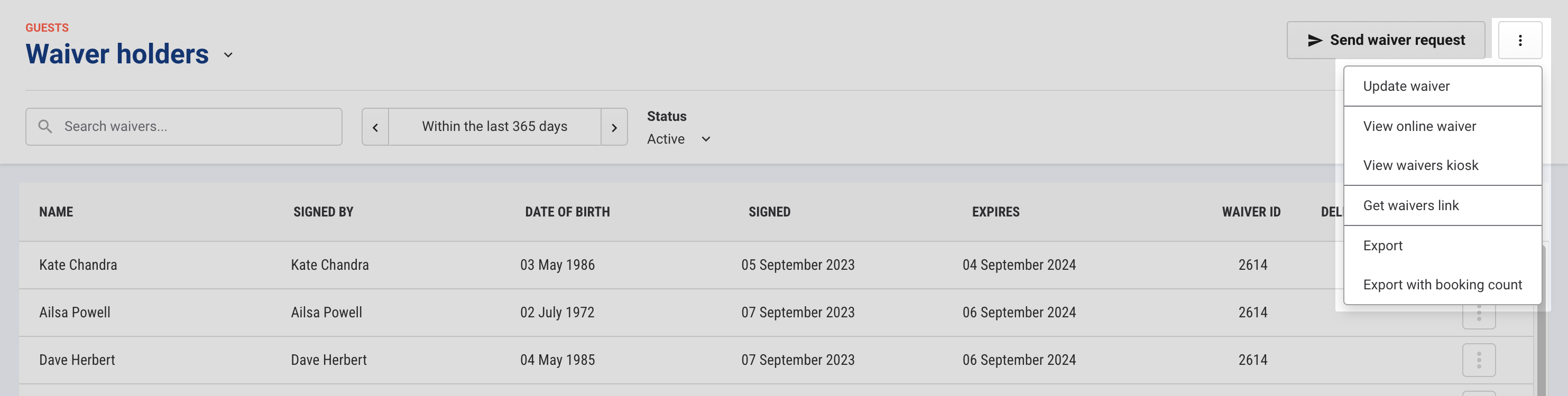
Select the options menu (3 dots) at the top of the page.
From the drop-down, select Export.
Select Alert me when complete.
This automatically triggers a CSV file download of the filtered list.
To get the waiver link to include in the email, select Get waivers link from the options menu (3 dots) at the top right of the Waiver holders page.