A waiver only protects your venue when guests sign it. Get guests to sign before they arrive and check-in moves faster, with shorter queues. This guide covers adding your waiver to products, the prompts ROLLER sends guests automatically, sending requests yourself and helping guests sign at your venue.
Add-on feature
Protect your venue against liability and improve the guest experience with digital waivers. To unlock the waivers add-on, contact your customer success manager or the support team.
Watch how to add your waiver to products, send requests and help guests sign on the day.
Before you begin
Create your waiver in Venue Manager. To learn how, see the guide Create a waiver.
Add your waiver to products
The permission required to edit product settings is Can edit products. The administrator and manager roles have this permission enabled by default.
ROLLER only prompts guests to sign for products that have a waiver. Turn it on for every product where guests must agree to your terms before they take part (eg climbing passes, jump sessions and party packages).
From Venue Manager:
Go to Products > All products and select the product.
Under Additional options, select the Waiver checkbox.
Select Save.
Let ROLLER prompt guests automatically
Once a product has a waiver, ROLLER prompts guests to sign in these places.
Where | What guests see | What you need to do |
|---|---|---|
After online checkout | Their waiver, straight after they pay | Nothing. It's on unless Waiver signing post-payment is turned off on the checkout's Options tab |
Order confirmation email | A waiver panel with a Sign a waiver button and a link to share with their group | Nothing, as long as the Waiver panel is still in your Order confirmation email template |
Booking reminder email | A prompt to sign before their visit | Turn on Booking reminder in the product’s settings |
ROLLER links waivers signed from any of these to the booking in Venue Manager. To set up booking reminders, or to choose which checkouts ask for a waiver, see those sections later in this guide.
What guests see after checkout
After paying, guests see Required: sign your waiver now.
Guests select Continue to sign waiver, check the details already filled in from their booking, then add their date of birth and details for any minors. They can then share the booking's waiver link with the rest of their group.
.png)
Choose which checkouts ask for a waiver
Signing straight after payment catches guests while they're still in the booking flow, before they've closed the page. If guests aren't being prompted, check the setting for that checkout.
The permission required to change checkout options is Can manage online checkouts. The administrator and manager roles have this permission enabled by default.
From Venue Manager:
Go to Apps > Progressive checkouts > All checkouts and select the checkout.
On the Options tab, turn Waiver signing post-payment on or off.
Select Save.
Check the order confirmation email
The order confirmation email gives guests who skipped the waiver after paying online a second chance to sign. ROLLER automatically sends this email to guests after paying online. The email also gives the booking holder a link to share with the rest of their group.
The email shows a waiver panel when the booking includes products that need a waiver, as long as the Waiver panel is included in your order confirmation email template.
To edit email templates, from Venue Manager, go to Settings > Email templates. To learn more, see the guide Customize email templates.
Turn on booking reminder emails
The booking reminder email is the last automatic prompt before the visit, so guests who haven't signed get another reminder without staff chasing them. It goes to the booking holder with their booking details, product instructions and a waiver prompt when the booking includes products that need one.
From Venue Manager, go to Products > All products and select the product.
Under Additional options, select the Booking reminder checkbox.
Next to Email guests, choose how many days before the booking date to send it.
Select Save.
Remind party hosts before the event
For party packages, ROLLER can also send the booking holder a waiver reminder email. It asks them to share the waiver with their guests, so everyone has signed before the party starts.
From Venue Manager, go to Products > All products and select the party package.
Under Additional options, make sure Waiver is selected, then select the Waiver reminder checkbox.
Next to Email guests, choose how many days before the booking date to send it.
Select Save.
Follow up on bookings that still need waivers
Bookings made by phone or in Venue Manager don’t get the online checkout prompt, and some guests skip the emails.
You can send or resend the booking holder the booking’s waiver link from Venue Manager. They can then get their whole group signed before the visit. Every waiver signed from it is linked to the booking, so you can see who’s done. This works for any booking that includes products with a waiver.
Send a waiver request from Venue Manager
ROLLER sends the link by email or text for you. An email can also list who has already signed, so the booking holder knows who to chase.
The permission required to send waiver requests is Can access and send waivers. The administrator, manager and booking agent roles have this permission enabled by default.
From Venue Manager, go to the booking, then select Send waiver request at the the top right.
Select Email or Text/SMS. A fee applies to each text message.
Check the recipient's details.
For an email, select Include a list of guests who have already signed waivers to show the booking holder who still needs to sign.
Select Send.
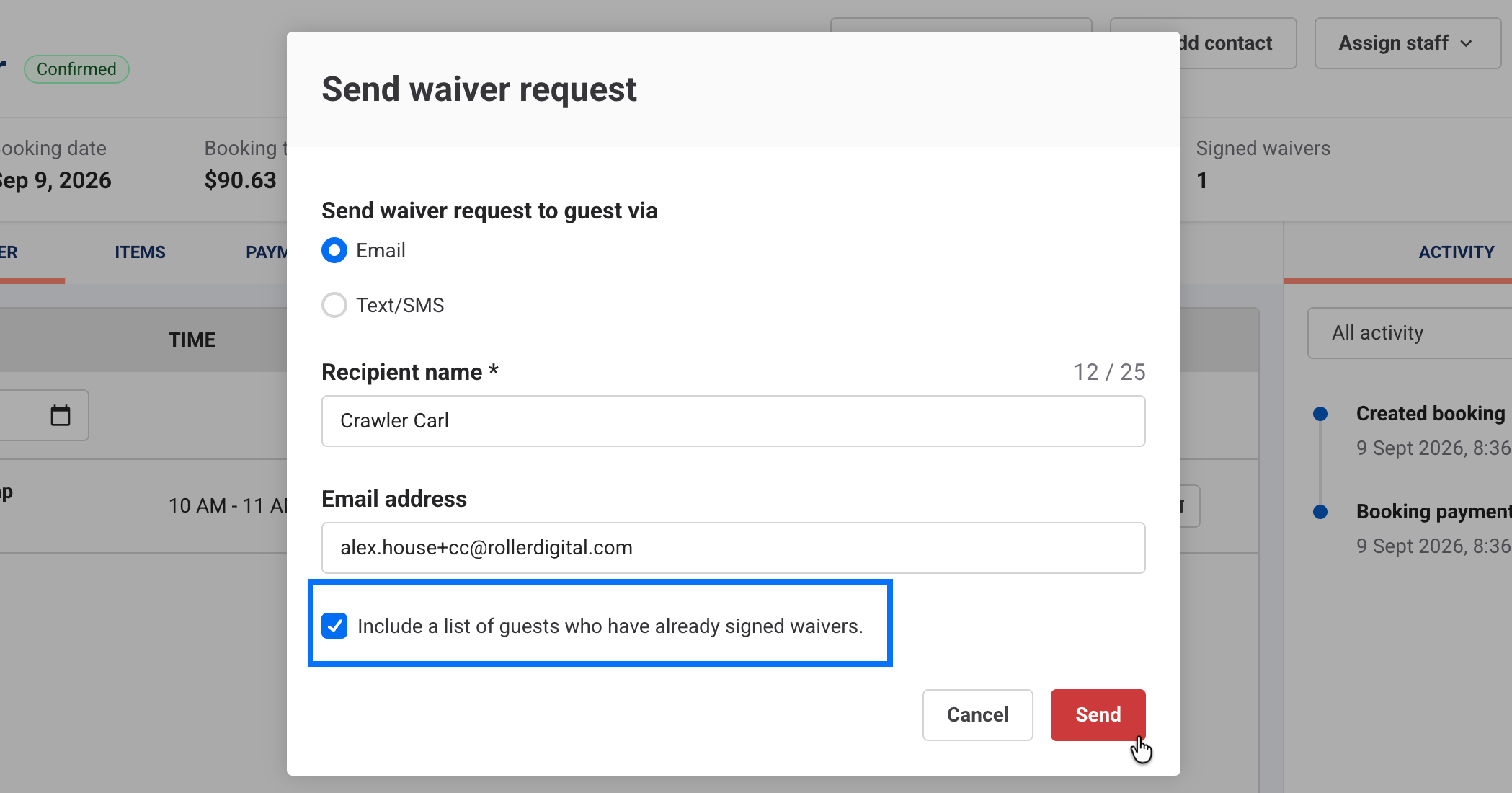
ROLLER logs every request you send in the booking's activity stream, so you can check whether a request went out before sending another. To learn more, see the guide Send waiver requests by SMS/text or email from Venue Manager.
Copy the booking's waiver link
To send the link yourself (eg in a message you’re already writing to the guest), copy it from the booking.
From Venue Manager, go to the booking, then select the Documents tab.
Under Waivers, select Copy unique waiver link.
Paste the link into your email or message to the booking holder.
ROLLER links waivers signed from this link to the booking and lists them on its Documents tab.
Let guests sign any time from your website
Add your waiver link to your website so guests can sign before they book or before they arrive. When the email a guest signs with matches a booking holder's email, ROLLER links the waiver to that booking.
From Venue Manager, go to Documents > Waivers > Waiver details.
Select Get waivers link.
Copy the Online waivers address.
Add the address to a sign waiver button on your website.
Help guests sign at your venue
Give walk-ins and guests who haven't signed a way to sign before they reach the desk.
We recommend running a waiver kiosk and QR code signs together: set up the kiosk with clear signage, and put QR codes along the queue so guests can sign waivers on their phones while they wait.
Send a waiver request from POS
From POS, go to the guest's booking.
Select Send waiver request.
Choose to send the request by SMS or email.
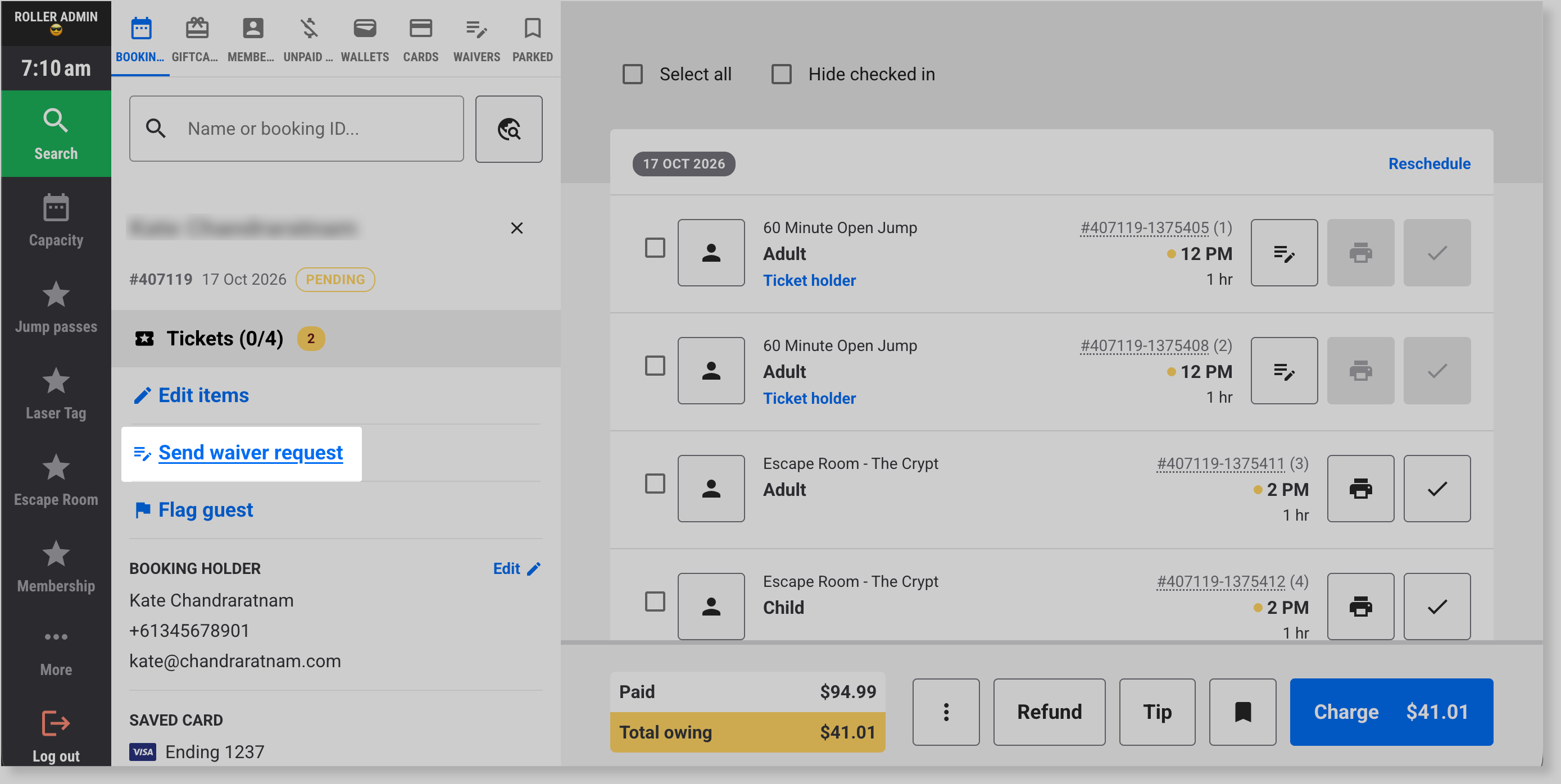
Other ways to help guests sign at your venue
Mobile Check-in app: if a guest has no waiver, select Send waiver request. ROLLER sends it to the booking holder's email, or by Text/SMS when there's no email. See View and send waivers in the Mobile Check-in app.
QR code signs: print a poster with a QR code that opens your waiver, so guests can sign on their phones while they queue. See Create a waiver QR code sign for fast check-ins.
Waiver kiosk: a tablet at your venue where guests sign. It resets after each signature, and you can lock it down so guests can't leave the waiver. See Set up a self-serve waiver kiosk.
Self-serve kiosk: turn on Include waiver flow for the device, and guests without a waiver are prompted to sign before they buy tickets. See Create your self-serve kiosk devices.
Find and assign signed waivers
ROLLER keeps every signed waiver. To see who has signed, from Venue Manager, go to Guests > Waiver holders, or open a booking and select the Documents tab.
At POS, staff search for a guest's signed waiver and assign it to their ticket when they redeem it. If Automatic check-in when waivers are attached is turned on in POS device settings, assigning the waiver also redeems the ticket. To learn how, see the guide Redeem tickets and assign waivers at POS.