Let resellers book against your live availability, keep a booking waitlist at POS and schedule when food and beverage orders reach the kitchen. October also brings capacity-based price rules, guest-selected party rooms, service charges on the products you choose and new loyalty earning conditions.
Try out new features in your playground venue about a week before they go live. See below for what's available. Not sure how to access playground? The ROLLER Playground guide shows you how.
This page covers new and improved features with setup guidance, and goes live about a week before the full release. For the complete picture, every change, fix and behind-the-scenes improvement this month, see the release notes, published shortly after release day.
We're always learning from venues like yours. Join our research panel to get early insights into new features and share your feedback to guide future improvements.
Reseller Portal
Grow reseller revenue without the spreadsheets (early access)
Plan: Pro and above with the advanced channel management add-on
Preview release (Playground): No
Target release: Live
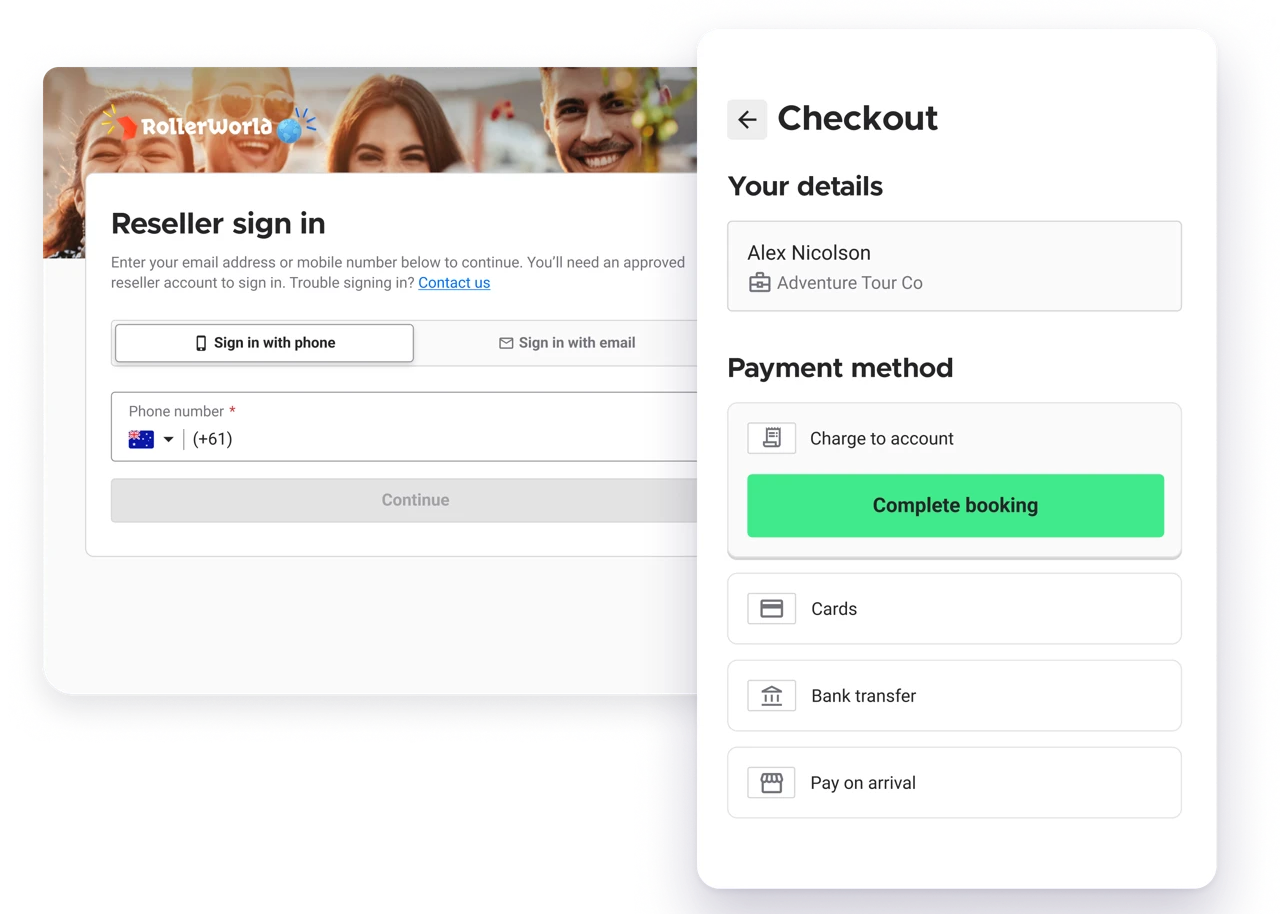
Reseller bookings ran outside ROLLER, by email, spreadsheet or other systems. Capacity you set aside by hand went stale, so sessions oversold. Resellers now sign in and book against live availability. Their payment terms apply at checkout and they can add their own booking reference. Every reseller booking lands in ROLLER with the rest. Built for venues selling through hotels, tour operators, travel agents and concierges.
Your team can also book for resellers who call or email, and see each reseller's bookings and balance in Venue Manager. You can also export bookings by period to invoice resellers on credit account terms.
The reseller portal is in early access for eligible venues on Pro plans and above with the advanced channel management add-on. To request access, contact your customer success manager or the support team.
To learn more, see the guide Get started with the Reseller Portal.
POS and online checkouts
POS booking waitlist is now available for all venues
Plan: All
Preview release (Playground): Yes
Target release: Tuesday, 20 October 2026 (AET)
From October’s release, all venues can use the booking waitlist. This avoids the use of manual lists outside of ROLLER to manage waitlists, and makes use of any space that comes up to slot guests in. This list syncs across all POS devices at the venue.
Add a guest to the booking waitlist
To add a guest to a booking waitlist, go to POS capacity view and select the waitlist. Once added, they show as a tile and are placed automatically at the bottom of the waitlist.
To add a guest to the waitlist
From POS, select Capacity from the menu on the left.
In the top right, select the new Waitlist button (hourglass icon).
Select Add to waitlist.
Either search for, and select an existing guest in the search bar or add their First name (required), Last name (required), Phone number (required) and Email to the form. Add optional notes if needed (eg activity the guest wants to do, preferred session time).
Select Add to waitlist.
The order of the list can be adjusted by dragging and dropping the tiles. If you remove a guest from the waitlist, they need to be added again.
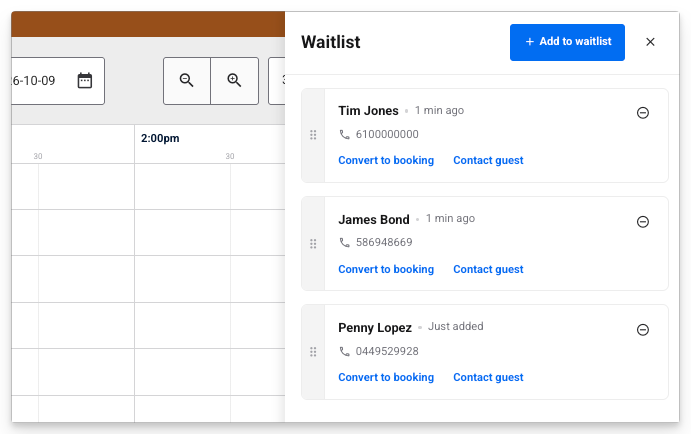
Contact a waitlist guest
The venue can contact the guest using SMS to let them know there's a space available, or if the venue can’t accommodate a booking.
To contact a guest
Open the Waitlist (hourglass icon in the top right).
On the guest’s waitlist tile, select Contact guest.
Select one of the templated messages to send: Waitlist ready, Reminder or Canceled.
Select Contact guest. This sends the SMS to the guest to the number provided at the time they were added to the waitlist.
Once contacted, a banner displays on the panel showing which message was sent and a timestamp.
Once you exit from the guest’s waitlist entry, and go back to the waitlist the banner shows on that tile so you can see who’s been contacted and when, at a glance.
SMS charges apply, see the guide Text and SMS usage fees on your ROLLER invoice to learn more.
Convert a waitlist entry to a booking
When a space frees up, turn the waitlist entry into a booking.
To convert to a booking
When the guest is ready to book, go back to the Waitlist and select Convert to booking on the waitlist tile.
This starts a booking, and carries the guest details over from the waitlist. Select an available product and add to cart, and then take payment and proceed with the purchase as normal.
Once the booking has been converted, the entry on the waitlist is removed.
Customize the SMS messages sent to waitlisted guests
Venues can customize the SMS messages sent from POS to the waitlist guest to ensure the messaging is clear and appropriate for your venue. The customizations can also be used to localize SMS’s in your local language.
To edit a waitlist SMS template
From Venue Manager, go to Settings, Design and SMS Templates.
Select the template to edit, or select the dots menu then Edit.
Update the text to personalize. To add a placeholder to populate with a guest’s information, select a variable then Add (eg the guest's first name).
Select Save.
The permission Can edit SMS templates is required to update SMS templates. This permission is enabled by default for administrator and manager roles and can be added to custom roles.
To learn more, see the guide Keep a booking waitlist for guests at POS.
Duplicate guest accounts now prevented in online checkouts
Plan: Pro and above
Preview release (Playground): No
Target release: Tuesday, 20 October 2026 (AET)
If a guest creates an online account using an email or mobile number that’s already attached to an existing guest record, the guest will be prompted to verify and sign into their account instead of creating a new account. This prevents duplicate guest accounts, ensuring purchase history and memberships are kept in one place.
SMS charges apply. See the guide Text and SMS usage fees on your ROLLER invoice to learn more.
Memberships
Keep a record of members removed from group memberships
Plan: All
Preview release (Playground): Yes
Target release: Tuesday, 20 October 2026 (AET)
You can now see members who were removed from a group membership in Venue Manager on the booking page.
To view terminated group members
When a member is removed at POS or by the guest in their online account, they stay on the booking’s Items tab with the status Terminated. They can’t use membership benefits and no longer appear in POS or online accounts.
From Venue Manager, go to Bookings.
Find and select the booking associated with the group membership.
In the Items tab you can see all past and previous group members in the Item holder column.
If a member has been removed, their status will show as Terminated. The removal date shows in the Validity column.
Match cancellation rescue offers to why members leave
Plan: All
Preview release (Playground): No
Target release: Live
Set up cancellation rescue options for your venue to cover all memberships, and show each member the offer most likely to keep them based on the reason they’re canceling.
There's also a new save option to present a discount if a member stays on their current plan. Membership pause now also works for memberships with a set number of payments.
To set a venue's cancellation rescue offers
From Venue Manager, go to Settings > Memberships.
Scroll to Cancellation rescue section
Select the save options you want to offer: Offer pause as a save option, Offer an alternative product as a save option or Offer discount to stay on the current plan.
Scroll down to the Cancellation reasons section.
In the column Rescue action. Select the rescue action you want to match to the Reason code in the same row. The Reason text is what the guest sees when they select cancel on their membership.
Select Save.
To select alternative plans to present, this is done in the individual membership product.
Learn more in the guides Offer members alternatives before they cancel and Capture reasons for membership cancellations.
Bowling
ROLLER now integrates with QubicaAMF to power your bowling venue
Plan: All
Preview release (Playground): No
Target release: Live
Book and manage bowling bookings alongside every other attraction at your venue, all in one place. This is possible with our new partnership with QubicaAMF.
ConquerorX is QubicaAMF's bowling management system. ROLLER now connects and syncs to ConquerorX so lane bookings appear on the lane, and availability stays synced across both systems.
How ROLLER and Conqueror integrate
Bookings made in ROLLER sync to Conqueror X with the correct lane, players, and session times.
Lane status from Conqueror X syncs back into ROLLER, so availability stays accurate.
Real-time lane availability in ROLLER.
When a guest arrives, start a game in ROLLER. There's no need to start the session separately in both systems.
Watch the video below to learn more about the partnership with QubicaAMF, and ROLLER’s integration with Conqueror X.
Learn more in Bowling with ROLLER and QubicaAMF. To connect ROLLER and Conqueror X at your venue, contact your customer success manager or the support team.
Open a bowling lane automatically in Conqueror from capacity view (on request)
Plan: All
Preview release (Playground): Yes
Target release: Live
Instead of relying on operators to manually open lanes (start games) in ConquerorX, ROLLER can now be configured to open lanes automatically.
When the booking is marked as Ready to start, the game will start when the booking is at or after its scheduled start time (and before its end time) and the lane is ready from any previous bookings.
To open a bowling lane automatically
From POS, go to POS capacity view.
Tap a booking and toggle on Ready to play. The booking tile turns purple, and the lane will start in Conqueror at the correct time. If Conqueror can't start the game for any reason, a tile shows that the start failed and a message appears on the POS showing the start was attempted.
If the lane is in use right before the booking starts, the next booking starts right away when the lane closes from the previous booking. No need to keep watching the lane to see if the game has wrapped up, as it begins on its own.
To enable this feature, contact your customer success manager or the support team.
Food and beverage
Schedule when food and beverage orders reach the kitchen (beta)
Plan: Premium and above
Preview release (Playground): Yes
Target release: Tuesday, 20 October 2026 (AET)
Serve food and drinks when guests are ready to eat. Schedule a whole order or individual items to reach your kitchen display or docket printer at a set time, then reschedule or cancel right up until they send. Scheduling is done at POS and works for stock items sold at POS, checkout and Venue Manager.
To get started
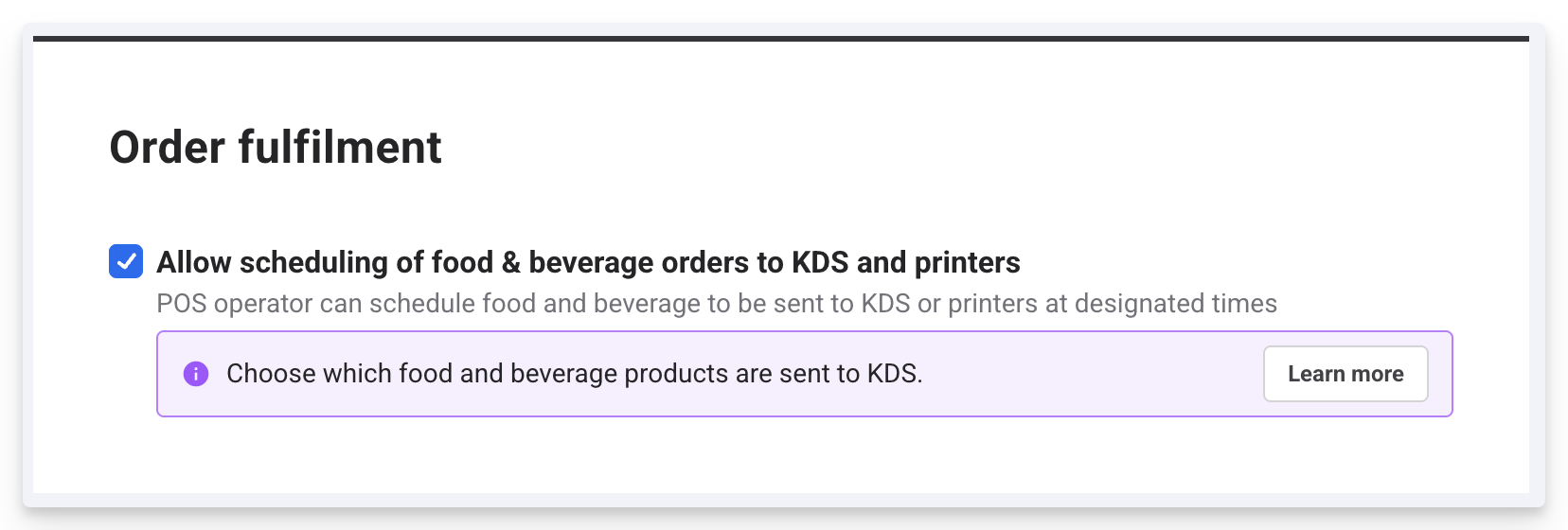
From Venue Manager, go to Apps > Point of Sale > Settings and scroll down to Order fulfillment.
To enable order scheduling check the box Allow scheduling of food & beverage orders to KDS and printers.
Select Save.
Then, from POS:
Search for and select the booking with the items you want to schedule.
To schedule all items in the booking, select the print options menu at the top of the screen and from the dropdown select Schedule items.
To schedule individual items in the booking, select the checkbox next to the items and then select the print options menu at the top of the screen, and from the dropdown select Schedule items.
You can manually adjust the time you want your items to send to the KDS or printer under Send time. Or, you can select the increment buttons provided to adjust the time and set the order schedule.
Then, select Schedule to complete the action.
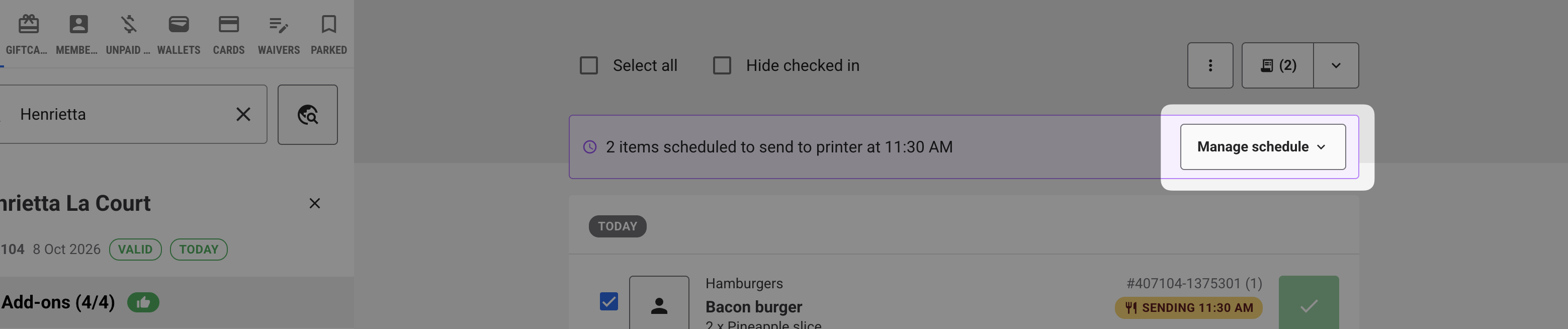
The booking now has a banner showing when scheduled items will be sent to the kitchen. This banner disappears when the order is sent to the KDS or printer, and you can’t make any changes to the schedule once this happens.
Select the hotspots below to see an interactive demo.
To make changes to an order schedule
Search for and select the booking with the items you want to make changes to.
Select Manage schedule from the purple banner.
Select Send all now from the dropdown if you want to override the schedule and send the items to the KDS or printer now.
Select Reschedule to adjust the scheduled time.
Select Cancel scheduled if you no longer want to schedule the order to the KDS or printer.
These changes are applied immediately.
To learn more, see the guide Schedule food and beverage orders to the kitchen.
Plan stock orders for upcoming bookings with the stock sheet
Plan: All
Preview release (Playground): Yes
Target release: Available now
Stock on hand tells you what's on the shelf, but not how much of it is already promised to upcoming parties and pre-booked packages.
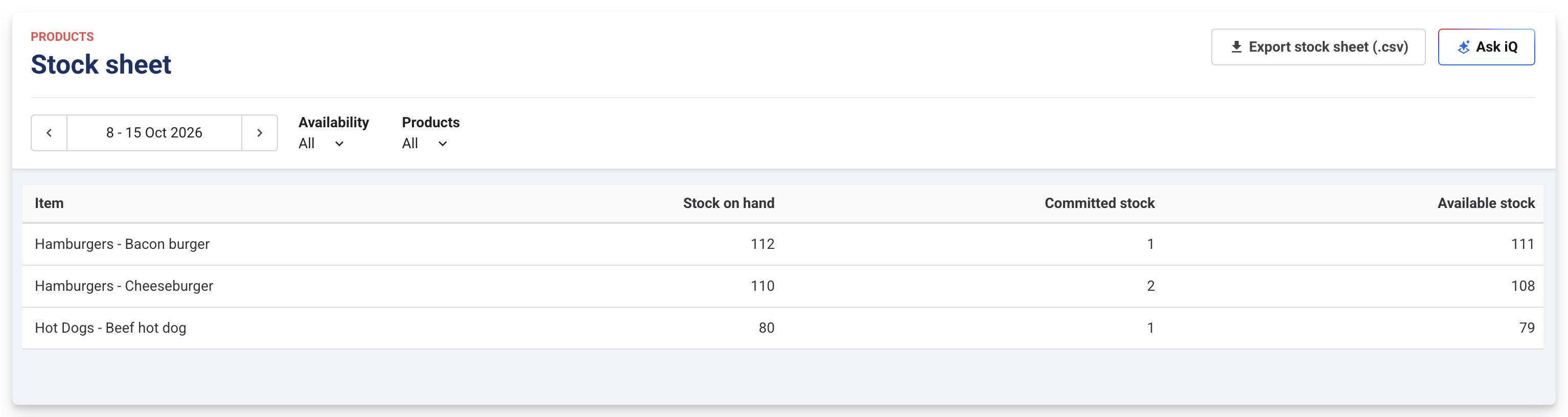
Now, the new stock sheet shows how much stock is committed to bookings up to the next 7 days and how much is still available, so you know what to order before the weekend. Filter the report to the desired date range and it will show the exact stock needed to support bookings within that period. You can also export the view to CSV.
To get started
From Venue Manager, go to Products > Stock > Stock sheet. Then you can:
Use the date picker to select a date range of up to seven days (eg the upcoming weekend).
Use the Availability filter to focus on items you're running short of, or items with unlimited quantity. Select an option from the dropdown.
Use the Products filter to view specific items only (eg pizza). Select the items you want to view from the dropdown.
Review the Committed stock and Available stock columns to confirm what you need to order.
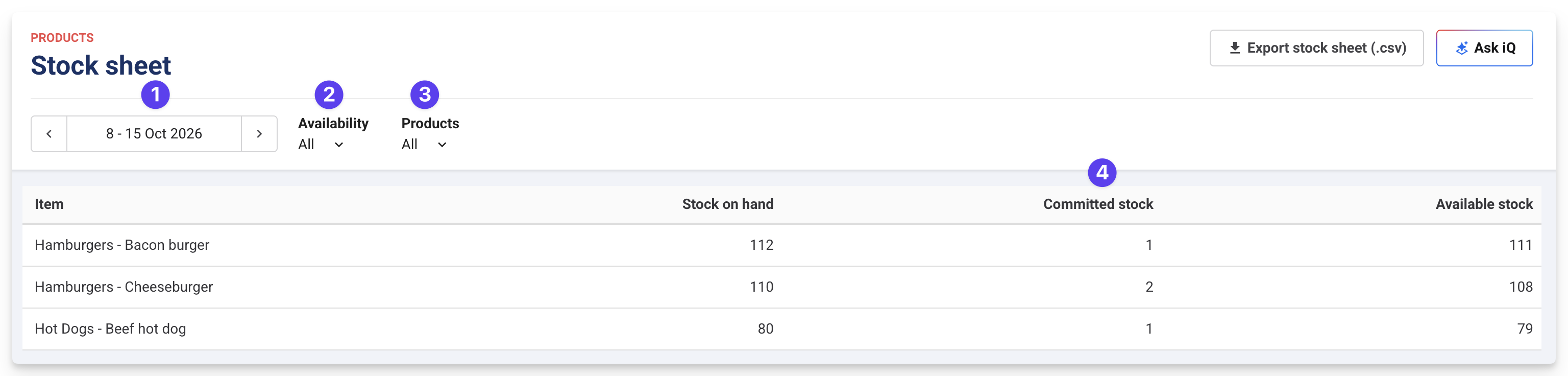
To export the stock sheet, select Export stock sheet (.csv).
To learn more, see the guide Plan stock orders with the stock sheet.
Notify guests by SMS when their food & beverage order is ready (beta)
Plan: Premium and above
Preview release (Playground): No
Target release: Available now in beta
Let guests enjoy your venue instead of waiting at the counter. When staff complete an order on Fresh KDS, the guest gets an SMS saying it’s ready to collect, so you serve faster and reduce missed pickups. If an order is split across preparation areas (eg kitchen and bar), guests get an SMS as each part is ready, and the order status in POS updates as items are prepared. You must be using ROLLER’s Fresh KDS integration to access this feature.
This feature is currently in beta. If you’d like to be involved, please contact your customer success manager or the support team.
To get started
From Venue Manager, go to Settings > Integrations and scroll down to the Fresh KDS section.
Under Webhook URL, select Generate webhook URL (if you haven’t already done so).
Toggle on Send SMS when order is ready to enable this feature. Beneath this you’ll see the message your guests will receive when their order is ready (this can’t be edited).
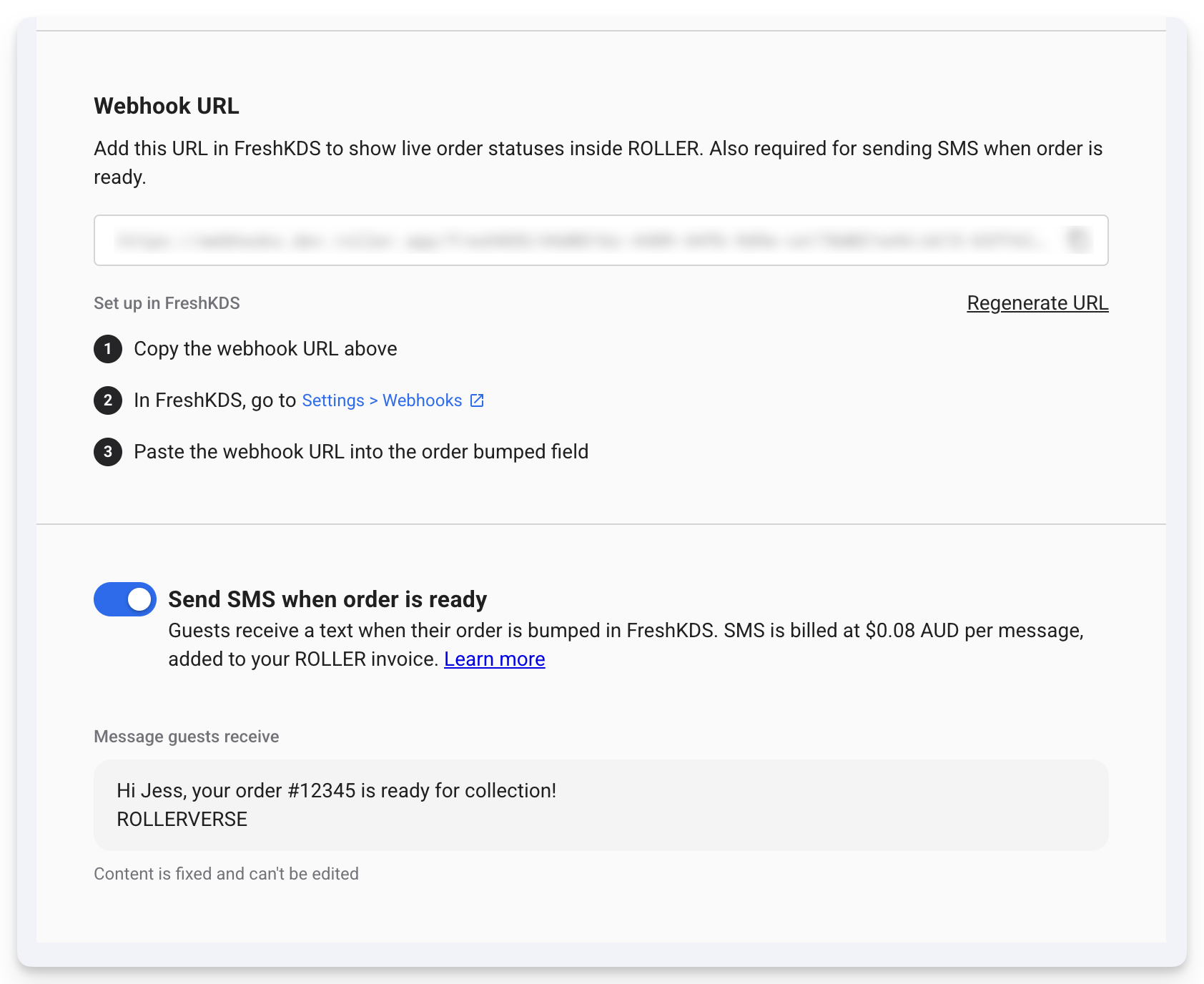
Once these set up steps are complete, at POS, when you take an order and process the payment, you’ll be prompted to add in the guests phone number and name so they can receive a text when their order is ready.
To learn more, see the guide Set up SMS order notifications for KDS.
Products and pricing
Collect a service charge automatically on the products you choose (on request)
Plan: All
Preview release (Playground): No
Target release: Tuesday, 20 October 2026 (AET)
Collect a service charge whenever a specific product is in a booking (eg party packages or group tickets), without building it into your prices or adding a required add-on.
Service charge rules are available on request for venues in the US, Canada and Australia. To enable this, contact your customer success manager or the support team.
How it works
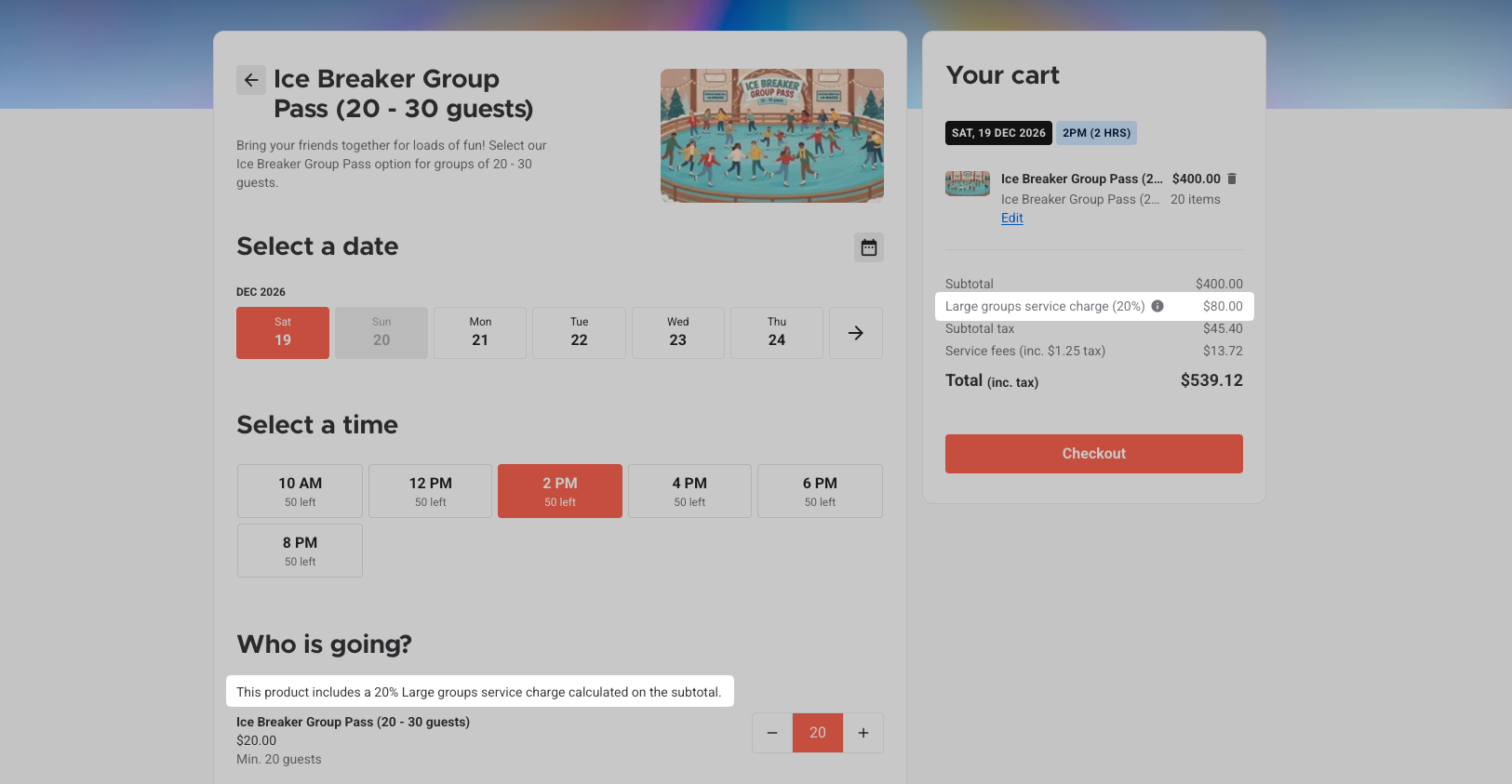
Each rule is configured to charge a percentage, applied to each booking item that triggers it. You choose whether it's calculated before or after taxes, and before or after discount codes. For example, on a $100 package with a 20% service charge and a 50% discount code, calculating before discounts keeps the service charge at $20.
To create a service charge
From Venue Manager, go to Settings > Account > Tax & fees, select the Service charge tab, then select Create service charge.
Enter a Name and a Description, and the Amount as a percentage.
Select the Tax on service charge dropdown and choose from one of your existing tax rates.
Under Tax calculations, choose whether you want the service charge amount to be calculated Before taxes or After taxes.
Under Discount calculations, choose whether you want the charge to be calculated on the amount Before discounts or After discounts are applied.
Under Applied products, choose Specific products or Reporting categories, then select the products or categories that trigger the service charge.
To charge it on other items in the same booking, check Apply this service charge to associated products in the same booking. Then under Associated products, choose Specific products, Reporting categories or Specific tags, and make your selection.
Select Save.
Select the hotspots below to see an interactive demo.
Associated products are only charged when an applied product is in the same booking, including items added later. If a party package triggers the rule and pizza and coffee are associated, a booking with only pizza and coffee isn't charged.
To change or stop using a rule, select the options menu (three dots) next to it, then Edit service charge or Archive.
What guests and staff see
Online checkout: The product page notes that the product includes a service charge. The cart shows it as its own line with the rule name and amount.
POS: The service charge shows as its own line in the cart totals, under the subtotal.
Venue Manager: The service charge shows as its own line on the booking's Order tab once you hold or reserve the booking.
Any tax on the service charge is always included in the tax line.
Attach add-ons to many products at once and set how many guests can add (on request)
Plan: All
Preview release (Playground): No
Target release: Tuesday, 20 October 2026 (AET)
Link an add-on to specific products or whole reporting categories, and keep quantities in line with the booking, so you save time on setup and staff aren't fixing bookings afterward. You can also have it added to the cart automatically, and guests can still remove it.
The centralized add-ons page and quantity limits are available on request. To enable these, contact your customer success manager or the support team.
Find your add-ons
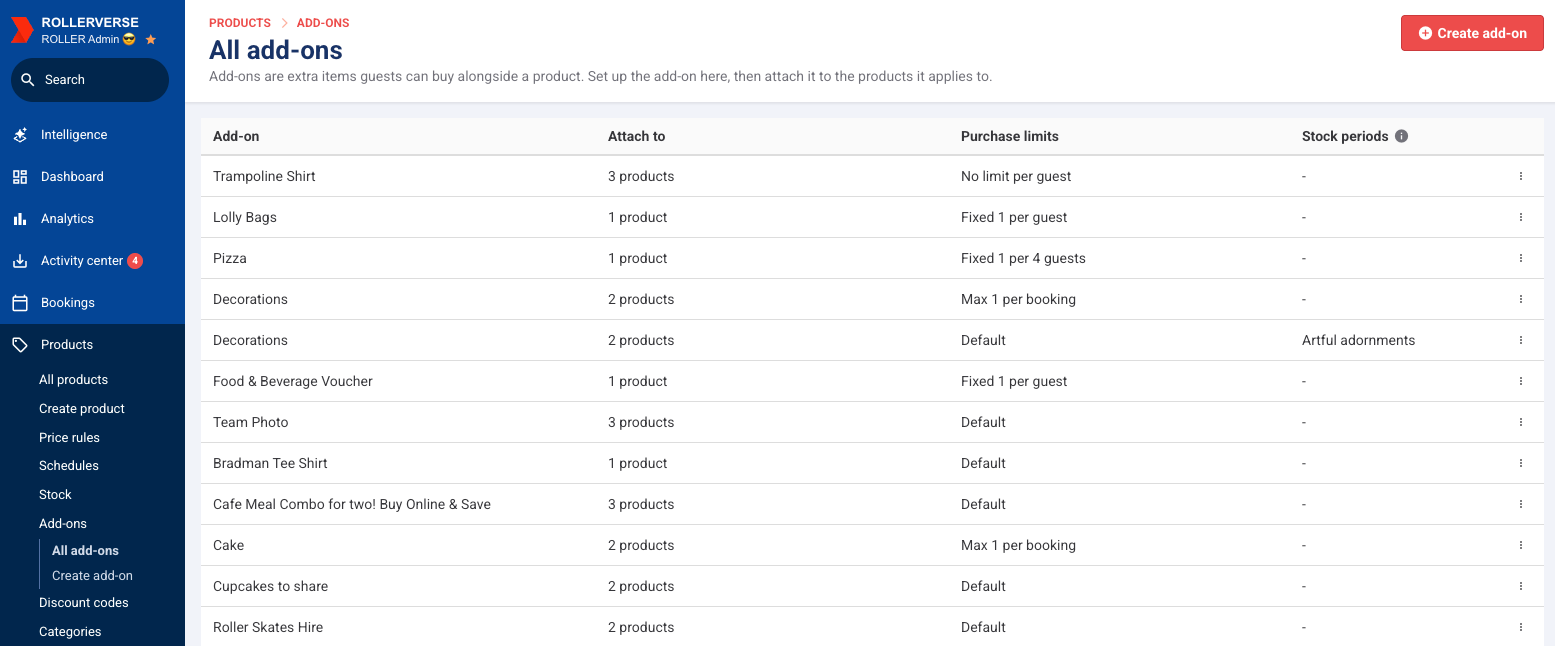
The All add-ons list under Products > Add-ons shows each add-on, how many products it's attached to, its purchase limits and stock periods. On a product, its add-ons show under Additional options > Add-ons.
Create an add-on
Attach an add-on to specific products or reporting categories, then choose how many guests can add: a minimum, a maximum or both, per guest or per booking, or a fixed quantity (eg 1 per guest). These settings override the product's own quantity rules.
To set up an add-on
From Venue Manager, go to Products > Add-ons > Create add-on.
Under Product, select the product to sell as an add-on. The add-on's price comes from that product.
Under Attach to, select Specific products or Reporting categories, then choose the products or categories to offer it with.
To add it to the cart for guests, select Added automatically. Guests can still remove it.
To offer the add-on only on certain days and times, select Limit to stock periods and choose the stock periods. You create stock periods under Products > Stock > Stock periods.
Under Quantity, select Override the product's quantity settings if you want to set different rules.
Under Quantity calculation, choose Per guest if you want to increase the add-on quantity with the number of guests, or Per booking if you want the quantity to stay the same for the whole booking.
Under How quantity is set, choose one:
Guests choose: set a minimum, maximum or both. To start the quantity at the number of guests instead of the minimum, select Default to guest count.
Fixed quantity: set the Quantity and For every number of guests, eg 2 for every 1 guest. Guests can't change it.
Save.
Select the hotspots below to see an interactive demo.
What guests see
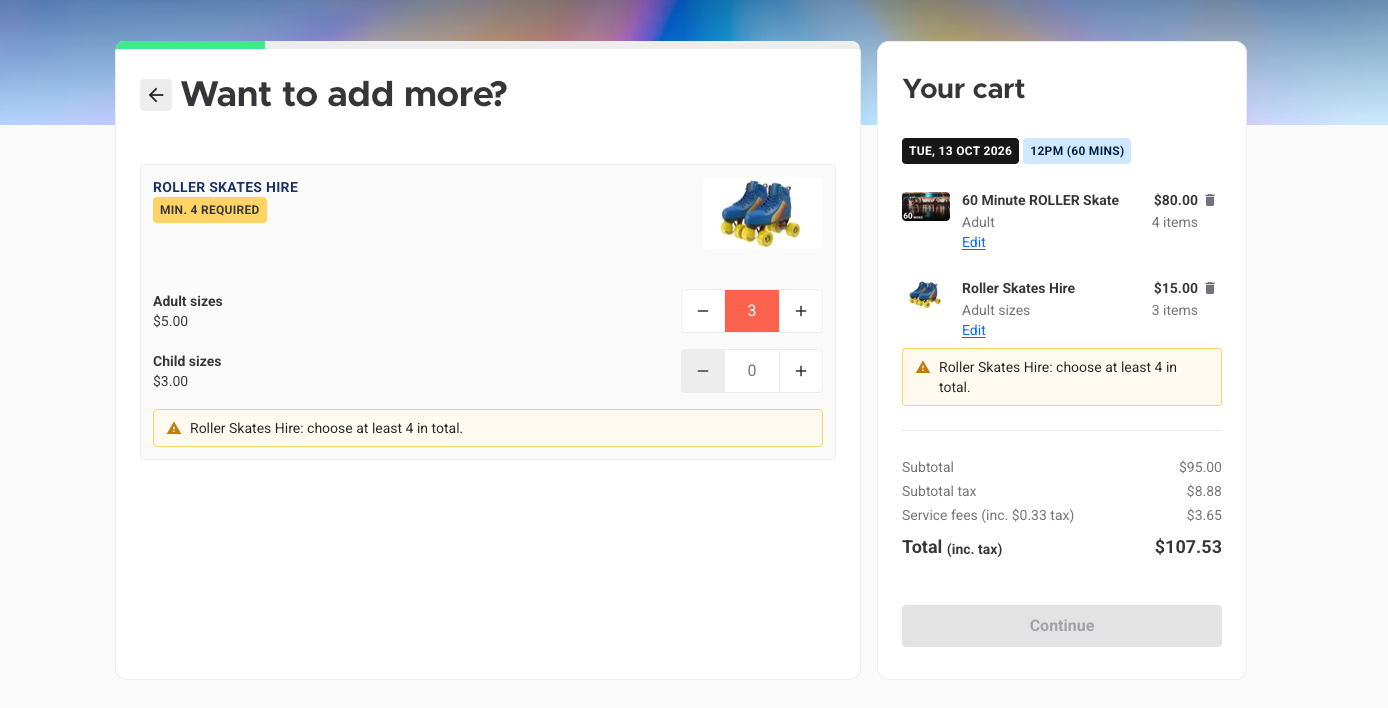
In the online checkout, guests see the minimum when they’re prompted to select an add-on. A per-guest minimum goes up with the number of guests. Until guests reach it, a message tells them how many more to add, and they can't continue. If they don't want the add-on, they can leave the quantity at 0 and select Skip.
Let guests choose their party room and charge extra for premium choices (beta)
Plan: All
Preview release (Playground): No
Target release: Tuesday, 20 October 2026 (AET)
Run one party package across your rooms, areas or tables instead of setting up a package for each. Guests pick their option when they book, and you can add an extra charge for premium choices.
Guest-selected resources are in beta. To join the beta, contact your customer success manager or the support team.
How it works
Every venue now sets up party programs in the Party program panel on the party package page, whether or not it joins the beta. Set the duration, then select Add resources to choose resources and times. The Overview timeline shows when each one is in use, including buffer time. Existing programs carry over unchanged.
In the party program, add Guest-selected resources alongside your Fixed resources: a set of options guests choose from, for example a choice of party rooms. Each option has its own resources, an optional extra cost and an optional minimum number of guests, so you can keep your biggest rooms for your biggest parties. A package can have several sets.
To set up guest-selected resources
From Venue Manager, open the party package and go to the Party program panel.
Select Add resources, then under Resource type, select Guest-selected resources.
Enter a Display name, then add a resource variation for each option guests can choose from. Assign each one its resources, a display name and any extra cost.
Set the Start time and End time.
Select Save.
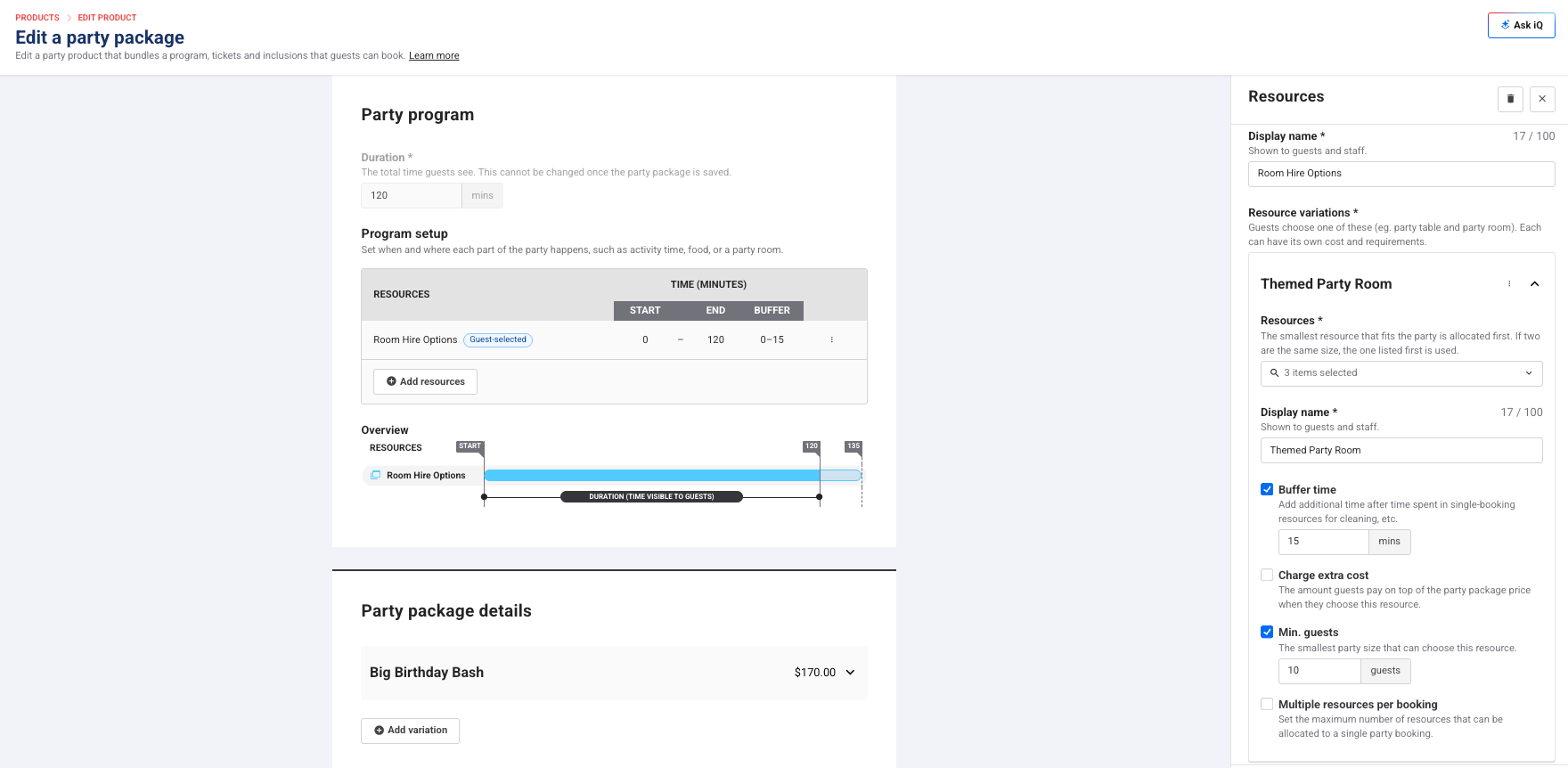
The settings available for each resource variation depend on the type of resource you choose:
Setting | What it does | Resource type |
|---|---|---|
Charge extra cost | What guests pay on top of the party package price when they choose this option | All |
Min. guests | The smallest party that can choose this option | All |
Buffer time | Adds buffer time around the party | Single-booking |
Multiple resources per booking | The most resources one party can be allocated | Single-booking |
Book out resources | Books out the entire resource for the party | Multi-booking |
Keep in mind:
One resource variation can include several resource options, but never both single and multi resources in one. The drop-down filters to match the first one you pick.
Start and end times apply to all the resource variations, whichever one the guest picks.
Larger parties still spread across the resources in their option, the same as fixed resources.
What guests and staff see
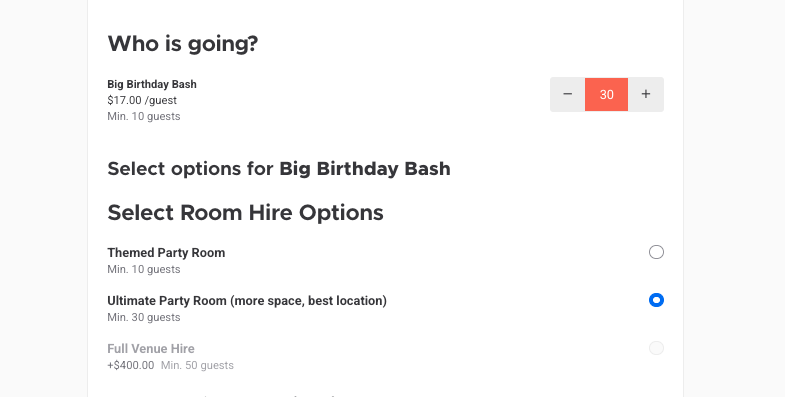
Online checkout: After choosing the date, time and number of guests, guests select one option from each set before they can check out. Any extra cost shows as its own line in the cart. Any options where the minimum guest requirement hasn’t been met are grayed out and cannot be selected.
Venue Manager: When creating a booking, staff choose each option under Select a resource, with the extra cost or Included beside it. The choice then shows on the Order tab, where staff can change it and the price updates.
Capacity-based price rules
Plan: All plans
Preview release (Playground): Yes
Target release: Tuesday, 20 October 2026 (AET)
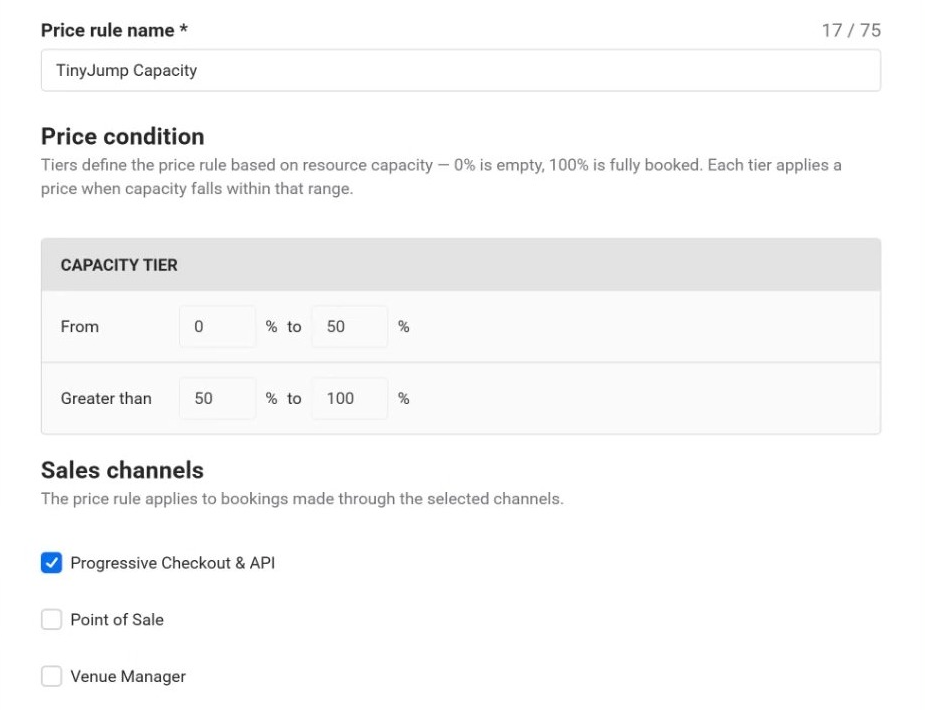
All venues can now set capacity-based price rules, so ticket prices change with how full a session is. Busy sessions earn more, and quiet sessions give guests a reason to book.
How it works
You choose which sales channels the tiers apply to: progressive online checkout and API, POS and Venue Manager. Channels you leave out charge the base price, so you can use capacity pricing online and keep counter prices flat.
Capacity-based price rules work on:
Session passes.
Party packages & Packages that include a session pass. Only the session pass price changes. Food, drinks and merchandise stay the same.
Guests added to a booking later pay the original price, on any channel.
To get started
From Venue Manager, go to Products > Price rules > Create price rule.
Select Capacity-based and enter a name.
Add up to five tiers, entering the upper capacity percentage for each. 0% is empty and 100% is fully booked.
Under Sales channels, select the channels the tiers apply to.
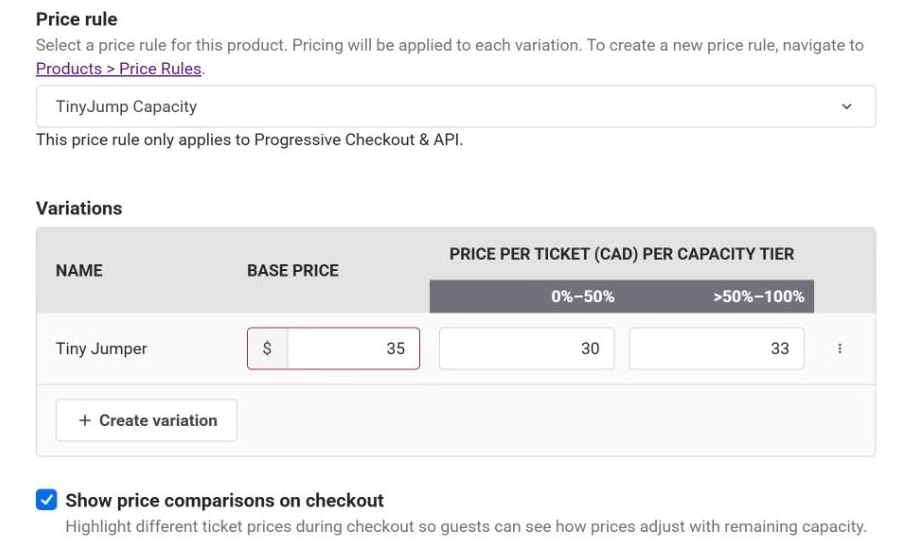
Open a supported product, select the rule from the Price rule drop-down, then set the base price and a price for each tier.
Save time setting up session passes and party packages with AI-generated images and descriptions (on request)
Plan: All
Preview release (Playground): No
Target release: Tuesday, 20 October 2026 (AET)
Generate a description and image in seconds, built from the details you've already entered, and edit them to suit your venue.
AI generation is available for session passes and party packages on request. To enable it, contact your customer success manager or the support team.
How it works
For a party package, the AI writes the description from the package name and each inclusion's name, quantity and description. The inclusions carry the detail, since a name like Deluxe Party Package says little on its own. Images use the product name and description, so create the description first.
To generate a description
From Venue Manager, go to Products > Create a product.
Select Session pass or Party package.
Enter the name and other details. For a party package, add your variations and inclusions. The more you enter, the better the result.
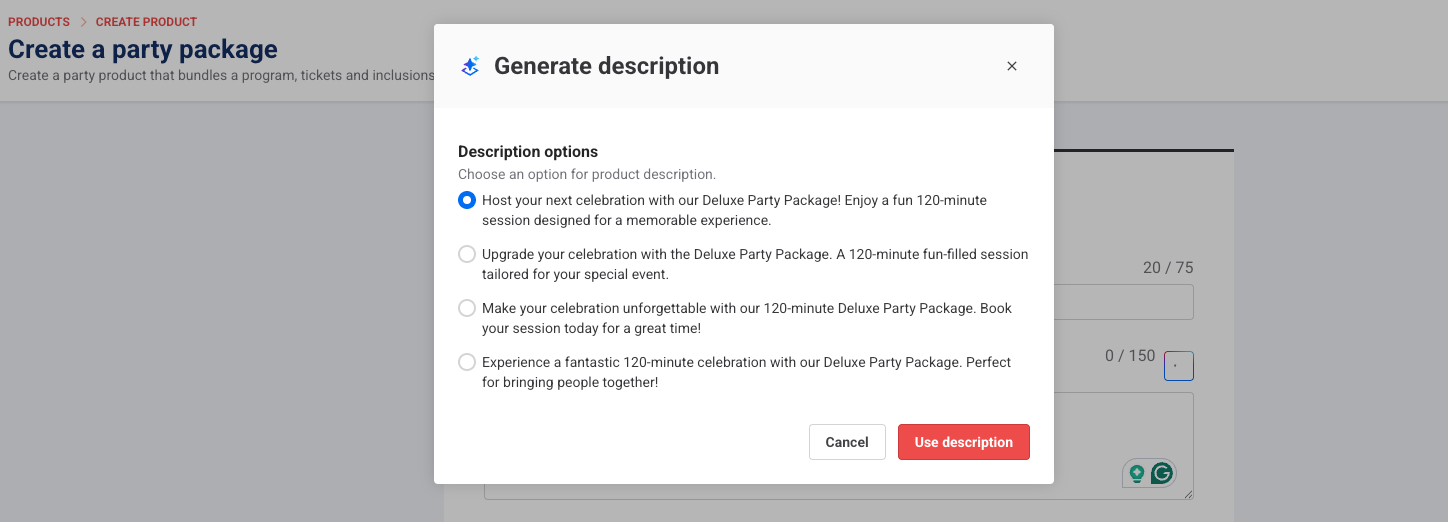
Select the AI button next to the description field, choose a description option, then select Use description.
To generate an image
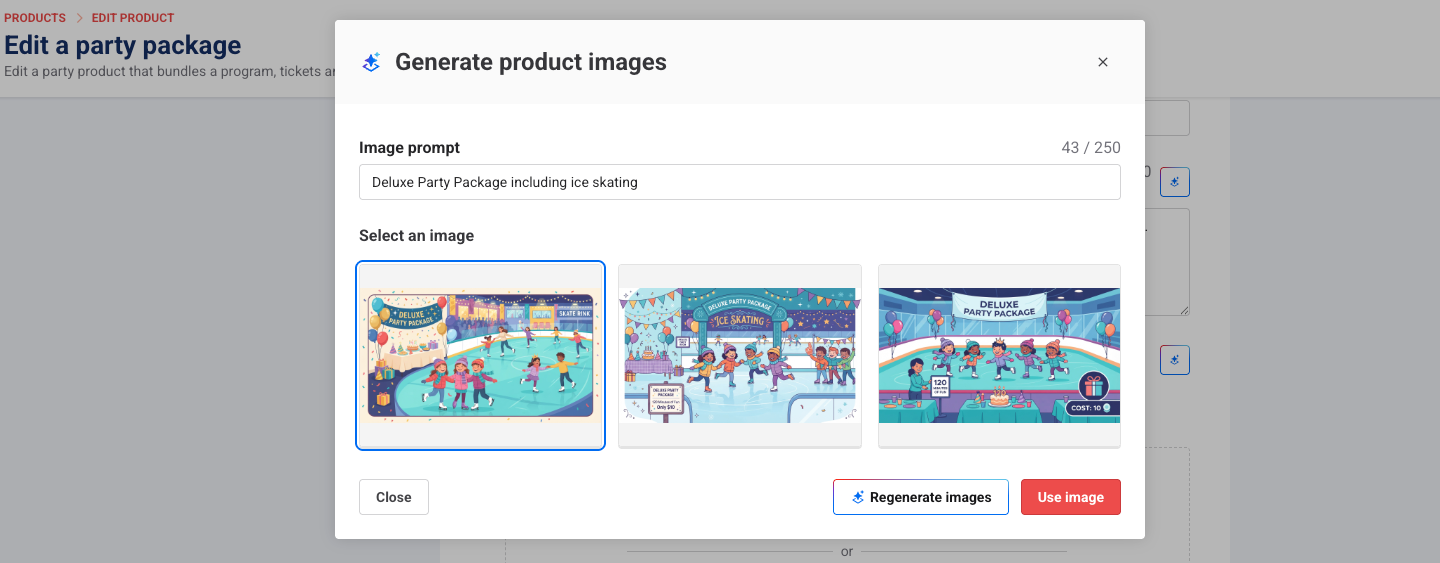
Tick the image option > select Create one for me.
Write a prompt and select an image style (graphic, realistic or illustration).
Select Generate images. You can regenerate images for more options if needed.
Once you’ve chosen an image, select Use image.
Reporting
Report on archived products in the Revenue Recognition report
Plan: All
Preview release (Playground): Yes
Target release: Tuesday, 20 October 2026 (AET)
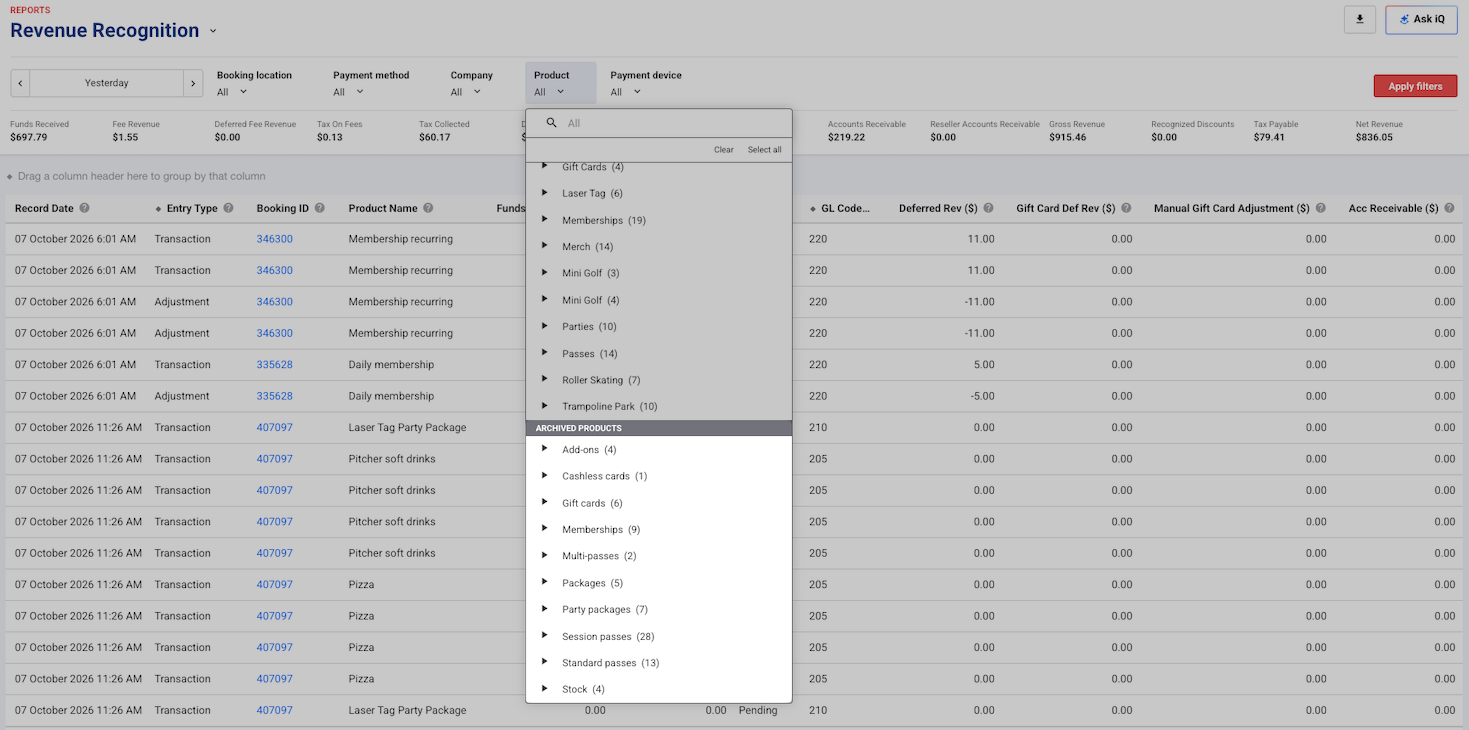
Finance teams reconcile revenue by reviewing transactions and products in the Revenue Recognition report. Archived products dropped out of its product filter, which meant many venues kept retired products active just to continue reporting on them.
Now you can select archived products in the report's Product filter. They're listed in their own Archived products section below your active products, grouped by product type. You can archive products you no longer sell and still pull their revenue figures from the report.
Loyalty
Set spend and product milestone earning conditions for your loyalty program
Plan: Loyalty add on
Preview release (Playground): No
Target release: Tuesday, 20 October 2026 (AET)
Give guests a reason to book now with three new earning conditions for your loyalty rules. Add earning conditions to spend and product milestone rules to control how guests progress towards and earn rewards.
Time window: Progress towards a reward resets if a guest doesn't reach it within a set number of days. For example, “spend $250 and get $10 off your next visit" with a 90-day window resets a guest's progress if they haven't hit $250 within 90 days of starting.
Repeatability: Caps how many times a guest can earn the same reward, instead of repeating indefinitely. For example, "buy 5 jump passes, get one free" capped at 3 total redemptions and stops paying out once a guest has earned it three times.
Daily cap: Caps how much progress a guest can make towards the milestone in a day. For example, “Buy 10 jump passes, get one free rule” where only 2 eligible purchases count towards the milestone each day.
Each earning condition is off by default. When you enable an earning condition, progress emails and the guest's online account reflect the value you've set.
Earning conditions only apply to spend and product milestone rewards.
To get started
From Venue Manager, go to Loyalty > Rules.
Find the spend or product milestone rule you want to add an earning condition to and select the options menu (3 dots). Then, select Edit reward rule.
Select Limit qualifying spend per day/Limit qualifying progress per day to cap how much progress a guest can make towards the milestone in a day. Add the cap.
Select Limit earning to a time window to set how many days from the first qualifying purchase a guest has to earn this reward. Add the number of days.
Select Limit how many times this reward can be earned to cap how many times a guest can earn this reward. Then, choose when this limit resets. Under Reset this limit select either: Lifetime, calendar year or Loyalty enrollment anniversary.
Select Apply and then Save.
These conditions are now applied to the rule and take immediate effect.
Select the hotspots below to see an interactive demo.
To edit earning conditions
To edit your earning conditions, from Venue Manager, go to Loyalty > Rules. Find the spend or product milestone rule you want to edit and select the options menu (3 dots). Then, select Edit reward rule. Make your changes and then select Apply.
To learn more, see the guide Set up loyalty rules and rewards in Venue Manager.
Track loyalty progress in online accounts
Plan: Loyalty add on
Preview release (Playground): No
Target release: Tuesday, 20 October 2026 (AET)
Give guests a reason to book their next visit. From their online account, guests can now see a progress bar for each active reward, plus the rewards they’ve already unlocked and when they expire. They’ll also see any boosting promotions, time left and remaining earns for capped rewards, and why a reward can’t be redeemed online. Progress updates when a booking is redeemed at POS or expires, not at purchase.
To learn more, see the guide Redeem loyalty rewards at POS and online.
Financial services
A smoother checkout experience and clearer reporting across more payment methods
Plan: All, for customers using ROLLER Payments
Preview release (Playground): No
Target release: Tuesday, 20 October 2026 (AET)
We've made checkout smoother for guests using popular international payment methods, and made payments easier to reconcile in your reports.
At checkout:
Alipay on mobile: Guests paying with Alipay on a mobile device now get the mobile Alipay experience, while guests on desktop still see the QR code.
WeChat Pay in overlay checkout: Guests can now pay with WeChat Pay in the overlay checkout. This means you can offer WeChat Pay to guests without changing the checkout experience you already use.
Portuguese postal codes: Guests with a Portuguese address can now enter their postal code in the standard national format (1100-365) during online checkout.
In reporting:
Alipay and WeChat Pay transactions: These transactions were previously grouped under Other in transaction reports, so they were hard to identify and reconcile. They now appear as their own payment methods, so your finance team can reconcile them without manual workarounds.
PayPal in payment method filters: You can now filter by PayPal transactions in the detailed transactions and revenue recognition reports. Select the Payment method filter and then select PayPal from the dropdown.
Klarna refunds: Klarna refunds previously showed Card as the payment type, which made it unclear where the refund had gone. They now show Klarna, so staff can see the refund went back to the guest's Klarna account.
API
API enhancements: October 2026
Plan: All plans with API access
Preview release (Playground): Yes
Target release: Available now
As a reminder, this month we're making 3 changes to strengthen API security and better protect sensitive data:
All existing public API keys will be re-scoped. Now, each key can only call the endpoints it actually used in the last 12 months (between 28 August 2025 to 28 August 2026). This change is being applied in a phased approach throughout October.
Booking, Capacity and Payment write endpoints will be restricted from 1 October 2026 and can only be granted by ROLLER staff. If you would like to request access to these endpoints, please reach out to your CSM or ROLLER support.
From 7 October 2026 API access will be limited to what each integration needs only. New API keys will no longer have full access by default. Instead, you can select the endpoints each key needs after the key has been created. To learn more, see the guide API overview.
What you might see
If your integration starts returning 403 "insufficient scope" errors on certain endpoints, your API key may not have access to those endpoints anymore.
To check and re-scope your endpoints
From Venue Manager, go to Settings > Integrations > API Keys.
From the API keys list, select the options menu (three dots) at the end of the row for the API key you wish to update.
Select Update scope from the dropdown.
Select Specific endpoints for either (or both) the REST API and Reporting API. Choose the actions and data types the key needs.
Select Confirm.
To learn more, see the guide API overview.
Updating non-restricted endpoints versus restricted endpoints
For any non-restricted endpoint: Follow the instructions above. It’s important to note that "Full access" is only full access to non-restricted endpoints. It won't include restricted endpoints.
For any of the restricted endpoints (Booking, Capacity and Payment write endpoints): Reach out to your CSM or ROLLER support.
To see the latest API updates, view the ROLLER API changelog.