Archive products you no longer want to sell without deleting them. You can unarchive them later if needed. For stock products, you can also archive and unarchive individual stock variations.
Before you start
Make sure you have the permission to edit Products in Venue Manager.
Archiving removes a product from sale but keeps historical data available in reporting, when supported.
For stock products, you can archive or unarchive individual variations.
Keep in mind
Archived products are no longer available for sale.
To include or exclude archived items in reporting, use the reports product filter, then scroll to the Archived products section.
For stock products, unarchiving a variation clears the SKU code (barcodes) field.
Archive a product
From Venue Manager, go to Products > All Products
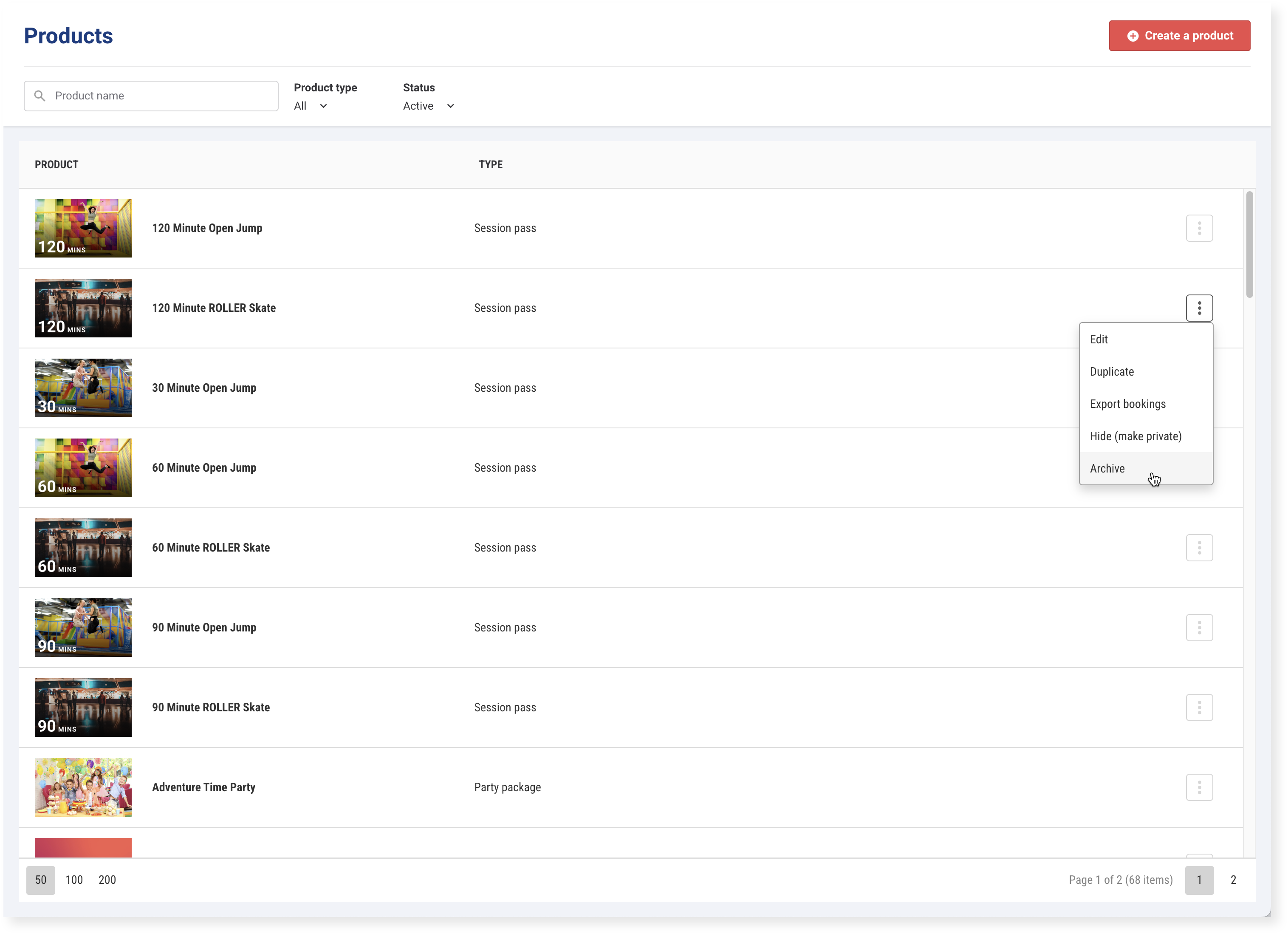
For the product you want to archive, select the options menu (3 dots), then select Archive.
After you archive a product, no one can purchase it in Venue Manager, online checkouts or POS..
For stock products with variations, see Archive stock products and variations below.
Unarchive a product
From Venue Manager, go to Products > All Products.
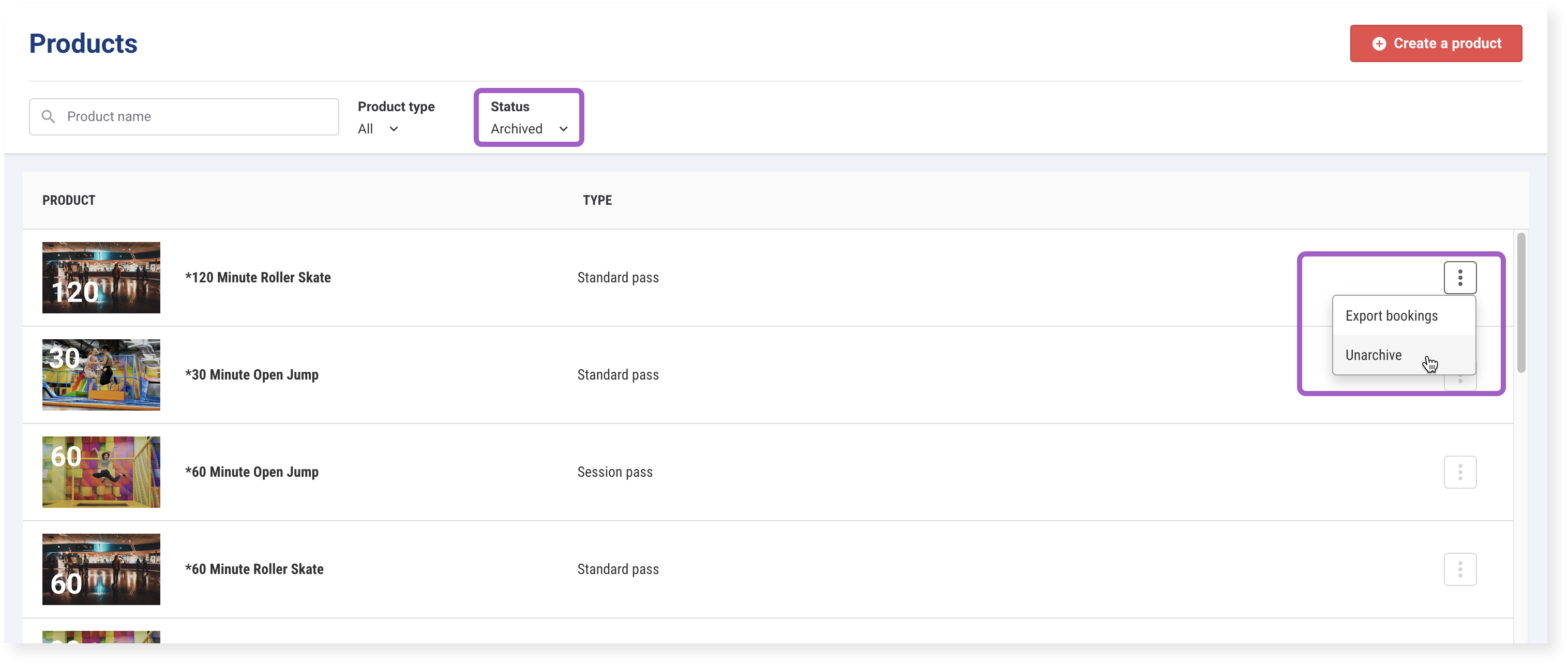
In the Status filter, select Archived.
For the product you want to unarchive, select the options menu (3 dots), then select Unarchive.
Archive a stock product or variation
Archive or unarchive stock products and variations to keep your stock list concise and organized.
From Venue Manager:
Go to Products > Stock > All stock.
Search for or scroll to the stock product you want to update.
Select the options menu (3 dots), then select Archive.
If the product has variations, choose whether to archive the entire product, including all variations, or just that variation.
Select Archive.
Archive a variation from the edit product page
Open the stock product you want to edit.
Scroll to the Stock variations section.
For the variation you want to archive, select the options menu (3 dots), then select Archive.
Select Save.
Unarchive a stock product or variation
From Venue Manager:
Go to Products > Stock > All stock.
In the Status drop-down, select Archived.
Search for or scroll to the stock product you want to update.
Select the options menu (3 dots), then select Unarchive.
If the product has variations, choose whether to unarchive the entire product, including all variations, or just that variation.
Select Unarchive.
When you unarchive a stock variation, the SKU code (barcodes) field is cleared. Re-enter the SKU code before selling the variation again. To learn more, see the guide Create your stock products.
Check the result
After you unarchive a stock variation:
Review the variation details.
Re-enter the SKU code (barcodes) field if needed.
Confirm the variation is ready to sell again.