Track new member acquisitions by membership product over a selected timeframe to understand membership growth and sales performance. Use this report to see sales trends over time, compare product performance and identify when guests are most likely to sign up for a membership.
Questions this report helps answer
How many new memberships are we selling over a given period?
What trends are we seeing in new membership sales?
Which days have the most new membership sign-ups?
How does the number of new memberships change week by week?
This report includes data for all membership products.
Top insights
What you can learn from this report:
Identify spikes or dips in new membership sales and compare them with marketing campaigns or events.
Review which days or weeks have the most new sign-ups.
Compare membership products to see which ones sell best.
Access the report
The permission Can access Analytics is required to view dashboards and reports. Administrator and manager system roles have this permission enabled by default.
From Venue Manager go to Analytics > Reports.
Search for and select Membership product sales.
Interpret the visualization
This report shows new memberships sold by membership product for the selected timeframe.
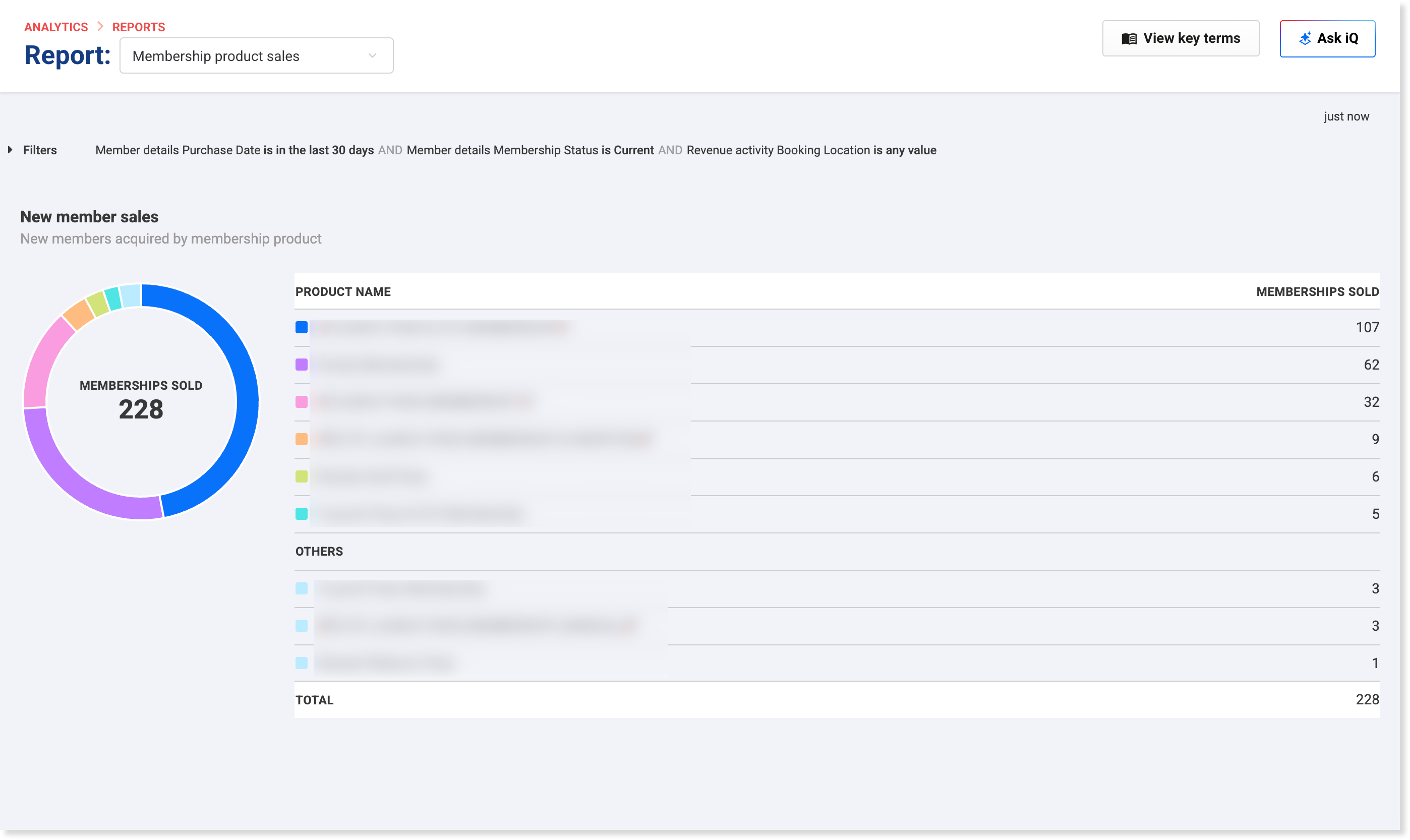
Chart view
The current report view shows a chart and a table summary.
The chart summarizes memberships sold for the selected filters.
Each segment or series represents a membership product.
The dates reflect when the membership product was purchased.
Table view
The table breaks down memberships sold by product.
Each row shows a membership product and the number sold.
Lower-volume products may be grouped under Others.
The Total row shows the full number of memberships sold for the selected filters.
Review the chart and table for patterns such as increases or decreases in sales. These trends can help you adjust promotions, timing and membership offers.
Use the filters
You can combine filters to narrow the data shown in the report.
Select Filters at the top left of the report page to view and adjust filters.
Review and understand the default filters currently applied.
Modify the filters using drop-down menus, calendars, and entry fields.
Remove filter values by selecting the X to the right of a selected item.
Select Run to update the report with the new filters.
Filter adjustments are temporary, only visible to you, and revert to default when the report is reopened.
Filter | Purpose |
|---|---|
Purchase Date | Defaults to the last 30 days. Use this filter to select a different timeframe, date, or date range. |
Membership Status | Defaults to current members. Use this filter to select a different membership status. |
Booking Location | Defaults to all booking locations. Use this filter to narrow results by sales channel, such as Data import, Online checkout, POS or Venue Manager. |
Learn more about how you can interact with and download the data in the chart.