From Venue Manager, you can switch between your HQ account and any managed venue without logging out.
Switch to another venue
From Venue Manager:
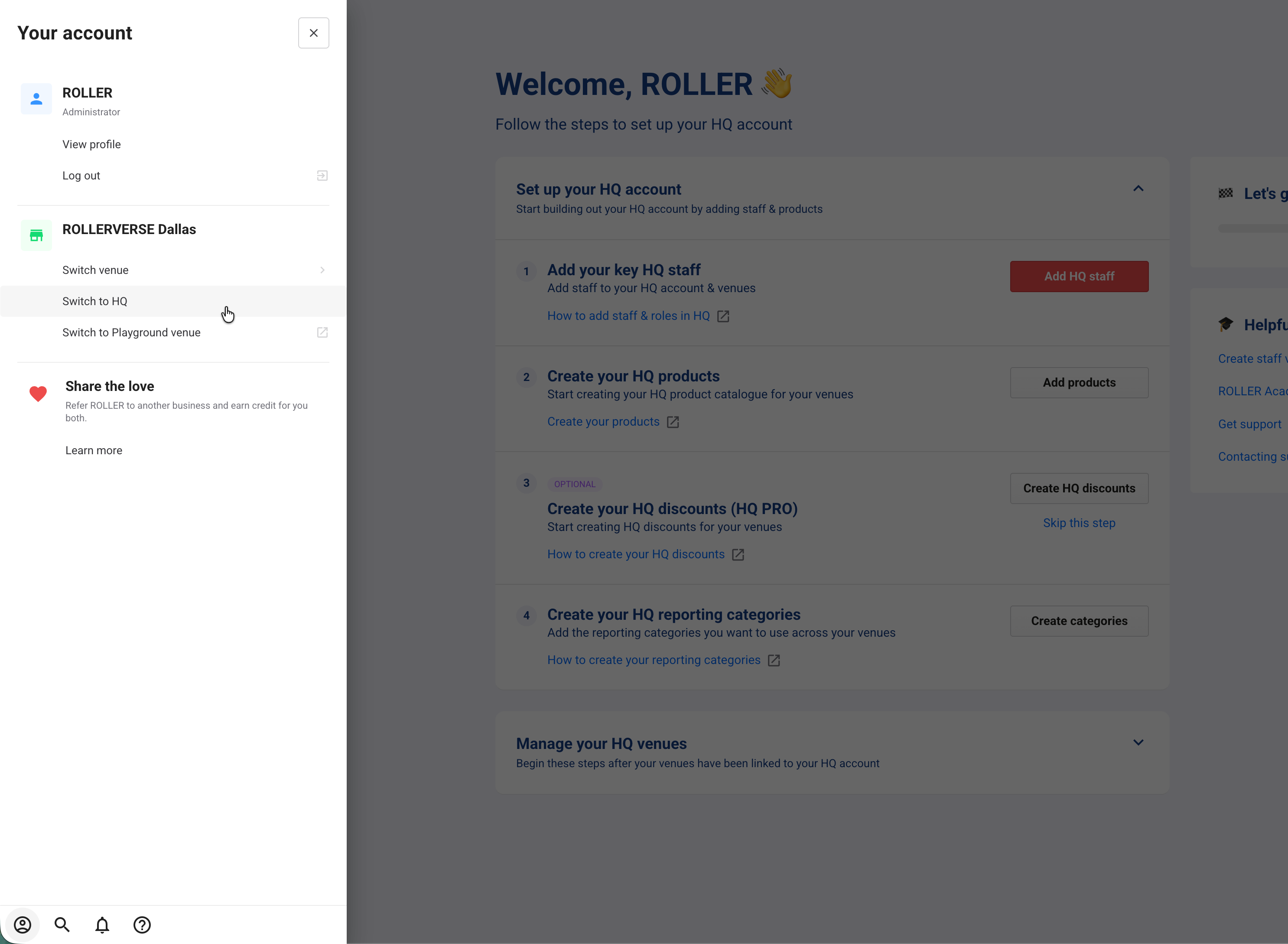
Select your account profile (the person icon at the bottom of the main menu).
Select Switch venue.
Select a venue — it opens immediately.
Your HQ venue is pinned to the top of the Switch venue list. You can also use the keyboard shortcut ⌥ + V to quickly switch venues.
Switch to HQ from a managed venue
When you're working in a managed venue, you can return to HQ in one click using the Switch to HQ shortcut.
From Venue Manager:
Select your account profile (the person icon at the bottom of the main menu).
Select Switch to HQ.
Switch to HQ only appears when you're viewing a managed venue and your account has access to HQ.
Land on the same product when you switch
When you switch venues while viewing a product, you’re taken to the same product in the venue you switch to, instead of that venue’s product list. This saves searching for it again when you’re comparing a product across venues or checking its setup in one of them.
Switching from HQ to a managed venue that has the product opens that venue’s version of it.
Switching back to HQ from a product page opens the matching HQ product.
If the venue doesn’t have the product, you land on that venue’s product list instead.