Once your bowling products are live, your team will use ROLLER to manage bookings, assign lanes and keep sessions running smoothly throughout the day.
This includes updating guest bookings, monitoring lane availability and making any changes during service.
Before you begin
Before you start managing bowling bookings, ensure that you have completed bowling set up for your venue. In particular, you have set up your bowling lane resources are set up correctly (as single-booking resources).
How lane allocation and capacity works
In ROLLER, bowling availability is controlled by your lane resources. This means:
When a booking is made, ROLLER reserves the entire lane under the same booking.
The lane cannot be shared with another booking during that session.
ROLLER automatically assigns an available lane based on the session time when a booking is created.
If no lanes are available, the session will show as sold out.
Bowling guests are typically booked in groups (two or more guests) under the same booking. This means:
If the group size exceeds the capacity of one lane, additional lanes are allocated automatically for the booking.
These lanes are linked to the same booking and reserved for the same time.
As bookings are created, edited and cancelled lane availability updates in real time ensuring you don’t double-book lanes.
View and manage bowling bookings
View bowling bookings from either Venue Manager or POS to access booking details, check guests in, and make updates as needed. While you can use both to view and manage bookings, they have different uses:
Venue Manager (Bookings): Used by admin or front desk staff to manage upcoming bookings, make detailed edits (reschedule, adjust tickets, update guest details) and plan ahead.
POS (Bookings and capacity view): Used by in-venue staff during service to check guests in and handle quick changes and to move bookings while working with guests.
To learn how to view and manage bookings in Venue Manager, see the guide Manage bookings in Venue Manager.
Tips for editing bowling bookings
Guest plans are likely to change from time to time. It's good to be aware that when bowling bookings are edited lane allocation is impacted. This means:
Increasing guests on a booking may require additional lanes.
Moving a booking time depends on lane availability at the new time.
Once a session starts, edits are limited as the lanes are already in use. Adding guests may require a new booking to be created.
Bowling booking edits more sensitive than general bookings. Edits may not go through if capacity isn't available for a certain number of guests at that time.
Edit bowling bookings in POS capacity view
Capacity view is the recommended way to manage bowling bookings during service, as it shows lane availability, booking timing, and potential conflicts in real time.
You can use this view to make changes by simply dragging and dropping the booking tile to another time or lane. There are some exceptions to this, like if the session has already started or the resources is blocked by another booking.
Capacity view can be configured to customise what resources are displayed, and how they're ordered.
Here are some recommendations for setting up POS capacity view for bowling venues:
Use compact view: if you have 10+ lanes (or 10+ single-booking resources, including bowling lanes). This ensures everything is easier to see at a glance.
Ensure lanes are in order: you can customize the order of resources in capacity view, in the POS template settings. Having the lanes reflecting the physical order in your venue helps staff visualize which guests are where.
To see the process in action, watch the video below. To learn more about using POS capacity view and how to customize the layout to suit your venue, see the guide Get started with POS capacity view.
Mark bowling bookings as ready to play
When guests are ready to start their bowling game, they're often sent to the lane ahead of time to wait for the active guests to finish. When guests are ready to go, adjusting the booking resource or time might disrupt the experience.
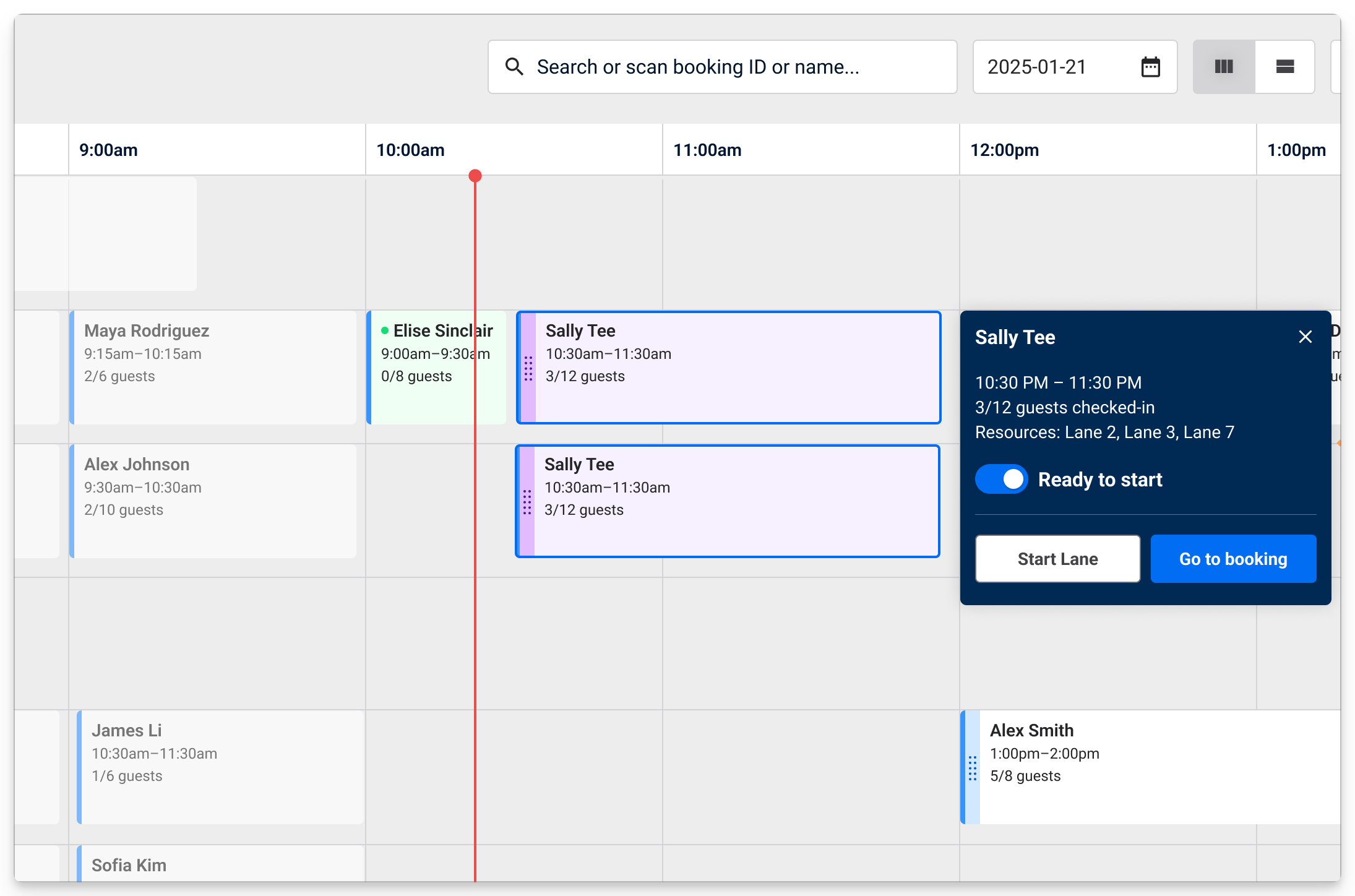
To flag the booking as ready, use the Ready to start toggle in POS Capacity View that changes the tile colour to purple and syncs across all POS terminals to keep all venue.
To set a guest or group of guests as ready to start:
From POS, go to Capacity View.
Hover over the booking and select the toggle to switch the booking to Ready to start. This changes the tile colour to purple to show the status change at a glance.
End a session early
When a bowling session finishes before its scheduled end time, you can end the booking early. The lane(s) will become available for the next booking straight away, meaning you can sell the next session sooner to maximise capacity utilization.
The End session button appears 10 minutes after a session starts and this action ends the whole booking, not individual lanes within it. So if a booking is split over multiple lanes, ending the session ends all active resources for that booking.
To end a session early:
Select an active session that's been running for at least 10 minutes
Select End session and Confirm. This ends all resources allocated in the booking.
Add a guest to a booking waitlist
A waitlist button is available from POS capacity view and allows you to add potential guests to a waitlist, if a session is sold out. This list syncs across all POS devices at the venue.
Here's how it works:
From POS, select Capacity from the menu on the left.
Along the top select the new Waitlist button (hourglass icon).
Select Add to waitlist.
Either search for, and select an existing guest in the search bar or add their First name (required), Last name (required), Email and Phone number (required) to the form. Add optional notes if needed (eg preferred session time, number of guests in the group, whether phone or email is preferred contact method).
Select Add to waitlist.
Alternatively, you can add to waitlist by directly selecting a time slot on the POS capacity view grid and selecting Add to waitlist.
Once added they're automatically placed at the bottom of the waitlist if there's more than one entry on it. When they're on the waitlist, they show as a tile in the list. The order of the list can be adjusted by dragging and dropping the tiles.
When a space frees up, the venue can contact the guest using the details provided and let them know there's a space available. Here's what happens next:
When the guest is ready to book, go back to the Waitlist button and select Convert to booking on the guest's tile.
This starts a booking, and carries the guest details over from the waitlist. Select an available product and add to cart, and then take payment and proceed with the purchase as normal.
Once the booking has been converted, the entry on the waitlist is removed.
What's next
In this series, you’ve set up bowling for your venue and now learned how to manage bowling bookings.
For additional guidance and common questions, see the guide Bowling FAQs.