Use this dashboard to review recently created party package bookings. It helps you track booking value, monitor demand and prepare for upcoming events.
Use the Parties booked dashboard to review recent and upcoming bookings. To review party package events that have already taken place, use the Parties hosted dashboard.
Questions this dashboard helps answer
Which party package products are being booked most often?
What is the total booking value of recent party bookings?
Which sales channels generate the most party bookings?
What details are recorded for each party booking?
How much has been paid and what is still owing for upcoming bookings?
Top insights
Identify high-demand party package products.
Compare bookings across online checkout and Venue Manager.
Monitor booking value to forecast revenue.
Track outstanding balances before event dates.
Prepare staffing, food and resources for upcoming events.
Access the dashboard
The Can access Analytics permission is required to view dashboards and reports. Administrator and manager system roles have this permission enabled by default.
From Venue Manager, go to Analytics > Dashboards.
Select Parties booked from the dashboard list.
Dashboard metrics and calculations
Review the charts and booking table shown in the dashboard, then use the table below to understand what each metric or field represents.
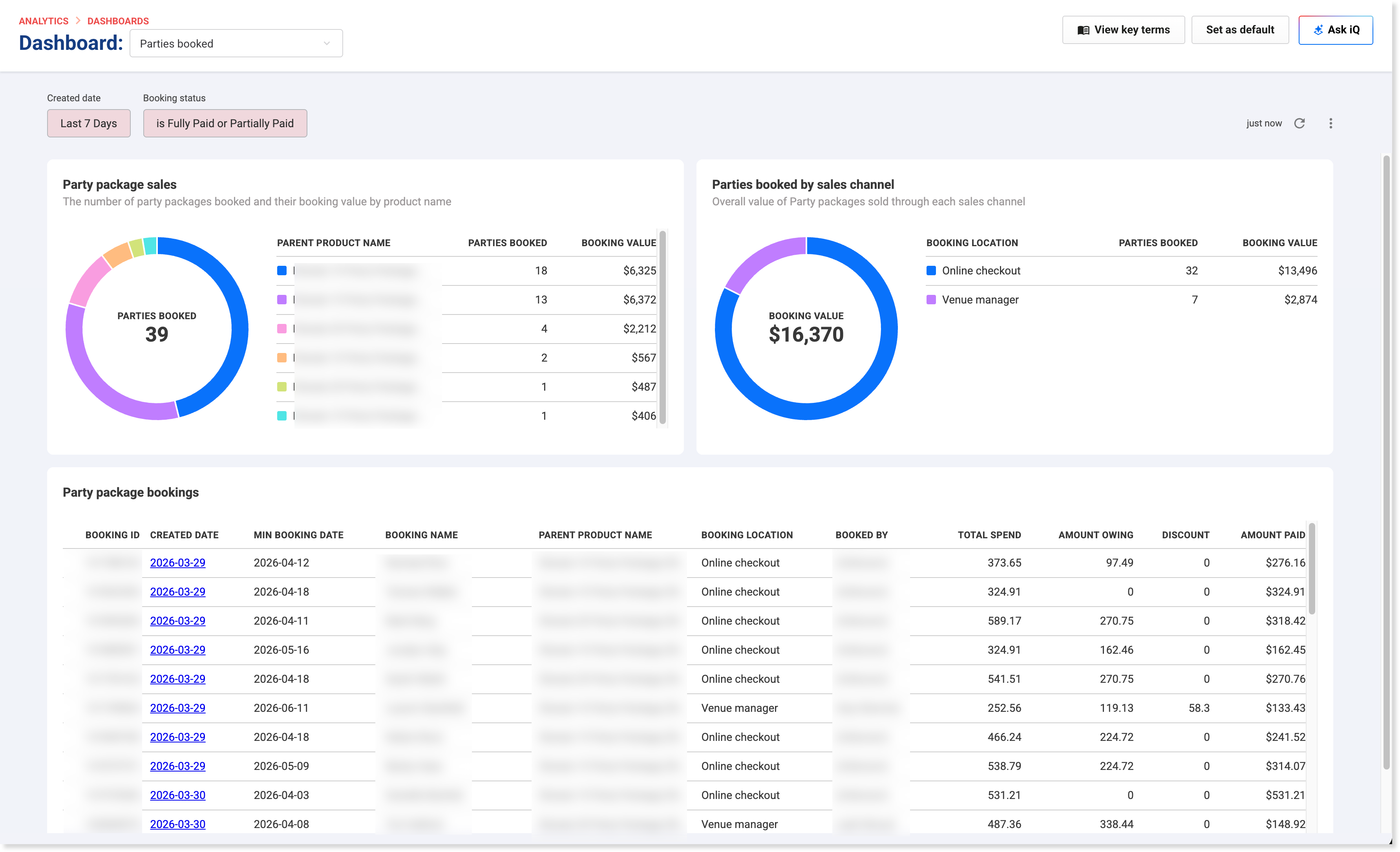
This dashboard uses the Created date (purchase date) and Booking status filters shown at the top of the page. In the example shown, the default filters are Last 7 Days and is Fully Paid or Partially Paid.
Metric or field | Definition |
|---|---|
Party package sales | A chart showing the number of party packages booked and their booking value by product name. |
Parties booked by sales channel | A chart showing the overall value of party packages sold through each sales channel. |
Booking ID | The ID for the booking. |
Created date | The date the booking was created (purchased), not the date the booking is scheduled to take place. |
Min booking date | The scheduled date of the party or event. |
Booking name | The name attached to the booking. |
Parent product name | The party package product linked to the booking. |
Booking location | Where the booking was made, such as online checkout or Venue Manager. |
Booked by | Shows who created the booking. This may display a staff member name for POS and Venue Manager bookings or “(Unknown)” for online bookings. |
Total spend | The total amount for the booking. |
Amount owing | The remaining balance that has not yet been paid. |
Discount | The total discount applied to the booking. |
Amount paid | The total amount already paid toward the booking. |
Filter the dashboard
Use the filters at the top of the dashboard to refine the party booking data you want to review.
Use the Created date (purchase date) filter to change the timeframe.
Use the Booking status filter to narrow the results by payment status.
Select the refresh icon if needed to reload the results.
The charts and booking table update based on the filters you apply.FAQs
FAQs
What does “parties booked” mean?
Parties booked are party package bookings that have been created, regardless of whether the event has taken place.
What is the difference between parties booked and parties hosted?
Parties booked = recently created or upcoming bookings
Parties hosted = events that have already taken place
What does “Min booking date” mean?
The Min booking date represents the scheduled date of the party or event.