Selling a recurring payment membership at POS signs the guest up, takes their first payment and authorizes their card for future payments. The start date you set decides when that first payment lands and when the membership can be redeemed, so a future date leaves the guest inactive until then.
You need ROLLER Payments to sell recurring memberships
Sell a recurring payment membership
From POS, select the membership to add it to the cart.
After adding a membership to the cart, a blue bar appears at the top of the cart that shows the Membership start date. This always defaults to today's date.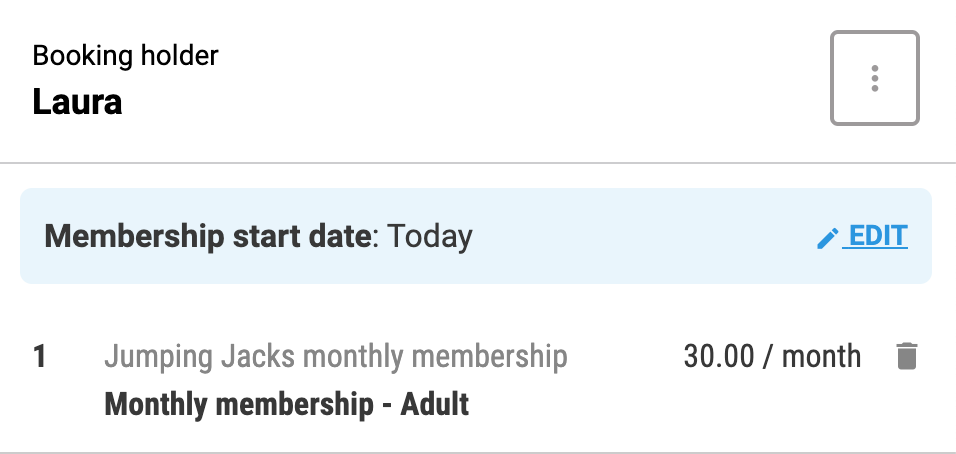
To change the membership start date to a future date:
In the cart panel next to Membership start date, select Edit to open a calendar panel.
Choose the new membership start date, then select Change date.
The start date for the membership determines when the first payment occurs and when the membership can be redeemed.
Select Continue to proceed with the purchase.
A Guest details panel displays to input the booking holder's details. You can find and attach an existing guest profile to a booking or add a new guest profile.
Select Continue.
If the membership requires a waiver, the panel prompts you to assign a waiver to the membership. Select the pen icon to search for and assign the waiver.
If the membership requires a booking agreement, the panel prompts that the guest must sign a booking agreement.
You can select to send the booking agreement to the guest via Text/SMS, Email (if using text/SMS, fees apply) or get them to scan the QR code displayed on the POS screen with their device. Or you can Open agreement in new tab for guests to complete on the POS screen. Once completed, select Refresh.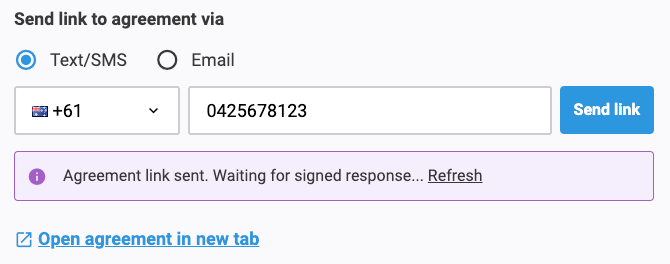
Select Pay to go to the payment screen.
Select the payment method (Card) to complete the initial payment.
Select Pay and collect card details for card authorization of the recurring payments.
Memberships with a future start date remain inactive until the future start date.
Upgrade to a membership
You can upgrade products directly in POS.
To upgrade an existing membership, see the guide How to upgrade a membership product.
To upgrade a non-membership product to a membership, see the guide Upgrade a non-membership product to a membership product.
Card authorization for recurring memberships
The guest can use the payment terminal to authorize their card for recurring payments. Follow the steps below.
On the payment page, select your tender type and select Pay and collect card details.
The guest is required to authorize their card on the payment terminal to complete the transaction.
It's recommended Canadian venues use credit cards, rather than debit cards for memberships. In Canada debit transactions run through Interac, which don't support recurring transactions. In other regions, Visa and Mastercard debit cards can generally be used for recurring payments. These debit cards process through the credit network, not local debit schemes.
Membership photo capture
You can add a membership photo to accompany the membership. Adding photos to your membership profiles helps staff quickly confirm a member’s identity at check-in and ensure memberships are used by the right person.
To learn more see the guide Add member photos to a membership at POS.