Combine several tax components into one blended tax rate, so you stay compliant in layered jurisdictions. This guide shows you how to set up multi-component tax rates in Venue Manager, allowing you to combine multiple tax components into a single blended tax rate for easier compliance and maintenance.
Multi-component tax rates are available on request. If you’d like this feature enabled, contact your customer success manager or the support team.
What are multi-component tax rates?
Multi-component tax rates let you build a single “blended” tax rate from smaller pieces, such as:
Federal, state or provincial tax
County or city tax
Special admissions or F&B taxes
Each part is a tax component. You can then:
Combine components into a tax rate (the blended % is calculated for you).
Reuse components across multiple tax rates.
Update one component and have all linked tax rates update automatically.
This makes it easier to stay compliant in layered jurisdictions and reduces tax maintenance.
Example: A 9.35% sales tax rate might be made up of:
State tax: 6.35%
City tax: 3%
ROLLER shows 9.35% on the tax rate, but tracks the 6.35% and 3% components separately for reporting.
Who should use multi-component tax rates?
Use this setup if:
You operate in layered tax jurisdictions (eg state + county + city tax in the US or Canada).
Finance needs to remit tax to multiple authorities.
You want to reuse the same component across multiple rates (eg the same state tax for both general admission and F&B).
You need distinct tax rates with the same total % (eg two different 10% rates for different purposes).
Key concepts
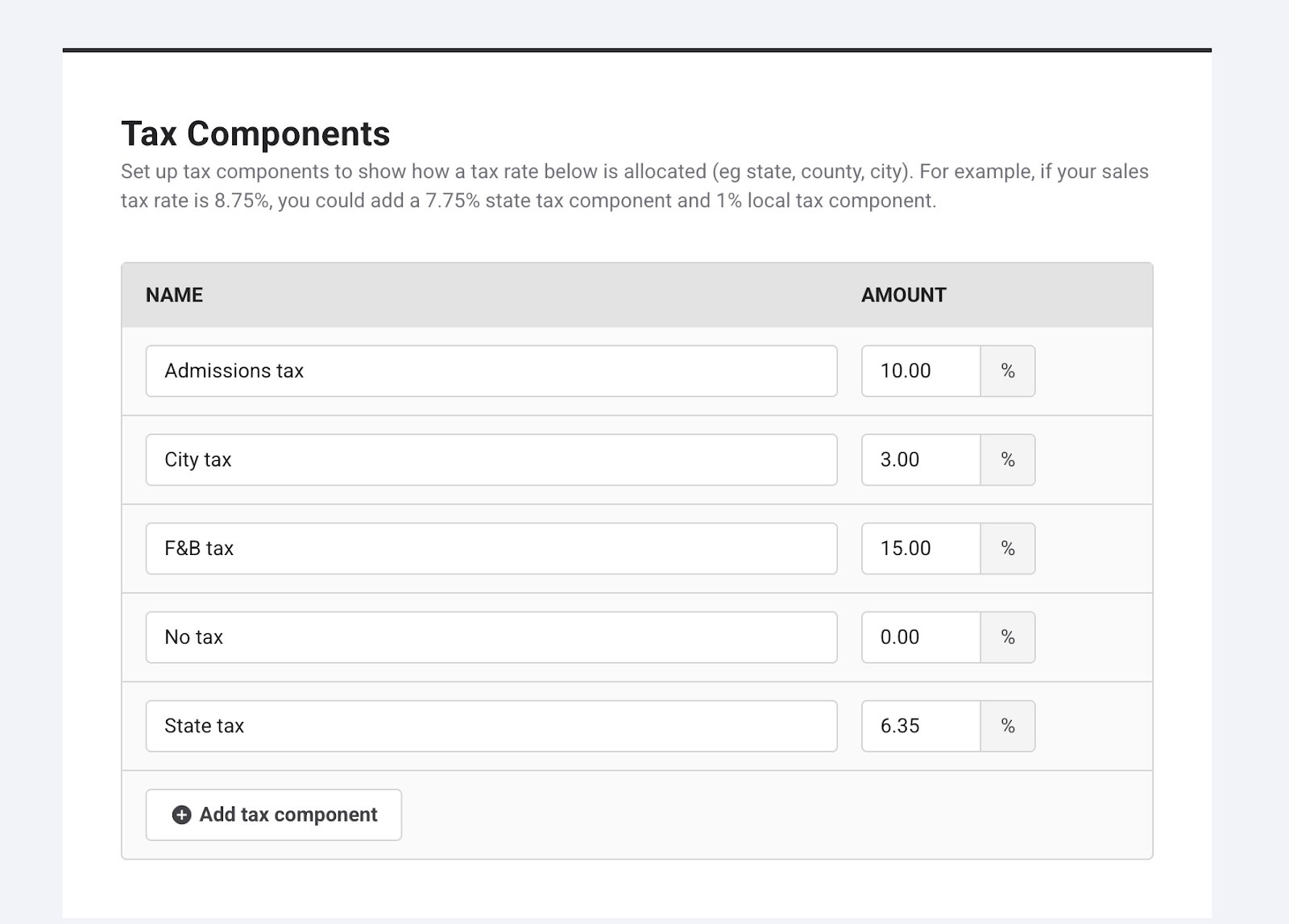
Tax components
A tax component is a single tax you pay to one authority.
Example components:
Tax component name | Amount |
|---|---|
Admissions tax | 10% |
City tax | 3% |
F&B tax | 15% |
No tax | 0% |
State tax | 6.35% |
You define these once in Venue Manager > Settings > Taxes & Fees > Taxes. You can then reuse these components across one or more tax rates.
Blended tax rates
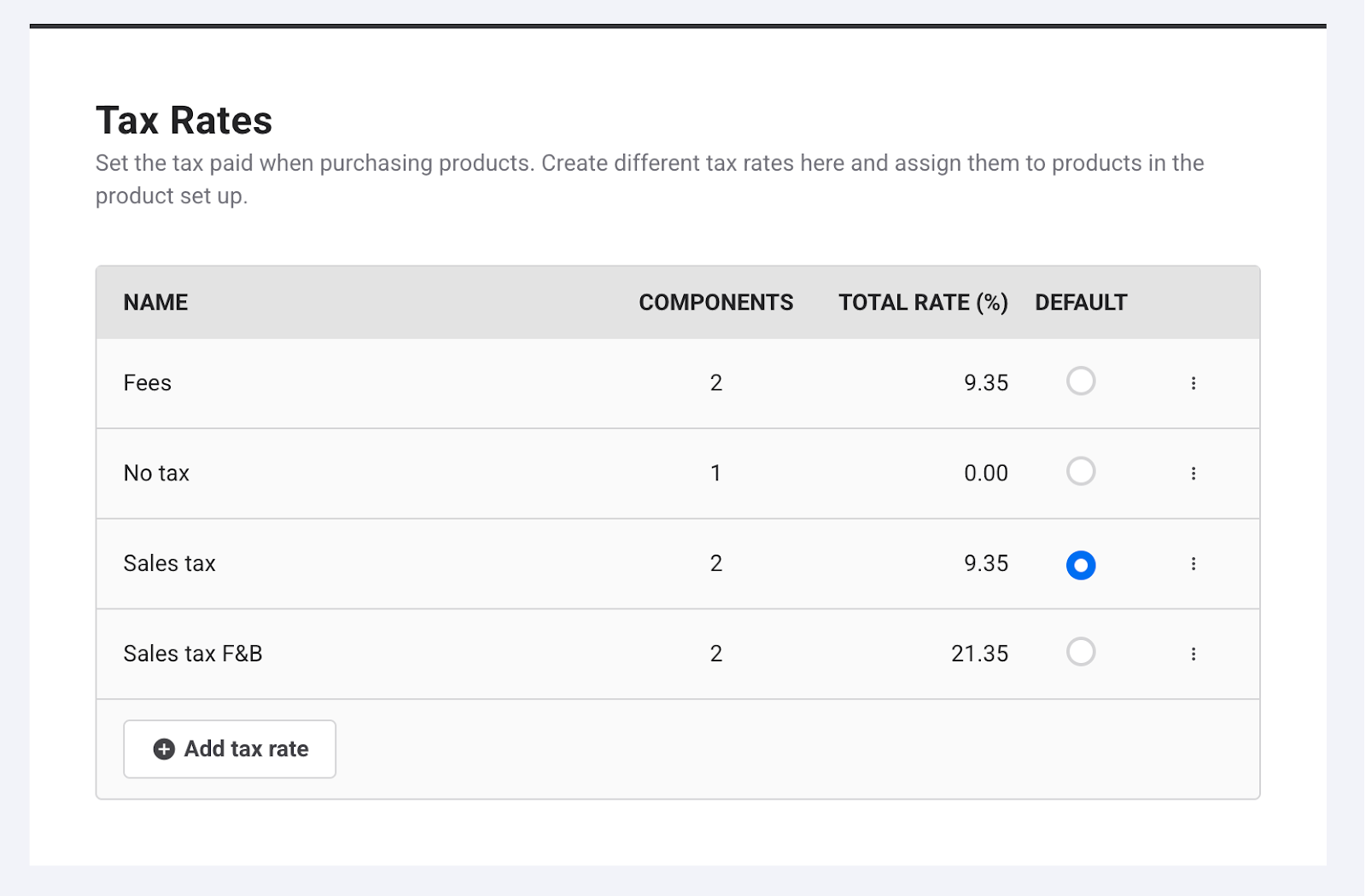
A tax rate contains one or more components. The blended percentage is the sum of the components.
Example:
Tax rate name | Components linked | Blended tax rate |
|---|---|---|
Sales tax | State (6.35%), City (3%) | 9.35% |
Sales tax F&B | F&B (15%), State (6.35%) | 21.35% |
You define these once in Venue Manager > Settings > Taxes & Fees > Taxes. Read on below to see how.
If a component changes, all tax rates using it update automatically.
Example: If State tax increases to 6.75%:
Tax rate name | Components linked | New blended rate |
|---|---|---|
Sales tax | State (6.75%) + City (3%) | 9.75% |
Sales tax F&B | State (6.75%) + F&B (15%) | 21.75% |
This also allows multiple tax rates with the same total %, built from different combinations.
Important considerations
Applies to new transactions only
Existing transactions are not recalculated.Legacy tax rates become components
When ROLLER migrates your data, each legacy tax rate becomes a tax component (1:1 mapping). You can then reuse these components to build multi-component rates.Venue-level configuration only
Setup is done per venue. There’s no HQ-level configuration yet.You maintain your own tax rates
ROLLER does not maintain or validate tax rates for you.Component changes update all linked rates
Review any component edits before saving.
For help reconciling your new tax setup, see the guide Use the Sales tax report with multi-component tax rates.
Step 1: Create tax components
From Venue Manager, go to Settings > Account > Tax & fees.
In Tax components, either:
Select a migrated component to update its name or amount, or
Select Add tax component to create a new one.
Enter:
Name (eg State tax 6.35%, City tax 3%, F&B tax 15%)
Amount (%)
Repeat for each component you need (eg State, County/City, F&B, No tax).
Select Save.
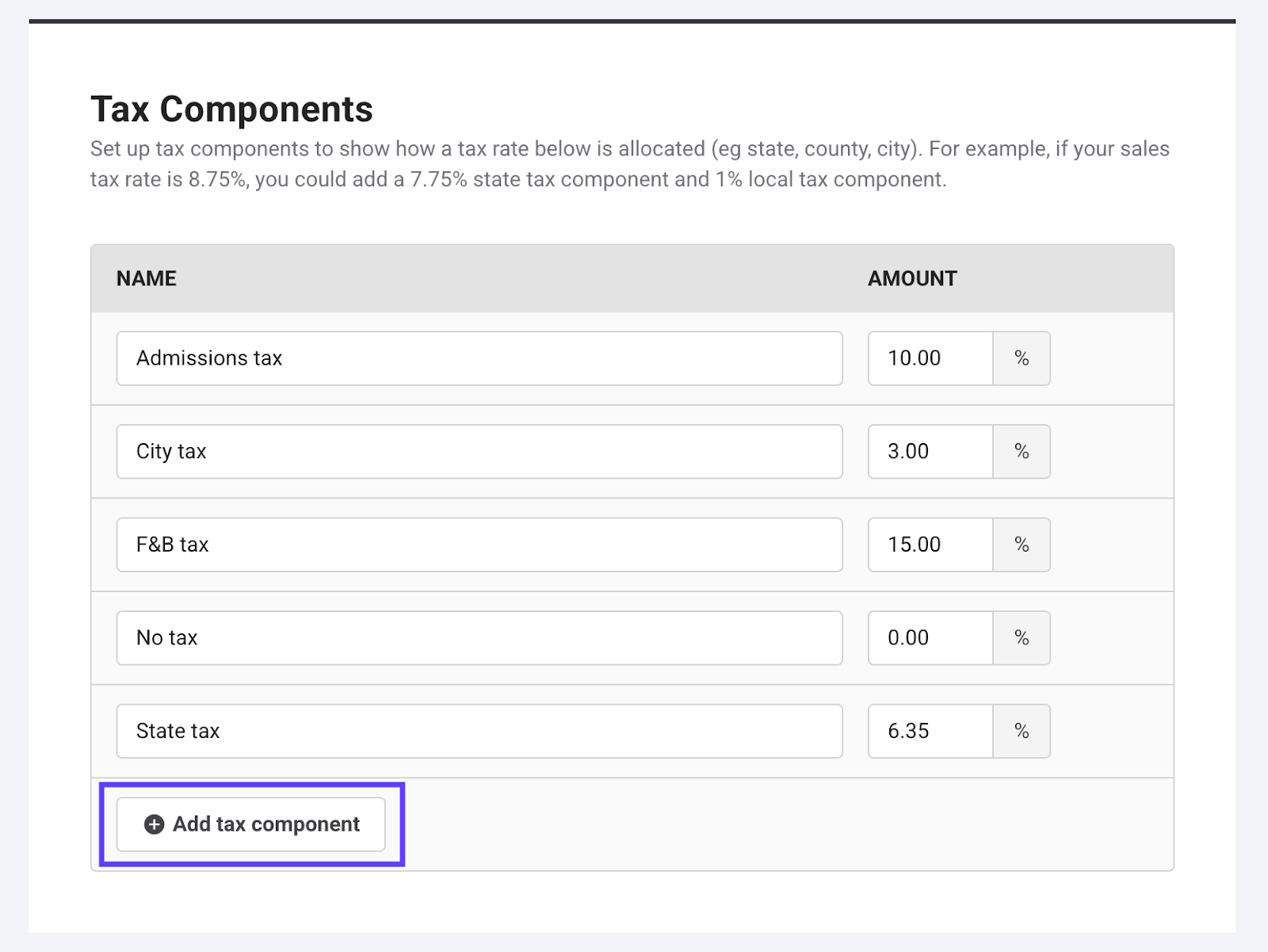
Use clear, authority-focused names like State 6.35% or City 3%. These names appear in the Sales Tax report when you view by tax component.
Step 2: Add components to a tax rate
You manage tax rates under Tax rates. Then you can link components to them.
From Venue Manager, go to Settings > Account > Tax & fees.
Scroll to Tax rates.
To edit an existing rate, open the options menu (⋮) and select Edit. Or add a new tax rate if needed.
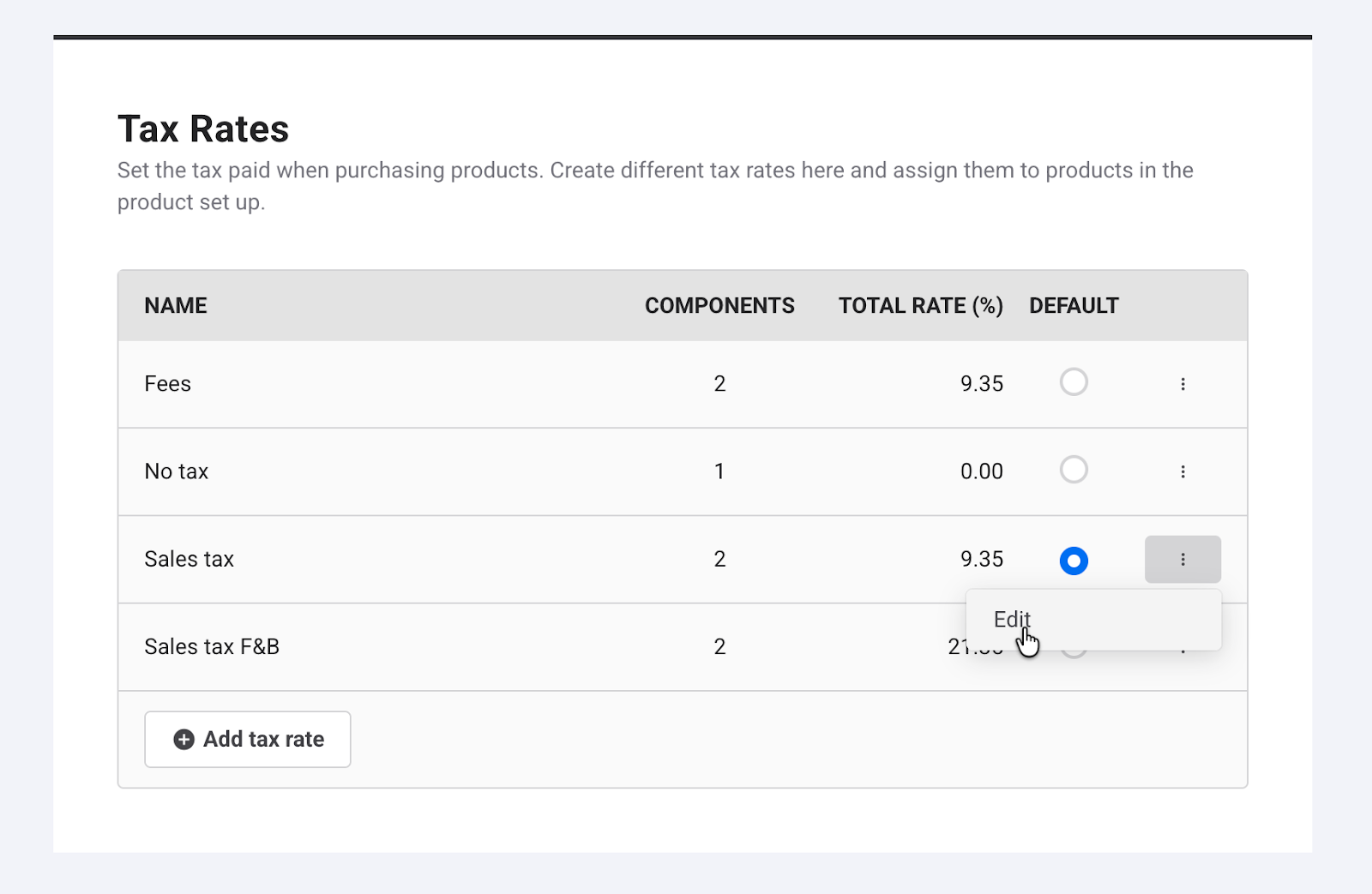
Select Add tax component and choose from your list or add a new tax component.
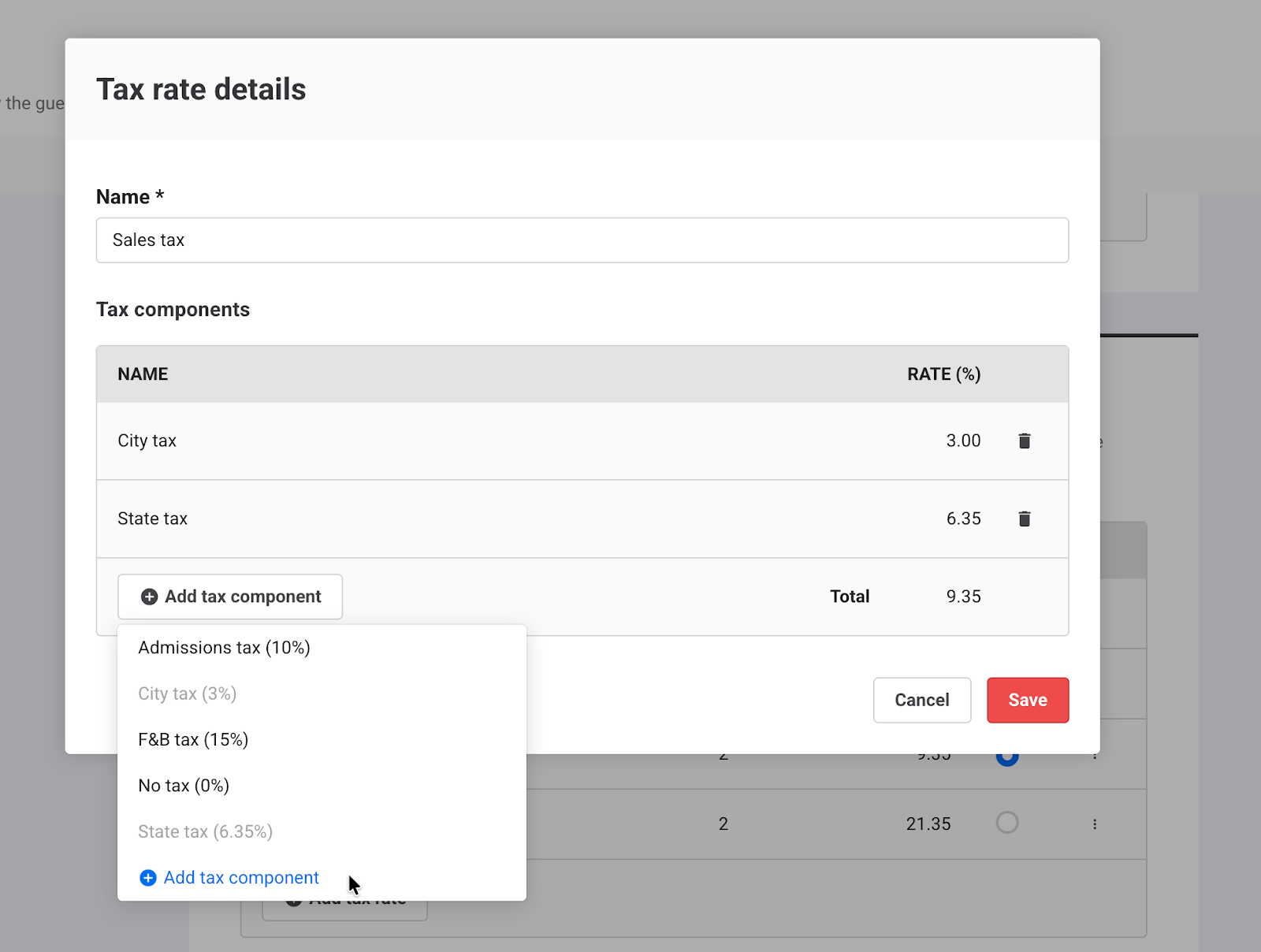
ROLLER calculates the blended tax rate. For example:
Sales tax = City (3%) + State (6.35%) = 9.35%.
Save.
If you change a component that’s used by multiple rates, all those rates update. If you need a one-off change, create a new component instead of editing the existing one.
Step 3: Assign tax rates to products and fees
When assigning tax rates to products and fees, you select a tax rate, which is a blended rate (made up of components).
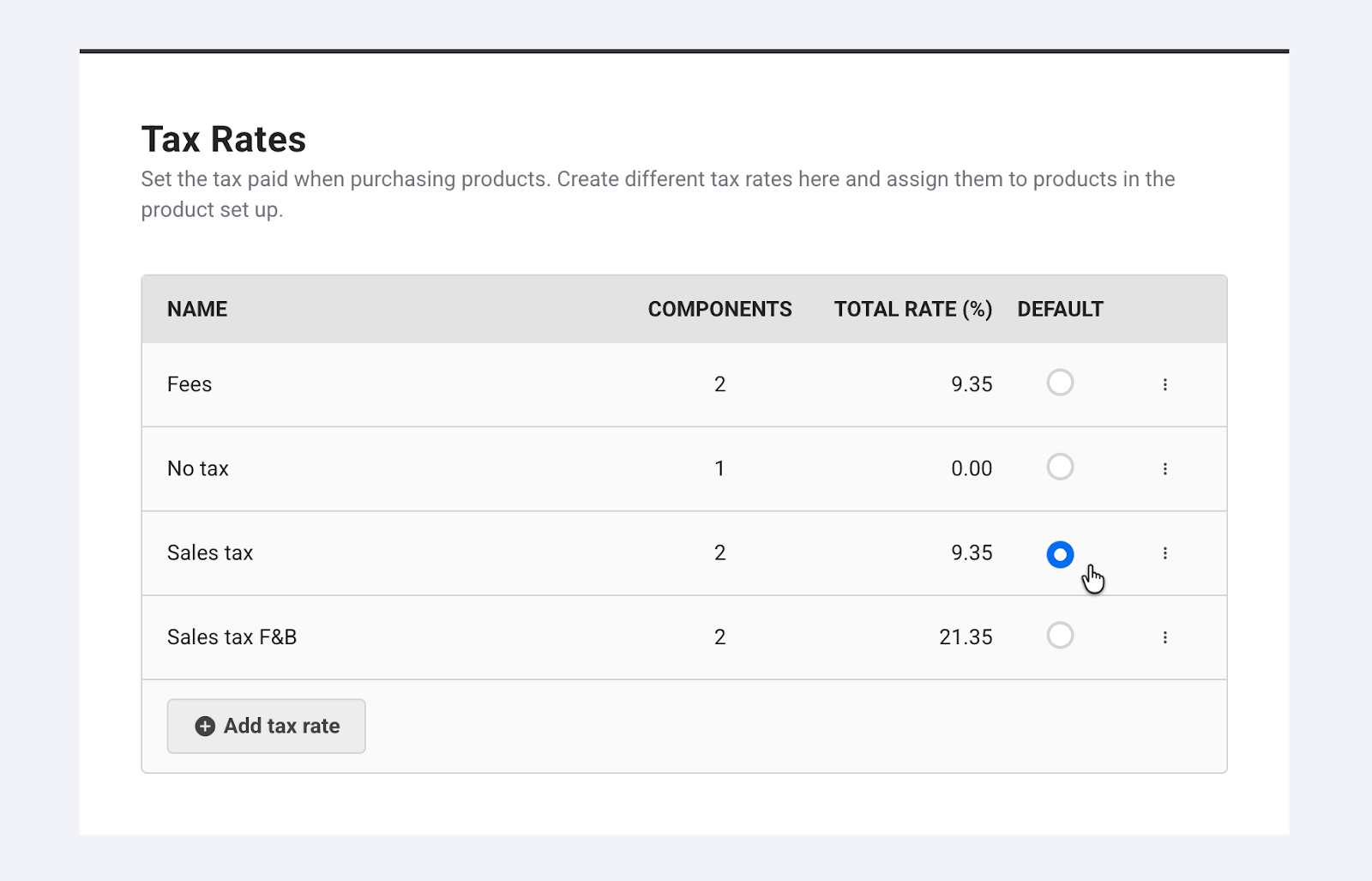
Default product tax rate
From Venue Manager, confirm your default tax rate for products (usually your standard sales tax).
This rate will apply to most taxable products unless you set a tax override.
Override tax for a specific product
Go to Products > [product].
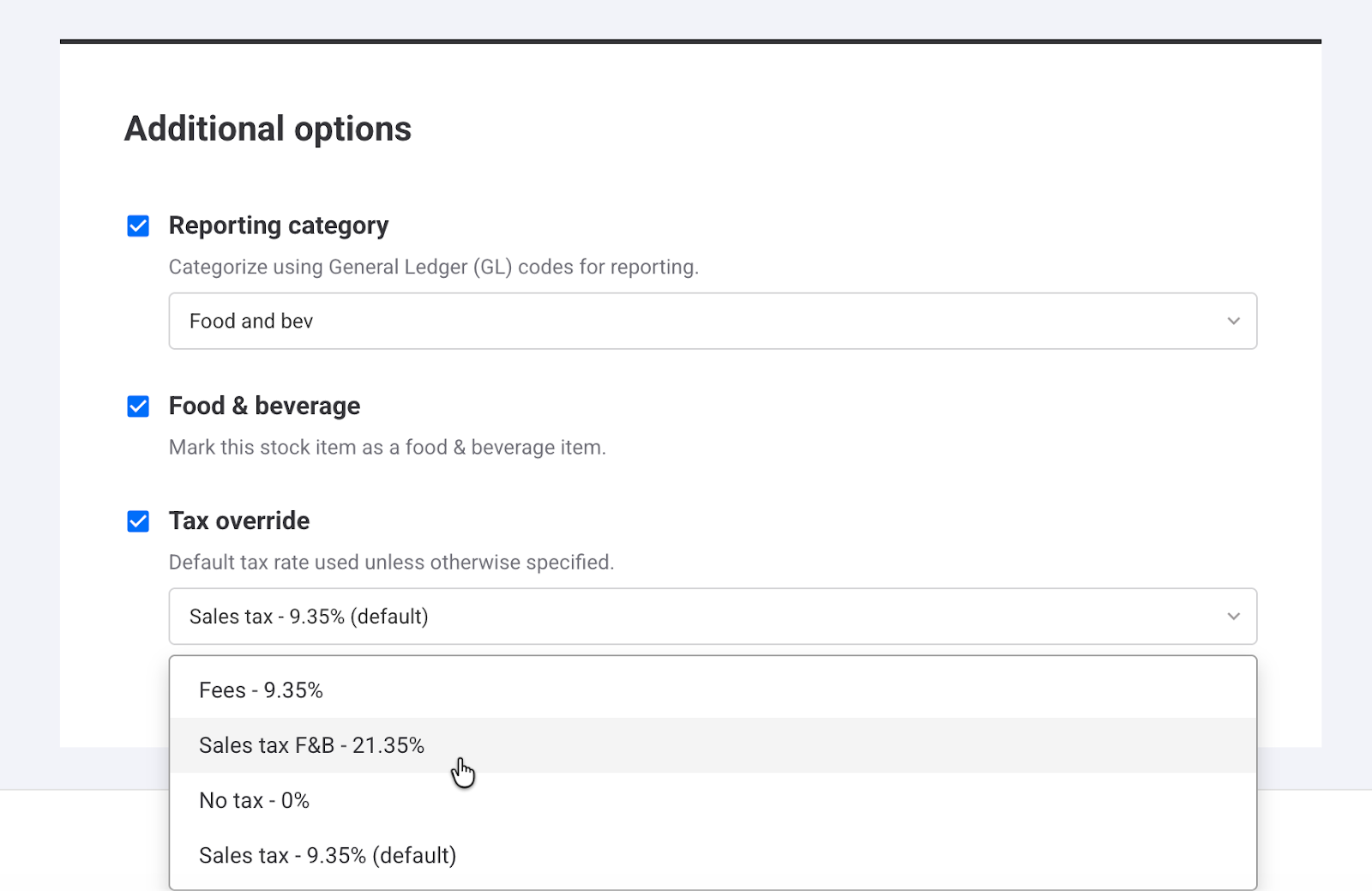
Scroll to Additional options > Tax override.
Select the tax rate (made up of tax components).
Save.
Tax rate used for fees
For clearer reporting, consider creating a separate fee tax rate, like Fee tax 10%, using the right components. This will appear as its own line in the Sales Tax report.
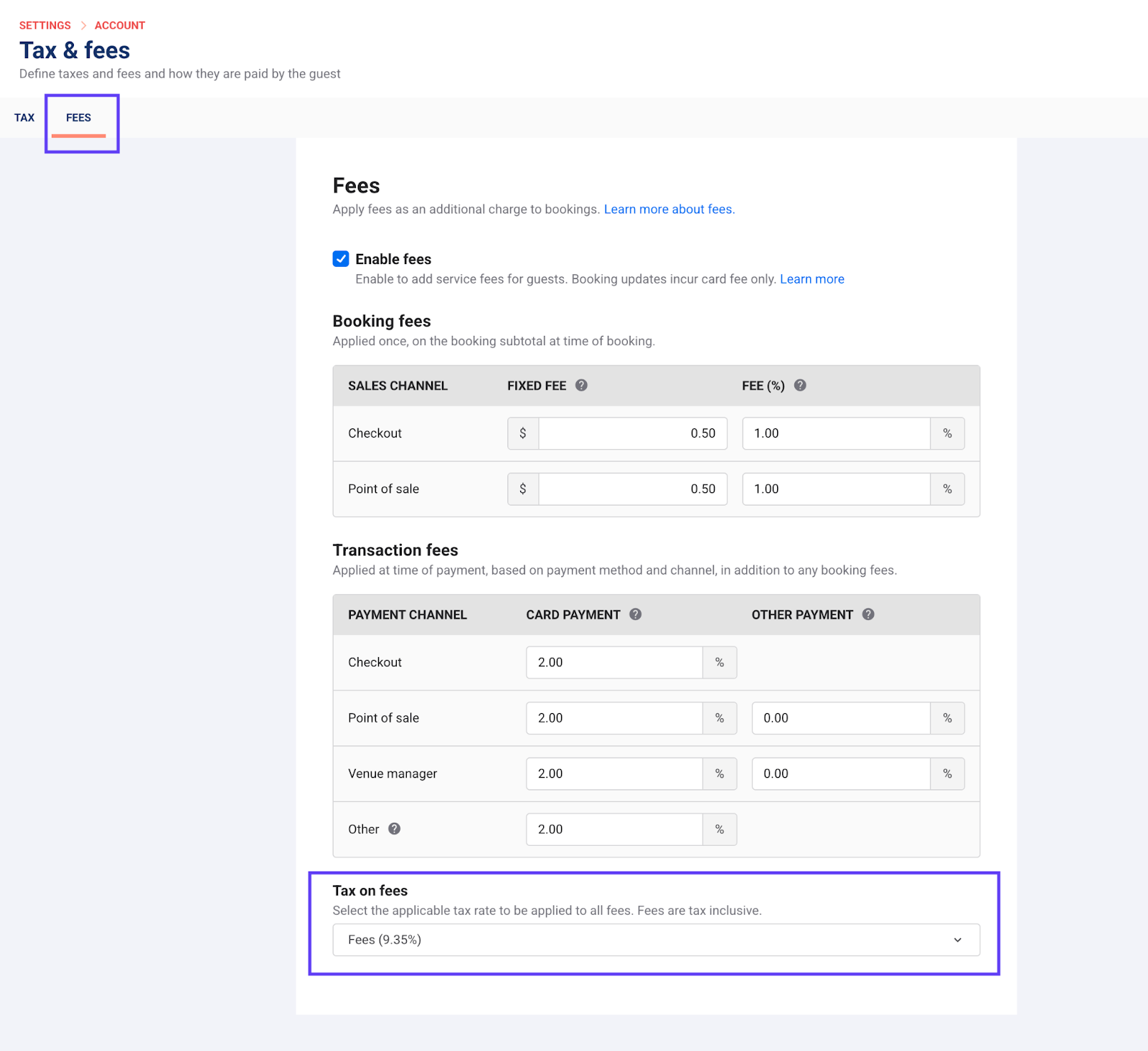
Go to Settings > Account > Tax & fees.
Select the Fees tab.
For Tax on fees, choose the tax rate that should apply to fees (eg a dedicated Fee tax rate built from tax components).
Save.
Step 4: Run and report on a test transaction
Once your components and tax rates are set up, run a quick test.
Create a test booking that includes:
At least one taxable product.
Any relevant fees.
Complete the booking and payment through the normal flow.
Confirm that:
The correct tax rate is applied to products.
The correct tax rate is applied to fees.
The total tax matches the blended rate you expect.
Then review how these taxes appear in reporting. To learn more, see the guide Use the Sales tax report with multi-component tax rates.
Detailed tax breakdown on receipts and invoices (on request)
Some jurisdictions require each tax component to appear as its own line item on receipts and invoices. Contact your customer success manager or the support team to enable it.