The multi-component Sales tax report helps you reconcile recognized revenue and tax payable. It shows how much revenue was subject to tax, how much tax is owed to each authority, and confirms that totals align across all taxable products, fees, and tax rates.
This multi-component Sales Tax report is automatically enabled if your venue is using multi-component tax rates. If you’d like to enable multi-component tax rates for your venue, contact your customer success manager or the support team.
What is the Sales Tax report for?
The multi-component Sales Tax report helps you:
Reconcile your revenue and tax for the period.
See how much tax is owed to each authority (eg state, county, city).
Confirm that taxable revenue × tax percent = tax across taxable products and fees.
The report supports your venue’s chosen accounting method:
Accrual shows recognized revenue and tax payable (tax owed when services are delivered)
Cash shows funds received and tax collected at the time of payment
Report highlights
View by tax rates or components
View totals by tax rates (blended rate) or view by tax components (authority level).Taxable revenue is tax-exclusive
Totals do not include tax. This means: Taxable revenue × tax percent = tax payableFees are included in taxable revenue
Taxable fees roll into taxable revenue under the appropriate tax rate or component.“View by” selector
Quickly switch between:View by tax rates – for reconciliation and big-picture checks
View by tax components – to see what’s owed to each authority
Non-taxable & exempt sales
The report distinguishes between:Tax-exempt sales normally taxable but exempt such as school bookings
Non-taxable sales items that are never taxed such as gift cards at 0 percent
View by tax rates
This groups totals by each blended tax rate (eg a 10% Sales tax made up of separate tax components).
Each line represents a full tax rate (eg Sales tax 9.35%, Sales tax F&B 21.35%).
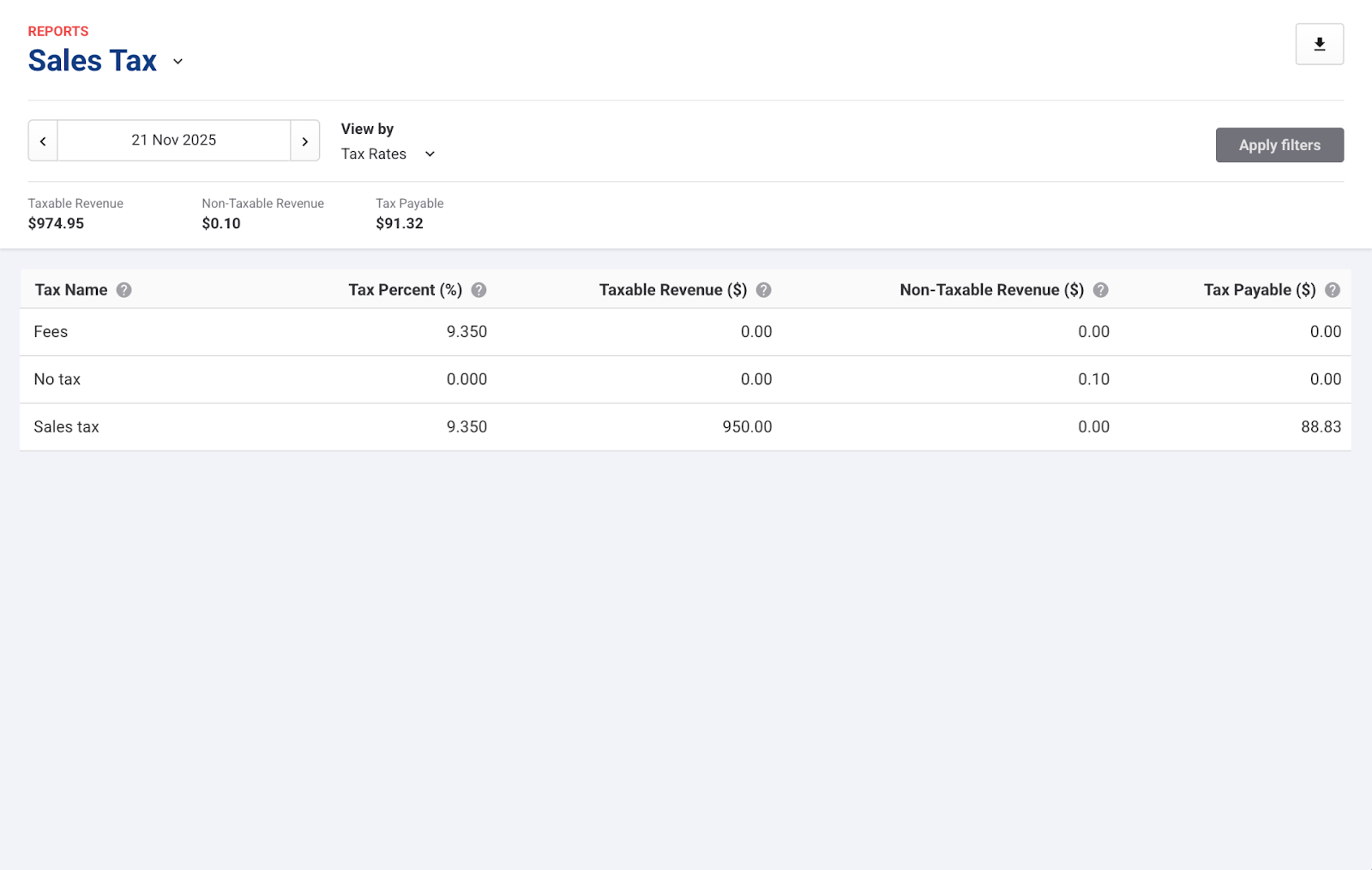
Columns
Fields | Description |
|---|---|
Tax name | The name of the tax rate applied (eg Sales tax, Fee tax). |
Tax percent (%) | The blended tax rate applied to taxable revenue (eg 9.35% made up of State 6.35% + City 3%). |
Taxable revenue ($) | Recognized revenue subject to this tax rate, excluding tax. Includes both products and fees taxed at this rate. |
Non-taxable revenue ($) | Recognized revenue under this tax rate that wasn’t taxed, including:
|
Tax payable ($) | Total tax owed for that tax rate. |
At the rate level, totals always align: Taxable revenue × tax percent = Tax payable
Tax-exempt vs non-taxable sales
The report clarifies the difference between tax-exempt and non-taxable sales.
Type | Meaning | How it appears in the report |
|---|---|---|
Tax-exempt sales | Normally taxable items sold under an exemption (eg school group, charity) | Counted as non-taxable revenue under the relevant tax rate (eg Sales tax 9.35%) |
Non-taxable sales | Items that are never subject to tax (eg gift cards) | Grouped under a 0% tax rate |
This helps you understand whether non-taxable revenue is due to exemptions vs truly non-taxable items.
View by tax components
This breaks totals down by each individual tax component (authority) within a blended rate.
Example: A 9.35% Sales tax may be made up of the following tax components:
State tax 6.35%
City tax 3%
When viewing by tax components, you’ll see a separate line for each component.
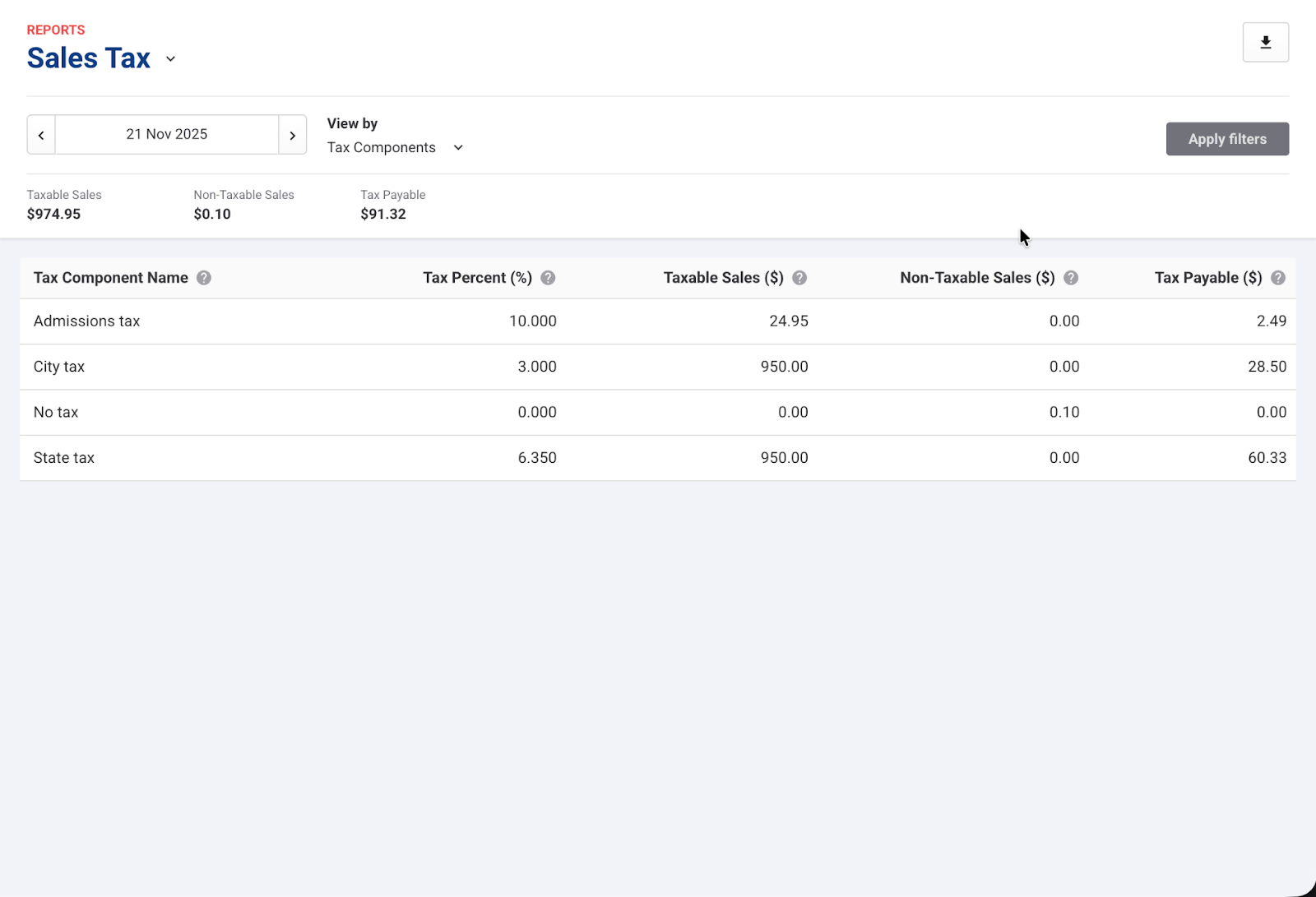
Columns
Field | Description |
|---|---|
Tax component name | The authority or component (eg State, City, Admissions, F&B). |
Tax percent (%) | The rate for that component (eg State 6.35%, City 3%). Each component’s % contributes to the total blended rate. |
Taxable revenue ($) | Recognized revenue subject to this component’s tax, excluding tax. Includes both products and fees taxed where this component applies. |
Non-taxable revenue ($) | Recognized revenue under this component that wasn’t taxed, including:
|
Tax payable ($) | Amount of tax owed to that component/authority. |
Example
Tax component | Taxable revenue (excl tax) | Tax payable |
|---|---|---|
State 6.35% | $110 | $6.99 |
City 3% | $110 | $3.30 |
Seeing the same taxable revenue twice is expected — both authorities tax the same $110.
Don’t sum component-level taxable revenue. It will not match the rate-level total. Use rate-level for reconciliation and component-level to see what’s owed to each authority.
How fees and fee tax are reported
Fees are now fully included in the Sales Tax report under the correct tax rate or component, so:
Fee revenue rolls into taxable revenue where the fee’s tax rate applies
Tax on fees appears in Tax payable for that rate or component
To view fees separately:
Create a dedicated fee tax rate (eg Fee tax) with appropriate components.
Assign it under Settings > Account > Tax & fees. Go to the Fees tab, then select the fee tax in Tax on fees.
Then, in the report:
In View by tax rate, you’ll see a separate line for Fee tax
In View by tax component, you’ll see the same components used by the fee tax rate
How to check your totals
Use these simple checks to confirm your tax setup and calculations:
At the tax rate level
Taxable revenue ($) × Tax percent (%) = Tax payable ($)
Taxable revenue ($) − Tax payable ($) = Net revenue ($)
If these don’t match, review your component and rate setup in Settings > Account > Tax & fees.
At the tax component level
Expect overlaps in taxable revenue (the same revenue can be taxed by multiple authorities).
Don’t try to sum component-level taxable revenue to a grand total — use rate-level for that.
Reconcile to your general ledger
Match to your tax liability accounts in your general ledger:
Tax payable (accrual) or
Tax collected (cash)
Confirm that all products and fees are using the correct tax rates and components.