The Bookings receivables report helps you manage pending or partially paid bookings where revenue has already been recognized (eg guests attended and redeemed their tickets at POS, or the tickets expired due to no-shows). This allows you to effectively manage accounts receivable by tracking outstanding payments and following up with guests to ensure timely collection.
When to use
Use the report in the following scenarios:
Follow up on bookings that have taken place, but payment is still due (pending payment or partially paid).
Help finance teams efficiently manage accounts receivable, making sure they know who still owes money and getting them paid.
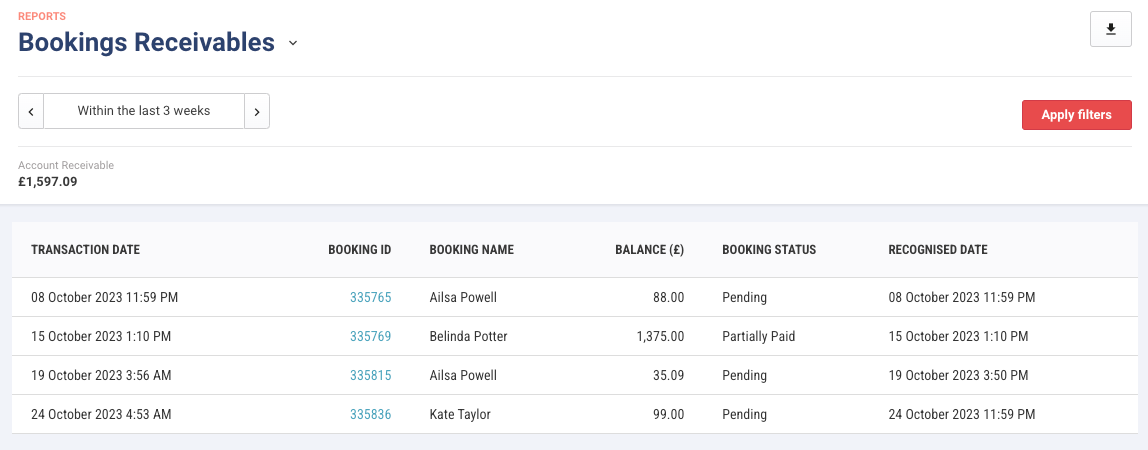
The report does not include amounts for recurring membership payments or canceled bookings. It also excludes owed amounts less than one dollar (eg due to rounding from discounts applied).
Key terms
Key Term | Description |
|---|---|
Bookings Receivable | The money that a venue is waiting to collect for bookings that have taken place or have expired without full payment (accounts receivable at a specific date/period). |
Booking date | The date the booking took place. The date filter in this report is based on booking date. |
Recognition Date | The date when revenue is recorded as earned under accrual accounting, irrespective of when payment is received. This is typically in ROLLER when guests redeem tickets at POS or tickets expire due to no-shows. |
Pending | Booking status where no payment has been made. |
Partially Paid | Booking status where only a portion of the payment has been received (eg deposit). |
Expired Booking | A booking that has passed its scheduled date or time without being redeemed/scanned in at POS or canceled (eg no shows). Learn more about when booking items expire in ROLLER. |
Redeemed Booking | A booking that has had its tickets physically scanned or checked in at POS. This indicates that the booking has taken place and revenue is recognized, even if payment is still pending or partially paid. |
Access the report
From Venue Manager, go to Reports > All reports.
Search for and select Bookings receivable to run the report.
All bookings that have been recognized as revenue but still have outstanding payments (either pending or partially paid) are listed for yesterday.
Filter the report by date
You can filter the report by day, specific date or date range to view bookings based on the date the booking took place. Any bookings that have passed their booking date and are still pending payment or partially paid display.
The default view shows yesterday’s data, helping you prioritize follow-ups on recent unpaid or partially paid bookings.
Learn how to customize and save default report views for easy reuse.
Follow up with guests
Identify and contact guests with outstanding balances.
Select a Booking ID to open more information about the booking.
Select Go to booking to view full booking details.
Review the guest’s contact information and any payment history.
Use the contact details to follow up directly with guests and collect outstanding balances.
Export the report
Export the report for further analysis or sharing with your finance team.
Select the download icon at the top-right.
Select CSV or Excel format.
Once ready for download, select the notifications icon (bell) at the bottom of the main menu (bell), then download it to your computer to review offline or share with others.