Sign in once at ROLLER's LaunchPad to reach every ROLLER app you have access to, including Venue Manager for setting up and managing your venue and POS for selling in-venue.
If you can't sign in, work through the troubleshooting steps at the end of this guide.
Sign in to ROLLER
Open the sign-in page at launchpad.roller.app.
Enter the email address and password you set up when activating your account. If you've forgotten your password, select Reset password and enter your account email. You'll be sent a link to set a new one.
Select Roll in.
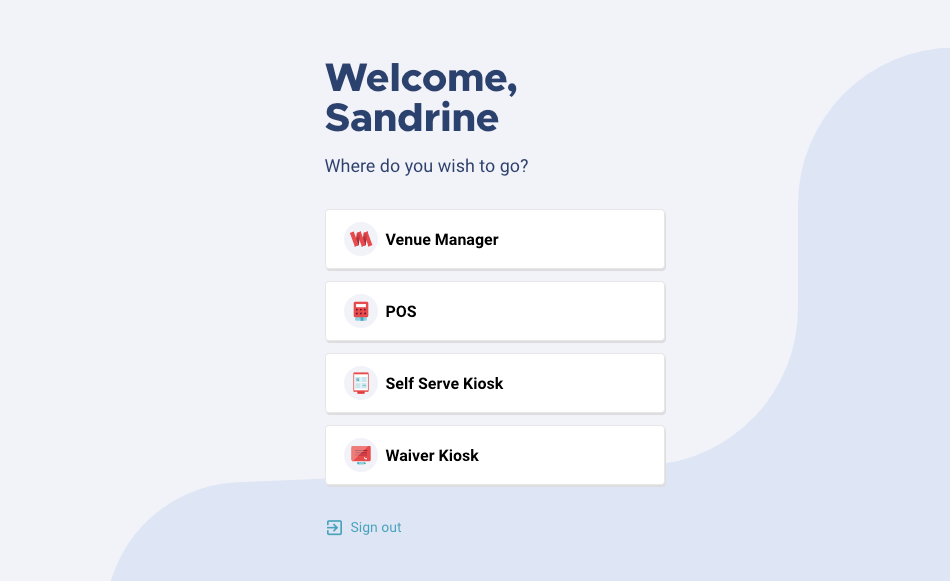
Select the app you want to open from the ROLLER LaunchPad. You'll see the apps you have access to.
Staff sign in to POS differently the first time, using their email address and password before switching to a POS PIN. See Log in to POS.
Troubleshoot sign-in issues
If you've tried these and still can't sign in, contact your customer success manager or the support team.
Sign out and close all browser tabs
Sign out of ROLLER.
Close the browser tab with ROLLER open.
Close all other open browser tabs.
Sign in again from a new browser tab.
Clear your cache and cookies
Clearing your cache and cookies fixes most sign-in problems. See How do I clear my cache and cookies?
Update staff passwords
If a staff member can't remember their password, they can reset it themselves from the sign-in page, see How do I reset my ROLLER password? You can also send them a reset link from Venue Manager, see Change staff passwords and POS PINs.
Reset a forgotten POS PIN
A POS PIN is the code staff use to sign in to POS, and it's separate from the password used to sign in at LaunchPad. Staff receive their POS PIN by email when they activate their account.
You can't reset your own POS PIN. Ask your account administrator to set a new one for you, and you'll receive an email confirming it. See Change staff passwords and POS PINs.