Choose which of your products Guest Agent can sell, so guests can book them while they chat or talk with the agent. The agent books using live pricing and availability from Venue Manager. For products you leave out, the agent still handles the conversation and escalates it to your team to follow up.
Register your venue for early access
Guest Agent is in early access for eligible venues, and we're rolling it out in stages. It has usage-based pricing, so you pay based on how much your agent is used.
Plan what to sell through Guest Agent
Before you set up your product selection in Venue Manager, decide which products you want Guest Agent to sell. Session passes and general admissions are a natural fit, since they’re straightforward bookings with few options to choose from.
Guest Agent can also manage party and group bookings from start to finish, including choices like guest numbers and inclusions such as food, drinks or grip socks.
To see how a party booking conversation goes, see the guide The guest journey through Guest Agent.
To decide what to include, consider:
What guests usually ask about or book without needing extra context
What you’d rather your team booked personally (eg corporate bookings or a high-value product)
Leave out anything you want your team to book. Once you’ve decided, add your products to the agent.
Select your products
The permission required to set up and manage Guest Agent is Can edit Guest Agent configuration. The administrator role has this permission enabled by default.
From Venue Manager, go to Intelligence > Guest Agent > All agents, select the agent, then select the Agent settings tab.
Scroll down to the Products section. Under Select products, choose one option, then select which checkouts, products or tags the agent can sell.
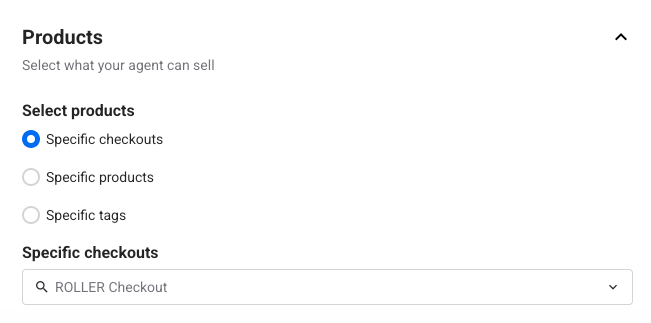
If your HQ shared this agent with your venue, the products HQ selected show an HQ label and you can't change them. You can add more products for the agent to sell.
Specific checkouts
When you select Specific checkouts, choose one or more checkouts from the drop-down. Every product available for sale in those checkouts will also be available for your agent to sell. Select Save.
You can't exclude individual products from a selected checkout. If you need more control over what's included for your agent to sell, use Specific products or Specific tags instead.
Specific products
When you select Specific products, choose one or more individual products from the drop-down. The agent can sell every product you select. Select Save.
Specific tags
When you select Specific tags, choose one or more tags from the drop-down. By selecting tags, you're adding all products with that tag to your agent to sell. Select Save.
You can change your product selection at any time. When you’re ready, build your knowledge base. See the guide Build your Guest Agent knowledge base.