Keep more members and protect your recurring revenue by giving guests a reason to stay at the moment they decide to leave. When a member cancels, ask them why, then show them the offer most likely to change their mind.
For example, a member who says their membership is too expensive can be offered a cheaper plan, and one who isn’t using it much can be offered a pause. Even when members do leave, their reasons show you what to improve in your membership program.
You set up your offers once, and they work automatically in members’ online accounts, with no staff time needed. You can then track cancellations and successful rescues in your reports.
This guide shows you how to choose the rescue offers, match each cancellation reason to an offer and pick an alternative plan for each membership product.
Pro feature
Cancellation rescue offers appear when members cancel in their online account. To unlock online accounts with a Pro plan and above, contact your customer success manager or the support team.
How it works
Cancellation reasons and rescue offers are set up together in your membership settings:
Cancellation reasons: members choose why they're leaving from a list of up to 10 reasons you create. Staff see the same list when they cancel a membership on behalf of a member.
Save options: you choose which offers members can see. For example, a pause for one billing cycle, an alternative plan or a discount to stay on their current plan.
Rescue actions: you match each reason to one offer, or show every offer the member qualifies for.
Once set up, when a member cancels in their online account they choose a reason and see the offer matched to it. If they can't take that offer (eg their membership can't be paused), they go straight to confirming their cancellation. They can also choose to turn down offers and continue to cancel.
Before you begin
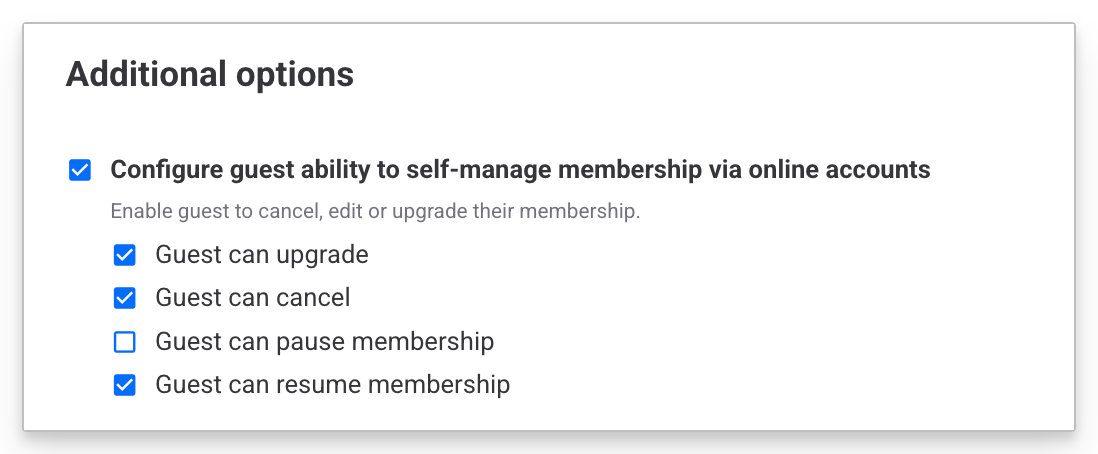
Turn on Guest can cancel for each recurring membership product you want to offer rescue options on.
To do this:
In Venue Manager, go to Products and find the membership product you want to allow online cancellations for.
Go to Configure guest ability to self-manage membership via online accounts in the product's Additional options.
Select which options you want to present to members. To have cancellation offers they must have Guest can cancel enabled.
Select Save.
Set up your rescue offers and cancellation reasons
Set up your offers and reasons on one page, so every reason you add can lead straight to the offer that fits it.
The permission required to change membership settings is Can access membership settings. The administrator role has this permission enabled by default.
Choose which offers members see
Turn on the offers that suit your membership program. To do this:
From Venue Manager, go to Settings > Memberships. Select Unlock to make changes.
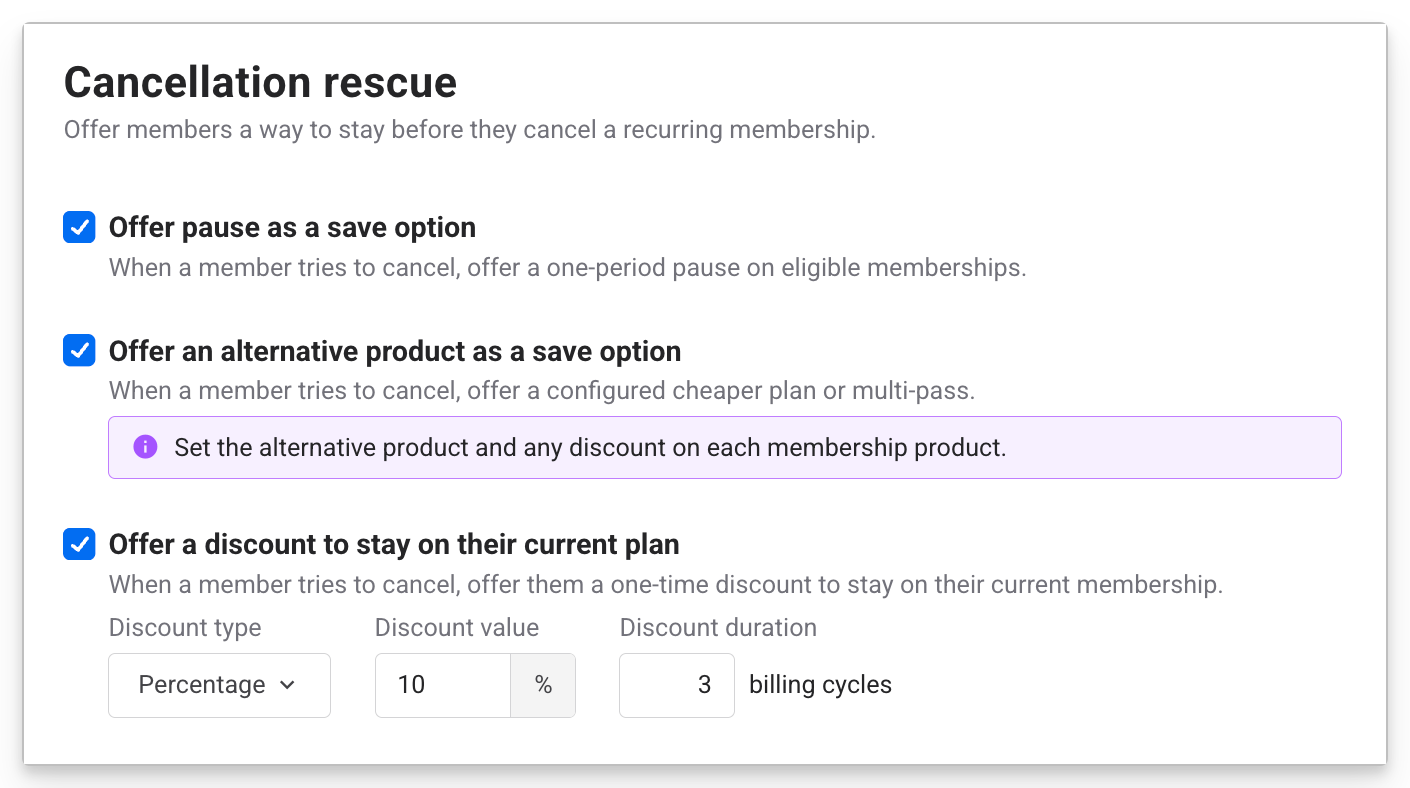
Under Cancellation rescue, select the checkboxes for each save option you want to offer:
Offer pause as a save option: members can pause an eligible membership for one billing cycle instead of canceling.
Offer an alternative product as a save option: members can switch to a cheaper membership or a multi-pass. You choose the alternative in each membership product (see Choose an alternative plan for each membership later in this guide).
Offer a discount to stay on their current plan: choose a Discount type (Percentage or Fixed amount), then enter the Discount value and the Discount duration in billing cycles (eg 50% off for 3 billing cycles).
Select Save.
Add your cancellation reasons and match each one to an offer
When a member's cancellation reason leads to a rescue offer, they see the option that’s tailored to why they're leaving.
From Venue Manager, go to Settings > Memberships. Select Unlock to make changes.
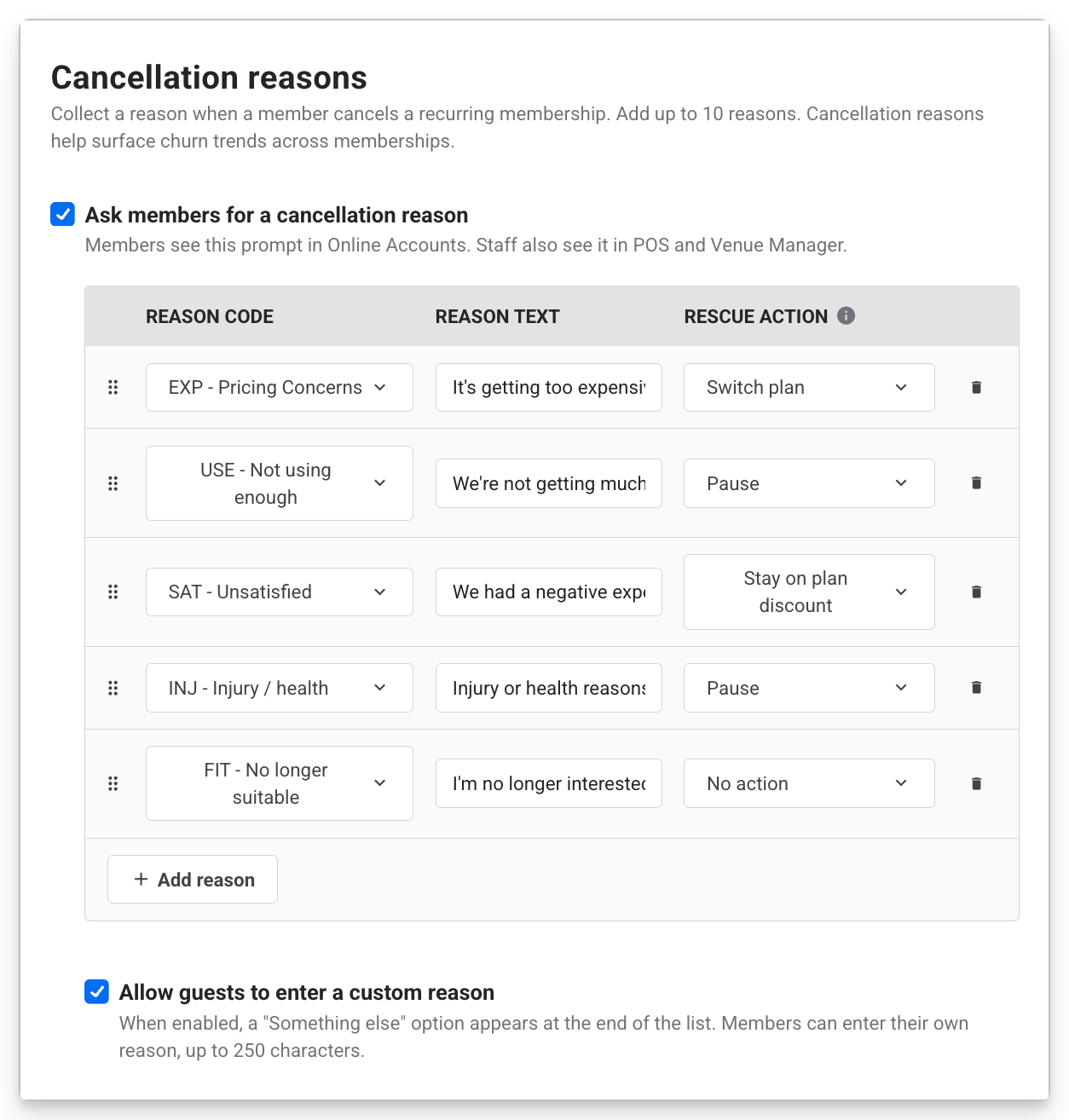
Under Cancellation reasons, select Ask members for a cancellation reason.
Select Add reason, then choose a code from Select a reason code (eg EXP - Pricing Concerns). These codes are preset from a list created by ROLLER.
In Reason text, enter the words members see (eg It's getting too expensive). These reasons are created by you and are custom for your venue.
In Rescue action, choose the rescue offer matched to this reason. Note: an action stays unavailable (greyed out) until you turn on its save option in Cancellation rescue settings.
Repeat for each reason. Add at least 3 and up to 10 reason codes and text.
To let members write their own reasons, select Allow guests to enter a custom reason. Members see a Something else option at the end of the list, and can enter up to 250 characters. It counts toward your 10 reasons.
Select Save.
Rescue action | What the member sees |
|---|---|
Show all | Every offer they qualify for. |
Pause | The option to pause their membership for one billing cycle. |
Switch plan | The alternative plan you chose for their membership. Note: this is set in each product’s settings. |
Stay on plan discount | A discount to stay on their current plan. |
No action | No offer. They go straight to confirming their cancellation. |
Reason codes stay the same in your reports, whatever reason text you write. Choose from these codes:
Reason code | Use it for / sample reason text |
|---|---|
EXP - Pricing Concerns | The plan is too expensive |
USE - Not using enough | I’m not visiting often enough |
SAT - Unsatisfied | I had a poor experience |
INJ - Injury / health | I have an injury or health condition that prevents me from using it |
FIT - No longer suitable | I’m no longer interested |
AGE - Grown out of it | I’ve outgrown the activity |
SEA - Seasonal / temporary | I only needed it for a season |
LOC - Location issue | I’m moving away or it’s too far to travel |
ALT - Found better option | I’ve found something that suits me better |
BSY - Too crowded | It’s too busy when I visit |
HRS - Logistics | The opening hours don't work for me |
GFT - It was a gift | The membership was a gift |
Choose an alternative plan for each membership
A cheaper plan gives a member who's worried about cost a way to keep visiting. If each membership has its own tiers or variations (eg Gold, Silver and Bronze), you choose the alternative for each variation in the product.
The permission required to change a membership product is Can edit products. The administrator and manager roles have this permission enabled by default.
From Venue Manager, go to Products and select the membership product you want to edit.
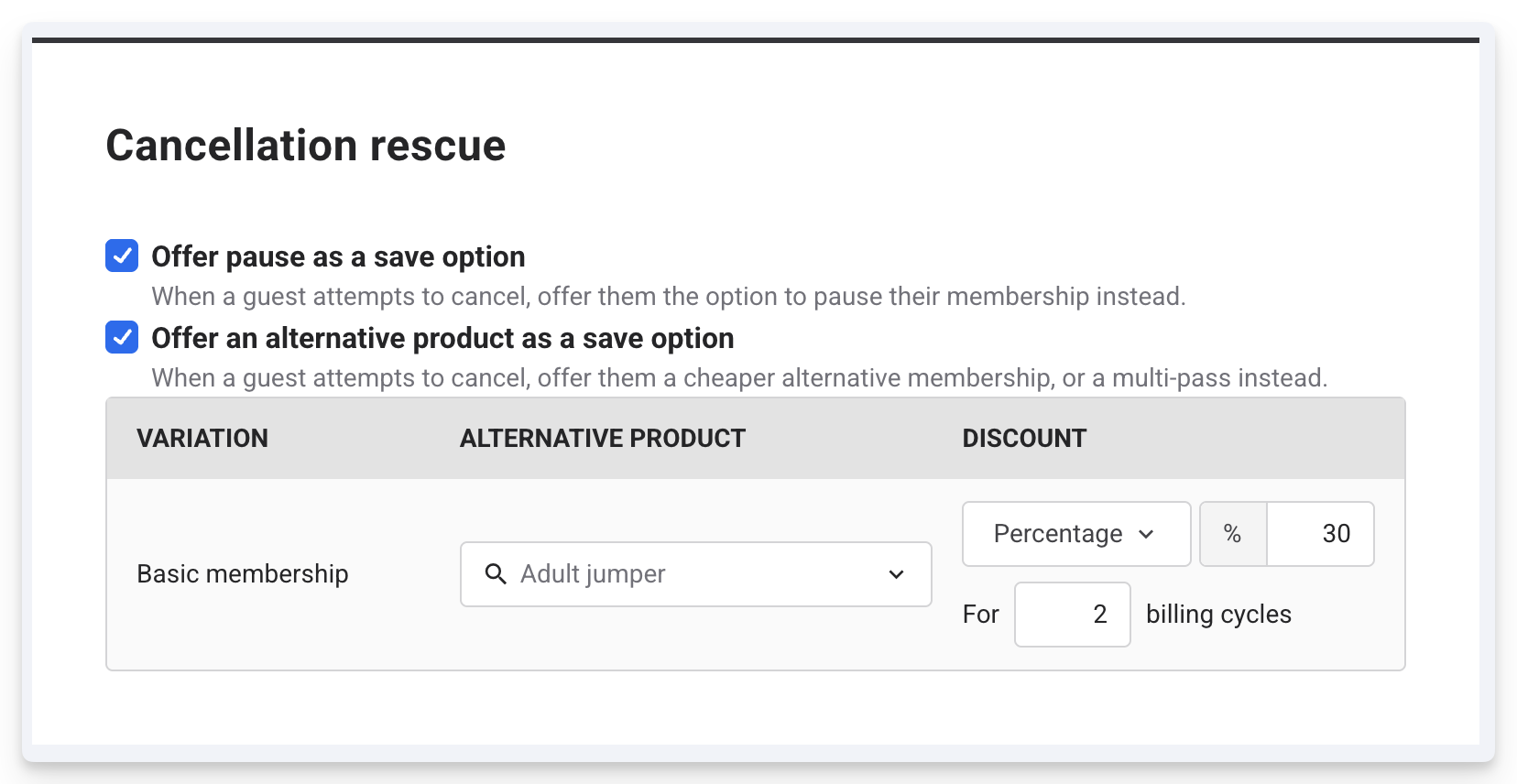
Scroll down to Cancellation rescue.
For each variation, choose an option under Alternative product.
To add a discount to the switch, choose Percentage or Amount under Discount, then enter the value. Where it's shown, enter how many billing cycles the discount runs for.
Select Save changes.
If you don't see Cancellation rescue, check that the product has recurring payments and Guest can cancel is selected, then save the product and try again. Group memberships don't offer an alternative plan. Repeat for each membership product you want to offer an alternative on.
What members see when they cancel
Members can cancel in their online account and be presented with offers, so they can stay on without contacting your team. When a member cancels in their online account:
They choose a reason from your list, if Ask members for a cancellation reason is on.
They see the offer matched to that reason:
Pause: their membership pauses for one billing cycle, then resumes on its own.
Switch plan: a tile shows the alternative plan and how much they'd save.
Stay on plan discount: their current plan shows with the original price struck through and the discounted price. The discount starts from their next billing cycle.
They take the offer, or carry on and confirm their cancellation.
If the reason prompt is off, or a member chooses a reason set to Show all, they see every offer they qualify for.
See which reasons and offers keep members
Two reports show why members leave and which offers they take, so you can track why members are leaving and which offers are working. Using information from these reports you can adjust your offers over time to help retain more members:
The Membership Cancellations report lists each canceled membership with the reason the member or staff member chose.
The Membership Cancellation Rescue report shows which offers each member saw, which one they chose and their reason.
FAQs
What happens if a member can't take the offer matched to their reason?
They go straight to confirming their cancellation. This happens when the matched save option is off, their membership can't be paused, there's no alternative for their membership or they've already claimed the stay-on-plan discount.
Which memberships can members pause from the cancellation flow?
Recurring memberships billed daily, weekly or monthly can be paused, as long as they still have payments left and have met any minimum number of payments. For other billing cycles (eg annual), staff can schedule a pause in Venue Manager. To learn how, see the guide Pause memberships in Venue Manager and online accounts.
How often can a member claim the stay-on-plan discount?
Once per booking. If the member starts to cancel again later, they won't see the stay-on-plan offer for that booking.
What happens when a booking has more than one membership?
The pause and the stay-on-plan discount apply to the whole booking. Members see them when they cancel every membership in the booking at once.
Can I use my existing discounts for rescue offers?
ROLLER creates the rescue discounts from the values you enter in Cancellation rescue and in each membership product. They only apply when a member takes a rescue offer, so they don't change your other pricing.
Is the pause in the cancellation flow the same as a pause staff schedule?
The rescue pause covers one billing cycle, and the member starts it themselves while canceling. Staff can schedule longer pauses in Venue Manager, with their own duration options. To learn more, see the guide Pause memberships in Venue Manager and online accounts.