This guide helps you troubleshoot errors that occur when staff or guests try to redeem discount codes at POS or during checkout. Most redemption errors are caused by the way the discount was set up or configured. To resolve these errors, you'll typically need to review the discount's settings in Venue Manager.
Access to resolve issues in Venue Manager
You'll need the following access permissions in Venue Manager to resolve these issues:
Can access discount code settings — Allows you to view and modify discount code configurations in Venue Manager (required to check and fix discount setup).
Or
Can view discounts — Allows you to view discount code settings without making changes (sufficient for diagnosing the issue).
Administrator and manager system roles have these permissions by default.
Discount code does not exist
When this message pops up it simply means that the code doesn't exist in ROLLER. Make sure to check the spelling before reaching out to our support team.
To check if a code exists, from Venue Manager, go to Products > Discount codes > All codes and type the discount code into the Search all items search bar. If no results are returned, your code does not exist.
Discount is not valid for this transaction
When this error comes up, your discount is probably not valid for the selected products.
This means that the items that have been added to the cart do not match the products the discount can be redeemed against. For example, you may be trying to redeem a code against a 60-minute product, while the code is actually valid for a 120-minute one instead.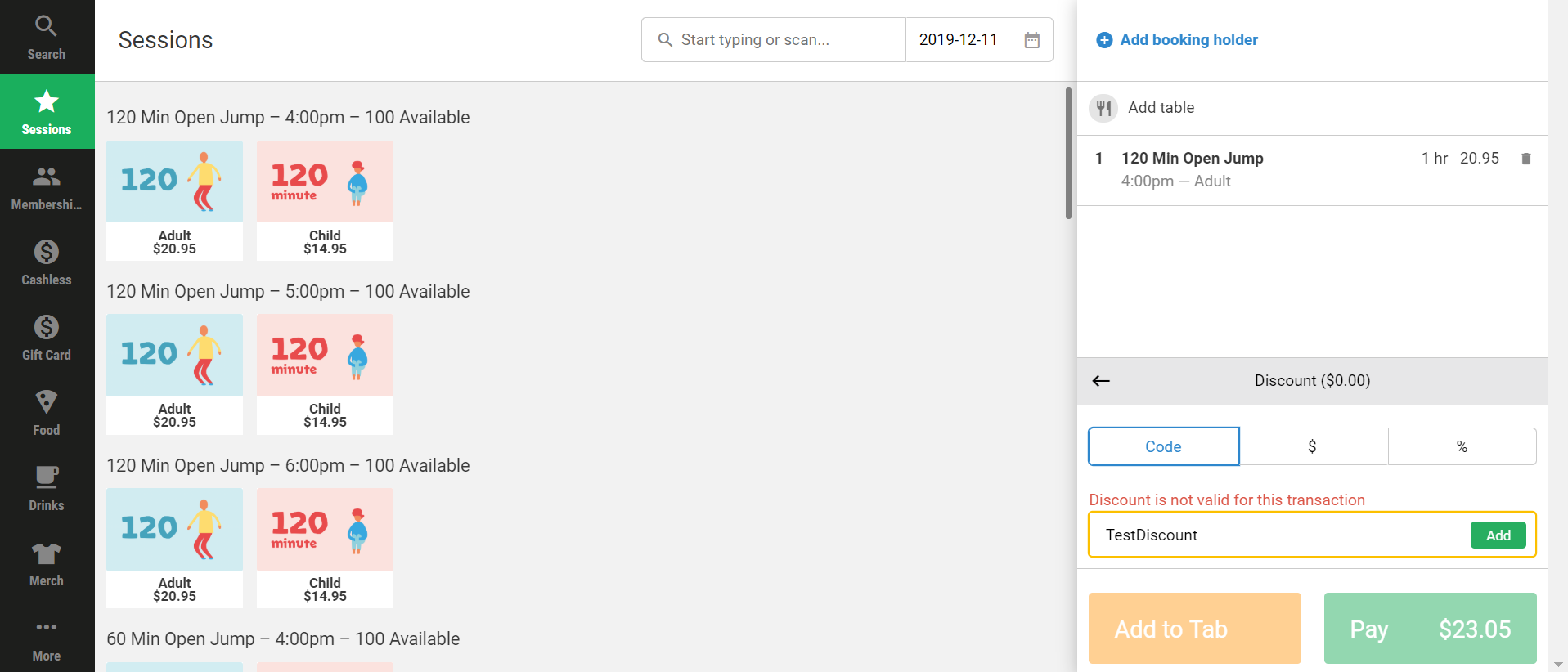
To check, from Venue Manager, go to Products > Discount codes > All codes, search for the code, select the discount that comes up and verify the selected products in the Products area.
Discount is not valid at this time
This error is linked to the discount's redemption dates, and it is likely that your guests may be trying to redeem a discount outside of this date range.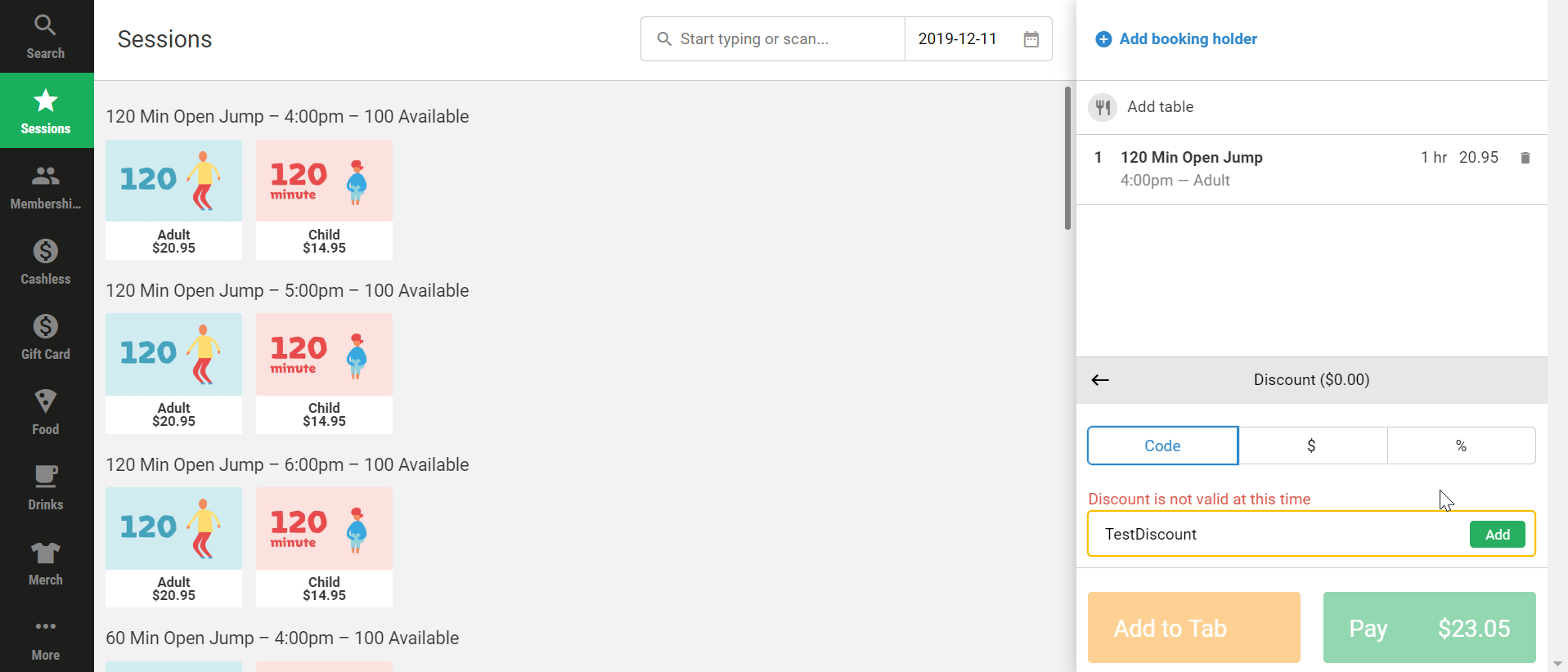 To check, from Venue Manager, go to Products > Discount codes > All codes, select the applicable discount and verify its redemption dates under Restrict redemption dates.
A redemption window refers to a date range in which you can physically complete the action of redeeming the code, and not the date range my booking can be valid for (read on to learn more).
Booking dates are not valid for this discount
Similar to the above, this error is linked to the discount's Booking dates, and it is likely that your guests may be trying to redeem a discount for booking dates outside of this date range.
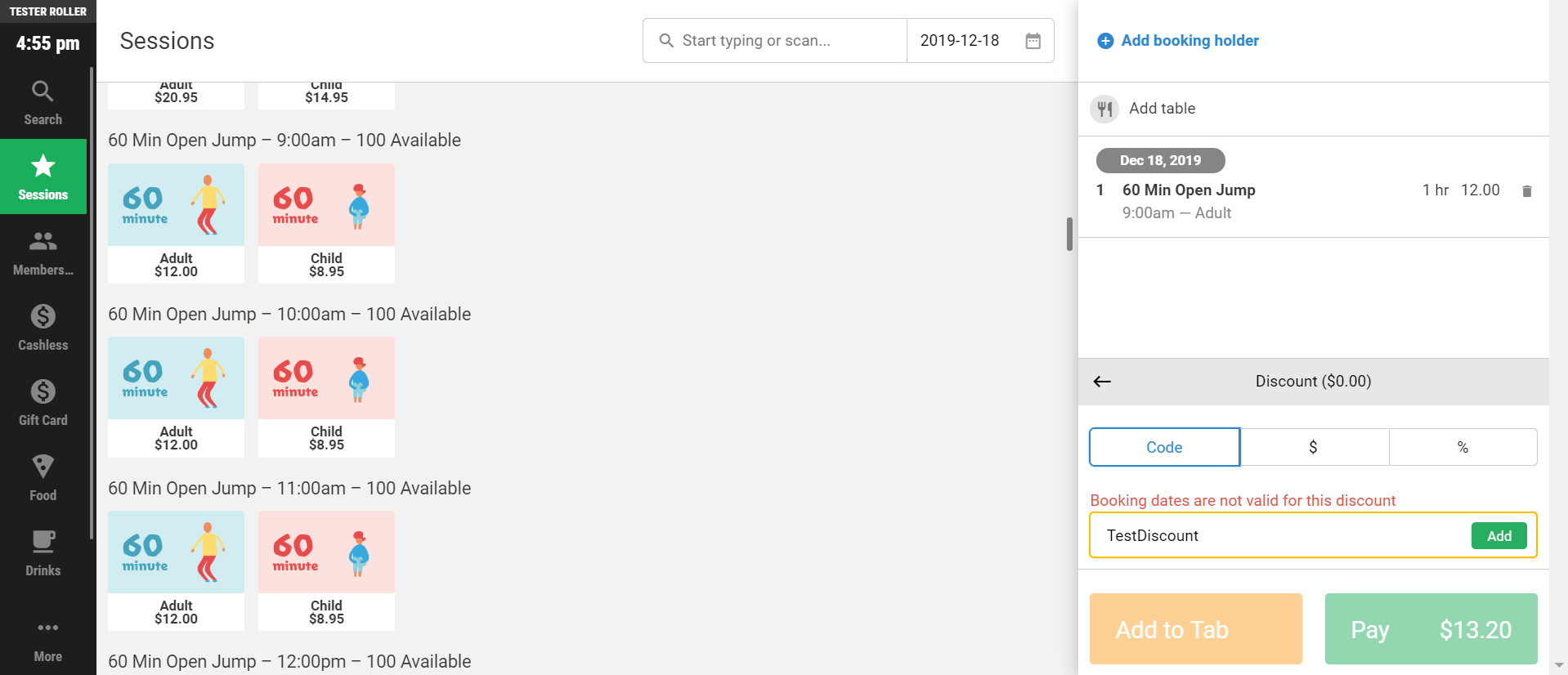
To check, from Venue Manager, go to Products > Discount codes > All codes, select the applicable discount and verify its booking dates under Restrict booking dates.
Discount location "X" is not valid
If this error comes up it means the discount code is not valid in the current ROLLER area, and that it may have been restricted to a specific ROLLER area (eg Venue Manager only or online checkout and POS.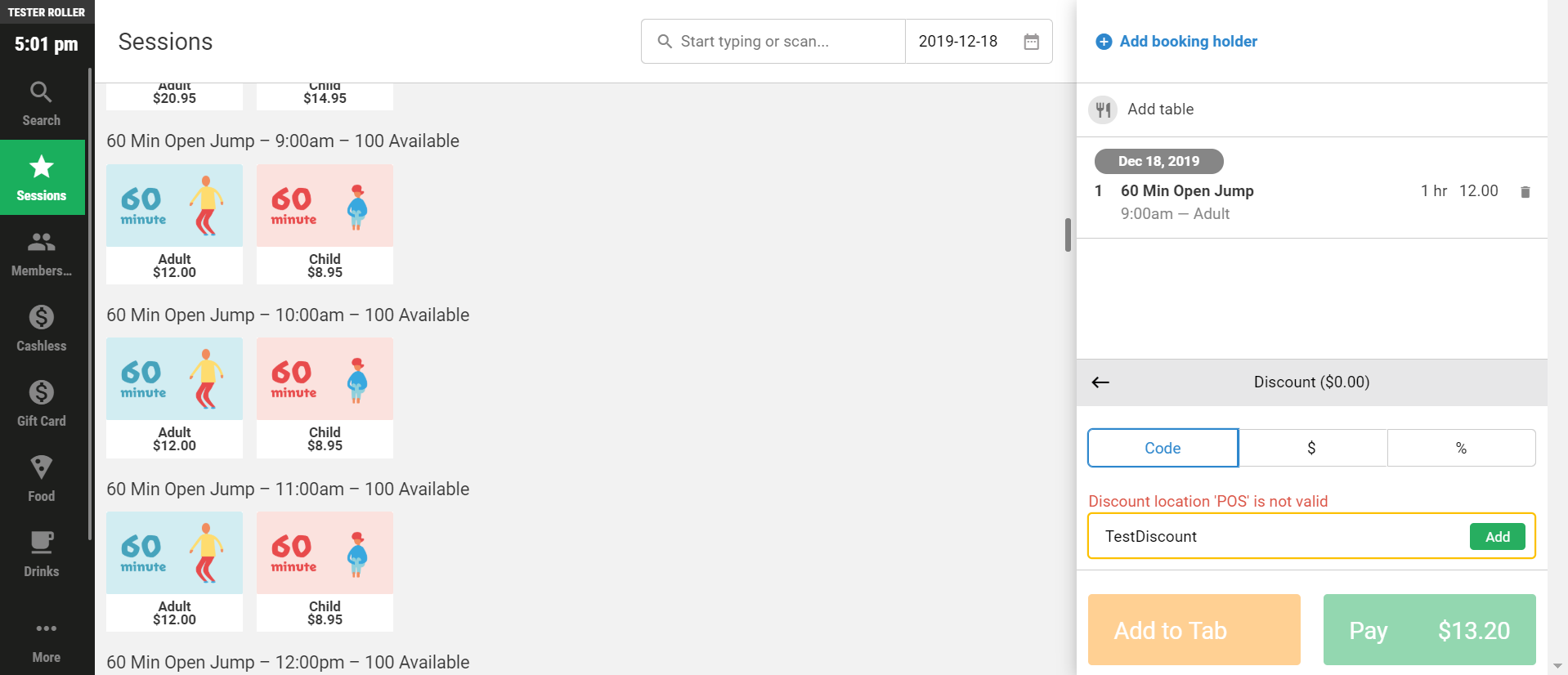
To check, from Venue Manager, go to Products > Discount codes > All codes, select the discount code and verify its redemption locations.
Session times are not valid for this discount
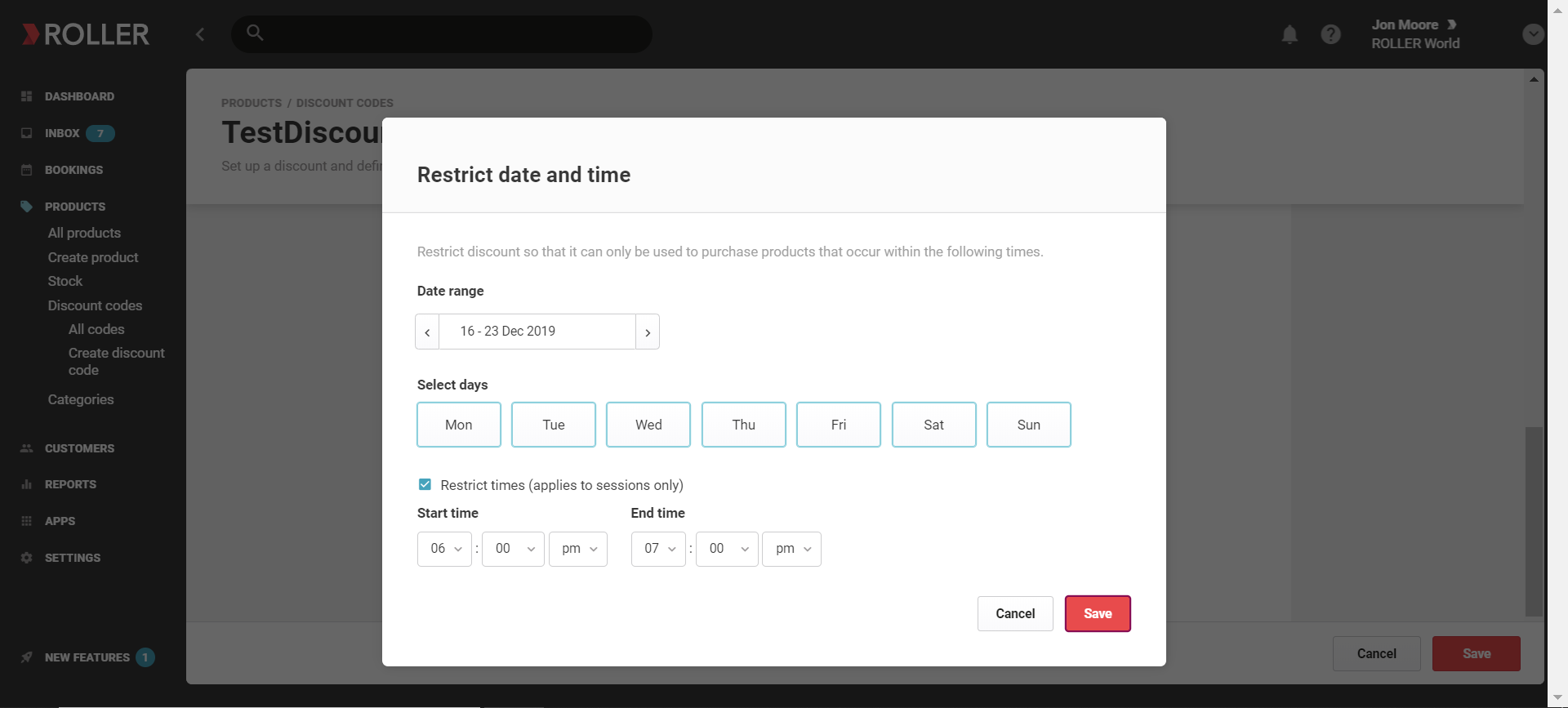
You can now apply a day of week and/or time of day based restriction to discounts. If this error comes up, it means that you're trying to redeem a code for the incorrect session time.
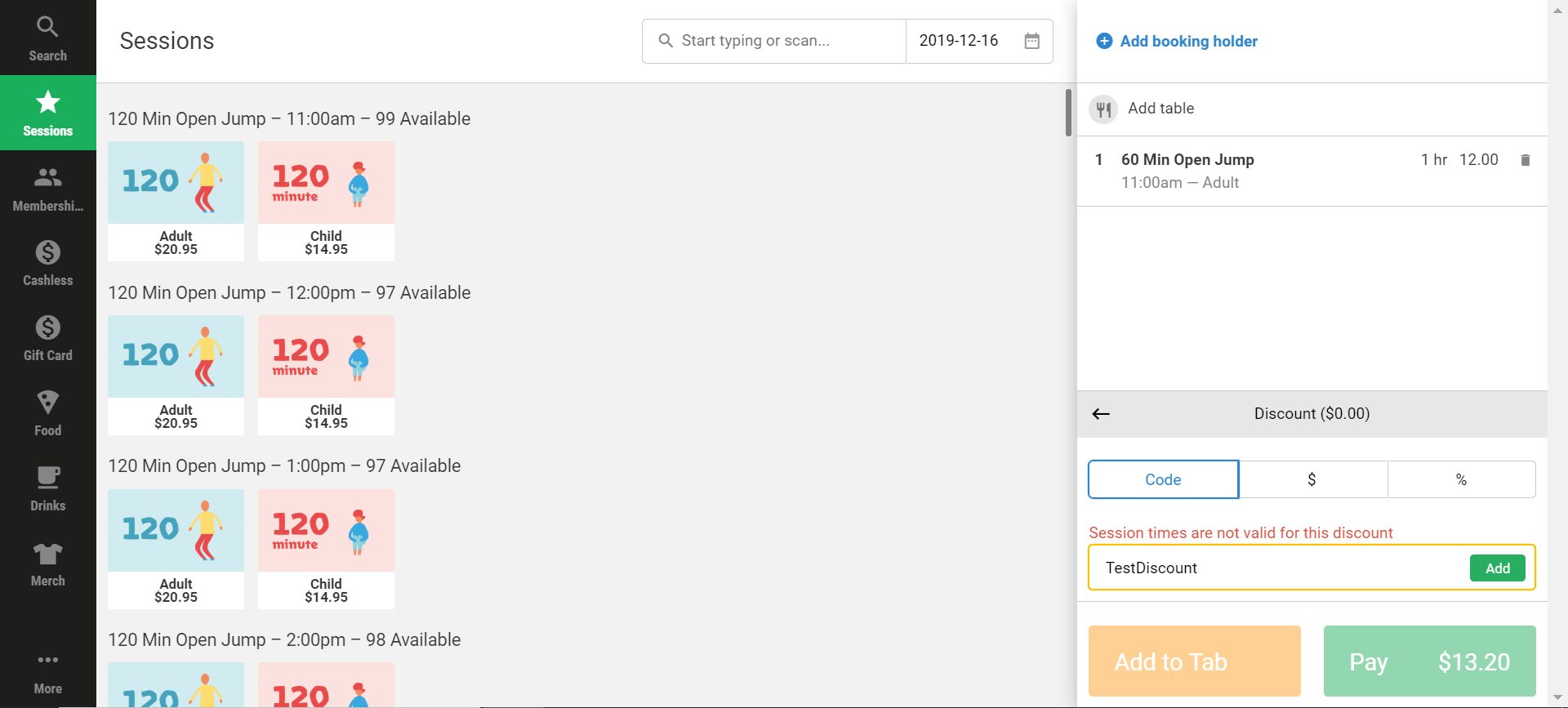
To check, from Venue Manager, go to Products > Discount codes > All codes, search the code and verify its session time restrictions under Restrict booking dates. In this example we had tried to redeem a code limited to 6 PM and 7 PM slots only on the 11 AM session.
Discount code limit has been reached
This is one of the most common errors. It is linked to the per code usage and it simply means that the code's usage limit has been reached (eg 1 use per code).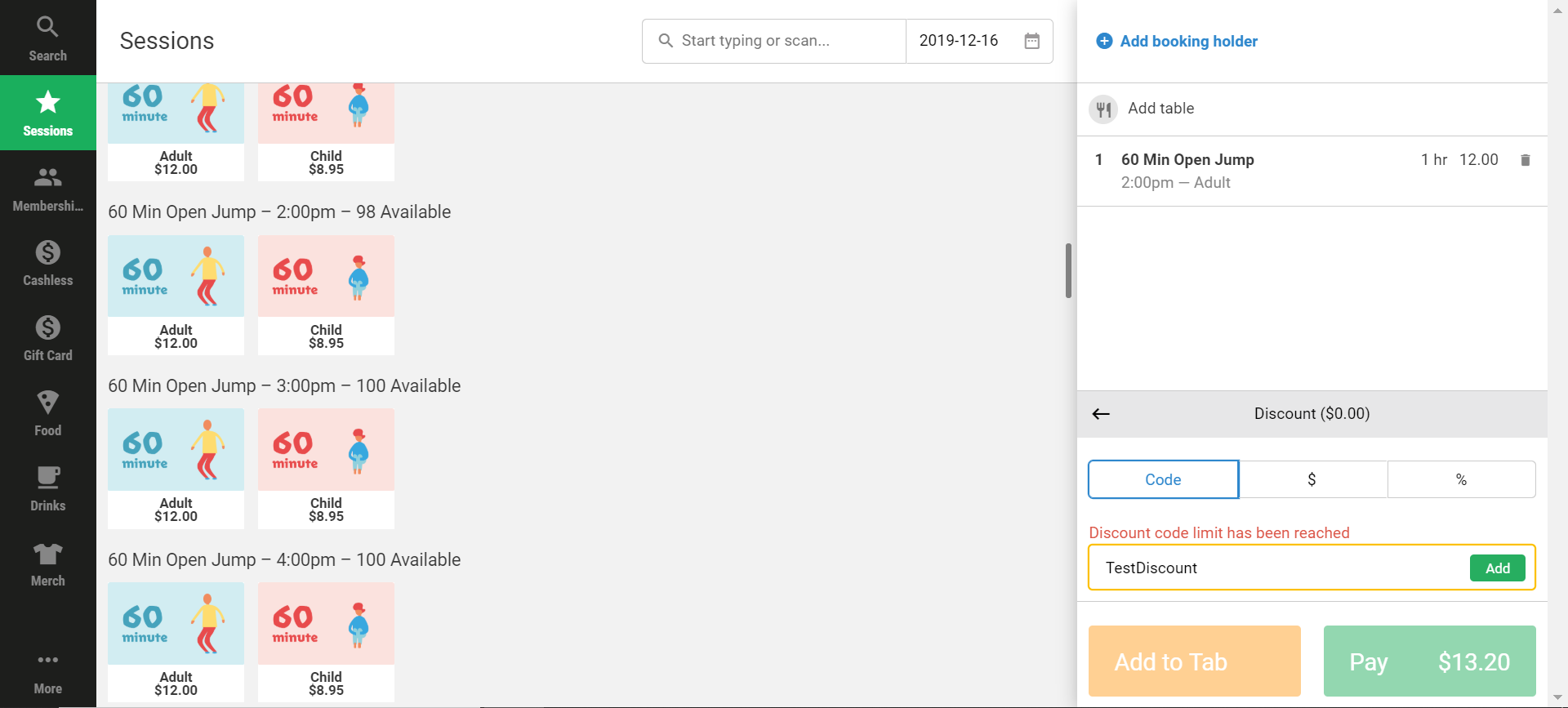
To check a code's usage:
From Venue Manager, go to Reports > All reports > Discounts by Bookings report.
Search for the code, adjust the date range (eg the last 12 months worth of transactions), then Apply filters.
If the code has been used, you'll be shown all the transactions the code has been redeemed against, the booking IDs, redemption dates, its validity, but also what has been purchased.
Please note: A 1/1 remaining validity field means the code has been used once out of 1 maximum use and not as code still needs to be redeemed once out of 1 use. The usage always starts as 0/x and works its way up until reaching the usage limit.
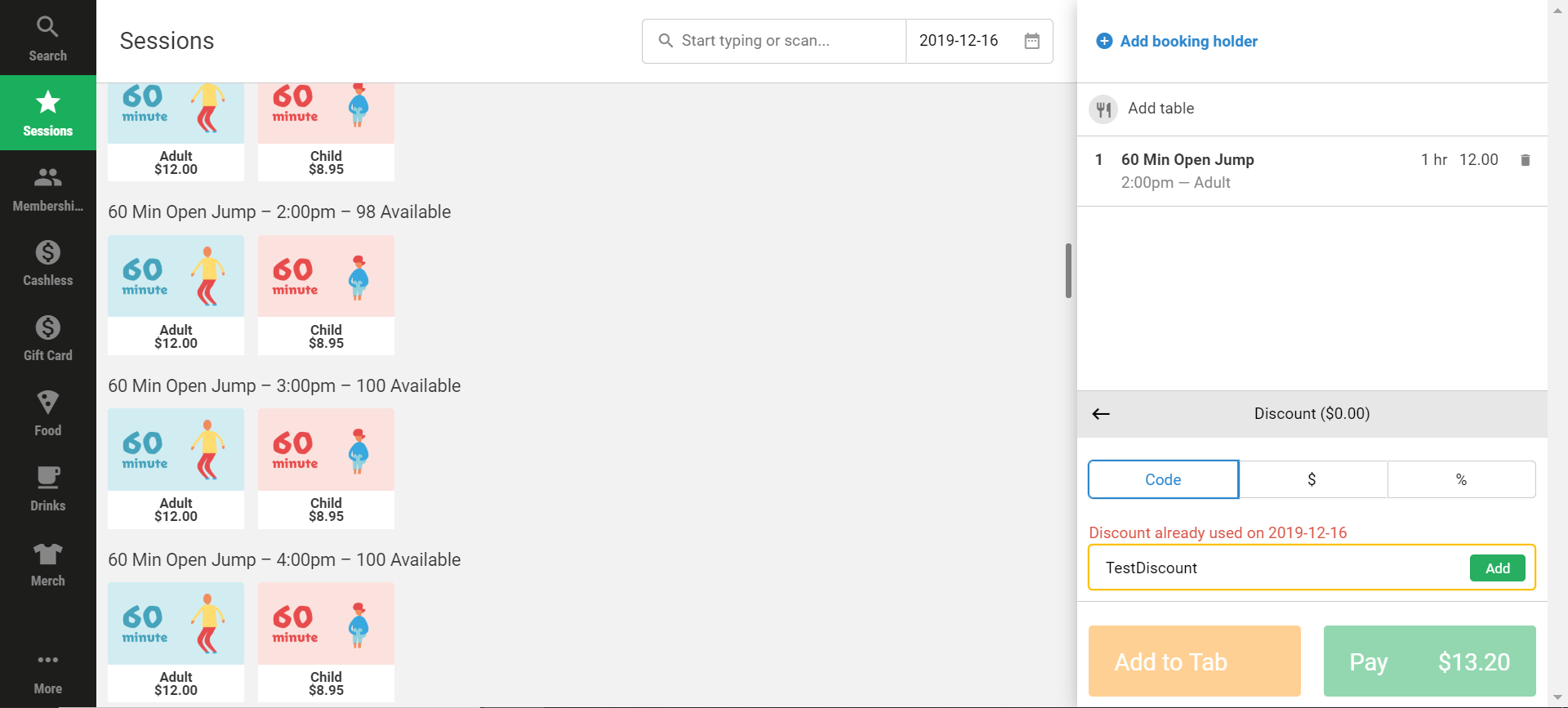
Discount already used on yyyy-mm-dd
In a per code per day setup, this error will tell you that a code has already been used on the current day.
To check a code's usage:
From Venue Manager, go to Reports > All reports > Discounts by Bookings report.
Search for the code, adjust the date range (eg the last 12 months worth of transactions), then Apply filters.
If the code has been used, the report will show all the transactions the code has been redeemed against, the booking IDs, redemption dates (which you can use to see if a code was already redeemed on the current day), its validity, and what has been purchased.
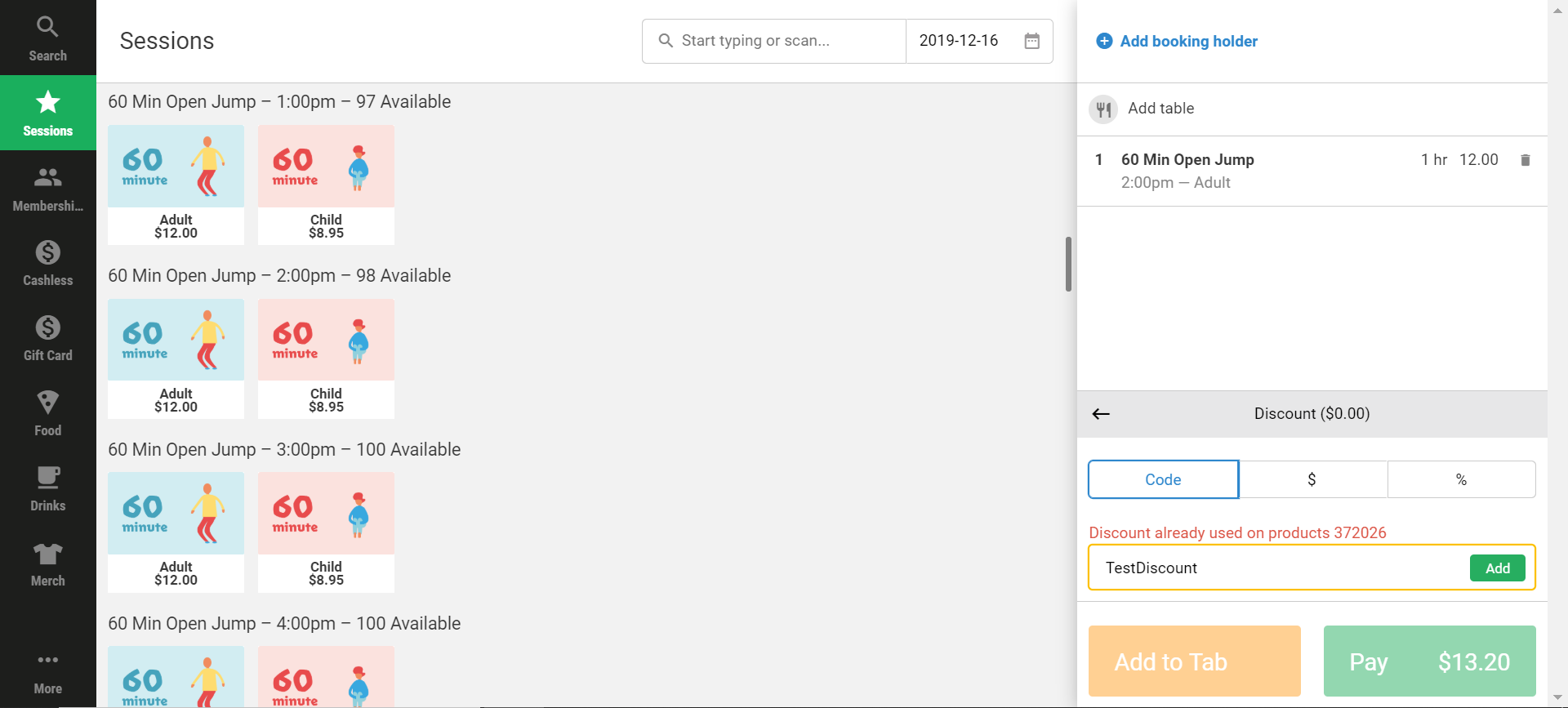
Discount already used on products
A discount will come up as invalid if it has already been used for the maximum number of times on the product you're trying to buy again with it.
To check a code's usage:
From Venue Manager, go to Reports > All reports > Discounts by Bookings report.
Search for the code, adjust the date range (eg the last 12 months worth of transactions), then Apply filters.
If the code has been used, you'll be shown all the transactions the code has been redeemed against, the booking IDs, redemption dates, its validity, and what has been purchased (the report will show you the product name (not code), which you can compare with what is currently in the cart and confirm it has already been purchased).
Discount already used across bookings
When a code's usage limit has been reached for across selected products type of setups (eg multi passes), this is the error message will come up.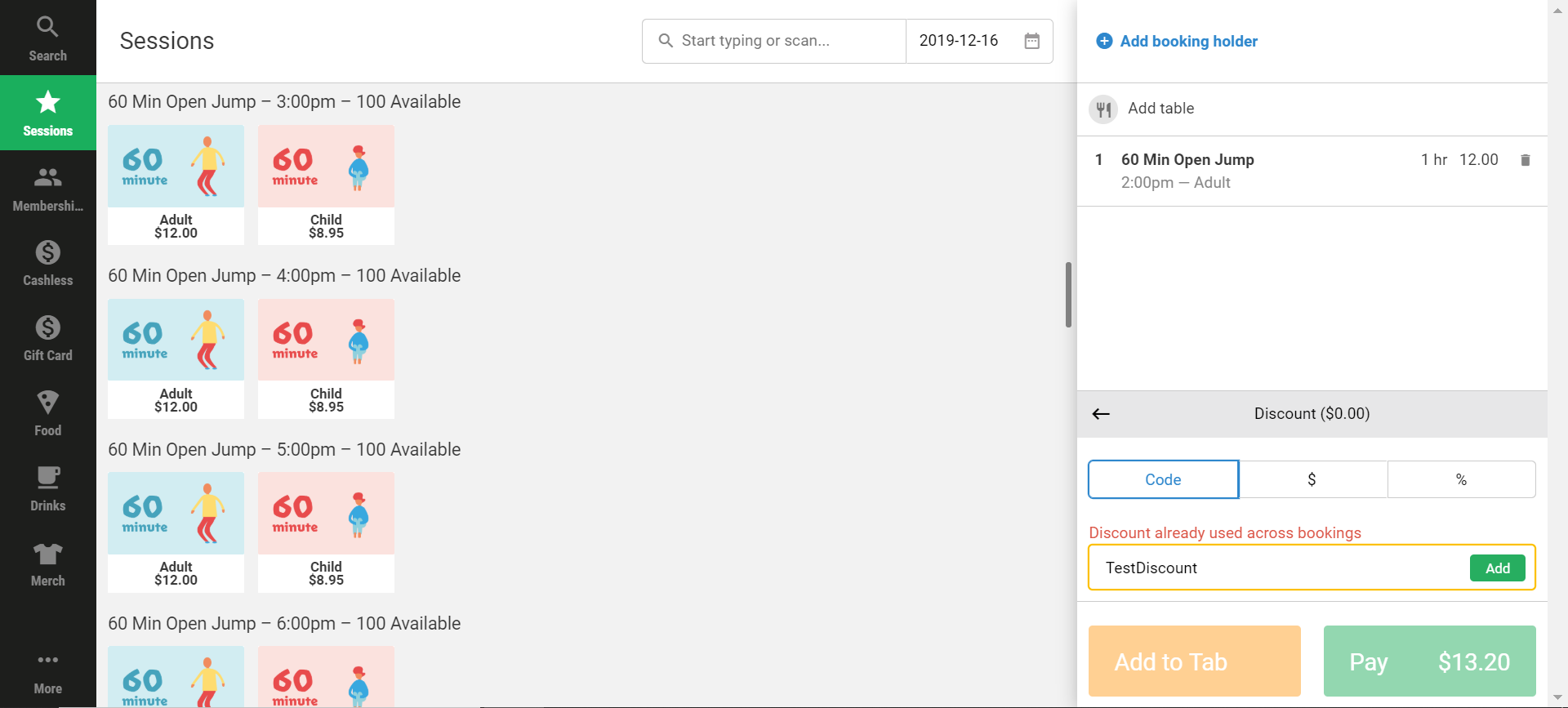
To check a code's usage:
From Venue Manager, go to Reports > All reports > Discounts by Bookings report.
Search for the code, adjust the date range (eg the last 12 months worth of transactions), then Apply filters.
If the code has been used, you'll be shown all the transactions the code has been redeemed against, the booking IDs, redemption dates, validity, and what has been purchased.
Please note: A 1/1 remaining validity field means the code has been used once out of 1 maximum use and not as code still needs to be redeemed once out of 1 use. The usage always starts as 0/x and works its way up until reaching the usage limit.