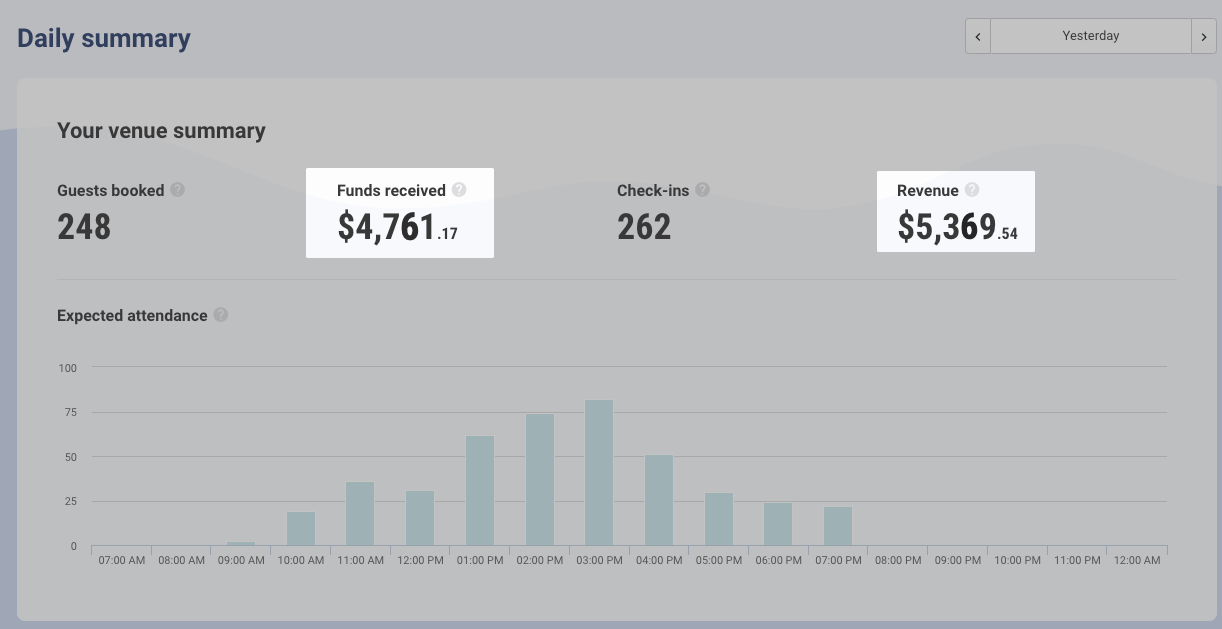
A negative Revenue figure in the Venue Manager dashboard means ROLLER took back more revenue on that day than it counted. It isn't an error. It happens when a booking is refunded or changed after ROLLER has already counted its revenue, and the reversal lands on the day you make the change.
The Revenue figure only shows if your venue uses accrual accounting. If you can't see it, see the guide Choose cash or accrual accounting for your reports to check your accounting method.
Why revenue can be negative
With accrual accounting, ROLLER counts revenue when a guest redeems a ticket at POS or when a product expires, not when the guest pays.
If you later refund or cancel the booking, or remove items from it, ROLLER takes that revenue back. It records the reversal on the day you make the change, not on the day the guest visited. If the reversals on a day add up to more than the revenue counted that day, the dashboard shows a negative figure for that day.
Example: A guest visits on 30 April and staff redeem their tickets, so ROLLER counts the revenue on 30 April. On 3 May you refund the booking, so ROLLER takes the revenue back on 3 May. If your other bookings count less revenue than the refund on 3 May, that day shows negative revenue.
Revenue isn’t the same as Funds received on the Venue Manager dashboard. Funds received counts the payments guests made that day (excluding tips). Revenue counts what ROLLER has earned from redemptions and expiries, so the two figures often differ on the same day. For what each dashboard figure includes, see the guide Venue Manager dashboard.
Find the bookings behind a negative figure
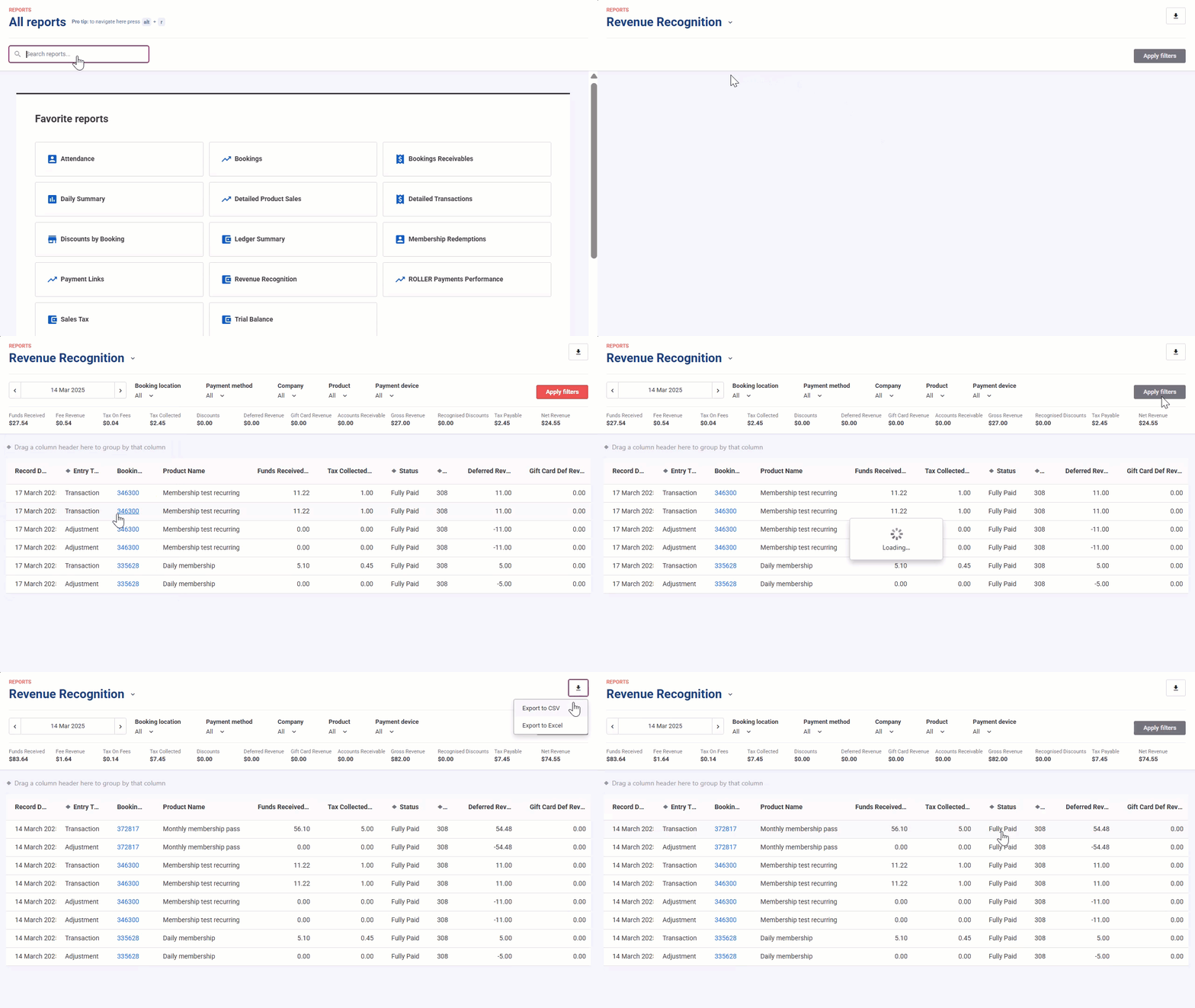
The dashboard's Revenue figure is the day's total of the Net Revenue column in the Revenue Recognition report, so the report shows which bookings make it up.
The permission required to open the Revenue Recognition report is Can access accounting reports. The administrator and manager roles have this permission enabled by default.
From Venue Manager, go to Reports > All reports.
Search for and select Revenue Recognition.
Set the Date filter to the day the dashboard shows negative revenue and apply the filter.
Select the download icon at the top right of the screen. To get a notification when the report is ready, select Alert me when complete.
Open the downloaded report in a spreadsheet.
In the Net Revenue column, find the rows with negative values and note their booking IDs.
From Venue Manager, go to Bookings > All bookings, search for a booking ID and select the booking.
In the booking's activity stream, select the Logs filter to see the refunds and changes made to the booking. You can also open the Payments tab to see its refunds.
The refund or change on that date explains the negative figure. If you can't find a change that explains it, contact the support team with the date and the booking IDs.