Connect your ROLLER account with GetYourGuide — one of the world's largest experience marketplaces — to sell your products to a global audience of travellers. All bookings flow directly into ROLLER and are managed alongside your other bookings in Venue Manager.
This guide covers everything you need to set up the integration, from prerequisites and product configuration through to mapping and testing.
Advanced Channel Management add-on: All plans
Sell your experiences through GetYourGuide and other online travel agencies — reaching a global audience of travellers while keeping all bookings centralized in ROLLER. Advanced channel management is available on all subscription plans as a paid add-on. To enable this feature, contact your customer success manager, the support team or follow step 1 below.
Before you begin
Before you start setup, make sure you have the following in place:
A GetYourGuide supplier account — create one at getyourguide.supply
A signed GetYourGuide supplier agreement — this is separate from creating your account. Get this started as early as possible to avoid delays to your go-live.
For HQ venues, the GetYourGuide integration must be configured at the managed venue level — it's not yet supported at HQ.
Step 1: Enable the advanced channel management add-on
To connect ROLLER to GetYourGuide, you'll need the advanced channel management add-on. This is a paid add-on available on all ROLLER subscription plans.
To request access:
From Venue Manager, go to Settings > Integrations.
Select Request upgrade — this adds the advanced channel management add-on to your existing plan, it's not a plan upgrade.
After you submit, a member of the ROLLER team will contact you to discuss adding it to your subscription. Once added, you'll be able to connect to GetYourGuide and other online travel agencies through the channel management configuration page in Venue Manager.
To learn more, see the guide Get started with channel management in ROLLER.
Step 2: Activate the integration
From Venue Manager, go to Settings > Integrations > Channel Partners.
Find GetYourGuide and select Activate.
The page will refresh. You can now access the Settings tab — you'll need this in Step 4.
Step 3: Create ROLLER products for GetYourGuide sales
Create a dedicated product in ROLLER for GetYourGuide — don't reuse products you sell through other channels.
Before you enable channel partner selling on a variation, you must make sure the variation is set to tax-inclusive. OTAs require tax-inclusive pricing — if this isn't applied first, the Sell option won't be available.
Only session pass and standard pass product types are supported.
For session pass products, you must create schedules in ROLLER — only scheduled sessions appear as available on GetYourGuide.
All standard ROLLER availability settings flow through to GetYourGuide.
GetYourGuide is the only OTA integration that uses your product's Short description field — it appears directly to guests in the GetYourGuide marketplace. Write a concise, compelling description before your integration goes live.
Make your prices tax-inclusive
GetYourGuide prices set up for each variation in ROLLER must be tax-inclusive. If your product is not already tax-inclusive, apply a tax override on each variation before enabling channel partner selling.
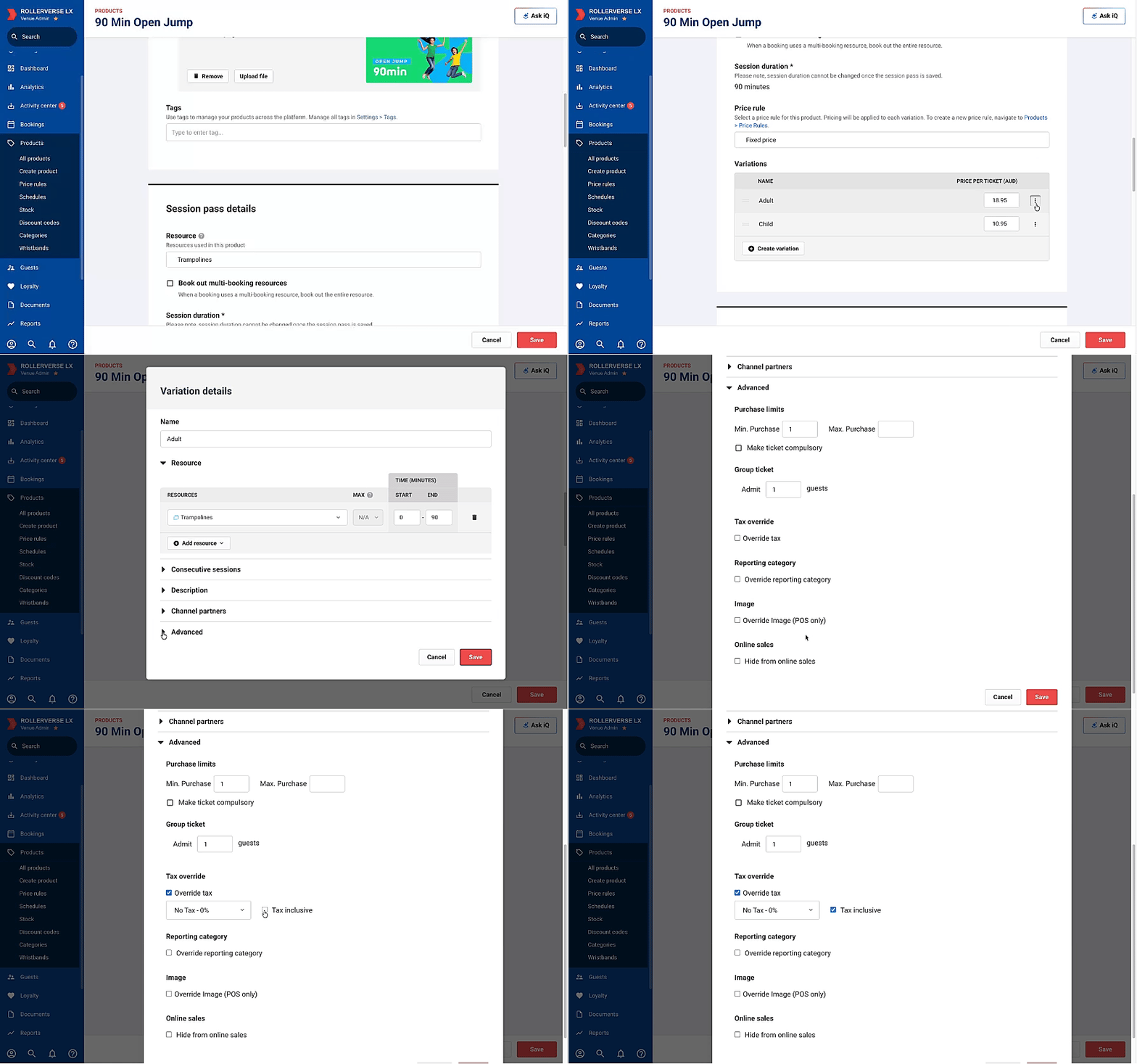
For session passes
Select the options menu (3 dots) for the product variation.
Select Edit variation.
Open the Advanced section.
Scroll to Tax override.
Select Override tax.
Select Tax inclusive.
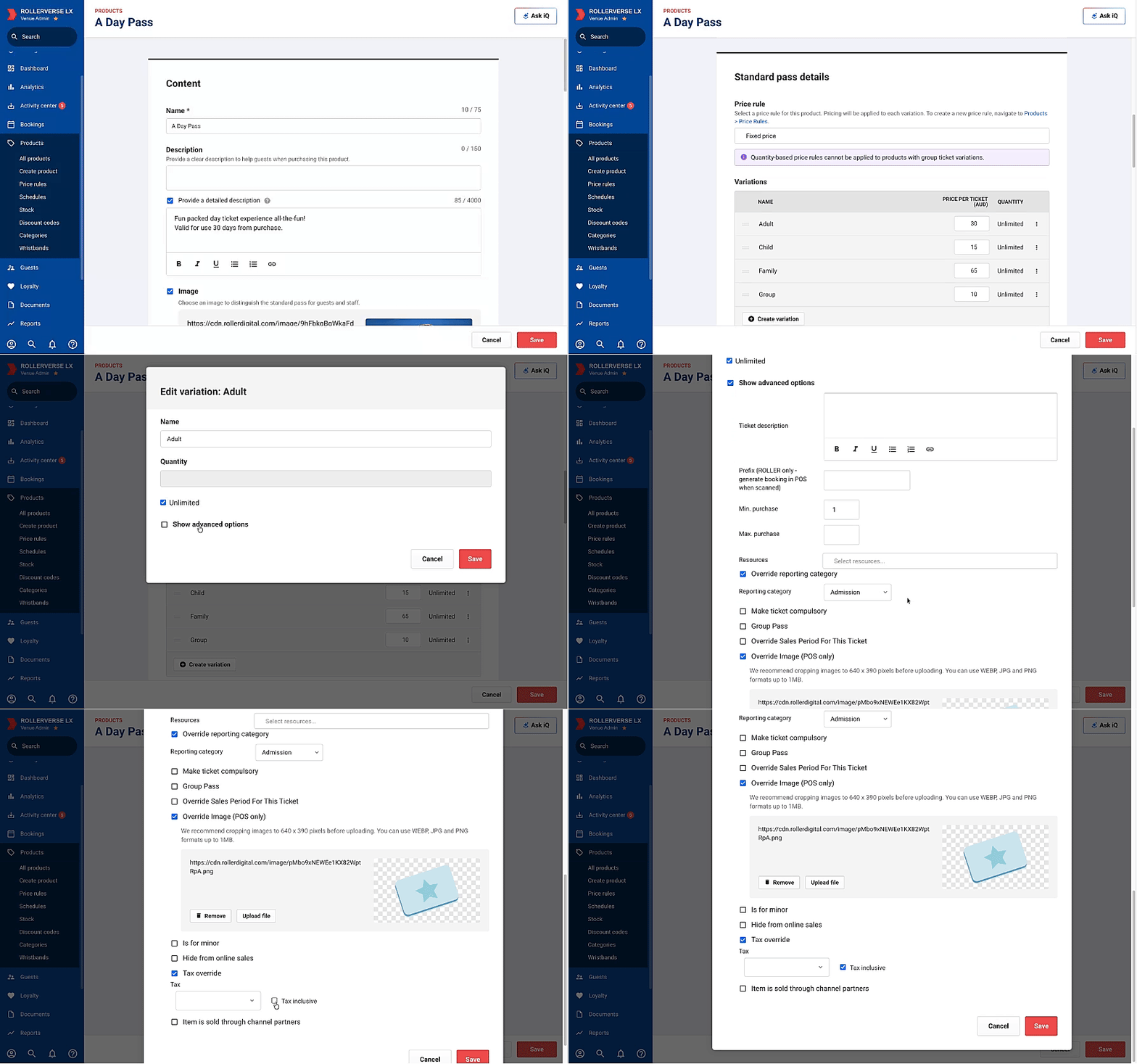
For standard passes
Select the options menu (3 dots) for the product variation.
Select Edit variation.
Select Show advanced options.
Scroll to Tax override.
Select Override tax.
Select Tax inclusive.
Enable channel partner selling and set pricing
Once the tax override is applied, enable channel partner selling on each variation and set your prices. You won't be able to do this until tax is set as inclusive (see above section).
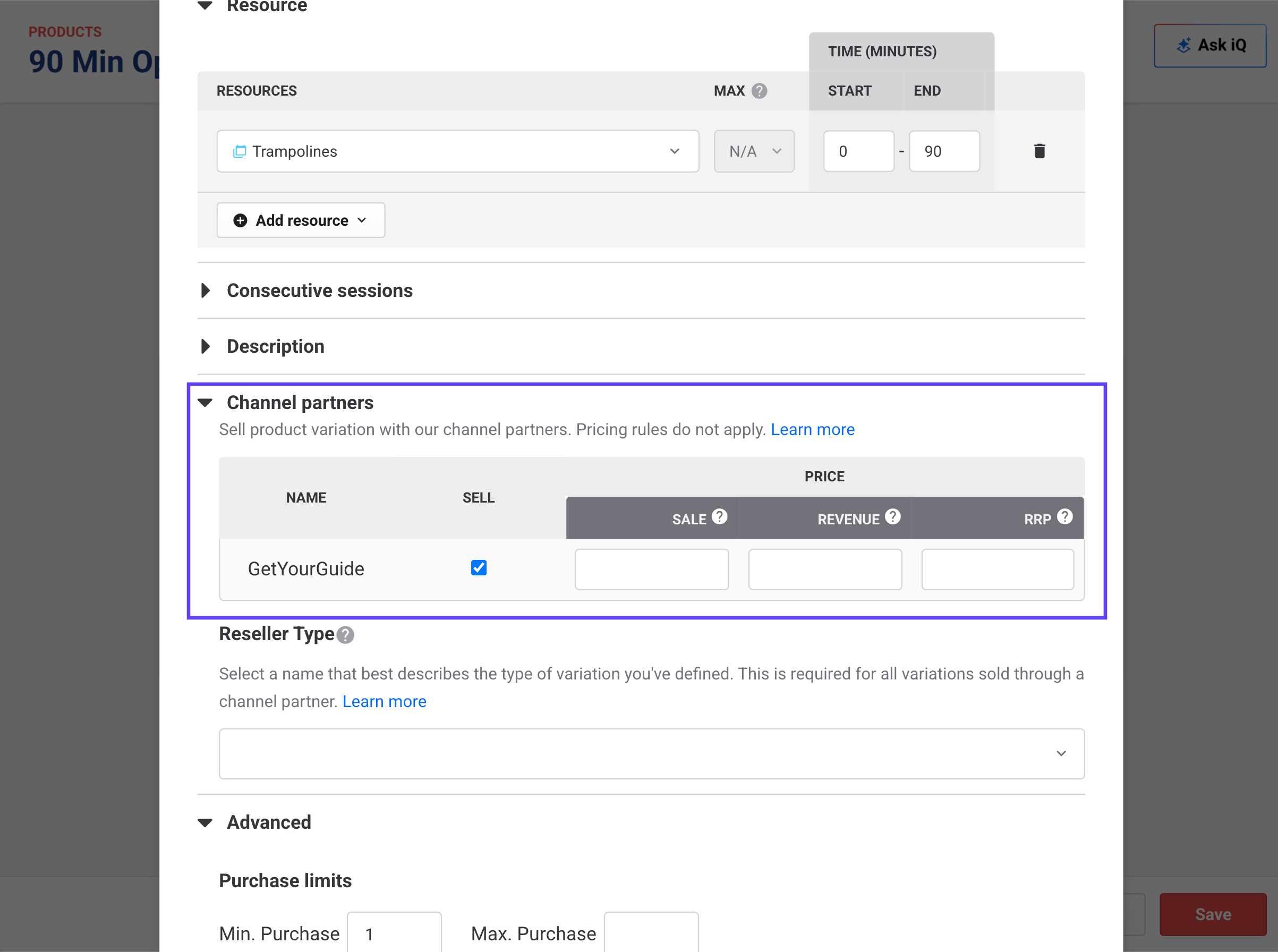
For session passes
Select the options menu (3 dots) for the variation.
Select Edit variation.
Open the Channel partners section.
Enable Sell.
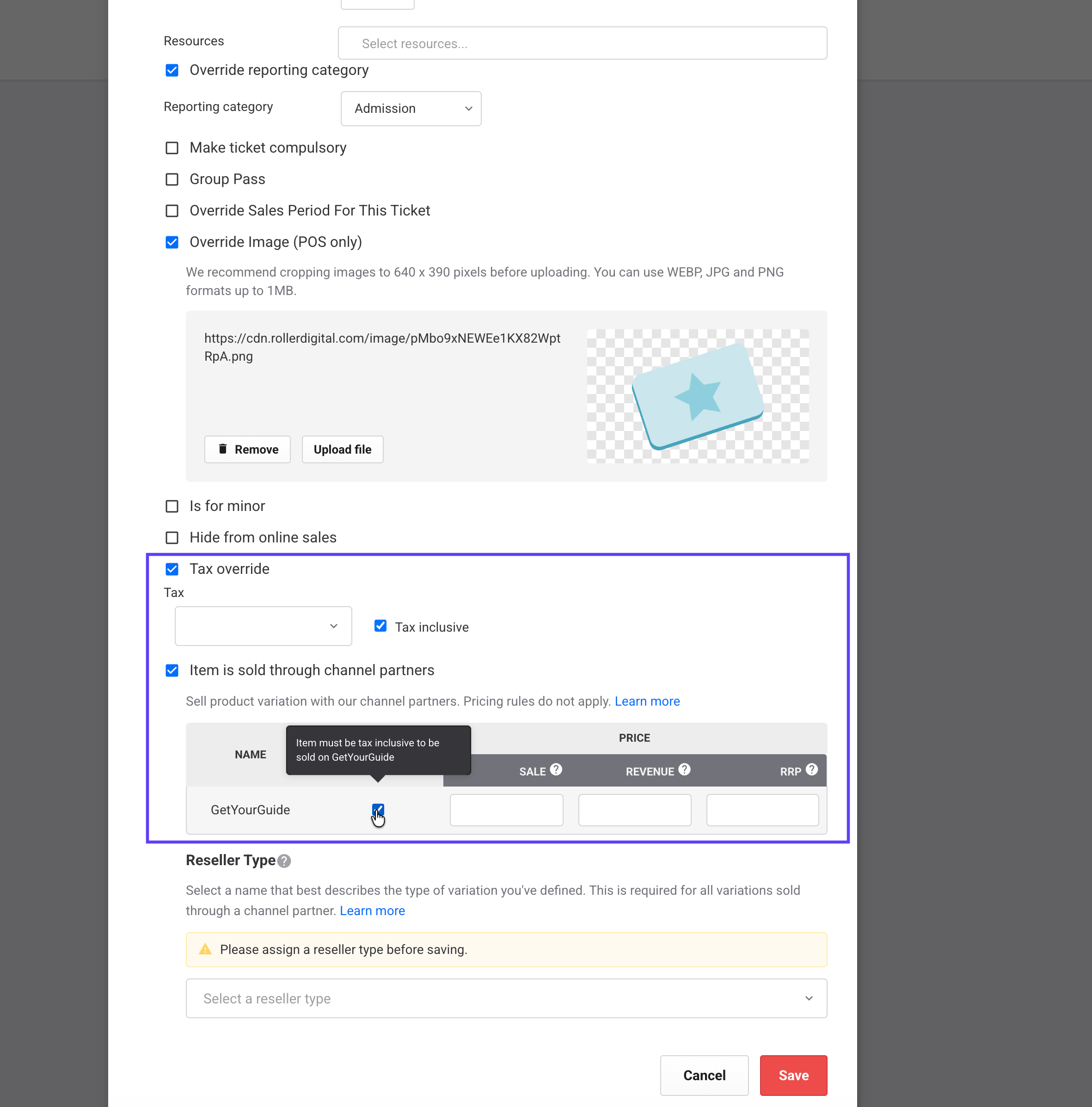
For standard passes
Select the options menu (3 dots) for the variation.
Select Edit variation.
Select Show advanced options.
Enable Item is sold through channel partners.
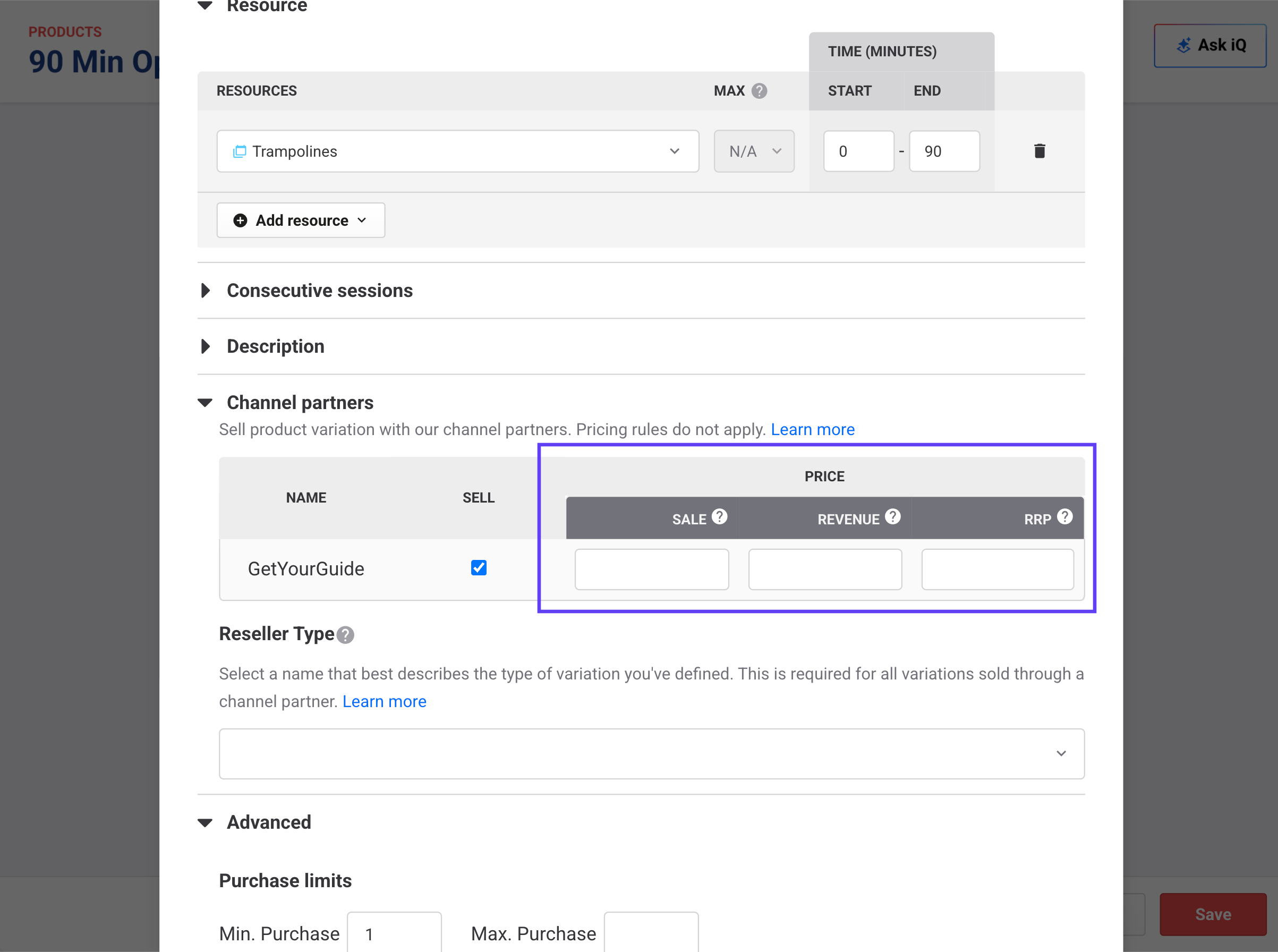
Set your prices
Sale price — the amount guests pay the OTA (incl. tax).
Revenue Price — the amount your venue receives from the OTA (incl. tax).
RRP (optional) — a pre-discount price that some OTAs may use for promotions (incl. tax). Leave blank for GetYourGuide.
Select a reseller type
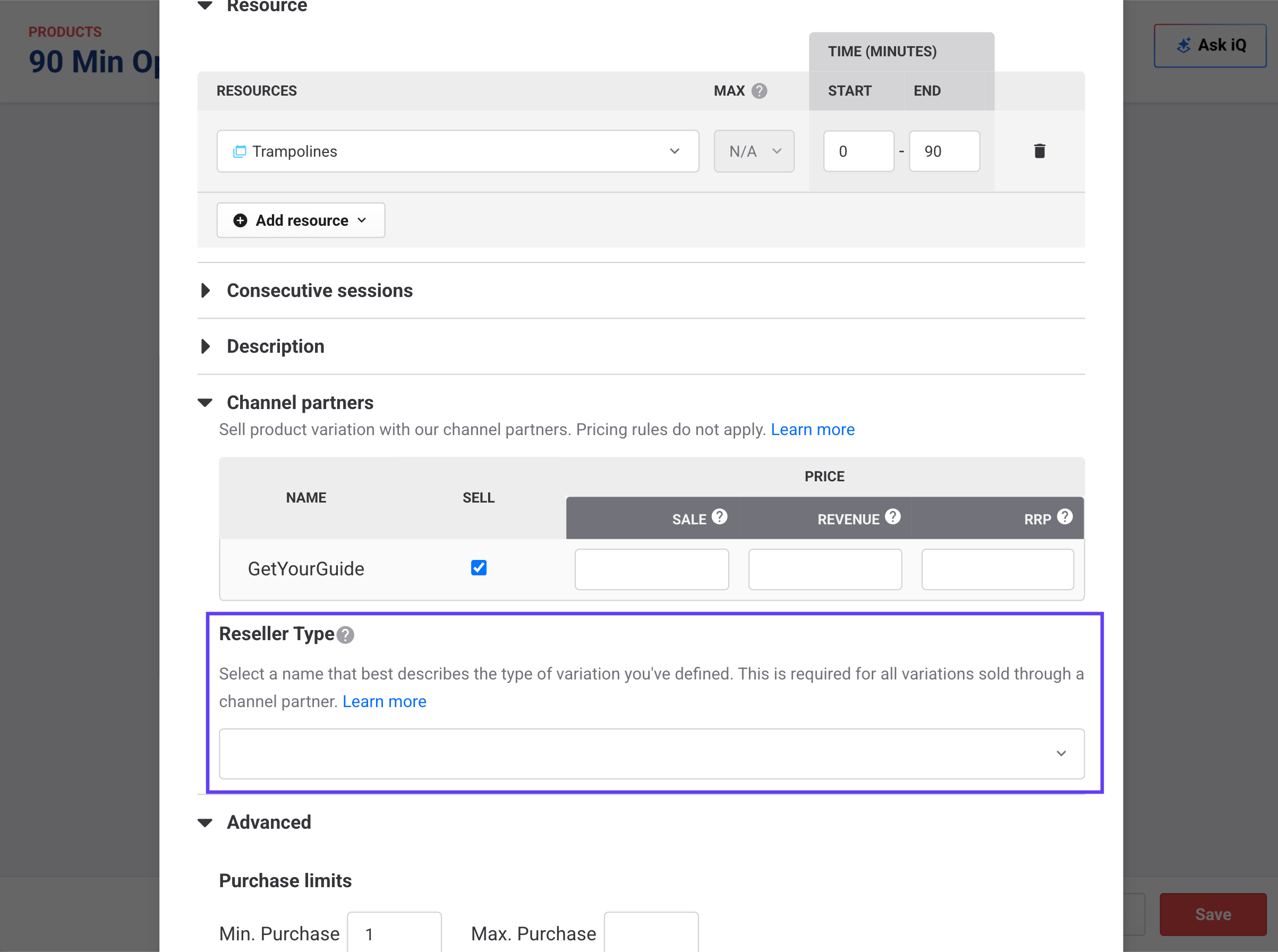
Select a Reseller type from the dropdown that best describes the type of variation you've defined.
If you're selling group passes through GetYourGuide, you must use the Family reseller type. GetYourGuide only returns a group pass product when a guest selects the exact same party size as the product's configured group size — create a separate product for every group size you offer.
Save the variation
Select Save for the variation. Once all variations are configured, select Save on the product.
Step 4: Contact GetYourGuide to start product mapping
When GetYourGuide maps to your ROLLER products, the connection may fail if there isn't enough availability configured for each product across the next 3 months. If this happens, you can wait and submit the mapping request for that product at a later time.
Before you start mapping, you'll need two IDs — one from GetYourGuide and one from ROLLER.
Get your Supplier ID from GetYourGuide
Your Supplier ID identifies your venue in GetYourGuide's system. You can find it in your GetYourGuide supplier portal, or ask GetYourGuide directly.
To save your Supplier ID in ROLLER:
From Venue Manager, go to Settings > Integrations > Channel partners.
Find GetYourGuide and select Settings.
Select Unlock to edit.
Enter and save your Supplier ID.
Get your Product IDs from ROLLER
Once you've saved your Supplier ID, a new column will appear showing the Product ID next to each product name that's been set up to sell through GetYourGuide.
Before sharing these with GetYourGuide, you currently need to add your venue ID as a prefix — the product IDs shown in ROLLER don't include it automatically. Contact the support team to provide it.
Use the format VenueID-ProductID when mapping your ROLLER products in the GetYourGuide supplier portal. For example, if your venue ID is 27166 and your product ID is 1840680, the correct ID to enter in GetYourGuide is 27166-1840680. This applies to GetYourGuide only.
Complete the mapping
GetYourGuide will help map your ROLLER products to their system (including pricing, product settings, and categories) in their supplier portal if you reach out to them. They can also help you find your Supplier ID.
GetYourGuide also offers self-mapping, which means you can complete the mapping process yourself through their supplier portal. See Connecting a new product to your reservation system for guidance from GetYourGuide.
ROLLER is not responsible for product mapping processes. Contact GetYourGuide with any questions or guidance you require during mapping.
Step 5: Test your integration
Once your products are mapped and setup is complete, you can expect live bookings immediately. We recommend running a test booking to confirm everything is working correctly.
Product listing — Confirm your products display correctly in the GetYourGuide marketplace.
Test booking — Complete a test booking and confirm it appears in ROLLER with the correct details.
Financial reporting — From Venue Manager, go to Reports and confirm the correct information appears in:
Booking Item Sales by Channel Partner
Product Sales by Channel Partner
Cancellation — Cancel the booking via GetYourGuide and confirm the cancellation is reflected in ROLLER.
FAQs
Why aren't my products appearing on GetYourGuide?
Check the following:
For venues that are not tax-inclusive, Override tax and Tax inclusive are both checked in the Advanced section of the variation. Without this, Sell cannot be enabled.
Currently, the product ID shared with GetYourGuide must include the venue ID prefix in the format VenueID-ProductID (for example, 27166-1840680). If you don't know your ROLLER venue ID, contact the support team.
Sell is enabled on the variation in the Channel partners section.
Your product has enough availability configured for the next 3 months.
Your GetYourGuide Supplier ID is correctly saved under Settings > Integrations > Channel partners > GetYourGuide.
Can I sell group passes through GetYourGuide?
Yes, but you need to create a separate product for every group size you offer. GetYourGuide only returns a group pass when a guest selects the exact party size — a product for 4 won't appear if a guest selects 5. Each product must use the Family reseller type in the session or standard pass variation settings.
Can I set up the integration for an HQ venue?
No — configure the integration at the managed venue level only.
Can I edit a GetYourGuide booking in ROLLER?
GetYourGuide bookings are locked in ROLLER. You can edit POS notes, guest details, and ticket details, and process cancellations. Refunds are managed by GetYourGuide.
What happens when GetYourGuide reschedules a booking?
When a guest reschedules through GetYourGuide, the original booking is deleted in ROLLER and a new one is created. This means the Booking ID changes each time. Use the External Booking ID instead — this stays the same across reschedules and is the reliable way to track a guest's booking. You can find it in the booking's header in Venue Manager.
What happens if I need to archive a GetYourGuide product?
Uncheck Sell on each product variation first. Products with Sell enabled cannot be archived.
Is my venue guaranteed to be listed on GetYourGuide?
No — GetYourGuide reviews and approves all venue applications. Not all venues are accepted, and this is GetYourGuide's decision alone.
How do I switch from Rezdy or another integration?
Most OTAs don't support multiple integrations at once and will require you to switch your connection to ROLLER. This process typically takes 3–5 business days.