Charge peak rates on party slots, track every membership redemption across venues, and split group payments at POS (beta). June also adds real-time redemption counts on POS capacity view tiles, cashless card bundles and right of withdrawal support for venues selling online in Germany.
Try out new features in your playground venue about a week before they go live — see below for what's available. Not sure how to access playground? The ROLLER Playground guide shows you how.
This page covers new and improved features with setup guidance, and goes live about a week before the full release. For the complete picture — every change, fix and behind-the-scenes improvement this month — see the release notes, published shortly after release day.
We're always learning from venues like yours. Join our research panel to get early insights into new features and share your feedback to guide future improvements.
Guest experiences
June's POS updates keep staff in control on the day — split tabs at POS to manage group orders, correct purchased items at POS without removing and re-adding, and track live redemption counts from POS capacity view.
Manage group payments using split tabs at POS (beta)
Plan: Premium and above
Preview release (Playground): Yes
Target release: Tuesday, 23 June 2026 (AET)
Venues running group experiences like bowling, escape rooms, axe throwing, VR, family entertainment frequently deal with groups where different guests want to pay for their own items.
Now, you can use split tabs at POS to manage group orders while keeping everything under the same booking. From a booking at POS, staff can create additional tabs, rename them for guests, move items between tabs and see a running total for each tab.
Tabs can be renamed, items can be moved at any time before payment, and discounts recalculate automatically as items shift between tabs. When it's time to settle, guests in the group can pay for their tabs individually.
Percentage, flat-amount, flat-price, quantity-based, and custom discounts all follow items when moved between tabs (or stay on the tab they were applied to, in the case of custom discounts).
Booking-level discounts are split evenly across tabs. The one exception is: promotion discounts (eg buy one, get one) that require specific items to stay together. If those items are split across tabs, the promotion is removed.
If a venue is using card pre-authorization, this can be attached to the initial tab, but subsequent tabs created from a booking in the tab split view aren't created with a card attached. Guests can still settle the tab with a card, or the payment method of their choice.
This feature is available for Premium plans and above.
To opt into the split tabs beta for your venue:
From Venue Manager, go to Apps > Point of sale > Settings.
Under the Tabs section, select the checkbox for Enable split tabs.
Select Save.
To get started with split tabs:
Add items to the cart or open an existing booking.
Select an item and Add to tab.
Search for an existing tab or select Create tab to create a new one.
Select Go to booking.
From the booking, select Split tabs. This brings up the split tabs view.
In the split tabs view:
Select Add new tab to create one or more tab splits (all tabs stay attached to the same booking).
You can also select items to move to a new tab, then select New tab and the items move to a newly created tab.
To move items between existing tabs, select items and use Move to to move them between existing tabs.
To rename a tab or add a reference, select the options menu (⋮) on the tab and select Edit details. Enter a name or reference and select Save.
To pay a tab in the split tab view:
Select Pay $x on the relevant tab.
Complete payment with the guest.
Select Done to return to the split tab view. Paid items show a PAID label and remaining tabs stay open.
To see split tabs in action, select the steps in the interactive demo below:
Edit purchased items at POS (beta)
Plan: All
Preview release (Playground): Yes
Target release: Tuesday, 23 June 2026 (AET)
You can now opt in to edit purchases in bookings directly at POS, without removing and re-adding items.
Previously, once a stock product, session pass, standard pass or package product was purchased, there was no way to modify its modifiers or option set selections from POS.
Once enabled, staff can see what's already there and make changes to it. If there's a price difference with the change in items, this is calculated at checkout.
If the updated order costs more, guests will pay the balance and if it costs less, a refund is processed.
This new feature at POS unlocks scenarios like:
Managing group size changes on the day
If a booking is made for five guests and six show up, staff previously had to locate the correct product and time slot on the Add items screen to add the extra person. Now they can simply increment the quantity on the existing ticket.Making modifier corrections on food and beverage products
Update the wrong milk selection on a coffee order, update food options on a package if the guest changes their mind or correct option set selections on packages (eg switching a drink or changing a food modifier).
Supported product types include stock products, session passes, standard passes, and packages with modifiers or option sets. Party packages are not currently supported.
To opt into this beta for your venue:
From Venue Manager, go to Apps > Point of sale > Settings.
Under the Booking management section, select the checkbox for Enable edit booking.
Select Save.
Now this is enabled, the Edit items button replaces Add items in the POS booking panel.
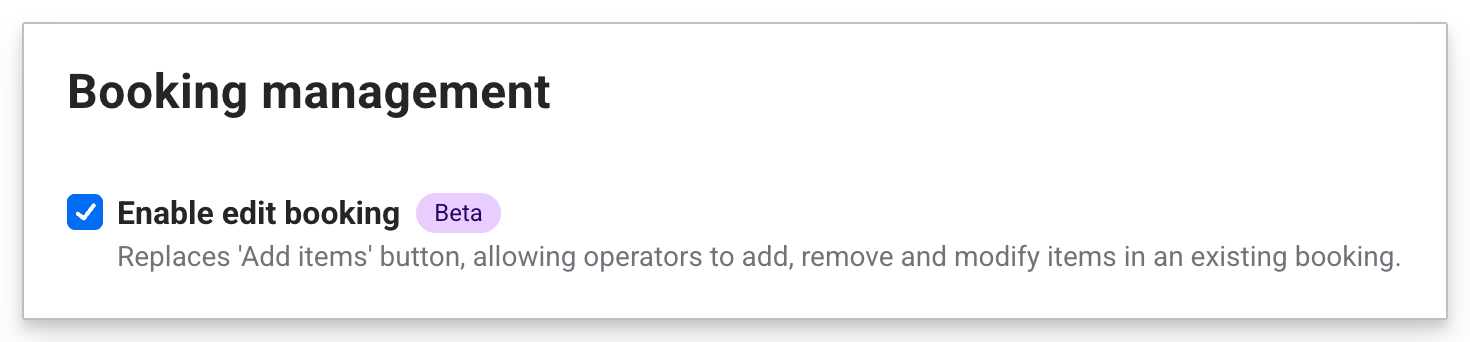
To edit a a booking for a modifier that needs updating:
From the booking complete screen in POS, select Go to the booking. (Alternatively, search for and go to the booking)
In the booking panel, select Edit items.
In the cart, locate the item and select Edit modifiers. When the items are in the edit view, there's a label stating EDITING along the top.
Add or remove modifiers as needed, then select Edit item.
Select Update to take payment for any price increase, or process a refund to the guest if the new total is lower.
To see edit purchased items at POS in action, select the steps in the interactive demo below.
To learn more, see the guide Adjust items in existing bookings at POS.
Booking information panel in POS capacity view (on request)
Plan: All
Preview release (Playground): No
Target release: Tuesday, 23 June 2026 (AET)
POS capacity view can now open a full booking information panel when an operator taps a session. Available on request.
The panel shows everything operators need for a pre-booking readiness check without leaving the screen.
This includes booking payment status, redemption status, session time, resources and guest counts per resource, associated products, and other items in the same booking.
It also displays waivers (complete or incomplete) where applicable. You can mark the session as Ready to start, navigate to the full booking, or redeem tickets directly from the panel.
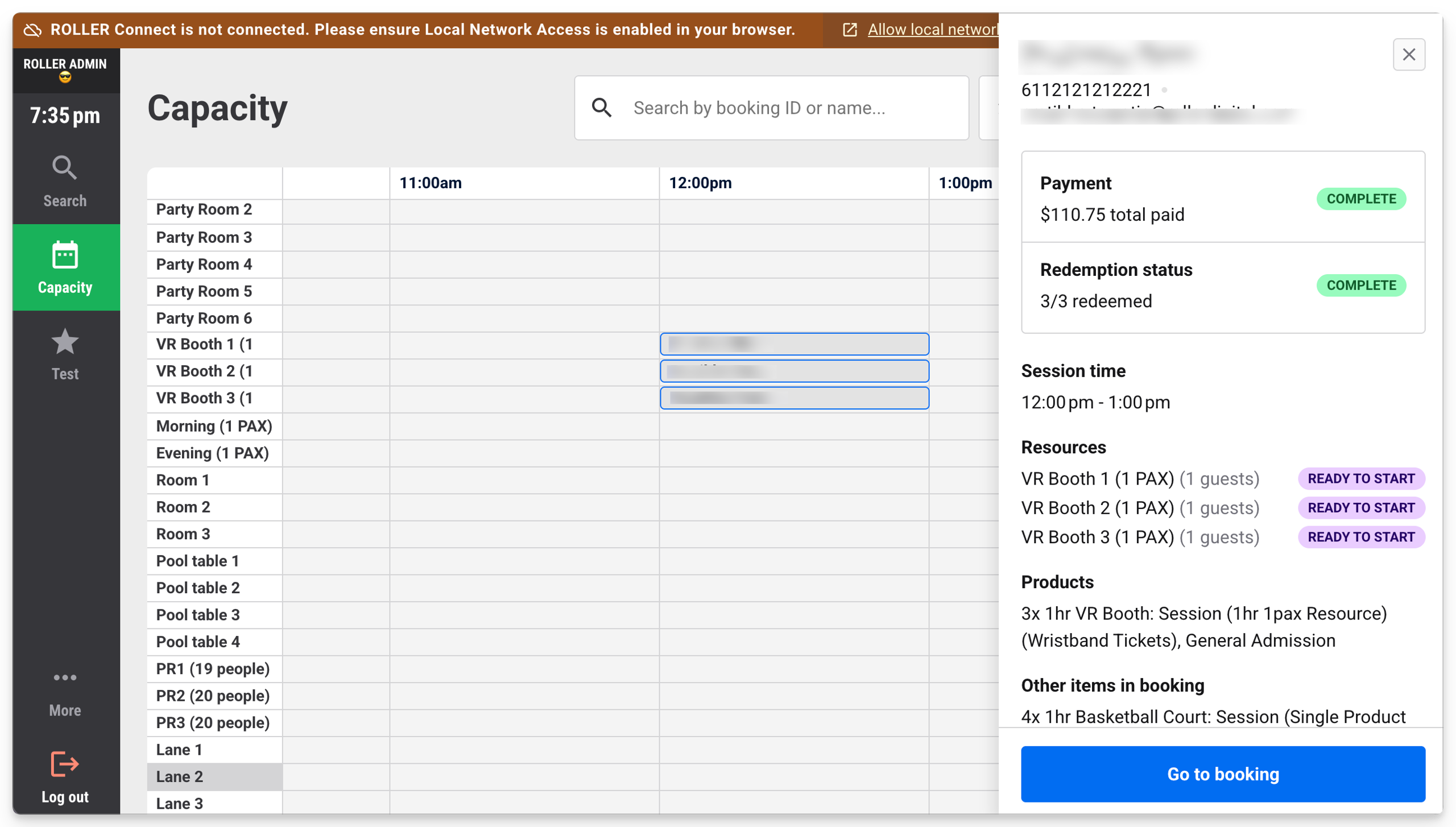
To get access to the new booking flyout panel, contact your customer success manager or the support team.
To learn more, see the guide Get started with POS capacity view.
Redemption counter on session tiles in POS Capacity View
Plan: All
Preview release (Playground): Yes
Target release: Tuesday, 23 June 2026 (AET)
Session tiles in POS capacity view now display a live redemption counter (eg "0 out of 3 guests"), directly on the booking tile.
This gives you a status indication at a glance without opening a booking or navigating away from the capacity view screen. The counter updates in real time as guests are checked in and tickets redeemed.
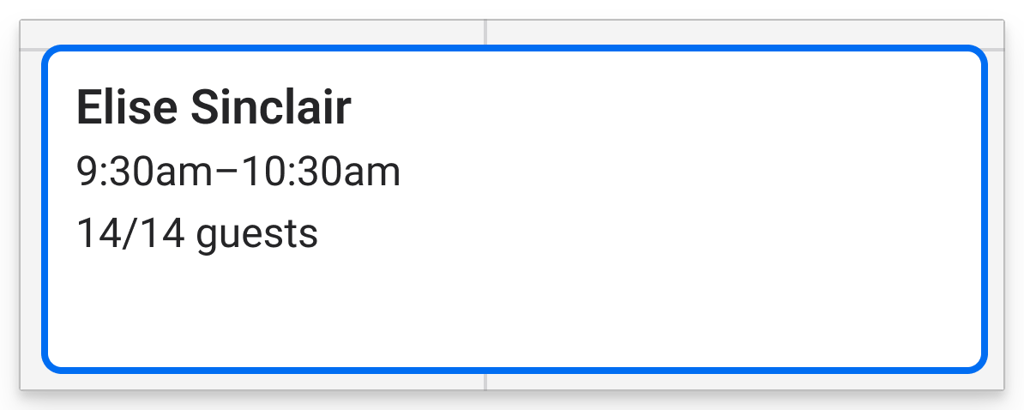
To learn more, see the guide Get started with POS capacity view.
Venue operations
Party package support for early bird and time-based price rules, a new report tracks membership redemptions across venues and cashless card bundles cut assignment time at POS — plus HQ improvements for local time-based price rule flexibility, consecutive sessions and multi-venue default venues.
Apply early bird and time-based price rules to party packages
Plan: All
Preview release (Playground): Yes
Target release: Tuesday, 23 June 2026 (AET)
Time-based and early bird price rules for party packages are now out of beta and available to all venues, including HQ.
Drive earlier party bookings, lift weekday utilization, or apply a premium to your highest-demand slots — the same way you already can with session passes and standard passes. No need to manually create separate products.
Price rules apply to party tickets only. Inclusion prices (food, drinks, merch) stay the same across all tiers. Quantity-based price rules aren't supported for party packages.
To get started:
From Venue Manager, go to Products > Price rules and create an early bird or time-based rule.
Open your party package product, scroll to the Price rule section, and select your rule from the Price rule drop-down.
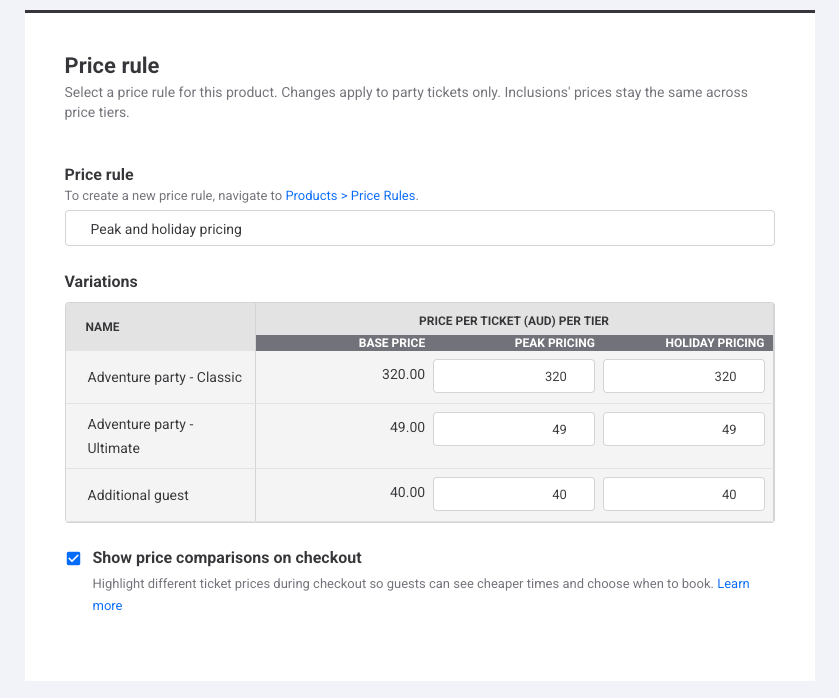
To learn more, see the guide Get started with price rules.
Tax breakdown on receipts and invoices (on request)
Plan: All
Preview release (Playground): No
Target release: Tuesday, 23 June 2026 (AET)
Venues operating in jurisdictions with complex tax requirements can now show a detailed tax breakdown on receipts and invoices, helping meet local compliance obligations without manual workarounds.
Tax breakdown is available on request. To enable it, contact your customer success manager or the support team.
Two levels of breakdown are available:
Tax rate breakdown: where different products in a booking attract different tax rates — such as Germany's 7% and 19% VAT, or amusement tax versus sales tax in states like Maryland and Illinois — each rate and its corresponding amount appears as a separate line item.
Tax component breakdown: where a single tax rate is made up of multiple components — such as GST and QST in Quebec — each component is shown individually on receipts and invoices. This requires multi-component tax rates to be configured at your venue first.
To learn more, see the guide Set up multi-component tax rates.
Let managed venues customize time-based price rule dates
Plan: HQ
Preview release (Playground): No
Target release: Tuesday, 23 June 2026 (AET)
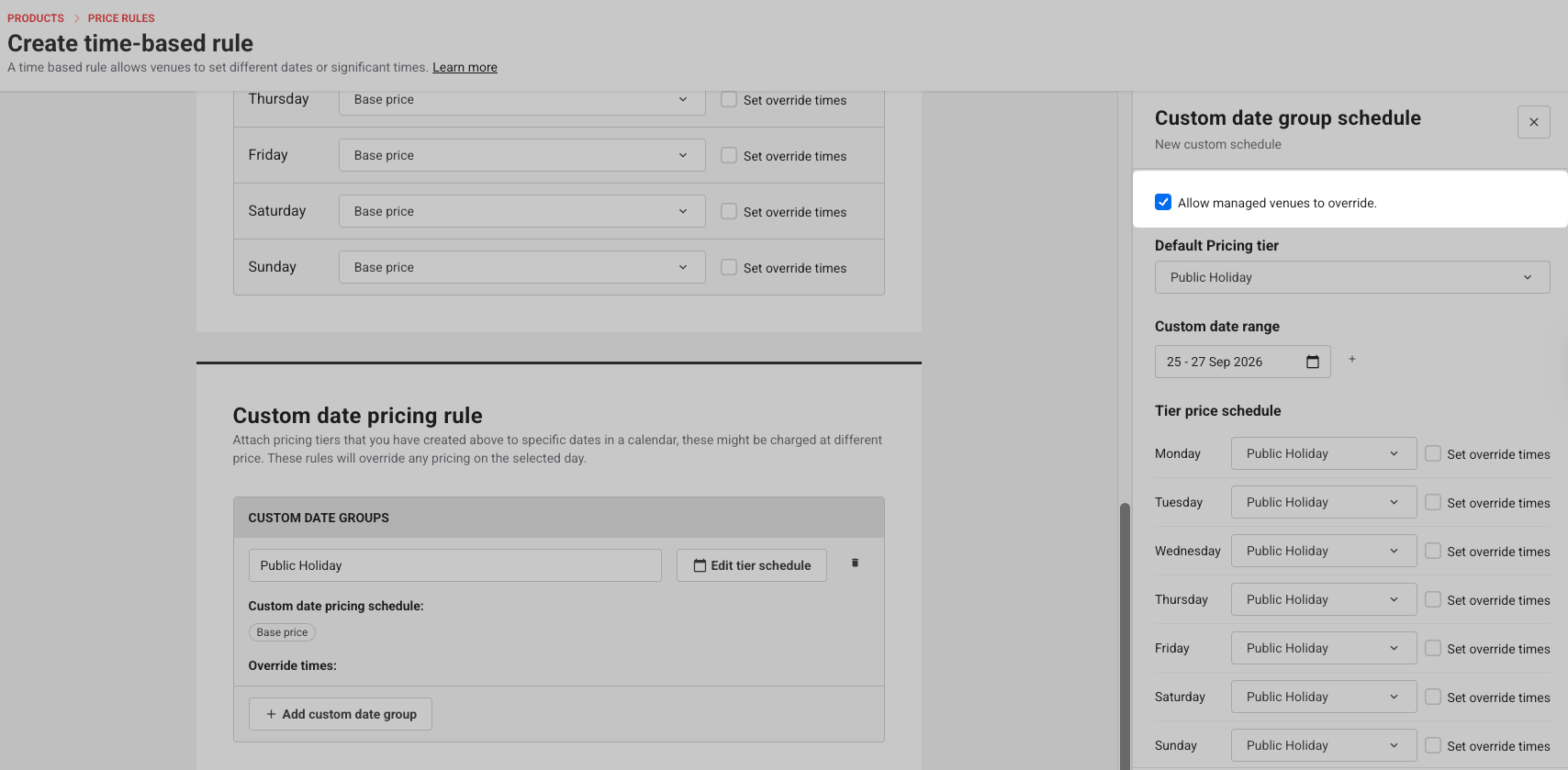
HQ venues can now choose which custom date groups in a time-based price rule managed venues are allowed to edit locally. This means venues can adjust dates that vary by region — like school holidays or local public holidays — without HQ needing to manage every variation across the network.
For each custom date group in a time-based price rule, HQ can check Allow managed venues to override. When enabled, the managed venue can edit the dates and times for that group to reflect their local context. Date groups without this setting remain locked. If HQ later removes the override permission, the HQ-defined dates are pushed back down to the venue.
To get started, go to Products > Price rules, open a time-based rule, and edit the tier schedule for any custom date group.
To learn more, see the guide Create a time-based price rule.
Control whether quantity savings appear on checkout
Plan: All
Preview release (Playground): Yes
Target release: Tuesday, 23 June 2026 (AET)
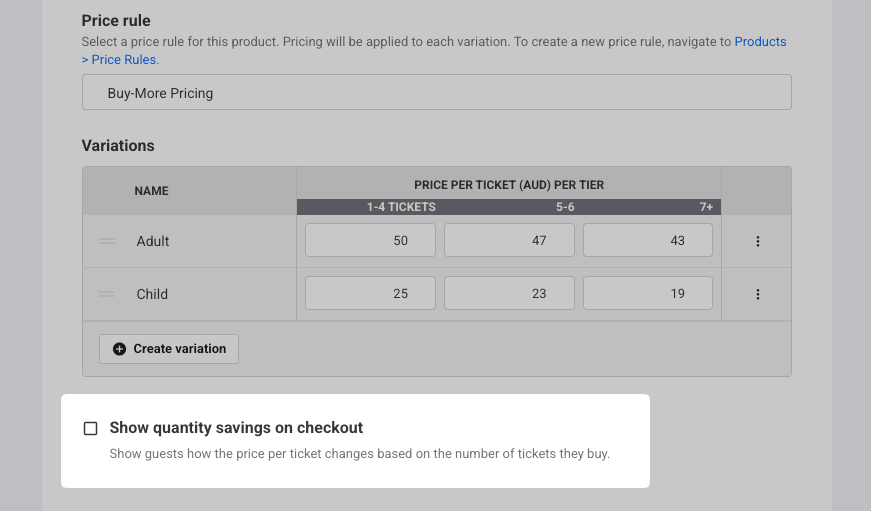
When a product uses a quantity-based price rule, you can now choose whether the pricing breakdown is shown to guests at checkout. By default, the Show quantity savings on checkout checkbox is enabled — uncheck it to hide the promotional message without affecting the price rule itself.
This is useful when tiered pricing produces prices that don't display cleanly, or when you'd rather not surface "buy more for cheaper" messaging for a particular product.
To update this setting, open a product that uses a quantity-based price rule and scroll to the Show quantity savings on checkout checkbox.
To learn more, see the guide Create a quantity-based price rule.
Set a default venue for multi-venue users
Plan: All (multi-venue only)
Preview release (Playground): No
Target release: Tuesday, 23 June 2026 (AET)
Staff with access to multiple venues can now have a default venue set, so they land in the right place every time they log in — no more navigating away from the wrong venue at the start of every shift.
From an HQ account, set the default venue when creating or editing a staff account in Settings > Staff.
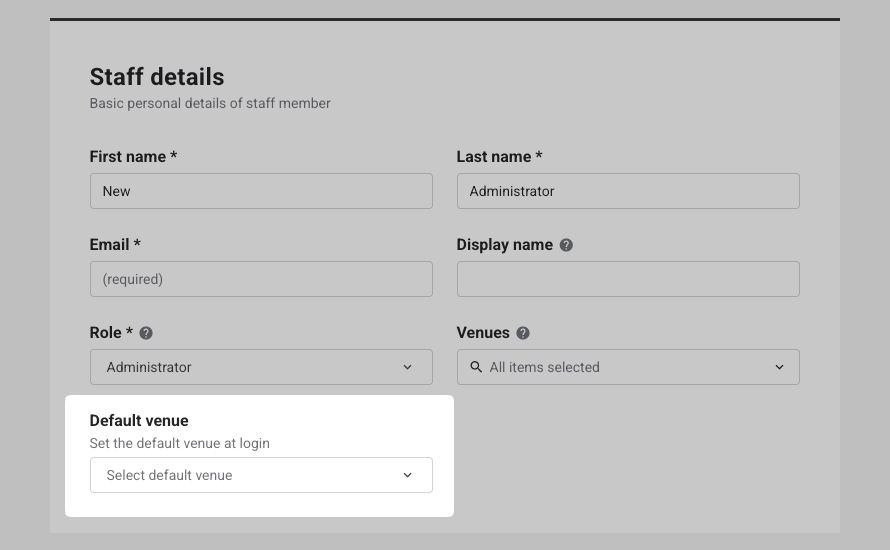
Staff with access to more than one venue — whether on HQ or a standard multi-venue setup — can also update their own default at any time by going to Your account, opening the venue switcher, selecting the menu button, and selecting Default venue.
New report: Membership Entitlement Redemptions
Plan: All
Preview release (Playground): Yes
Target release: Tuesday, 23 June 2026 (AET)
A new Membership Entitlement Redemptions report is now available, giving venues a complete view of membership redemptions — including entitlements redeemed by members whose home venue is elsewhere. Where the existing Membership Redemptions report only shows local members, this report captures cross-venue activity, making it easier to reconcile membership redemptions across your network.
Each row shows the redemption date, member name, booking ID, membership number, product, variation, member's home venue, and the venue where the entitlement was redeemed. Filter by date range and member type to focus on the data you need.
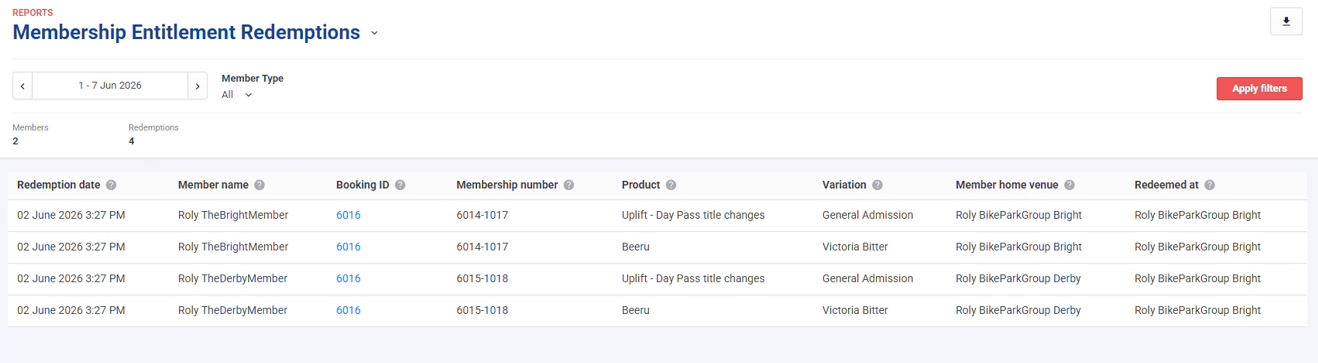
To access the report, go to Reports > All reports and scroll to the Guests section.
Set consecutive sessions on session passes from HQ
Plan: HQ
Preview release (Playground): No
Target release: Tuesday, 23 June 2026 (AET)
You can now configure consecutive sessions on session pass products at HQ and push them to managed venues. Guests can book back-to-back sessions in a single transaction, reducing checkout clutter and making it easier to upsell longer visit durations.
Consecutive sessions are set at the variation level. Create or edit a session pass product in HQ, open the variation details, and add your consecutive session options. When the product is imported to a managed venue, the consecutive sessions carry across.
To learn more, see the guide Allow guests to book consecutive sessions at a discounted price.
Find multi-venue gift cards at POS by name, booking ID or ticket ID
Plan: HQ
Preview release (Playground): No
Target release: Tuesday, 23 June 2026 (AET)
Staff can now search for multi-venue gift cards at POS using the gift card recipient's name, booking ID, or ticket ID — not just the gift card number. This makes it easier to locate a gift card when a guest can't remember their number.
To find a multi-venue gift card, open the gift cards search tab on your POS device and search by name, booking ID or ticket ID. Once found, copy the gift card number to apply it at checkout.
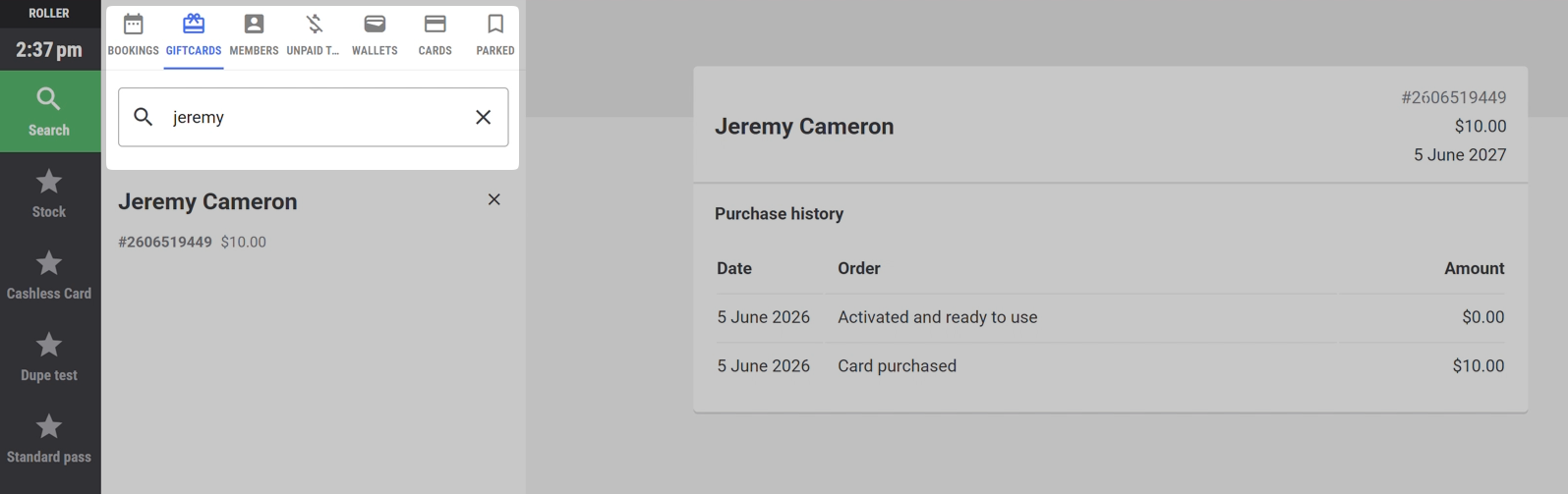
You still need to enter the gift card number to complete the payment; the expanded search helps you find it.
Cashless card bundles to assign multiple variations at once (Sacoa, Intercard and Amusement Connect)
Plan: All
Preview release (Playground): Yes
Target release: Tuesday, 23 June 2026 (AET)
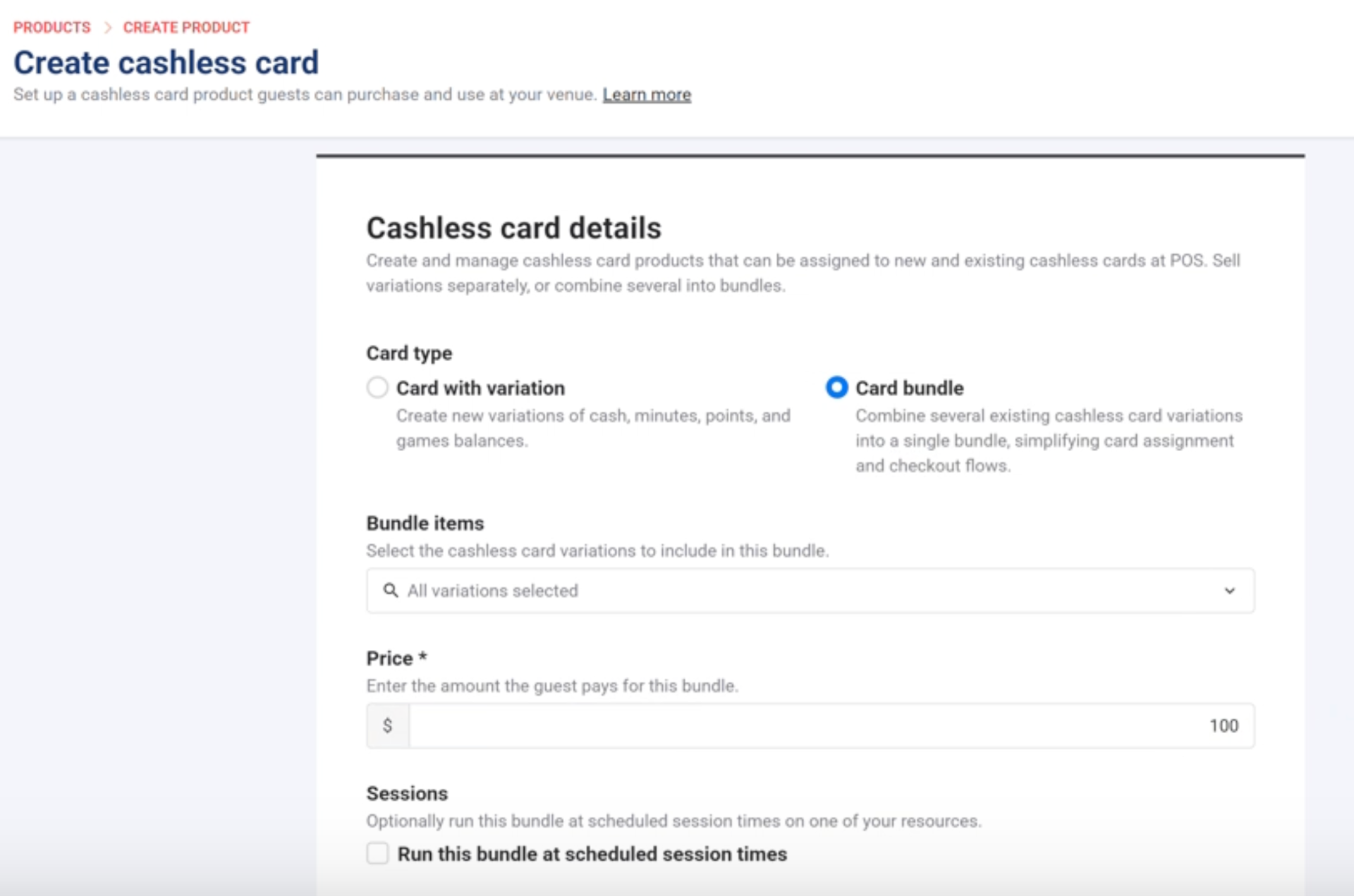
You can now create cashless card bundles — a single product that groups multiple balance types together, such as cash credit, minutes, and activity entitlements. When a guest purchases a bundle, all balances are assigned to their card in one scan at POS, instead of requiring a separate scan for each variation.
This reduces friction at assignment for venues selling cards with multiple balance types, and simplifies the checkout experience for packages like arcade starter packs or party bookings.
Setting up a bundle
Card bundles can only be configured when creating a new cashless card product.
From Venue Manager, go to Products > Create product > Cashless card.
Under Card type, select Card bundle. This option is greyed out when editing an existing product.
In Bundle items, select the cashless card variations to include.
Enter the bundle price.
To attach a session, check Run this bundle at scheduled session times, then select the Resource and set the Session duration (minutes).
Save. The card type cannot be changed after saving.
If you selected Run this bundle at scheduled session times, you will now be redirected to set up the schedule.
Bundles with a session
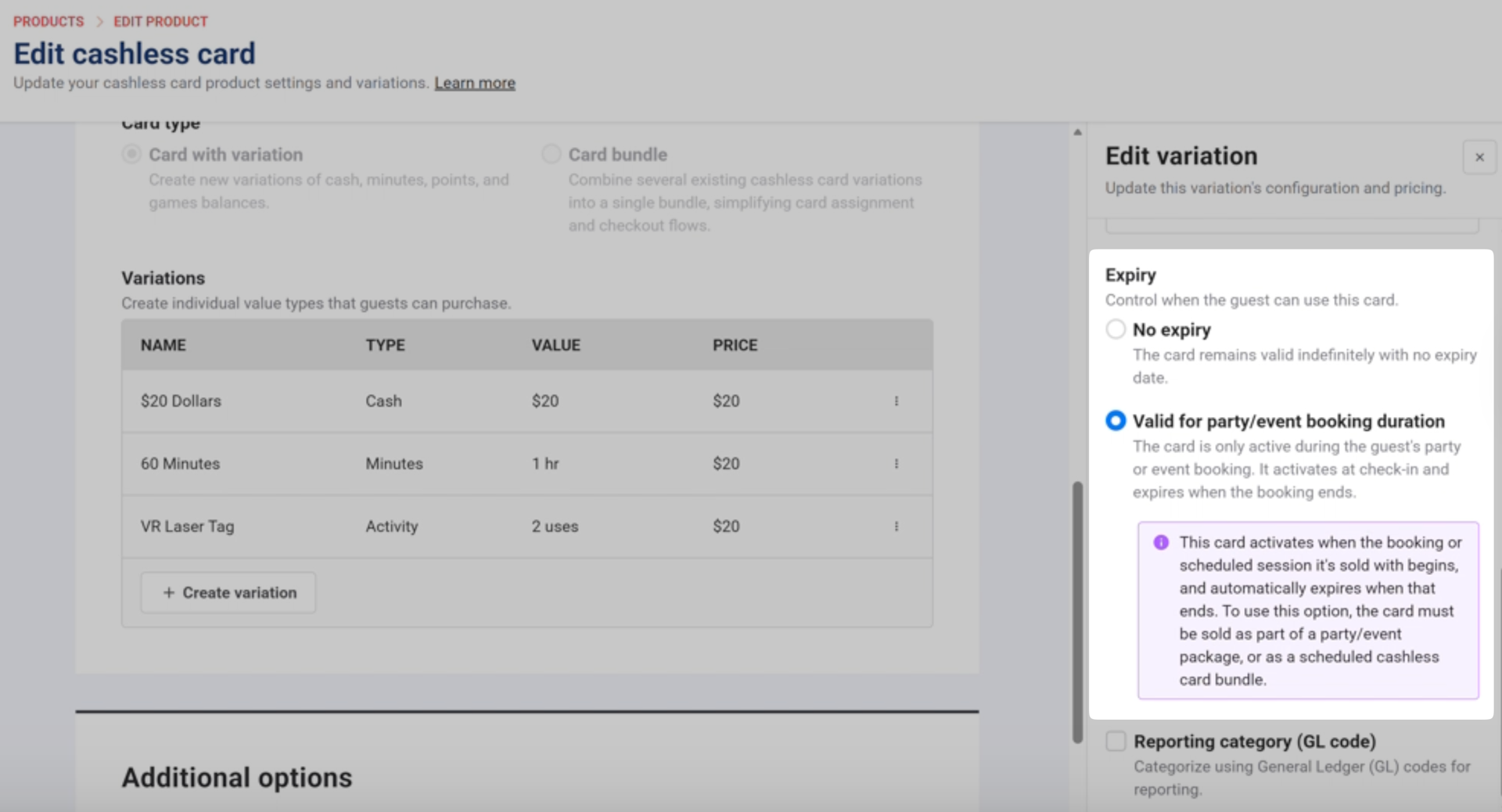
When a session is attached, you have the option to set an expiry on the variations within the bundle. To do this, open the variation and set Expiry to Valid for party/event booking duration. With this setting, the variation activates at check-in and automatically expires when the session ends.
Refunds
Cancelling the booking or removing booking items will reverse all cashless card balances assigned through the bundle (applies to Sacoa and Amusement Connect integrations only).
To learn more, see the guide Get started with cashless cards.
Support for integrated cashless card balance reversal (Sacoa and Amusement Connect)
Plan: All
Preview release (Playground): Yes
Target release: Tuesday, 23 June 2026 (AET)
When cashless card top-ups on a booking are modified or cancelled in ROLLER, the cashless card balance now updates automatically — no manual adjustment needed. Previously, cancelling or modifying a booking left the original top-up on the card, creating extra work for staff to reverse it via the partner portal.
The balance reversal triggers in three scenarios: reducing the number of cashless cards on a booking, removing a cashless card item, or cancelling a booking. The card itself remains active. These actions can be performed from both Venue Manager and POS.
Supported for Sacoa and Amusement Connect integrations; Intercard currently does not support balance reversal.
API enhancements: June 2026
Plan: API add-on
Preview release (Playground): No
Target release: Tuesday, 23 June 2026 (AET)
The following enhancements have been added to the ROLLER API:
Manage venue-level external identifiers via API: Use GET and PUT to read and update a venue's external identifier (LocationID) and ExportID — useful for syncing venue data with external systems like NetSuite.
Retrieve product availability for a third-party date calendar: A new product availability calendar endpoint returns daily availability for a product across a given month. Supply a product ID, year, and month to get a day-by-day breakdown with availability status: available, filling, sold out, not available, or online sales closed.
Store metadata against bookings: A new metadata field on the bookings API lets you pass custom key-value data into ROLLER at the time of booking — for example, accessibility requirements, party theme, or spectator count captured via a third-party checkout. Metadata is retrievable via GET bookings and can be included in booking updated webhooks.
Filter booking updated webhooks by application: A new event channels filter lets you control which channel triggers a booking updated webhook — for example, only fire when a booking is updated via POS, regardless of where it was originally created. Supported channels include POS, Venue Manager, checkout, API, and more.
Retrieve form responses: Access answers guests submitted through your ROLLER forms, including booking and waiver forms, to use in your integrations and external systems.
Loyalty
Two loyalty updates this month: guests can now unsubscribe from loyalty marketing emails, and three new reports help you track how your program is performing. Loyalty is a paid add-on per venue.
Guests can now unsubscribe from loyalty marketing emails
Plan: Loyalty add-on
Preview release (Playground): No
Target release: Live now
Loyalty emails now include an unsubscribe link, giving guests a clear way to opt out of your loyalty emails. Every loyalty email shows an Unsubscribe here link at the bottom.
When a guest selects Unsubscribe here, they are unsubscribed automatically and taken to your checkout, where a confirmation message lets them know. This keeps your loyalty emails respectful of guest preferences and helps your program stay compliant.
Unsubscribing removes the guest from the mailing list entirely, not just loyalty emails. To rejoin, the guest can resubscribe when purchasing via the online checkout, or staff can select the mailing list option at POS or in Venue Manager.
To learn more, see the guide How loyalty emails work (early access).
Track loyalty activity with three new loyalty reports (early access)
Plan: Loyalty add-on
Preview release (Playground): No
Target release: 26 June 2026 (hot fix after release)
You can now see exactly how your loyalty program is performing day to day. Three new reports (Loyalty Guests, Loyalty Earning Activity and Loyalty Redemption Activity) show who is enrolled, what guests are earning and what they are redeeming, all tied back to bookings and sales channels.
The reports become available automatically once ROLLER Loyalty is enabled for your venue. Filter by date, channel and reward type, then download the data or save your own view.
To learn more, see the guide Track loyalty activity with loyalty reports (early access).
Compliance
One update this month: support for Germany's new right of withdrawal requirement for online sales.
German compliance: Right of withdrawal when selling to EU guests
Plan: All (relevant to EU customers only)
Preview release (Playground): No
Target release: Friday, 19 June 2026 (AET)
Germany is introducing a new law that requires businesses selling products online to add a clearly visible Withdrawal button to their website, so guests can cancel online purchases at any time.
If you sell online in Germany — for example bookings, tickets, memberships and gift cards — you may need to add this button to your website. ROLLER helps you stay compliant by adding the button to your online checkout.
If you're unsure whether this applies to your venue or have questions about your obligations, check with a legal professional who knows your business.
Here's how it works:
The button can't be hidden behind a login, so guests without an online account can find and use it.
When a guest clicks the button, they fill in a short form with their name, order number, and preferred contact method. Once they hit a second Confirm button, the cancellation is legally valid.
Your venue then needs to send an email confirming receipt. The wording can't imply you've accepted or approved the cancellation — only that you've received it.
It's your venue's responsibility to action valid requests within 14 days.
To learn more, read the guide German compliance: Right of "withdrawal" when selling to EU guests
Apply the temporary UK VAT rate reduction to your products in summer 2026
From 25 June to 1 September 2026, the UK Government is temporarily reducing the VAT rate from 20% to 5% on certain family attraction admissions and children's meals.
Add the new tax rate to ROLLER and create or edit products so your guests can take advantage of the Great British Summer Savings scheme.
To learn more, see the guide Apply the temporary UK VAT rate reduction to your products in summer 2026.