This guide walks through how venues using ROLLER Payments can add and configure the payment methods guests use when completing a transaction via the online checkout, POS, payment links and invoices.
Configuring payment methods is a feature available to ROLLER Payments customers only. You do not need to create any third-party accounts to add a payment method. All relationships with these third parties are handled via your ROLLER Payments integration.
Configure payment methods
ROLLER Payments provides access to many different payment methods, depending on the country you operate in. From Venue Manager, you can add available payment methods, as well as manage the sales channels these payment methods appear in (eg online checkout and POS).
The permission Can manage payments is required to be able to configure payment methods. Only the administrator system role has this permission enabled by default.
To add and configure the payment methods you offer, follow the steps below:
From Venue Manager, go to Settings > Account > Payments.
Select the Add payment methods field.
Select the payment methods you want to add. A small check mark will appear against the ones you select. If you don't see the payment method you want, reach out to the support team.
Next, select the sales channel for each payment method. This can be online checkout, POS or both.
Select Save.
Some payment methods may not be available for both checkout and POS, which means you’ll only have the option to select them for checkout or POS, not both.
.png)
In rare cases, the ROLLER Payments team may temporarily disable a payment method for your country. We'll always let you know if this happens.
(Optional) Select Auto-expand first payment method to give prominence to the first payment method, which opens that method by default in the online checkout, payment link or invoice form.
(Optional) Select Capture card billing address if you want guests to provide the billing address attached to the card they’re using to pay for their purchase.
(Optional) The Allow 'pay later' method is used only if you want to allow guests to book online without paying. An invoice is sent to guests with payment instructions. Refer to the guide Allow your guests to book online without paying.
Edit payment methods
You can edit your chosen payment methods at any time.
To add an additional payment method to your online sales channels or POS, select the Add payment methods field and choose the new payment method.
To remove a payment method from your online sales channels or POS, select the bin icon.
Select, or deselect the checkboxes to update whether a payment method is available in the online checkout or POS.
When you’ve made your edits, select Save.
How choices appear in the online checkout
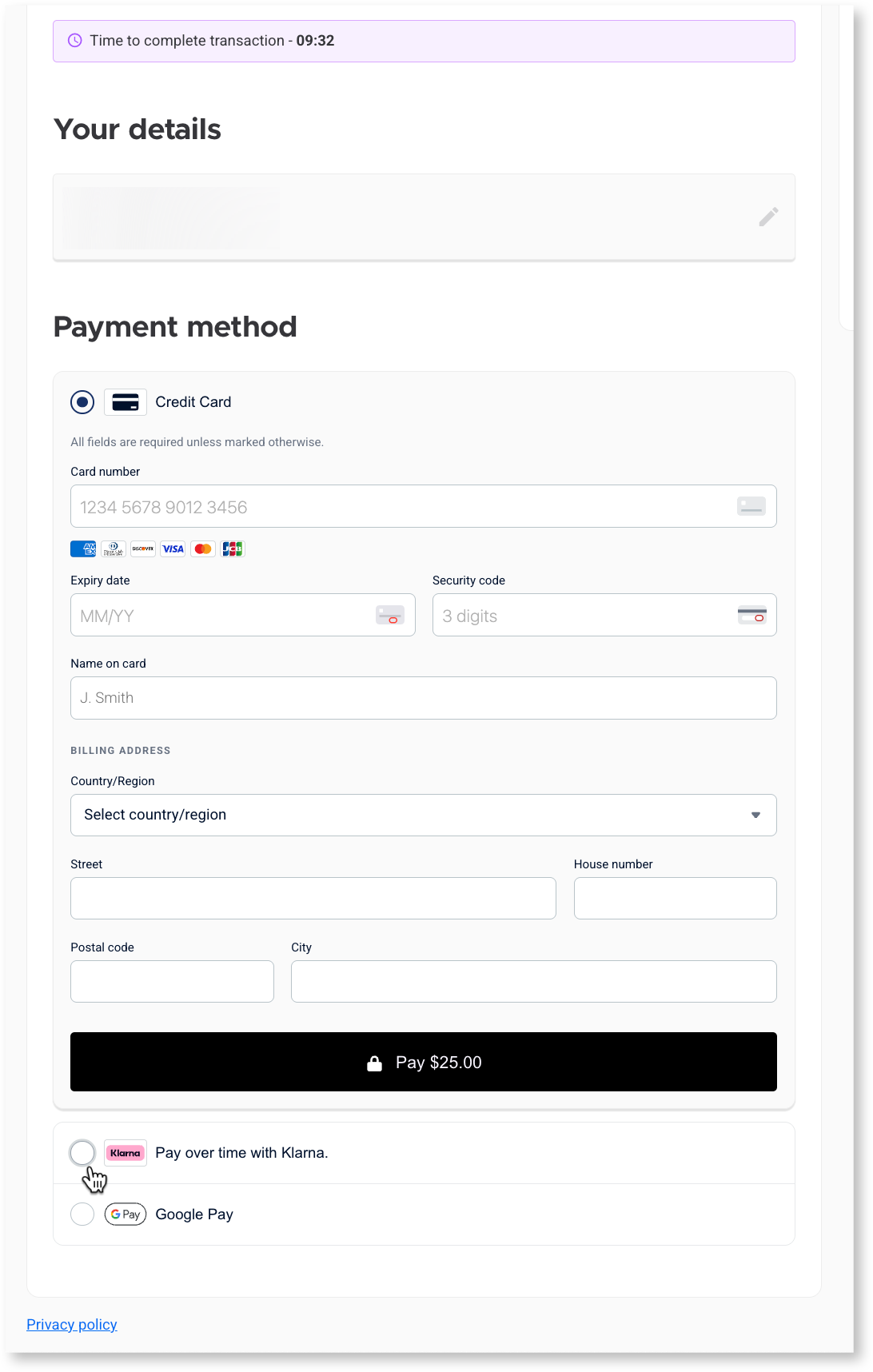
In the screenshot below, credit card is set as the first payment method and expands by default when the page loads.