Card pre-authorization lets you place a hold on the funds required by guests to settle their tab at the end of their visit, without adding friction during the ordering experience. Later, the pre-authorization can be used to quickly settle the tab, improving staff efficiency and reducing payment risks.
This guide walks through how to enable and take card pre-authorization for tabs at POS.
Premium feature
Card pre-authorization is a Premium Plus+ feature. To unlock this feature with a Premium plan and above, contact your customer success manager or the support team.
Benefits of card pre-authorization
Card pre-authorization reduces your risk when managing open tabs. When you place a hold on the funds needed to pay for a tab, you have a reliable way of making sure guests can pay for their tabs, while also giving your guests a seamless payment experience by reducing friction when it comes to adding to their tabs and settling up at the end of a visit.
Before you start
To enable card pre-authorization at POS, you must be using ROLLER Payments.
You should also be aware of local laws and legislation surrounding card pre-authorization and the risks you take when using pre-authorization at your venue.
Enable card pre-authorization in Venue Manager
To start taking card pre-authorization for tabs, you’ll need to enable this feature in your global POS settings.
Consider setting a minimum value to use when the cart total is less that this set amount. This allows venues to decide what their default minimum should be for all tabs and reduces manual input and decision making for the POS operator.
Follow the steps below to enable pre-authorization and set a minimum value.
From Venue Manager, go to Apps > Point of Sale > Settings.
Then scroll down to the Tabs section.
Select Enable pre-authorization. This means that card pre-authorization will be available from all POS devices at your venue.
Select Collect card pre-authorization by default, if you wish to collect card details each time a guest opens a tab.
Enter a value in the Minimum card pre-authorization amount field. This is the minimum card hold amount, if the booking amount is higher that the minimum the booking amount will be used instead.
Select Save.
Now, you’re ready to start taking card pre-authorizations at POS.
To see the process in action, select the hotspots on the interactive demo below.
How to capture card pre-authorization at POS
To start, create a new tab at POS and then add a card pre-authorization to the tab. Follow the steps below.
After adding items to the cart at POS, select Add to tab.
Select Create new tab.
The terminal automatically prompts the guest to insert or swipe their card. The guest can insert or swipe their card at the terminal, or choose to proceed without a pre-authorization.
When the card is authorized, the guest's name will automatically be filled in.
Confirm that the guest name is correct and fill in any other relevant details (tab reference number, guest email), before creating the tab.
The pre-authorization amount on the card will default to the venue's set pre-authorization minimum.
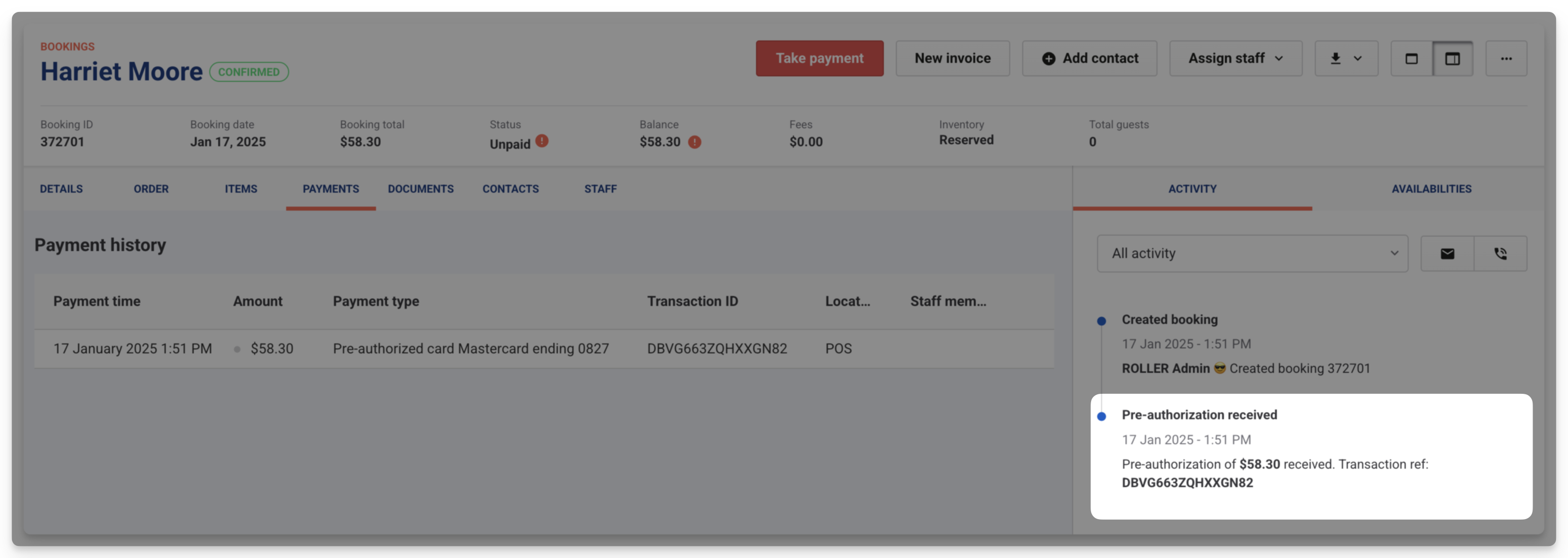
When a card pre-authorization is approved and attached to a tab, this information is also sent to the booking’s activity stream in Venue Manager. You can also view the pre-authorization in the booking’s payments tab.
We recommend the guest swipes or inserts their card when pre-authorizing in order for their name to automatically attach to the tab.
Settling a tab with a pre-authorized card
To settle a tab with a card pre-authorization, follow the steps below.
From POS, select Search from the left-hand menu.
Go to Unpaid tabs and search for an existing tab using the Tab reference number or Guest name.
Then select Charge at the bottom of the POS screen.
Choose the pre-authorized card as your payment method and complete the transaction.
When you charge the pre-authorized card and pay for the booking, the card is removed from the tab and can no longer be used.
If a guest decides to pay for their tab via a different method, cash for example, then the pre-authorized card will be removed from the tab and the held funds will be released back to the guest.
Card pre-authorizations will only last 24 hours before they expire and the funds are released back to the guest. Once this happens, you cannot use the pre-authorized card to settle the tab and the funds are lost. You’ll have to follow up with the guest and take payment manually. When you go to close the till session at the end of the day, and there are unpaid tabs with a pre-authorised card attached, you’ll get a prompt to settle these tabs before they expire.
Tipping
When a tab is being settled, the option for a guest to add a tip is embedded into the payment process. When the POS operator selects the pre-authorized card and payment is sent to the terminal:
The pre-defined tip options display which they can select from, or they can opt to use the Custom tip.
The guest can also select No tip.
The guest's selected tip amount adds to the total amount in POS .
The operator can charge the card for payment.
Update the pre-authorized card
If necessary, you can replace the pre-authorized card directly in POS.
In the tab, in the menu on the left select Replace pre-authorized card and enter new card details.
Fees associated with card pre-authorization
Using card pre-authorizations incurs fees.
Fees are accrued when funds are initially held from a card (when a card pre-authorization is added to a tab) or when making an adjustment to the hold amount (if the tab exceeds the initial hold and the amount is adjusted to reflect the new tab amount). These fees will appear in your transactional invoices under Network fees.
Service fees will not be added to tabs with card pre-authorizations. Flat fees will be added to the tab as soon as the pre-authorization is added to the tab. Percentage fees will be added as the pre-authorization is created and adjusted.
Learn more
Still have questions? Check out our card pre-authorization FAQ page.