This guide explains how to edit or remove a staff member's account, resend a password reset link, change a POS PIN, and manage key venue contacts configured for the venue.
If you want to create a staff account, refer to the guide Create staff members.
The permission Can access staff settings is required to edit or delete staff accounts. Administrators automatically have this permission enabled.
Edit staff details
From Venue Manager, go to Settings > Staff > All staff. A list of all staff members appears.
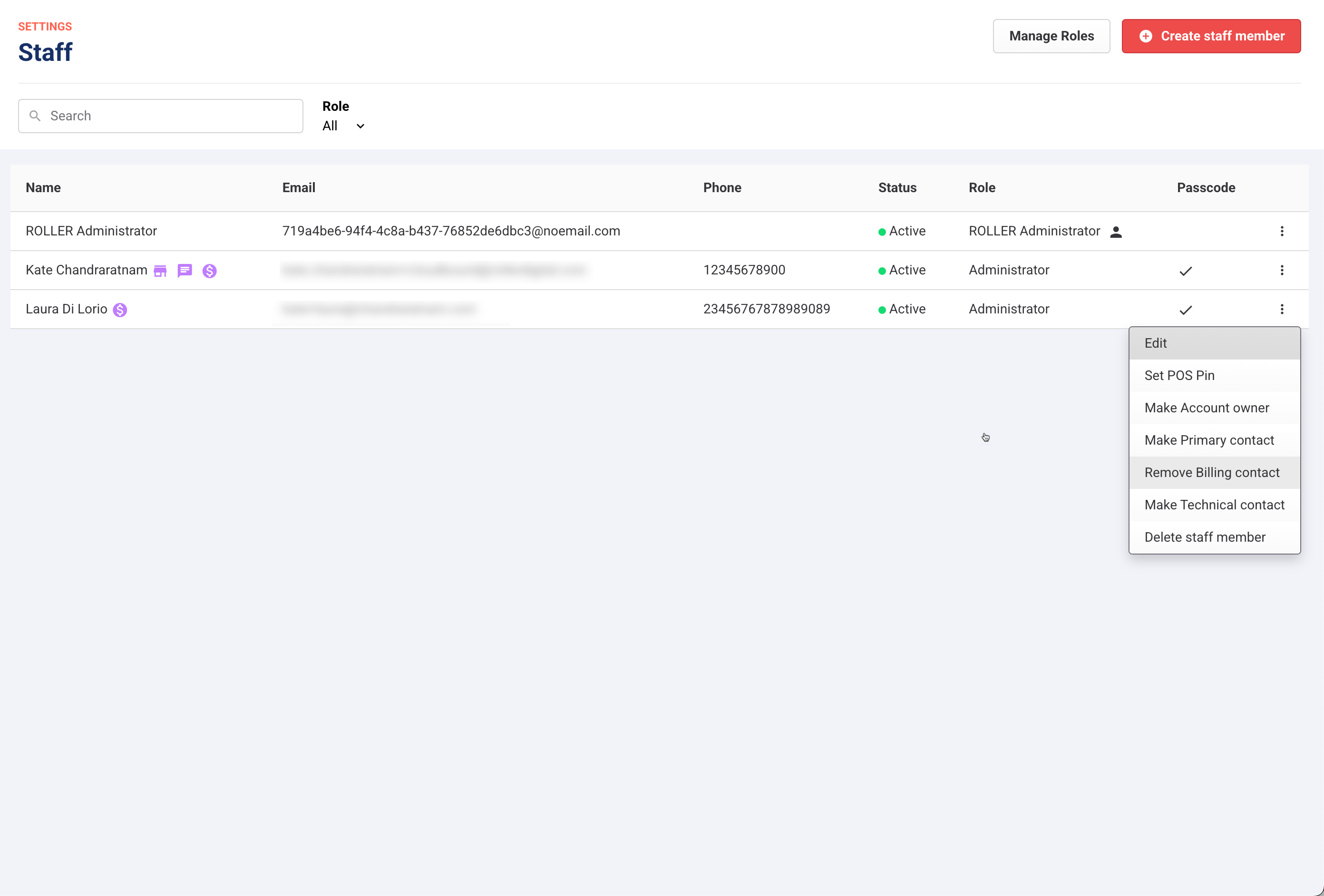
Select the options menu (3 dots) for the staff account you want to edit.
Select Edit.
Change the Name, Display Name, Contact number, Role, POS PIN as required. Or send a password reset link.
Select Save changes once done.
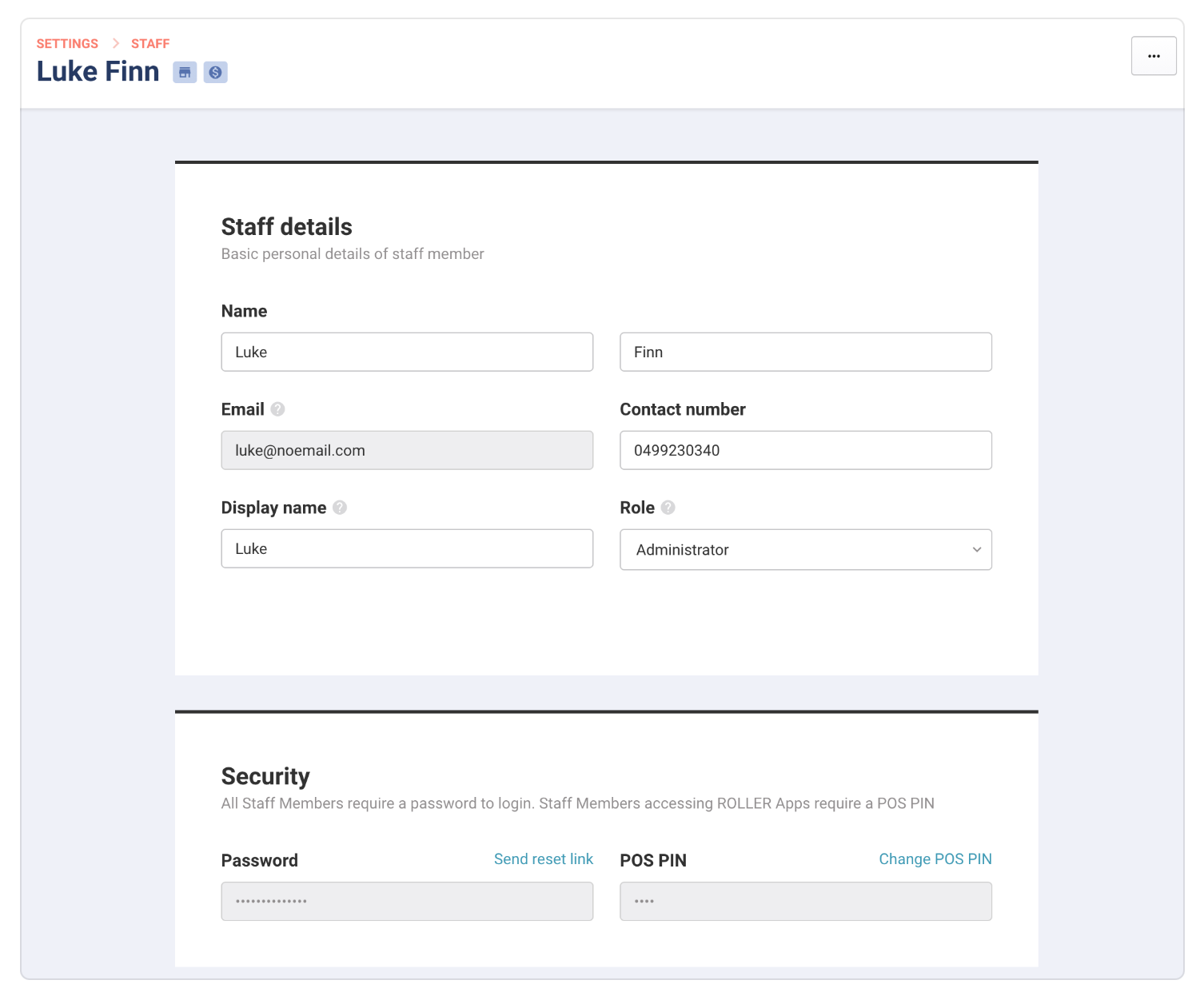
To learn more about POS PINS, refer to the guide Change staff passwords and POS PINs.
Assign or remove key venue contacts
From Venue Manager, go to Settings > Staff > All staff to assign or remove a staff account as a venue contact.
Venue contacts are staff in your ROLLER account that have additional privileges to manage your ROLLER subscription. These include account owner, primary, billing or technical contacts. You can assign multiple staff members to be a venue contact.
Contact | Description |
|---|---|
Account owner | A single contact such as the business owner or director who approves ROLLER subscription upgrades and renewals or one-off purchases. |
Primary contact | Any contacts that manage the venue and use ROLLER on a regular basis. They will receive important account notifications. |
Billing contact | Any contacts that manage the payment of your ROLLER subscription. They will receive all ROLLER billing and renewal notifications including invoices and subscription receipts. |
Technical contact | Any contacts that should be notified of important security related events, such as an alert sent to a venue's technical contact if a new administrator is added. |
To make a staff member a venue contact or remove a staff member:
From Venue Manager, go to Settings > Staff > All staff.
A list of all staff accounts appears. Icons next to their name indicate the venue role they've been assigned.
Select the options menu (3 dots) for the staff account you want to update.
Select Make or Remove for the relevant venue contact you want to assign or remove.
Delete staff account
From Venue Manager, go to Settings > Staff > All staff. A list of all staff accounts appear.
Select the options menu (3 dots) for the staff account you want to edit.
Select Delete staff member.
Deleting a staff account is irreversible.