Guest Agent is only as accurate as the knowledge you provide it with. When your knowledge base is up to date, guests get reliable answers and you can trust your agent to represent your venue, even when you're not the one in the conversation.
Guest Agent answers from two places: live ROLLER data, which stays current on its own, and your knowledge base, which only changes when you update it. Reviewing conversations shows you where your knowledge base needs work.
Register your venue for early access
Guest Agent is in early access for eligible venues, and we're rolling it out in stages. It has usage-based pricing, so you pay based on how much your agent is used.
Why reviewing your agent’s performance matters
Guest Agent pulls live data from ROLLER for things like pricing, availability and bookings, but it also answers questions based on the knowledge base you configure in Venue Manager. This is where it pulls from when guests ask questions about information that isn’t stored in ROLLER, like:
Parking and directions
Allergen info
Refund and cancellation policies
Dress code, age restrictions or other venue-specific rules
If this information is missing, outdated or unclear, the agent can give inaccurate or incomplete answers, even if it sounds confident doing so.
Regularly reviewing the conversations your agent has with guests helps you catch these issues early, so you can fix them before they affect more guests.
How often should I review my agent?
There's no single right answer because it depends on how much your venue changes and how new your agent is. A few good habits will keep your agent accurate and your guests well served.
When you're just getting started
Check in more frequently for the first few weeks after going live. New knowledge bases often have small gaps that only show up once real guests start asking real questions, so early, regular reviews help you catch and fix these quickly.
Ongoing
Once your agent's settled in, a monthly review of conversations and knowledge base content is a good baseline for most venues. This gives you enough of a sample to spot patterns, without it becoming a heavy ongoing task.
Whenever something at your venue changes
Update your knowledge base as soon as something changes; don't wait for your next scheduled review. This includes information like updated policies (eg refunds, cancellations or dress code).
During busy periods
Consider a quick check before major peak periods, such as school holidays, long weekends or major events, since this is when your agent will be handling the highest volume of guest conversations, and when outdated information has the biggest impact.
Review guest conversations
The permissions required are Can review Guest Agent conversations to review conversations, and Can edit Guest Agent configuration to update your knowledge base. The administrator role has both permissions enabled by default.
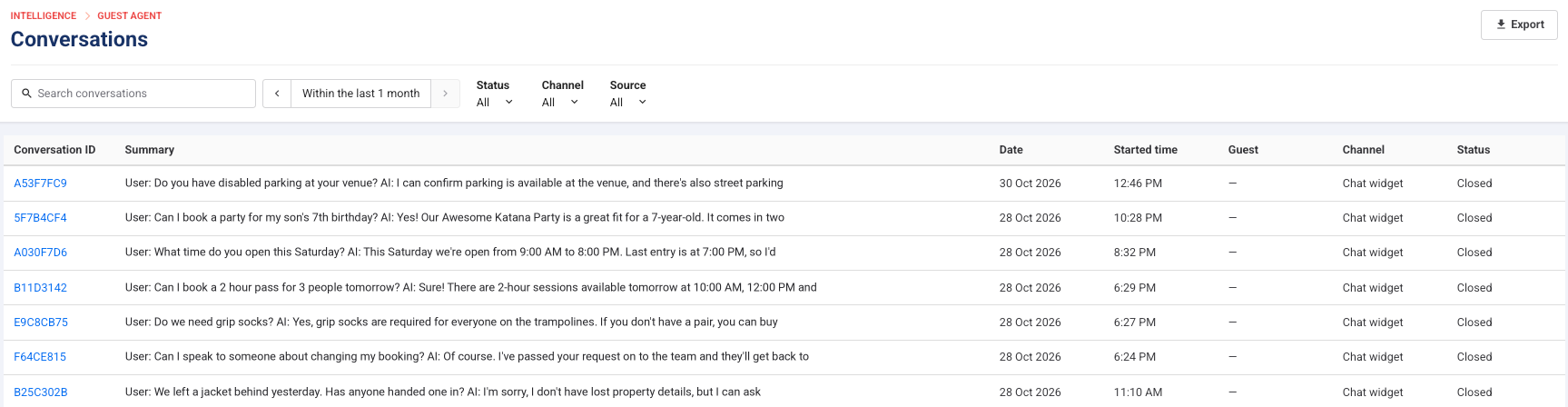
From Venue Manager, go to Intelligence > Guest Agent > Conversations. This page lists every conversation your agent has had with guests during the date range you choose. Use the options at the top of the page to narrow down the list:
Search conversations: Search by keyword to find conversations about a topic, such as "parking" or "refund".
Date: Choose the date or date range to show. Use the arrows to move to the previous or next period.
Status: Show only conversations that are Closed or Escalated.
Channel: Show only conversations from a particular channel, such as Chat widget.
Source: Show only conversations with Guests or Previews. Previews are test conversations created using the web agent preview widget in Venue Manager.
Look out for:
Answers that are outdated (eg old hours or past promotions).
Answers that are technically correct but missing important details. For example, a guest asks about your refund policy and the agent replies "Refunds are available within 48 hours of booking." That's accurate, but it doesn't say whether discounted tickets are excluded or how the guest requests a refund. The agent answered the question, but not what the guest needed to know next.
Questions the agent couldn't answer and had to escalate. These escalations will be sent to your Activity center and are a good way to identify gaps in your knowledge base.
Download conversations
Download conversations as a CSV file to keep a record or share them with your team.
All conversations in the list: Select Export at the top of the page. The file has one row for each conversation that matches your search and filters, with its summary.
One conversation in full: Select the conversation to open it, then select the download icon (Download conversation). The file has one row for each message.
Update the knowledge base
If you spot an inaccurate answer, the fix usually starts in your knowledge base. You can:
Update or replace the source that gave the agent incorrect information.
Add a new source if the topic wasn't covered at all.
Remove outdated sources that no longer apply.
See Build your Guest Agent knowledge base for how to add and manage sources.
Escalations
When a conversation needs a human, Guest Agent escalates it to your team in the Activity center. Most escalations are a normal part of how Guest Agent works. If the agent escalates a conversation because it didn’t have the right knowledge to answer the guest query, use this as your prompt to update your knowledge base so your agent will have the answer next time.
A conversation might be escalated when:
The agent doesn't have enough information in its knowledge base to answer confidently.
A guest asks something outside what the agent can handle (eg a complex complaint, a special request or a sensitive situation).
A guest asks about a product you haven’t set the agent up to sell (eg full venue hire).
A guest specifically asks to speak with someone at your venue.
.png)
When this happens, your team will see the escalation in the Activity center, along with the guest's details, a summary of the conversation and a link to the conversation, so you can pick up where the agent left off without asking the guest to repeat themselves.
What to do when you see an escalation
Respond to escalated conversations the same way you would any other guest inquiry, promptly and with the context already provided. Use the escalation as a prompt to update your knowledge base if needed.
Keep an eye on patterns
While individual escalations aren't a problem, it's worth reviewing them over time. If you notice the same type of question escalating repeatedly, that's often a sign there's a gap in your knowledge base you could close, turning future versions of that same question into something your agent can answer on its own.