CashGuard is a cash recycler machine that automates cash handling at your venue. Guests insert cash when paying at POS, the machine counts it in real time and dispenses change automatically. ROLLER POS tracks every transaction to give you accurate, auditable records — reducing manual cash handling and improving accuracy.
This guide walks through how to enable the HTTP/REST version, but there's also information on how to enable the DLL version below and process refunds.
Before you start: Setup checklist
Before you configure CashGuard in ROLLER, make sure you have:
CashGuard cash recycler machine physically installed, powered on, and connected to your venue's local network.
ROLLER Connect Windows service installed and running on each physical POS device that you want to connect to the CashGuard cash recycler.
Your POS device and CashGuard machine are both connected to the same local network (LAN or Wi-Fi).
API credentials (username and password) from your CashGuard installer.
Network firewall access verified between your POS device and the CashGuard machine on port 8081.
If you're missing any of these items, contact your IT team or CashGuard provider before you start.
Step 1: Access individual POS device hardware settings
To adjust POS hardware settings, you need the Can adjust POS settings (device & hardware) permission. The Administrator system role in ROLLER has this permission enabled by default.
From POS, go to Settings > Hardware.
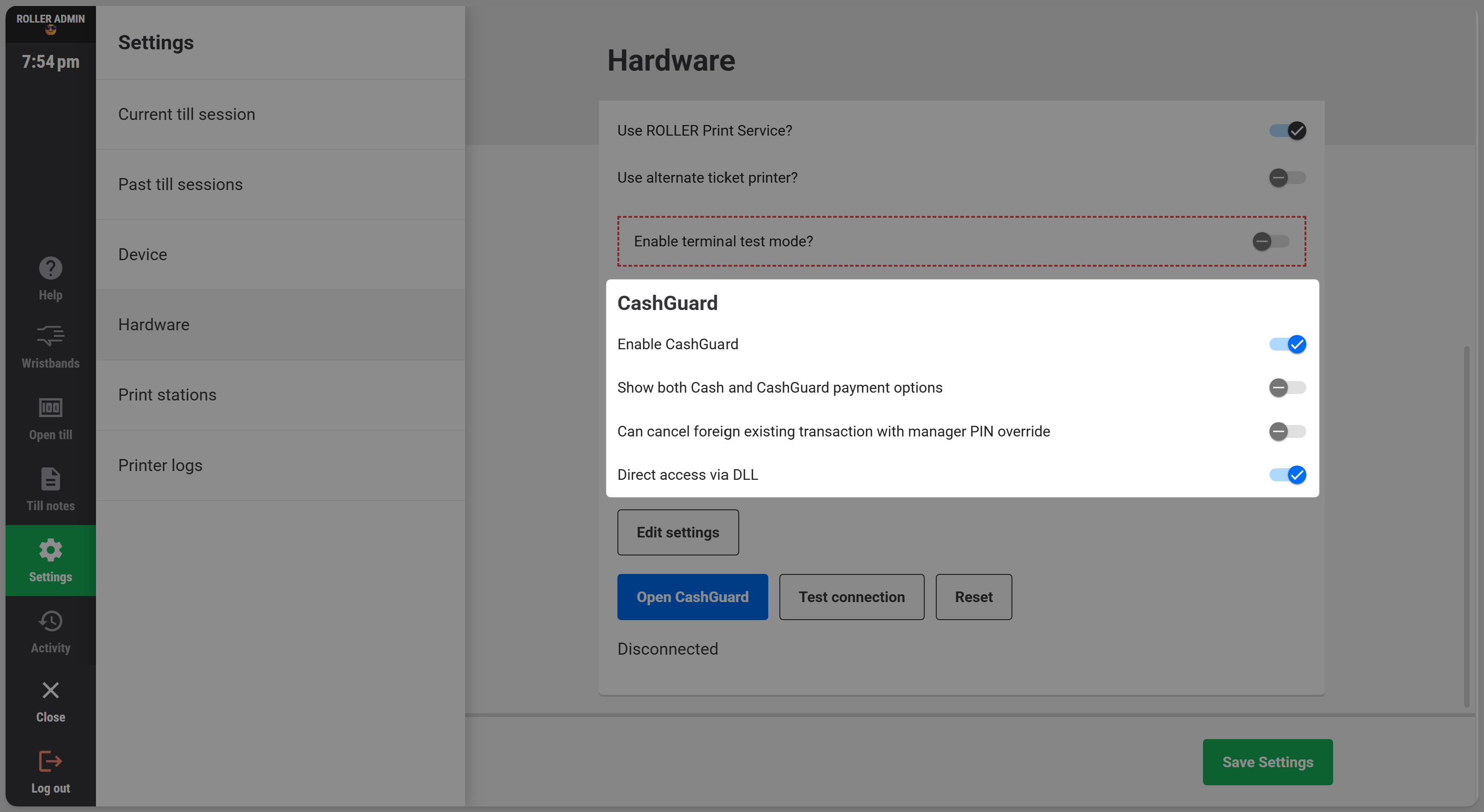
Scroll to the CashGuard section.
Step 2: Enable CashGuard (HTTP/REST and DLL)
Turn on the Enable CashGuard toggle.
Three additional toggles appear:
Show both Cash and CashGuard payment options — lets guests choose between cash or CashGuard when taking payment at POS. Turn it off if your venue wants to use CashGuard only.
Can cancel foreign existing transaction with manager PIN override — lets a manager cancel a CashGuard transaction started on another POS device using their manager PIN. Staff can always cancel their own transactions; this setting allows canceling transactions from other terminals.
Direct access via DLL — Enabling DLL mode connects POS directly to a single CashGuard machine (rather than sharing one over the network), and unlocks automatic cash refunds through the recycler, with any cash left in the machine returned to the guest if the cashier logs out.
Step 3: Enter your CashGuard API credentials
For the HTTP/REST version:
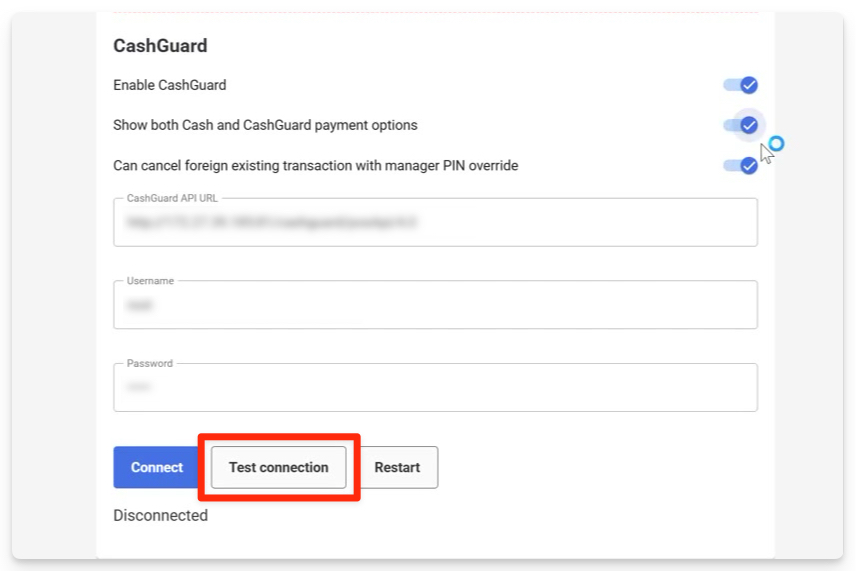
In the CashGuard section, select Edit settings.
Enter your CashGuard username (provided by your CashGuard installer).
Enter your CashGuard password.
Select Save credentials.
Your credentials are sent securely to ROLLER Connect and stored locally on your physical POS device (in DPAPI-protected local store) — they are not stored in ROLLER.
Enter your CashGuard API URL. You must replace the IPAddress placeholder with the specific IP address of your CashGuard machine. The URL should look similar to this http://{IPAddress}:8081/cashguard/posApi/4.0
.jpg)
For the DLL version:
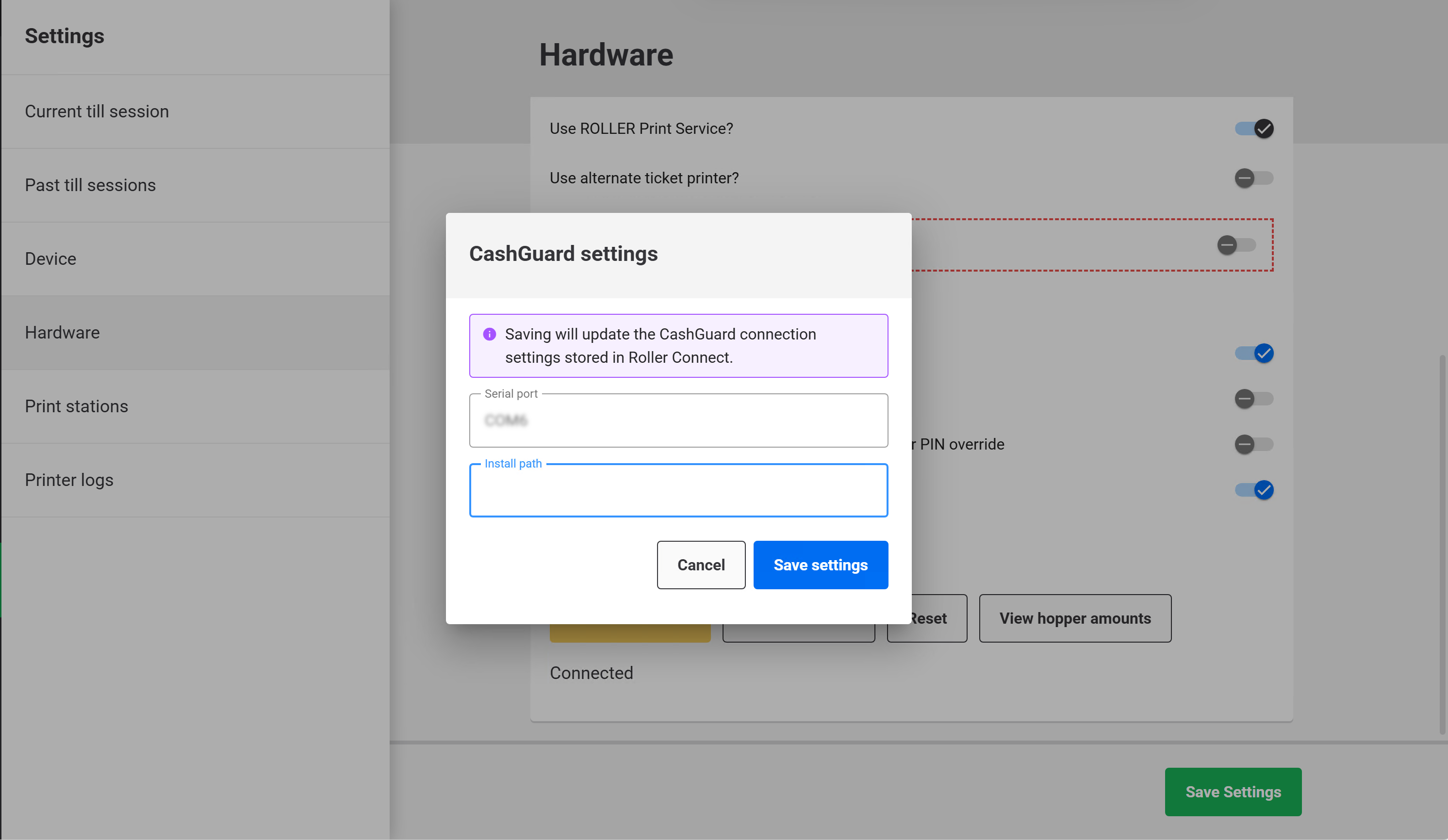
In the CashGuard section, select Edit settings.
Enter a Serial Port number, which is the serial port the recycler is connected to. You can find this in Windows Device Manager on the venue PC.
Enter a StrongPoint install path. The install path is the folder on your Windows machine where StrongPoint's own software has been installed. It's the folder containing two files: cglogics.dll and CashBIPRO.dll.
Select Save.
Step 4: Test the connection
In the CashGuard section, select Test connection.
Wait for the result. A successful test confirms:
ROLLER Connect service is responding.
Credentials are valid.
The hardware is reachable.
If the test fails, check your network connectivity and verify credentials with your IT team.
Once the Connected status appears and the test succeeds, CashGuard is ready to accept cash payments. Please ensure you Save Settings after making any changes.
How CashGuard payments work at POS
When a guest chooses to pay with CashGuard:
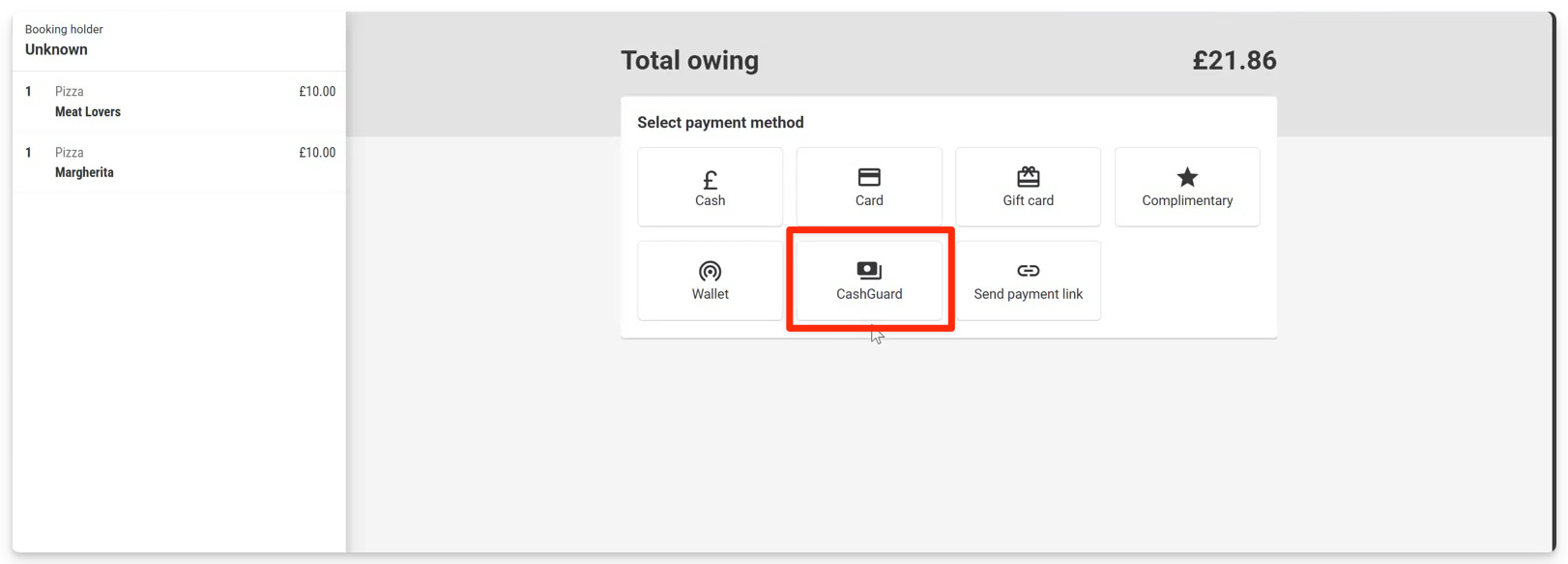
Select CashGuard as the payment method in POS.
The guest inserts cash into the CashGuard machine.
The machine counts and validates the cash in real time.
ROLLER POS shows the amount received.
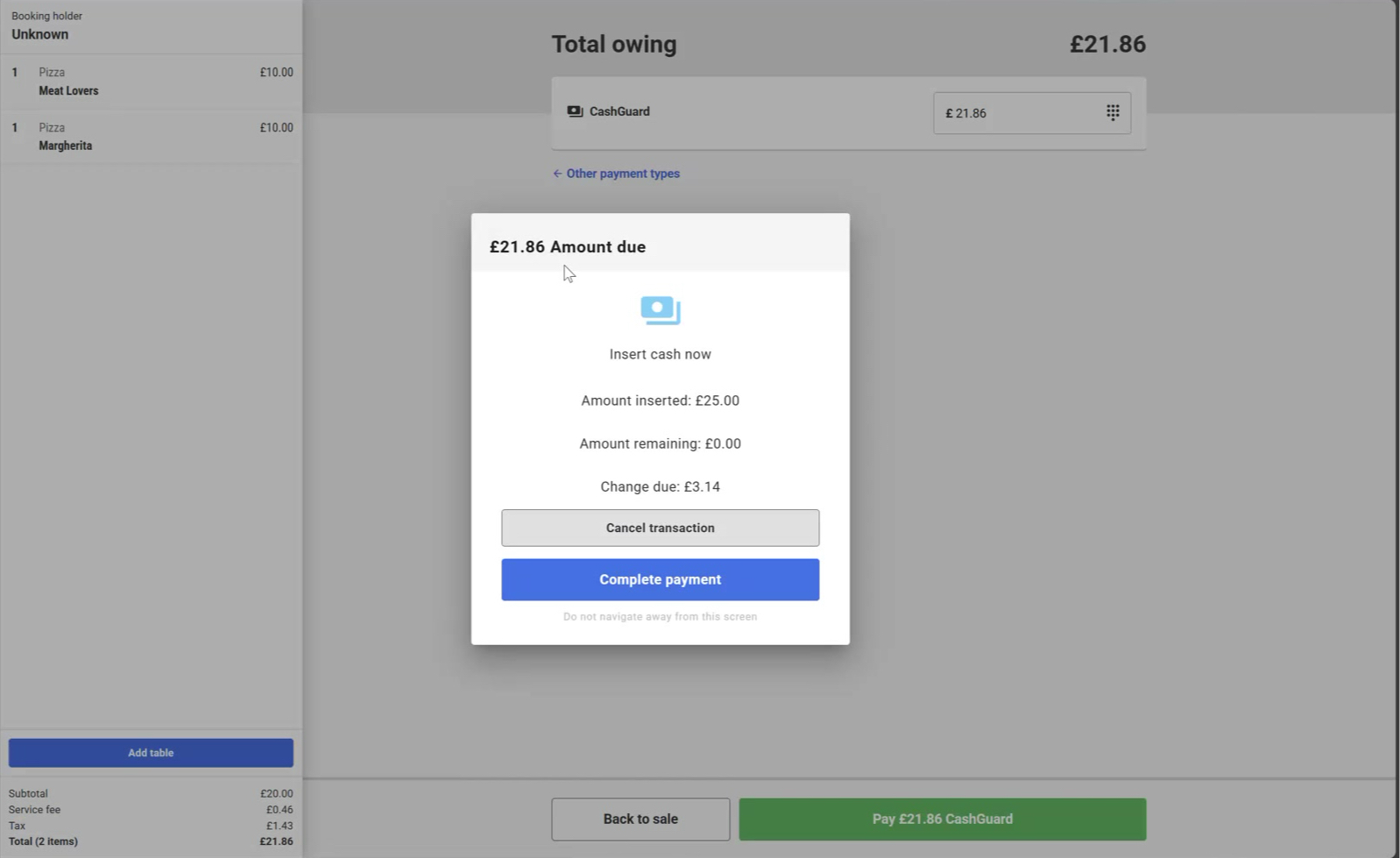
If the amount matches the total, complete the payment from POS.
If the guest inserted more than needed, the machine automatically dispenses change.
If the guest inserted less, they can insert more cash, or the transaction can be canceled.
Partial payment support
Guests can pay part of their purchase with CashGuard and part with another payment method (card, check, etc). For example:
Total booking is $100.
Guest inserts $60 cash into CashGuard.
ROLLER POS shows $60 received, balance due: $40.
Guest pays the remaining $40 by card.
Cancel a transaction in the CashGuard queue
CashGuard maintains a queue when multiple POS devices share one machine. You can cancel an in-progress transaction at your specific POS device if a guest abandons the payment mid-transaction.
Cancelling a transaction will auto return any money placed into the machine.
Canceling removes the transaction from the queue and allows other waiting transactions to process.
Cancel a transaction started on another terminal
If multiple POS terminals share one CashGuard machine, you can cancel a transaction started on a different terminal if you enable Can cancel foreign existing transaction with manager PIN override in hardware settings. A manager can then use their manager PIN to cancel the transaction at POS.
Refund a booking (DLL version only)
From POS:
Search for the booking by booking name or booking ID, then select it from the results.
Select Refund at the bottom of the screen.
Choose the refund method, either Cash or CashGuard.
Enter a custom amount to refund, refund individual tickets, or refund the entire booking amount.
Select Refund to process the refund.
The refund amount is then dispensed from the CashGuard machine.
Manage CashGuard POS hardware settings
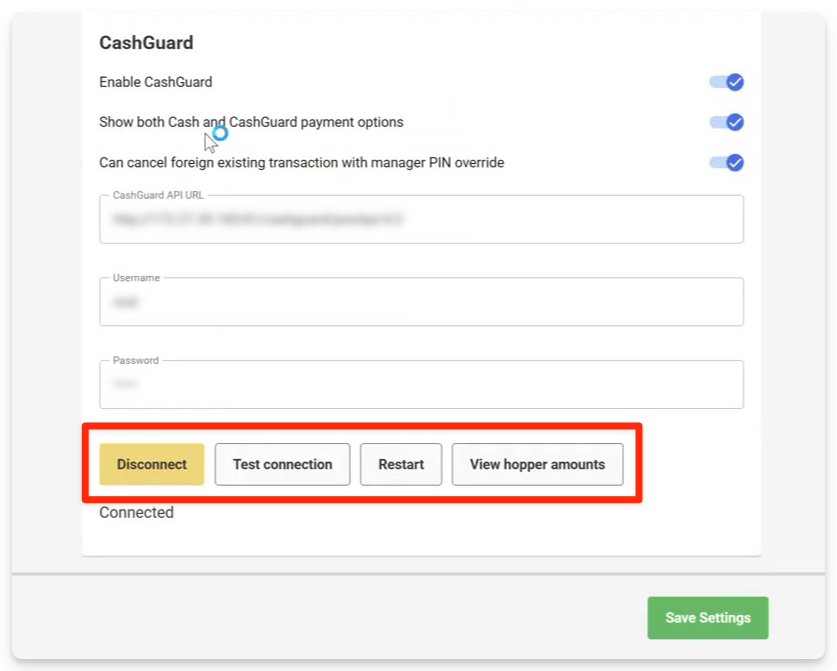
From POS, go to Settings > Hardware to manage CashGuard.
Edit credentials — Opens the modal to enter or update your CashGuard username and password. Use this if credentials need to be rotated.
Test connection — Verifies that ROLLER POS can reach the CashGuard hardware through ROLLER Connect. Run this after setup or if you suspect a connection issue.
Disconnect — Revokes the stored credentials and stops CashGuard transactions. Use this only if you need to temporarily disable CashGuard or troubleshoot an issue.
Restart — Sends a physical restart command to the CashGuard machine. Use this if the hardware becomes unresponsive.
View hopper amounts — Shows the current cash inventory in the CashGuard machine (notes and coins available for change). If the hopper is empty, guests cannot receive change, and CashGuard will reject new transactions.
Troubleshoot CashGuard
Connection won't establish or test fails
Restart the ROLLER Connect service at your POS terminal.
Confirm the CashGuard machine is on the network (power light visible, network cable seated).
Wait 30 seconds after power-on for CashGuard to initialize.
If still failing, ask your IT team to confirm firewall rules allow communication between POS and CashGuard on port 8081.
Re-enter your CashGuard credentials in Edit credentials to ensure they're correct.
If all above pass, contact the ROLLER support team.
Transactions blocked or queued
Select View hopper amounts to check coin and note availability.
Select Test connection to verify the connection is still active. If it fails, follow the connection troubleshooting steps above.
For multiple POS devices using one CashGuard machine: CashGuard handles one transaction at a time, so queuing is normal. To cancel an unresponsive transaction, Force stop (Ignore / Close) to give up waiting and recover manually. If cash was inserted it warns you first that no payment will be recorded and you may need to reconcile.
FAQs
What happens if the CashGuard machine fails mid-transaction?
If the CashGuard machine or network connection fails during a transaction, ROLLER POS will continue to attempt recovery for several seconds. If the connection is restored, the transaction completes normally.
If recovery is not possible, the transaction is marked incomplete. You can use the Manager PIN override to cancel it, then ask guests to pay with an alternative method. The cash inserted by the guest stays in the machine for recovery.
Can we restrict who can edit CashGuard credentials in ROLLER POS?
Yes, CashGuard credential management needs the POS Admin permission in ROLLER.
What's the difference between Cash and CashGuard payment options?
Cash is a payment method (manual cash entry). CashGuard is automated: the machine counts cash in real time, validates it, and integrates with your POS.
If you enable Show both Cash and CashGuard, guests can choose which method they prefer. Note: Fast Cash payment method is not currently supported with CashGuard.
Does CashGuard support refunds?
Refunds are not supported for the HTTP/REST version of CashGuard. Refunds will only be available via the native DLL support.
What happens if the recycler doesn't have enough change for a guest who overpays?
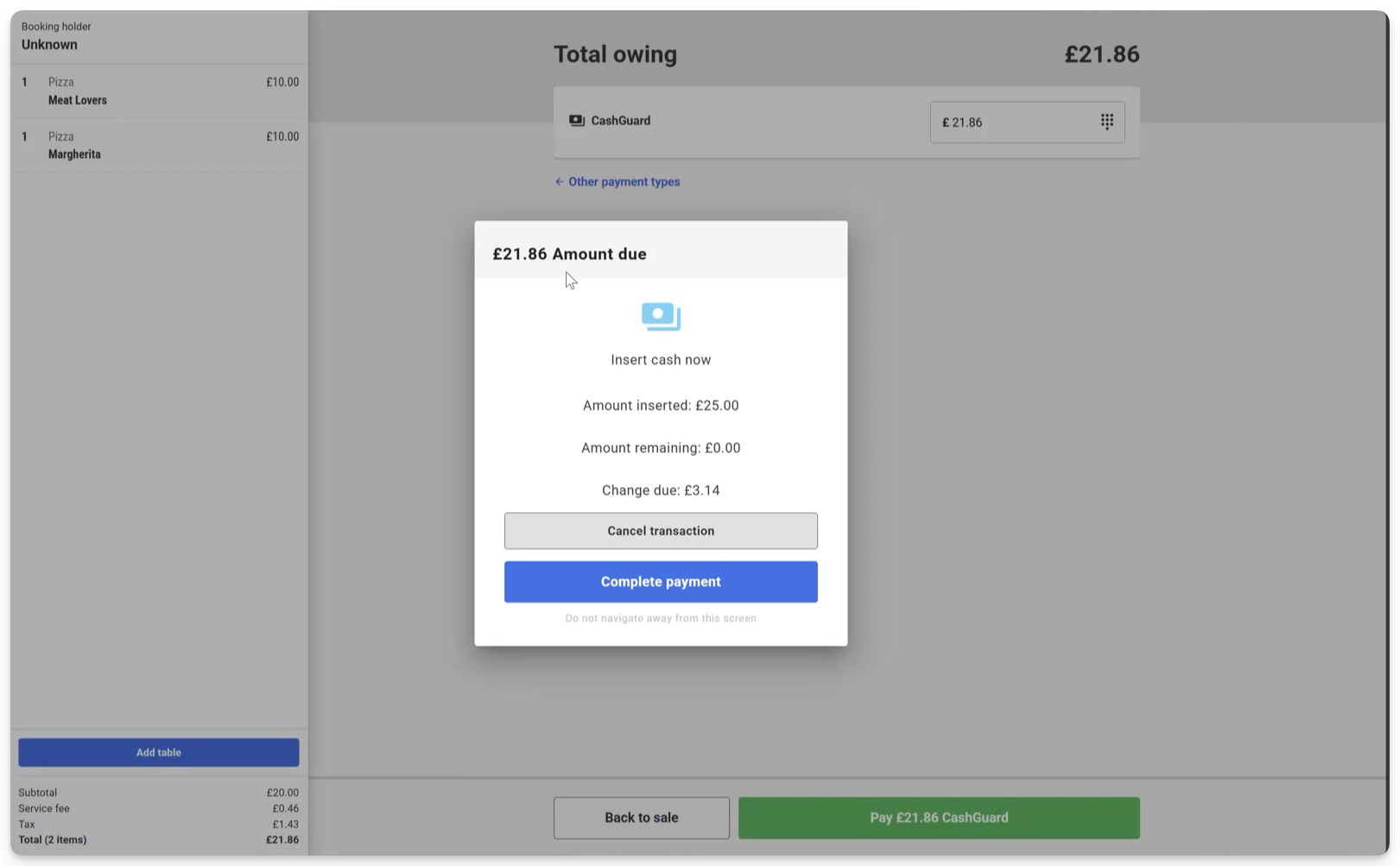
The progress screen will show Amount inserted, Amount remaining, and Change due.
When you select Complete payment, if the recycler doesn't hold the right coins or notes to make the correct change, the payment does not complete. A warning appears: CashGuard cannot dispense the required change. Please review the hopper amounts and try again, and the screen stays on waiting for cash so nothing is lost.
What to do:
Ask the guest to insert a smaller or exact denomination, then select Complete payment again.
Select Complete partial payment to settle what's been inserted and collect the rest another way.
Cancel the transaction (the inserted cash is returned) and take payment another way.
Top up / check the recycler contents in Hardware settings > View hopper amounts, then retry.
Checking your hopper amounts
There are no warnings or alerts for when hopper amounts are getting low. It’s best to check the hopper amounts frequently, otherwise you’ll get dispensing errors.
What happens if the recycler doesn't have enough cash to pay out a refund?
Before dispensing, ROLLER Connect confirms the recycler can cover the full amount. If there's insufficient cash in the machine to cover the refund then the refund is refused, an error message will display and no cash is dispensed.
In the rare case, the machine may pay out less than the requested amount and the refund finishes as a partial refund: Refund partially dispensed. Check the amount dispensed and refund the remainder manually. The booking records what was physically dispensed (shown as Amount refunded) and you refund the shortfall by another method.