Keyboard shortcuts provide a faster way to perform key actions in Venue Manager without having to take your fingers off the keyboard.
Some keyboard shortcuts are only available if you have the necessary permissions or if certain permissions are configured for your account.
Keyboard shortcuts
These shortcuts are available from any page in Venue Manager.
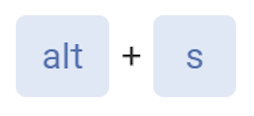
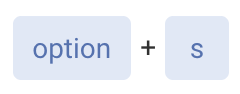
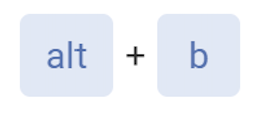
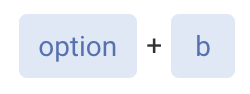
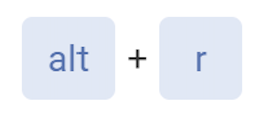
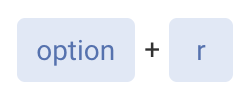
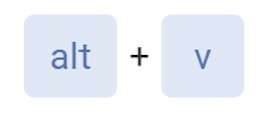
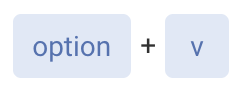
Operation | Windows | Mac | Description |
|---|---|---|---|
Search records |
|
| Opens the search panel where you can search bookings, guests and members.
|
New booking |
|
| Directs you to the create booking page to add booking holder details and complete a booking. |
Go to reports |
|
| Directs you to the reports landing page where you can view reports. |
Open venue switch |
|
| (For venues using HQ functionality) Opens the venue selector flyout panel where you can search for the venue to access.
|
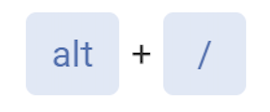
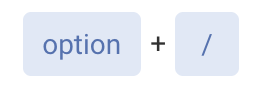
Show shortcuts |
|
| Opens and closes the keyboard shortcuts flyout panel. |
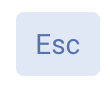
Escape field |
| Closes the keyboard shortcuts flyout panel. | |
Accessing keyboard shortcuts
To access the keyboard shortcuts panel, use the shortcut described above.
To find a list of shortcuts in Venue Manager:
Click the Help resources icon at the bottom of the left-side menu

Click Keyboard shortcuts.