This month we're bringing all treats, no tricks! From simplifying event planning with our new party guest list, offering more flexible discounts with "Buy and Get," and our new GX Score question we’re bringing tools to help you deliver a great guest experience. Plus, we’ve extended tab management at POS and improved efficiency with HQ product tags!
Review the highlights for the upcoming release below. For all product updates, refer to our changelog.
Manage invitations with party guest list
Plan: Available on pro plans and above
Preview: Not available on playground to preview prior to release
Target release date: 8 October
Make it easier for your guests to celebrate big occasions with our party guest list. Ideal for kids' parties, corporate events and special occasions, the party guest list lets your guest organize their parties by sending online invitations, tracking RSVPs and ensuring attendees sign their waivers in advance.
Invited guests can easily RSVP and sign any required waivers from the online invitation. Venue staff can view who has RSVP'd and signed waivers prior to the event from the booking in Venue Manager.
Watch the video to learn more about the party guest list.
Learn more
To learn more about the party guest list, read the guide Manage invitations with the party guest list.
Give your guests a great deal with the new "Buy and Get" discount
Plan: Available on all plans
Preview: Not available on playground to preview prior to release
Target release date: 22 October
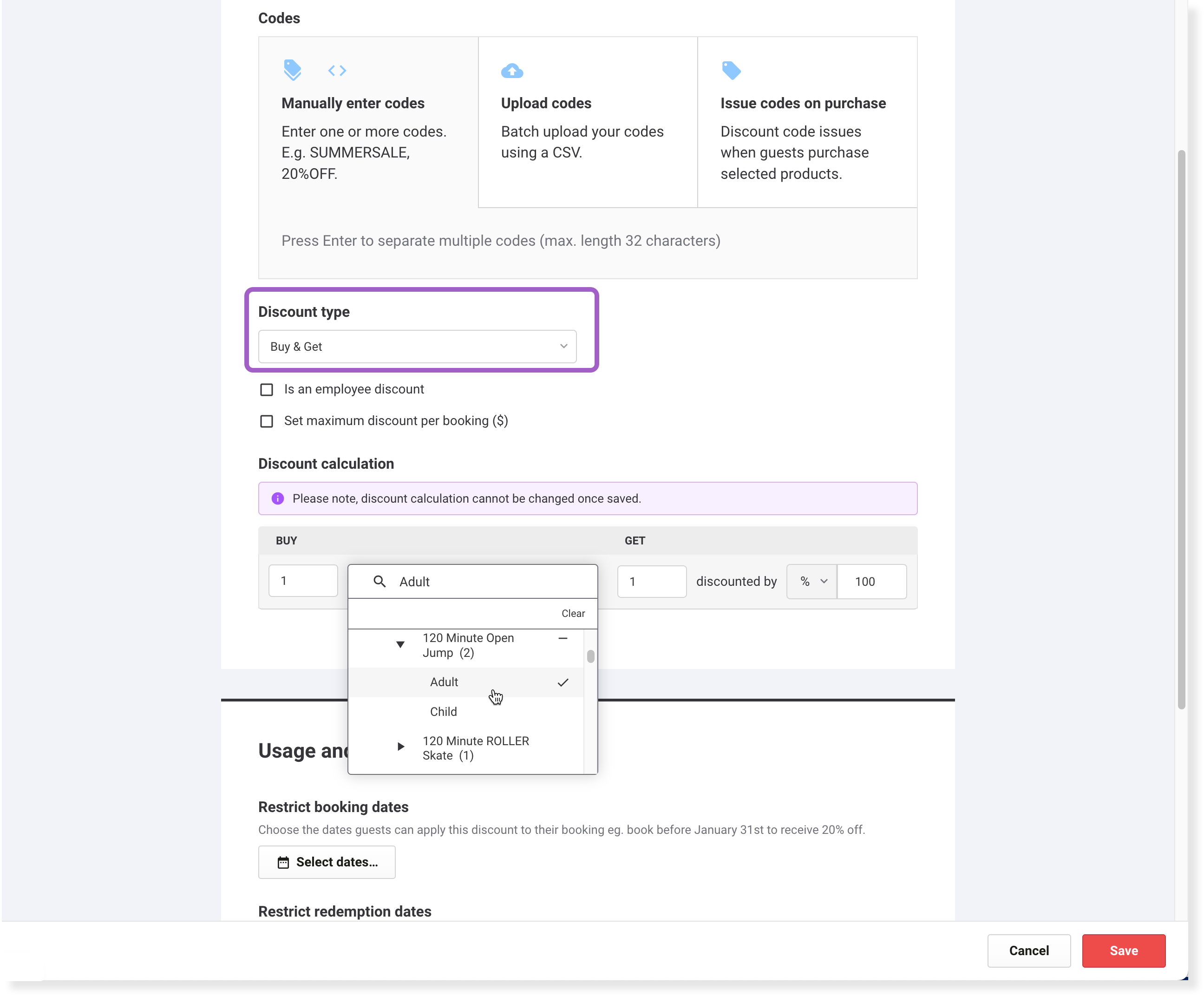
We’ve updated our 2 for 1 option to Buy and Get so you can create and manage more flexible discounts to drive more guests into your venue. You simply select what product a guest must buy, and what offer they’ll get in return.
Buy and Get supports:
Percentage off
For example, buy 1 adult jump pass, get 1 adult jump pass at 25% off.Dollar amount off
For example, buy 1 child jump pass, get $10 off a second child jump pass.Buy 1 ticket, get 1 ticket of the same type free
For example, buy 1 adult jump pass, get 1 adult jump pass free (100% discount).
Currently, the Get product must be the same as the Buy product (eg buy 1 adult jump pass, get another adult jump pass free). It doesn’t support offers for different products (eg buy one jump pass, get jump socks 50% off).
Learn more
To learn more about discounts, read the guide Create and manage discount codes.
Get clearer customer feedback with our updated GX Score question
Plan: Available on all plans
Preview: Not available on playground to preview prior to release
Target release date: 22 October
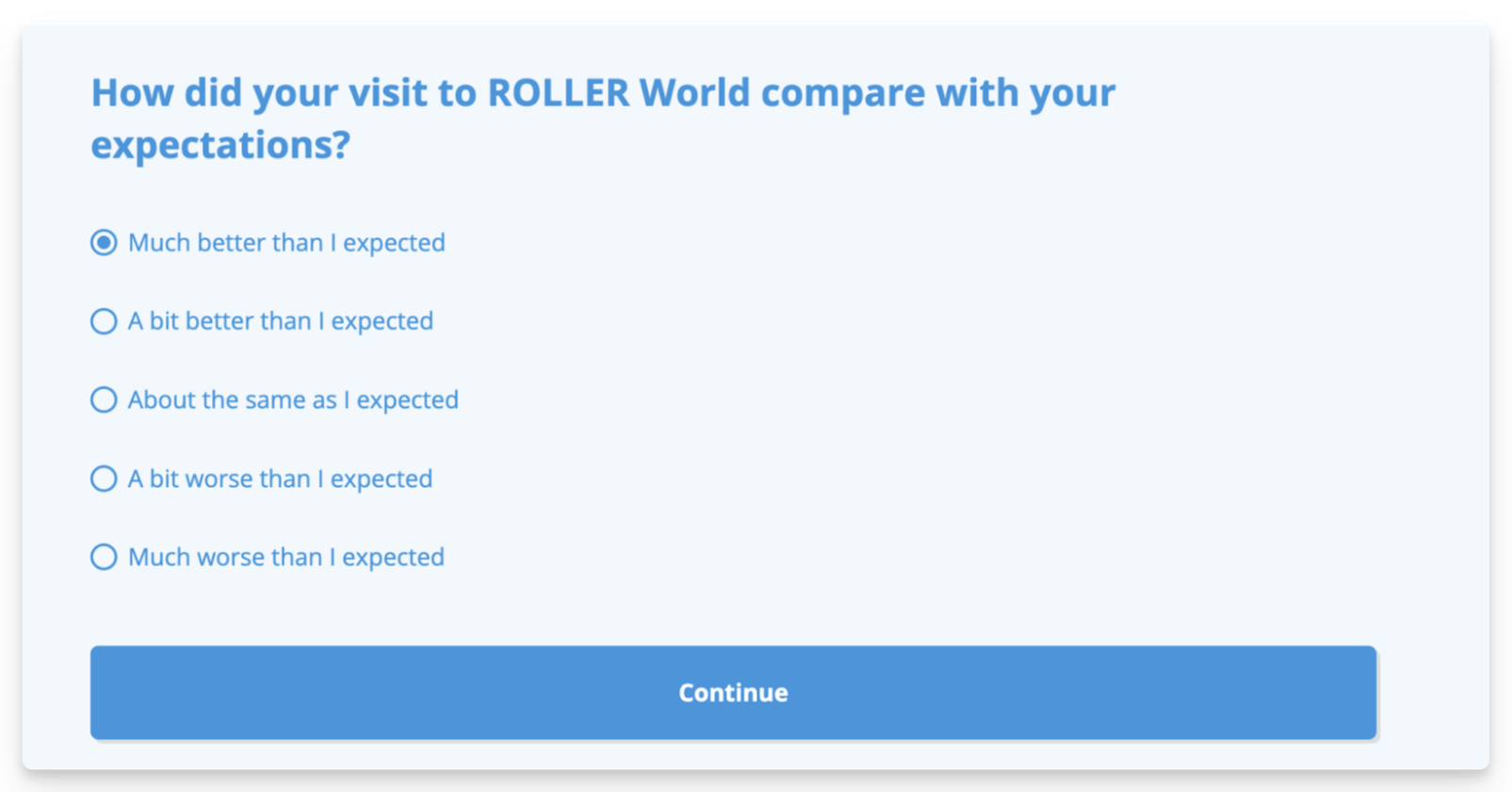
We listened to your feedback on the GX Score question, “How did your visit to [venue name] compare with your expectations?” and have created an alternative to make it easier to get an accurate picture of your guests’ experiences.
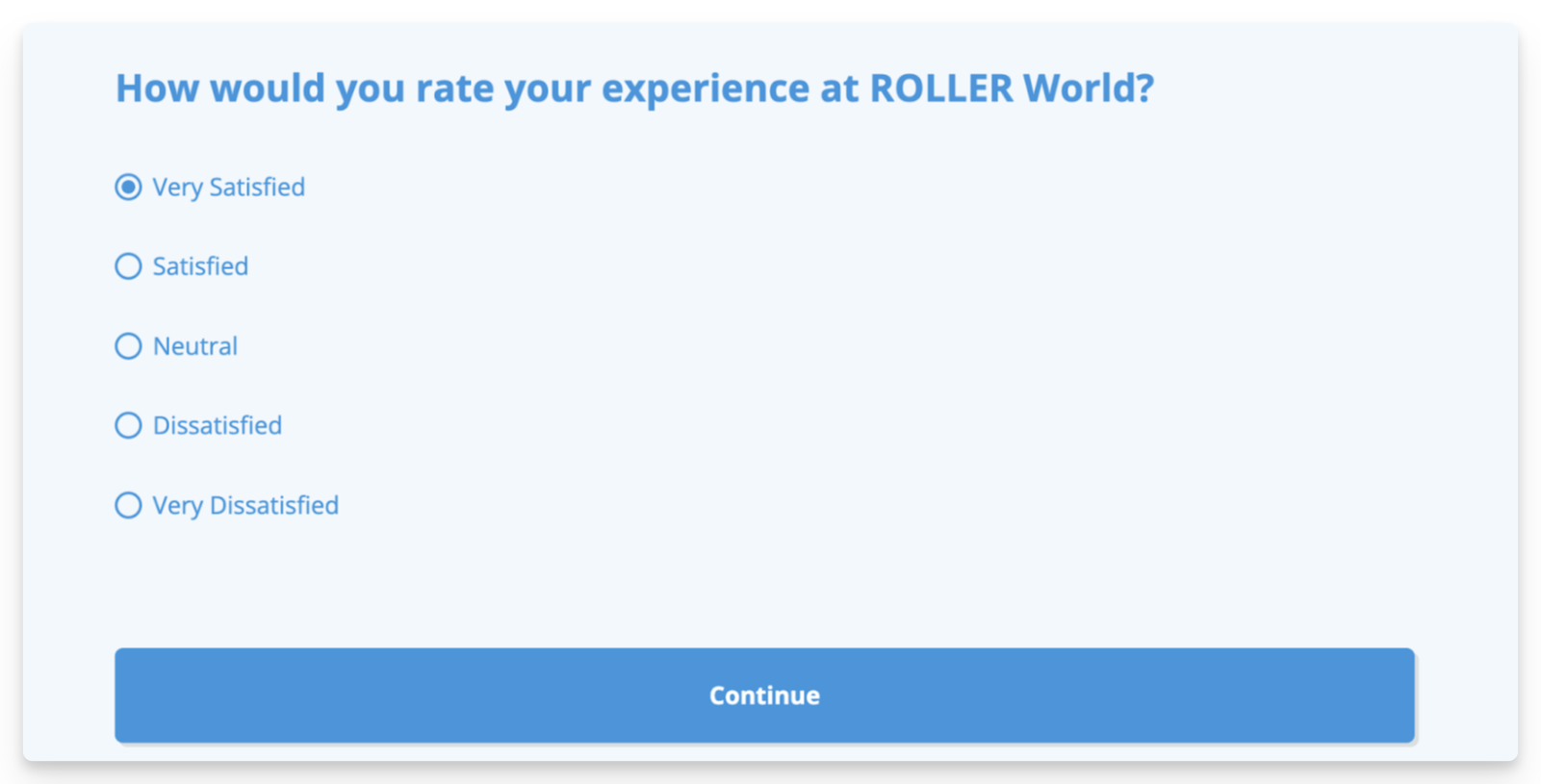
The new option is “How would you rate your experience at [venue name]?” This gives guests a clearer prompt, and avoids guests who were happy rating your venue 3/5 (as seen with the previous version of the question).
Old question:
New question:
Learn more
To learn more about the GX Score, read the guide GX Score: Analyze data and action guest insights.
Easily reschedule bookings at POS [Beta]
Plan: Available to select customers in Beta
Preview: Not available on playground to preview prior to release
Target release date: 22 October
Life happens to us all and your guests are no different. If something unexpected causes your guests to miss their booking, you can quickly reschedule their booking at POS without needing to delete the original ticket and re-add it.
You can reschedule an entire booking or just selected tickets on the booking.
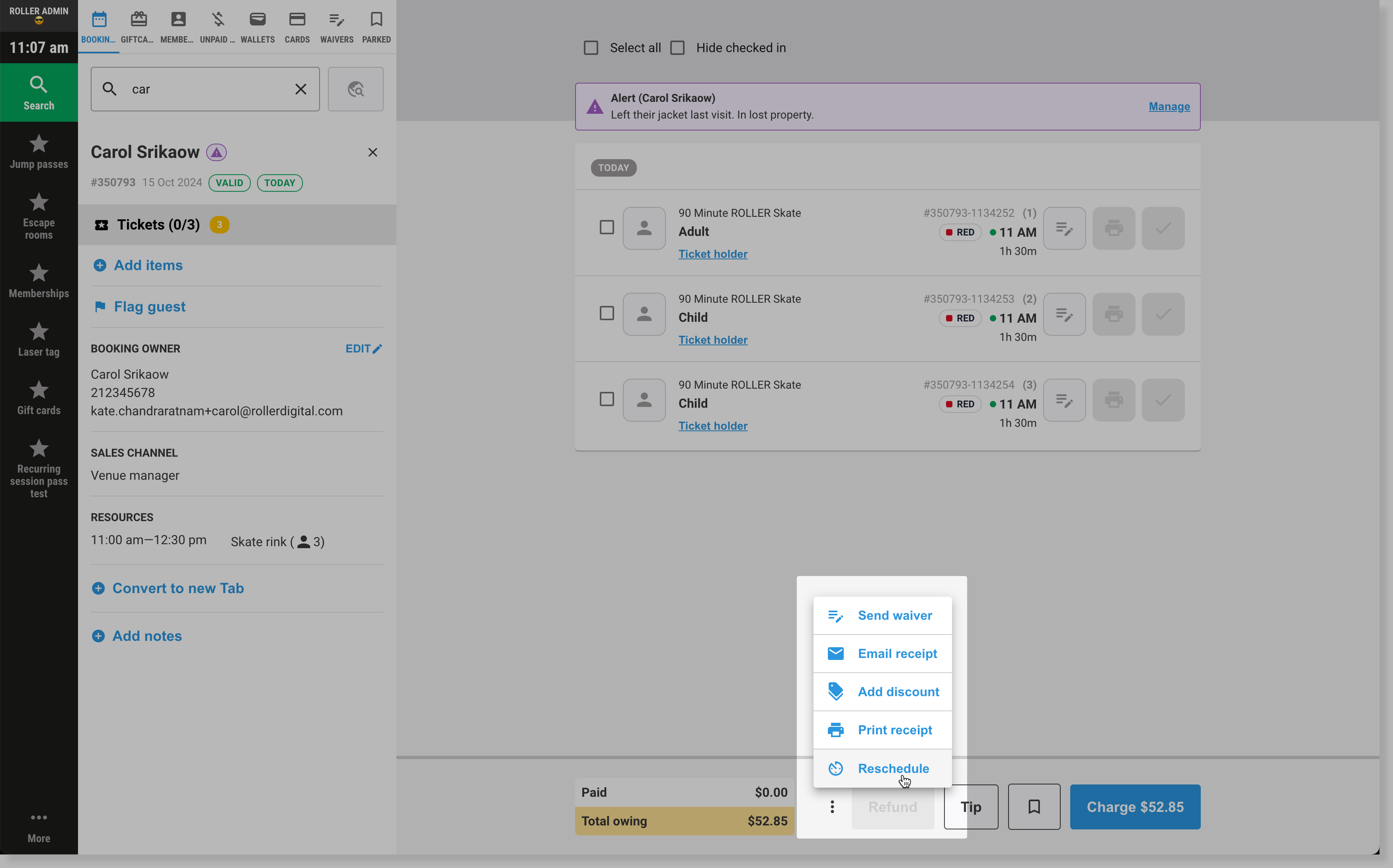
With the booking open at POS, select the options menu (three dots) at the bottom of the main panel, then choose Reschedule.
Select the booking items you’d like to reschedule, then choose Select.
On the calendar, choose the date to reschedule to, then a session time.
Finally, select Confirm and send email. ROLLER moves all booking details, including any signed waivers to the new booking time.
Access your open tabs for longer, at POS
Plan: Available on all plans
Preview: From 15 October in ROLLER Playground
Target release date: 22 October
ROLLER POS gives you ultimate flexibility by allowing access to your open tabs for more than 24 hours. Now, you can close out your tabs when it suits your operations (especially handy for tabs that run past midnight) and means you’ll always have your tabs handy at POS.
To find all open tabs at POS, follow the steps below.
Log in to POS.
From the left-hand menu, select Unpaid tabs.
View all unpaid tabs from the last three months.
If you want to see the details of each tab, simply select the tab from the list.
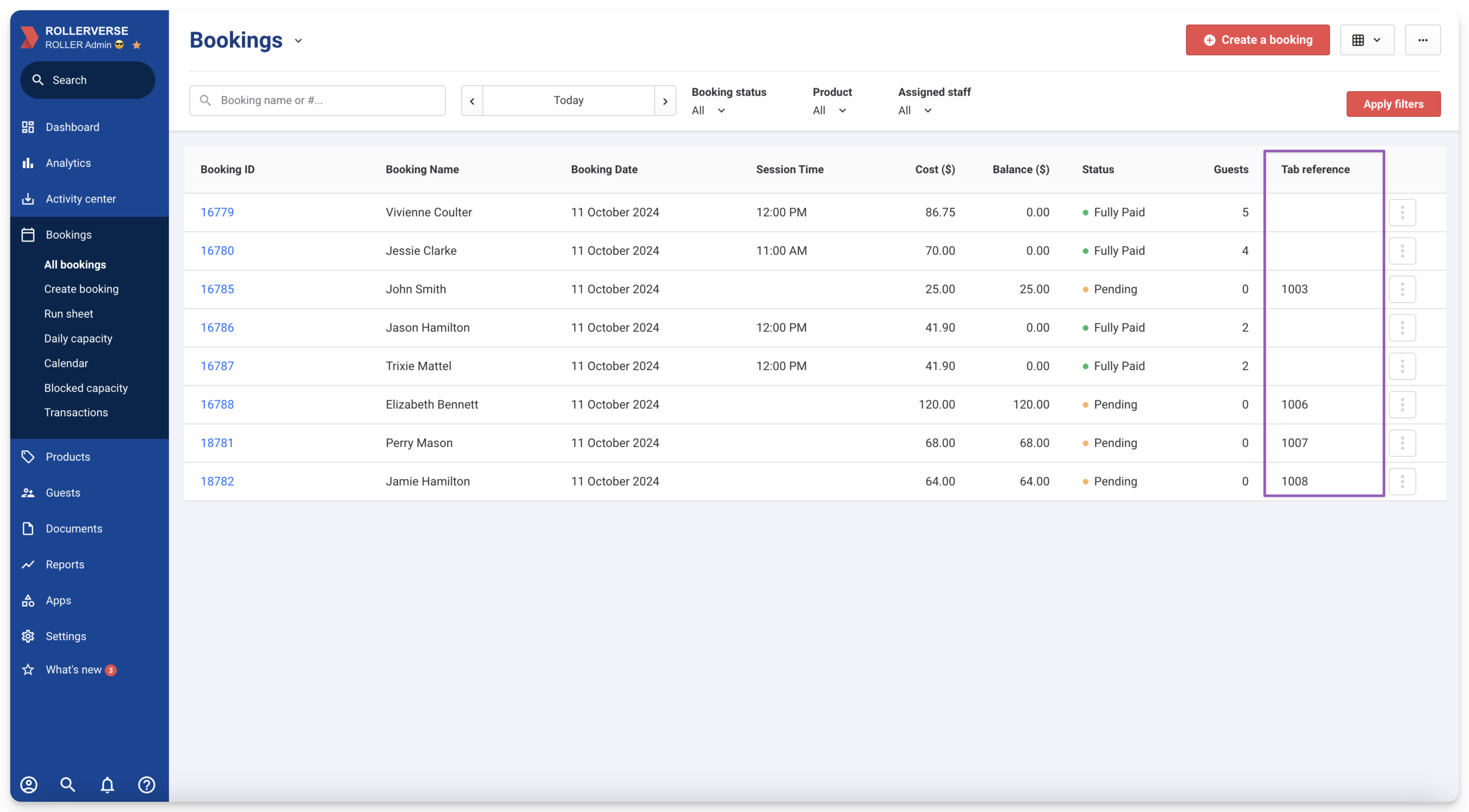
You can also see which bookings have an associated tab in Venue Manager.
From Venue Manager, go to Bookings.
On the bookings grid, find the Tab reference column. If a booking has an associated tab, its reference will display in this column. If there’s no tab, the column will be blank.
If you can’t see the Tab reference column, right-click one of the other column headings and then select Tab reference from the dropdown list. This will add it to the bookings grid.
Learn more
To learn more about tab management at POS, read the guide Create and manage guest tabs at POS.
Improve operational efficiency with HQ product tags
Plan: Available for HQ customers on all plans
Preview: From 15 October in ROLLER Playground
Target release date: 22 October
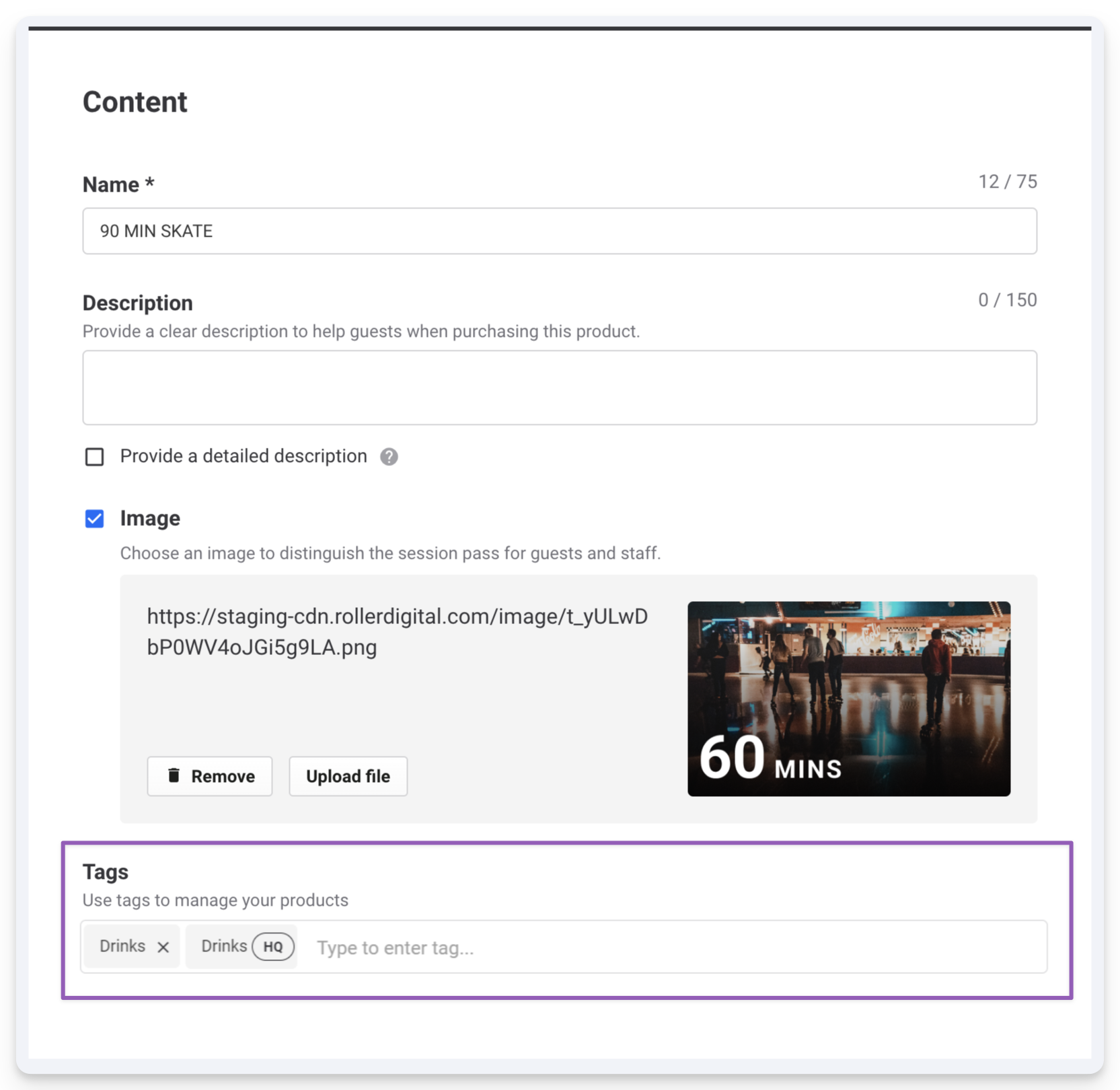
HQ product tags improve operational efficiency for HQ venues when creating and managing your HQ checkouts [beta] and POS templates. Adding tags to HQ products and stock helps to organize and group them, and reduces the administrative burden of manually managing and updating each of your managed venues' sales channels. When you add or remove a tag from a HQ product, it’s automatically added or removed from your checkouts [beta] and POS templates too.
And now, managed venues can use HQ-created product tags for their own venue-created products, stock, checkouts and POS menus. When you want to add a tag to a venue-created product, stock item, checkout or POS menu, the dropdown menu will list all tags, including HQ-created tags. These will have a HQ flag added to them, so you know when you’re using a HQ-created tag.
Learn more
To learn more about how to create and manage HQ tags, read the guide Create and manage HQ product tags.
Other news
From hiding stock variations for smoother online checkouts to boosting party package sales with add-ons, there's a lot to love with these feature enhancements. Plus, we've improved staff visibility and the booking capacity view to make keeping an eye on your venue easier than ever!
Hide stock variations from online sales
Have greater control over your food & beverage checkouts with the ability to choose which stock variations you sell online.
This enhancement is particularly useful for HQ-managed venues, who may not sell all stock variations created for an HQ product. HQ-managed venues can still add the product to their venue, and then choose which variations display in their mobile food & beverage checkouts.
To learn more about stock variations, read the guide Create your stock products.
Add any product type as upsell items for party packages
You can now add any product type as an add-on for your party packages, boosting revenue and improving the guest party experience.
To learn more about party packages, read the guide Create your party packages.
View all staff who have access to your venue
We're updating the staff list page in Venue Manager (Settings > Staff > All staff) to give you better visibility of who has access to your venue — particularly helpful for individual venues that are part of a larger group or staff managed centrally via an HQ account.
Now, you’ll see all staff members with access, including multi-venue staff who work across multiple venues and are created and managed centrally. While you can view these staff members, their details can't be edited here. This update provides clearer oversight of everyone with access to your venue.
Daily capacity just got clearer!
We're updating the daily capacity page with a color-coded legend for booked resource availability statuses and now display booking holder names for single-booking resources directly — no need to hover or click a booked time slot for these details. These enhancements improve visibility and streamline your capacity management.
For more tips on how to use the daily capacity page views, read the guide Monitor daily capacity and ticket redemptions.