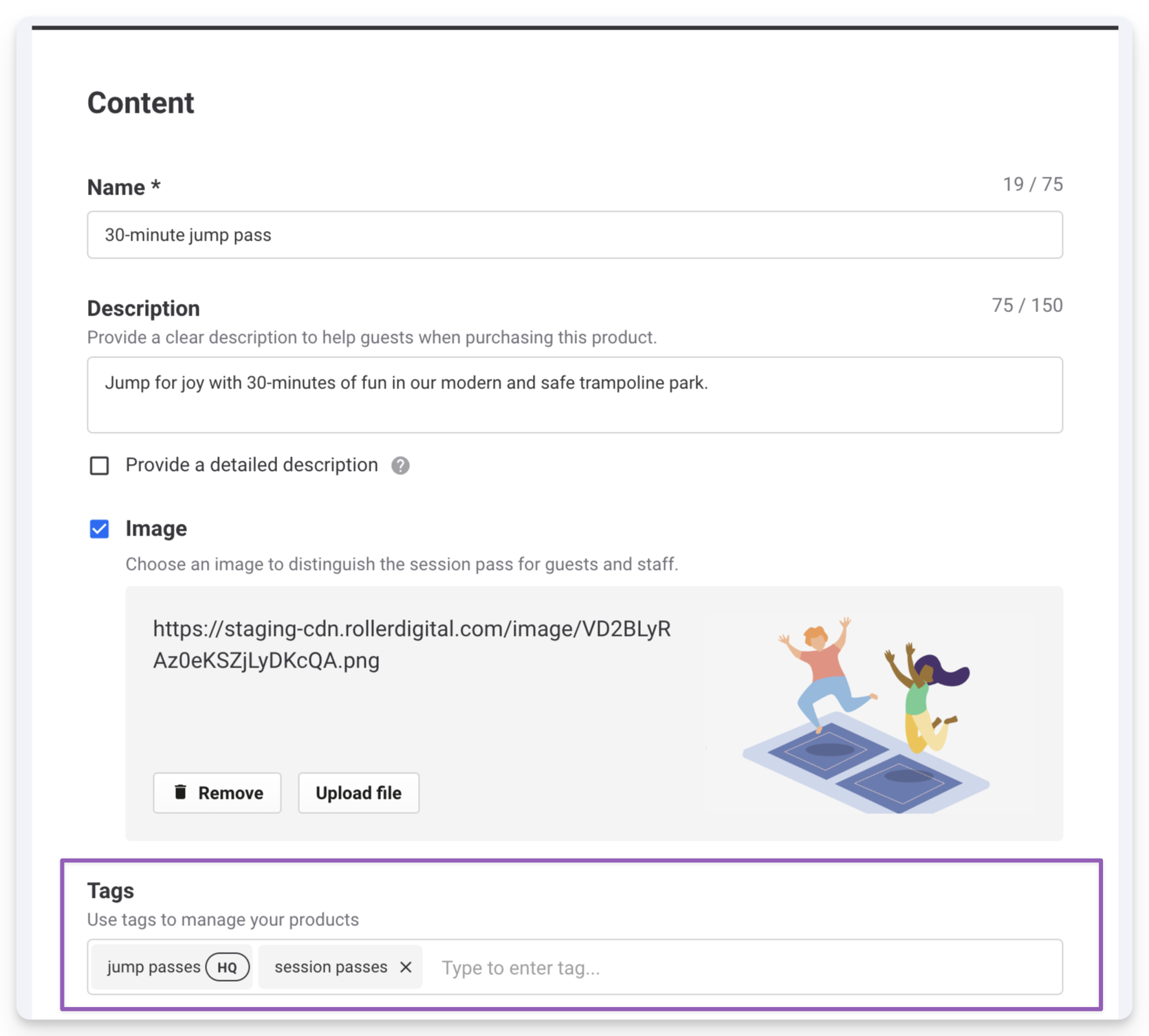
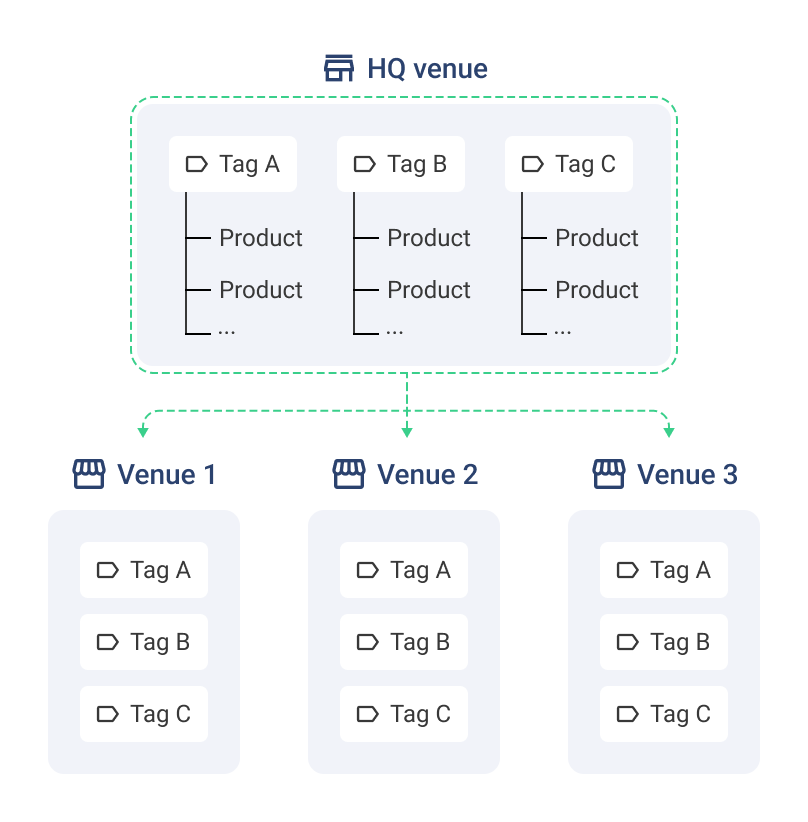
HQ product tags save you time and keep your venues consistent. Tag products once at HQ and use those tags in HQ POS templates and HQ checkouts to make sure every managed venue displays them correctly — helping staff work efficiently and giving guests a seamless experience.
This guide explains how HQ tags work and how to use them at both HQ and managed venues.
Why use HQ tags
HQ tags make it faster and easier to set up and manage products across multiple venues. They:
Organize products automatically in HQ checkouts and HQ POS templates
Save time by reducing manual updates across venues
Keep sales channels aligned with automatic updates when tags change
Example
An HQ group operates four venues across different cities with the same product range:
1‑hour jump pass
2‑hour jump pass
90‑minute jump pass
30‑minute laser tag session
45‑minute laser tag session
With tags, all jump passes are grouped under a jump pass tag. Adding that tag to an HQ POS template or HQ checkout automatically pulls in every tagged product across all managed venues (so long as the products have been shared and added).
Tags can also be applied to HQ stock products, helping you organize your food & beverage checkout. To learn more, read the guide Create stock products from HQ and share them with managed venues.
Create and organize HQ tags from one place
Available on request. Contact your customer success manager or the support team to enable it.
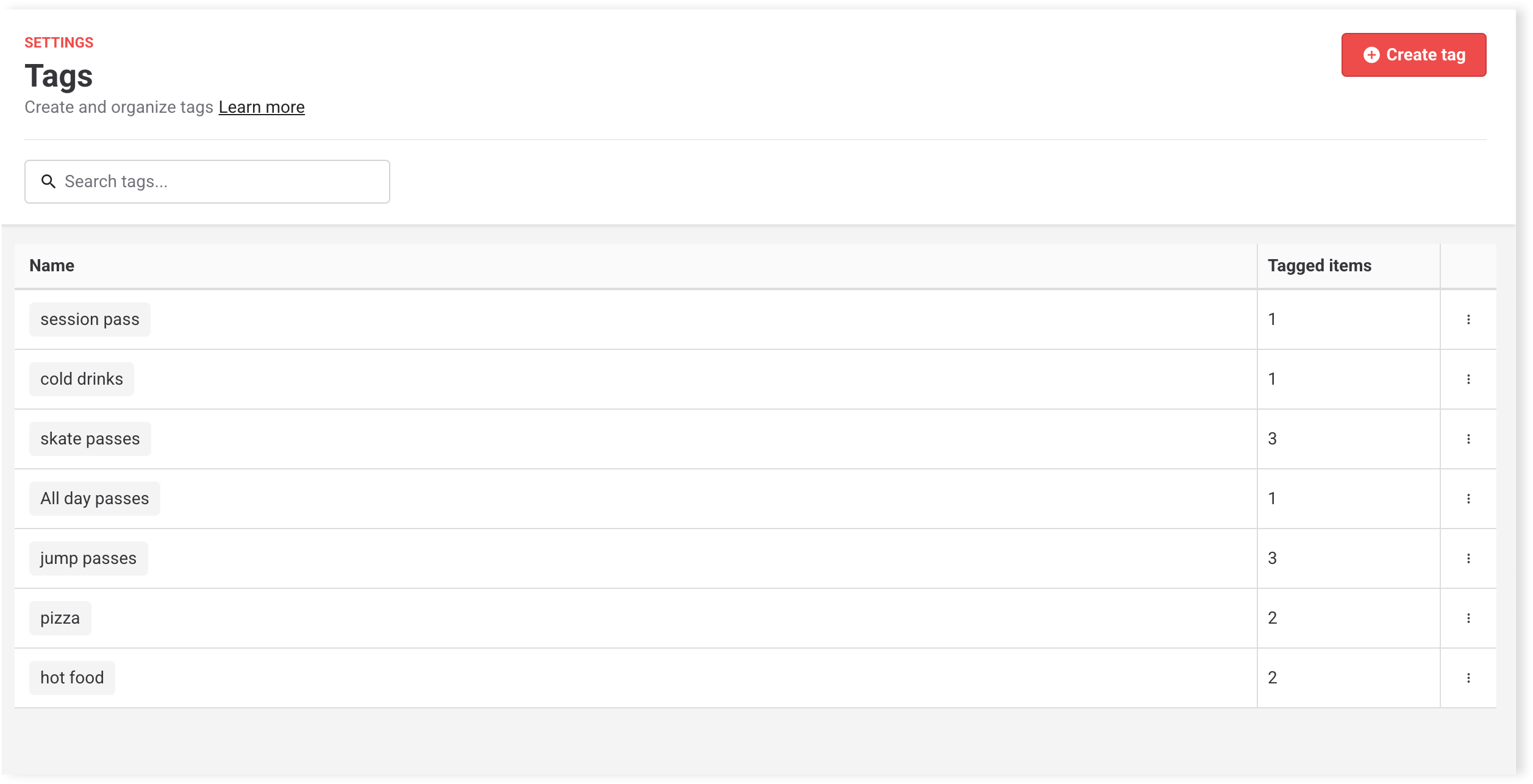
From your HQ account in Venue Manager, go to Settings > Tags. You can:
Create, rename, update and delete tags
View all tags and tagged items
Learn more about how to create and organize tags from this page.
You can also create and add HQ tags when setting up or editing the HQ master product. Updated tags sync automatically across venues. For details, see the guides Create products from HQ and share them with managed venues and Create stock products from HQ and share them with managed venues.
Tip: Keep tag names simple and consistent (eg all lowercase: session pass)
How managed venues use tags
HQ tags automatically sync with managed venues. Any tagged HQ items appear in the HQ tag once they have been shared and added.
What managed venues can do
Managed venue staff with the Can edit products permission can:
Apply HQ tags to local products, stock, checkouts and POS menus
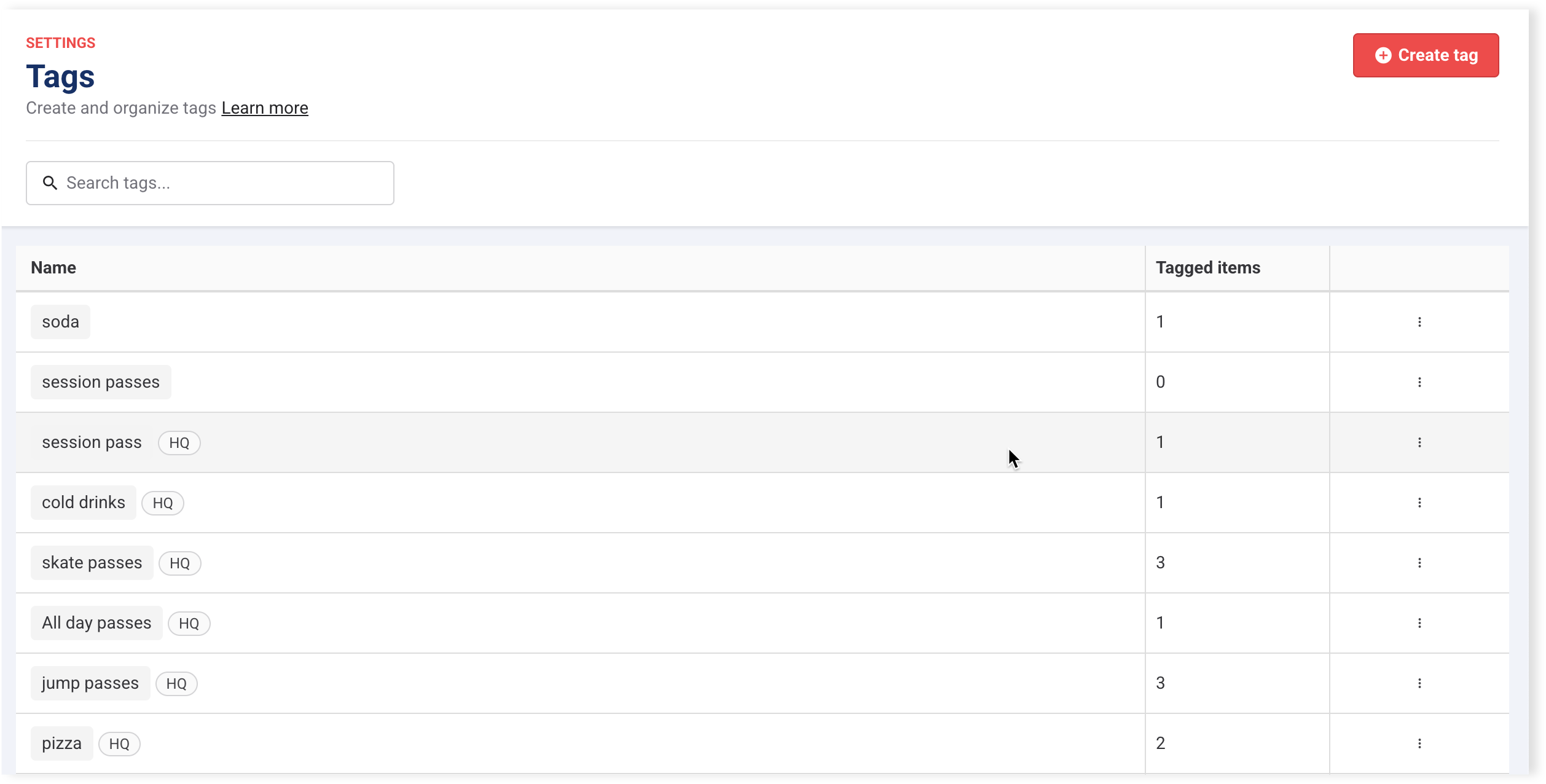
View HQ tags in Venue Manager > Settings > Tags (clearly marked with HQ label)
Create and organize their own tags
What managed venues can’t do
Edit HQ tags. Only HQ can create, rename or update them.
HQ and local tags applied to a product are visible in product setup (requires Can view product details permission). To add or remove tags, staff need the Can edit products permission.