Your members shouldn't have to think about which venue they joined at. Multi-venue membership redemption lets members use their benefits at any eligible venue in your group — with benefits managed once at HQ and usage tracked centrally across all locations.
Set up the membership and discounted products once at HQ, choose which venues can sell and redeem them, and let venues adapt locally. Venue staff redeem member benefits from POS or Venue Manager, or members redeem directly through the online checkout.
HQ subscription
Available for all HQ venues. To learn more, contact your customer success manager or the support team.
Key concepts
Before you set up, familiarize yourself with these terms.
Membership benefits and discounts
Membership benefits are the discounted products, services and other inclusions members receive (eg free or discounted access to passes, activities, services or merchandise). Benefits are configured in the HQ membership product setup and can become the default for all selected venues. When providing venues with access to the membership product from HQ, make sure venues have access to the included discounted products and services first.
Home venue
The home venue is where a member purchased their membership. The home venue's benefits, usage limits and discount rules come from that venue's HQ product setup including any customizations and apply wherever they redeem across the group. For example, if a member's home venue offers 20% off standard passes, that discount travels with them.
Eligible venues
Eligible venues are the managed venues HQ provide access to offering the multi-venue membership from the HQ product setup. Only venues selected in HQ can sell and redeem the membership. After you save and publish to selected venues in HQ, each venue needs to add the product (membership product and included discounted products) to their venue before staff can start selling and redeeming the multi-venue membership.
Shared usage tracking
When a membership product is set up to be a multi-venue membership product at HQ, redemptions are tracked across the whole group as a single shared counter — not per venue. If a member has a monthly limit of five visits and uses two at Venue A, they have three remaining across all eligible venues — not three per venue. The count updates group-wide as soon as a redemption is recorded.
Member status labels
When staff search for a member at POS, they see one or more status labels:
CURRENT — the person is an existing guest of this venue (they may also be a member here).
VISITING — they hold a valid multi-venue membership from another venue in the group.
INELIGIBLE — they hold a membership that can't be redeemed at this venue.
A guest can show more than one label. An existing guest of one venue who also holds a multi-venue membership from another venue will show both CURRENT and VISITING.
Choose your approach
Choose the setup and management model that fits your operational reality.
Keep benefits consistent across all venues
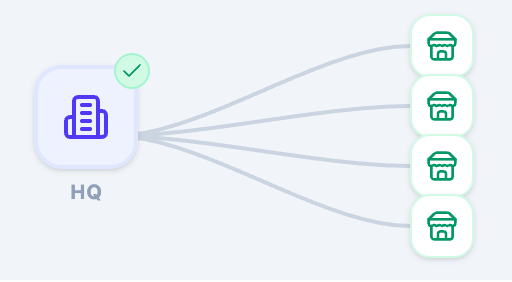
When to use: Your venues have the same experiences and offerings.
Pros: Simple to manage. Consistent member experience.
Watch-outs: Only works if every venue truly offers everything.
Venues remove what they don't offer
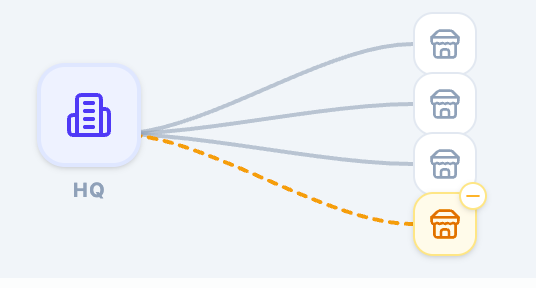
When to use: Venues vary in activities, stock or services.
Pros: Accurate per location. Reduces member confusion.
Watch-outs: Requires ongoing, individual, managed venue updates when availability changes.
Venues add unique extras
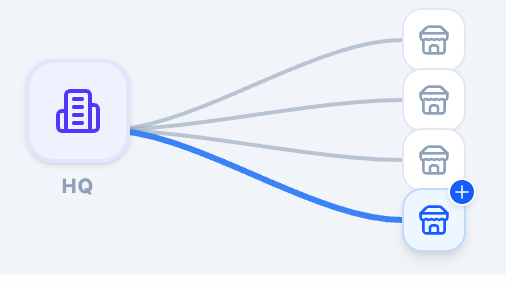
When to use: A venue has additional offerings not shared group-wide.
Pros: Enables local differentiation. Improves member value.
Watch-outs: Keep benefit names consistent so members understand what's included where.
Example: bowling group
A bowling group has four venues. All share bowling and a food offer. Two have an arcade; merchandise stock varies; one has an escape room the others don't.
Benefit | Venue 1 | Venue 2 | Venue 3 | Venue 4 |
|---|---|---|---|---|
Bowling (HQ default) | ✓ | ✓ | ✓ | ✓ |
Food offer (HQ default) | ✓ | ✓ | ✓ | ✓ |
Arcade (HQ default) | ✓ | ✓ | Removed | Removed |
Merch discount (HQ default) | ✓ | Removed | Removed | Removed |
Escape room (Venue 1 only) | Added | — | — | — |
Set up a multi-venue membership at HQ
For: HQ operators
From Venue Manager, go to Products.
Open the membership product you want to make available at multiple venues, or create a new one.
Select the venue tags where members can purchase and redeem the membership benefits.
Select the Multi-venue redemption checkbox. This option allows guests to redeem the membership at all selected venues.
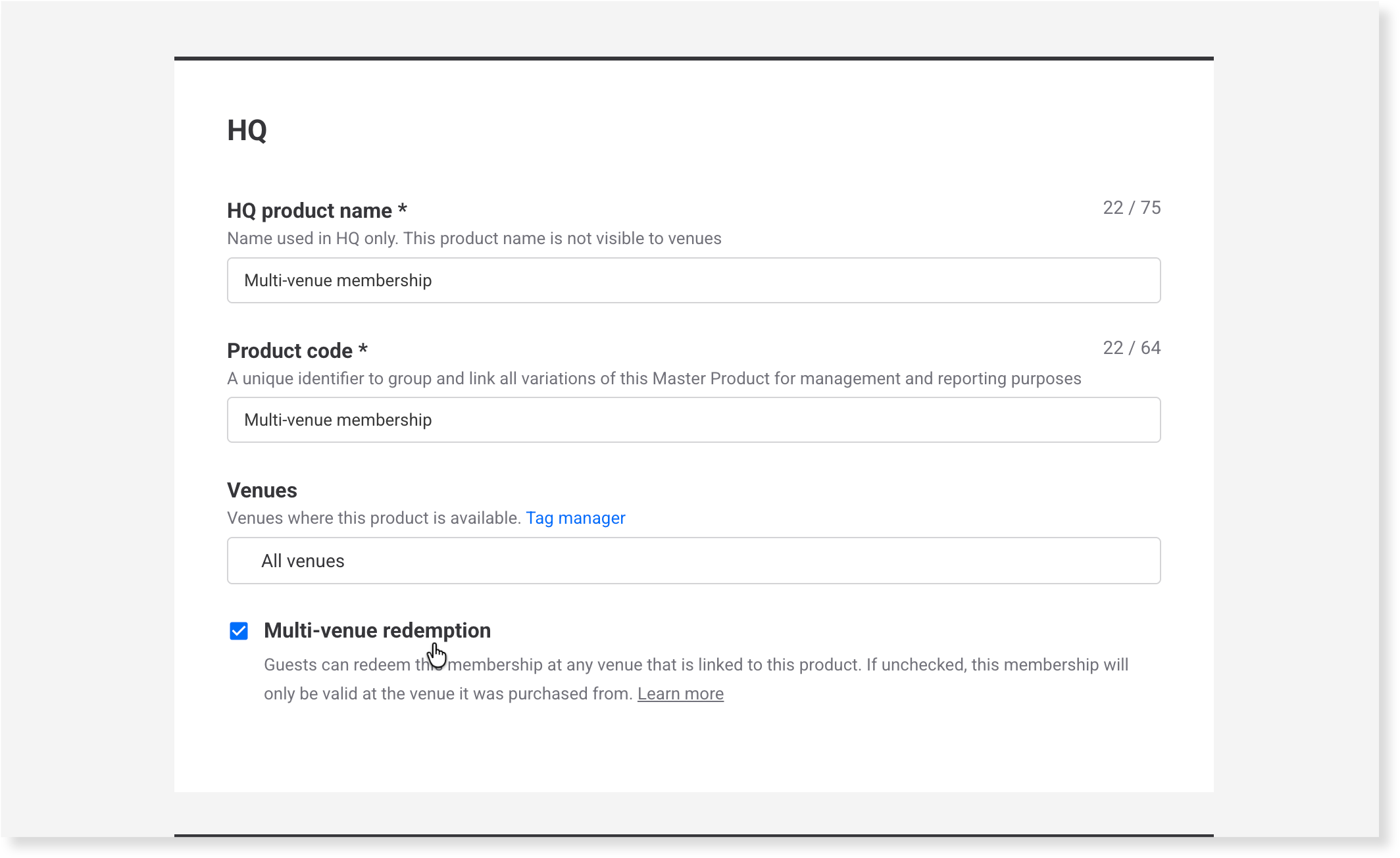
Set up your Membership variations. For each variation, configure the Membership discount with the discounted products you want to offer across venues. See Create a recurring or fixed-price membership product for membership setup details.
Select Save.
The membership product is now available to the venues you selected. Each venue can add the HQ membership product and, with the right venue and staff permissions, customize it to match what they sell locally.
Add and customize the membership at a venue
For: managed venue staff
Venues inherit the HQ membership as a baseline.
Any discounted HQ stock, passes, party packages and packages included in the HQ membership product should be added first. If the discounted products aren't yet at a venue, a warning appears when adding HQ membership products to venues.
From Venue Manager, go to Products > All products.
Select Add managed product at the top right.
Choose the included HQ discounted products, then the HQ membership product from the list.
Keep Sell selected for each membership variation you want to make available at the venue.
Review the Membership discount for each membership variation and customize if needed. Not that once customized, venues can't currently revert back to the HQ baseline.
Complete any local setup (eg waivers, resources, operating hours).
Select Save.
With the venue permission to edit memberships and staff permission to edit products, venues can remove discounts they don't offer, or add venue-specific membership discounts not in the HQ default. However, once edited, the product will no longer sync with HQ.
There is currently no option to resync membership discounts to the HQ default. Each change must be made manually, one at a time — so take care when customizing. Learn more about adding HQ products to managed venues.
Redeem a membership at POS
For: POS staff
When a member visits from another venue, search for them and check their status label before redeeming. See Member status labels above for what each label means.
From POS, go to Search and select the Members tab.
Search for the member by name, email or membership number.
Check the label on the member's result.
A guest can show more than one member label. For example, an existing guest of your venue who is also a visiting member from another venue will show both CURRENT and VISITING:
CURRENT — the person is an existing guest of this venue.
VISITING — they hold a valid multi-venue membership from another venue.
INELIGIBLE — they hold a membership that can't be redeemed at this venue. You can still use their details to create a booking — they just pay the standard price.
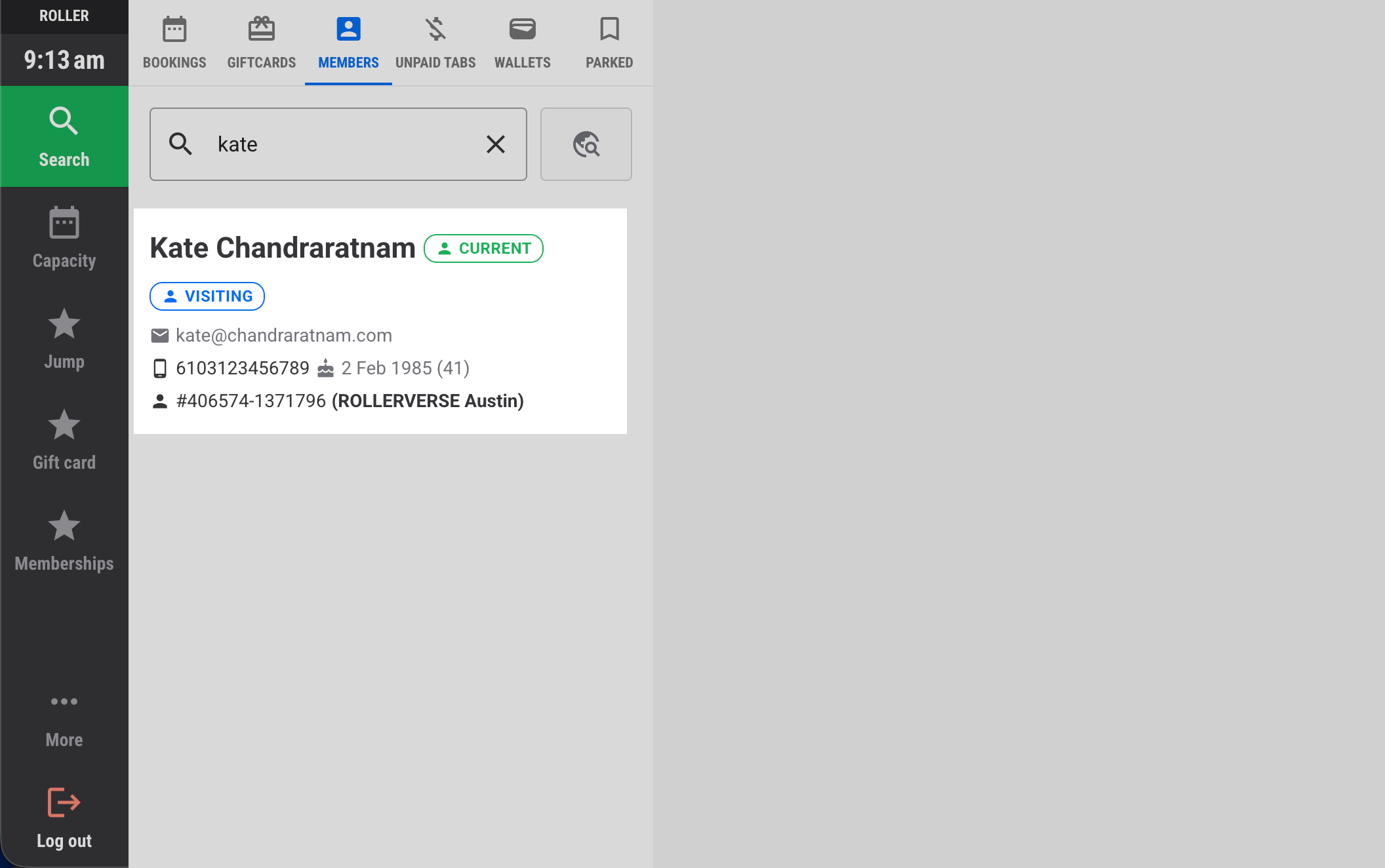
Select the member to open their record.
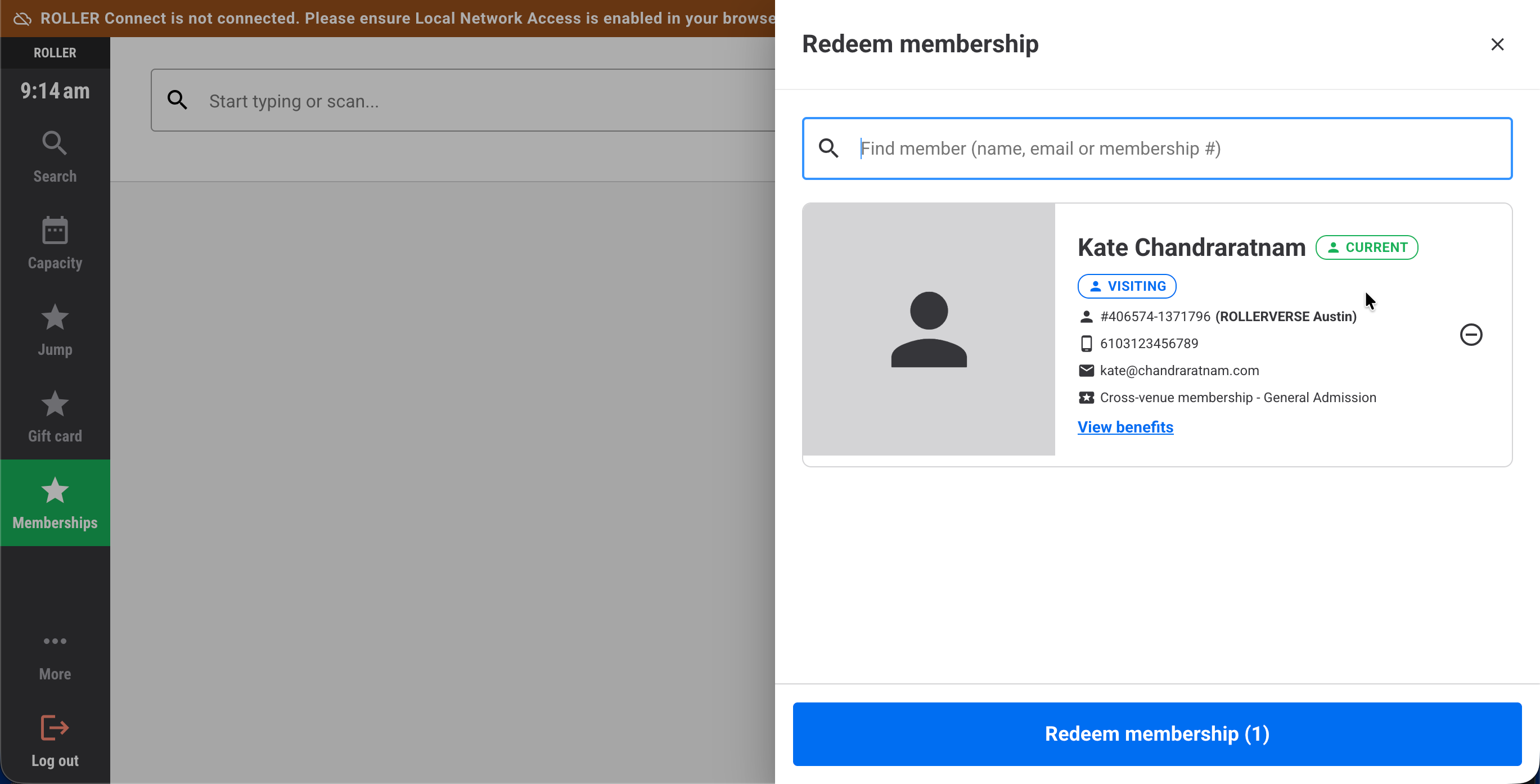
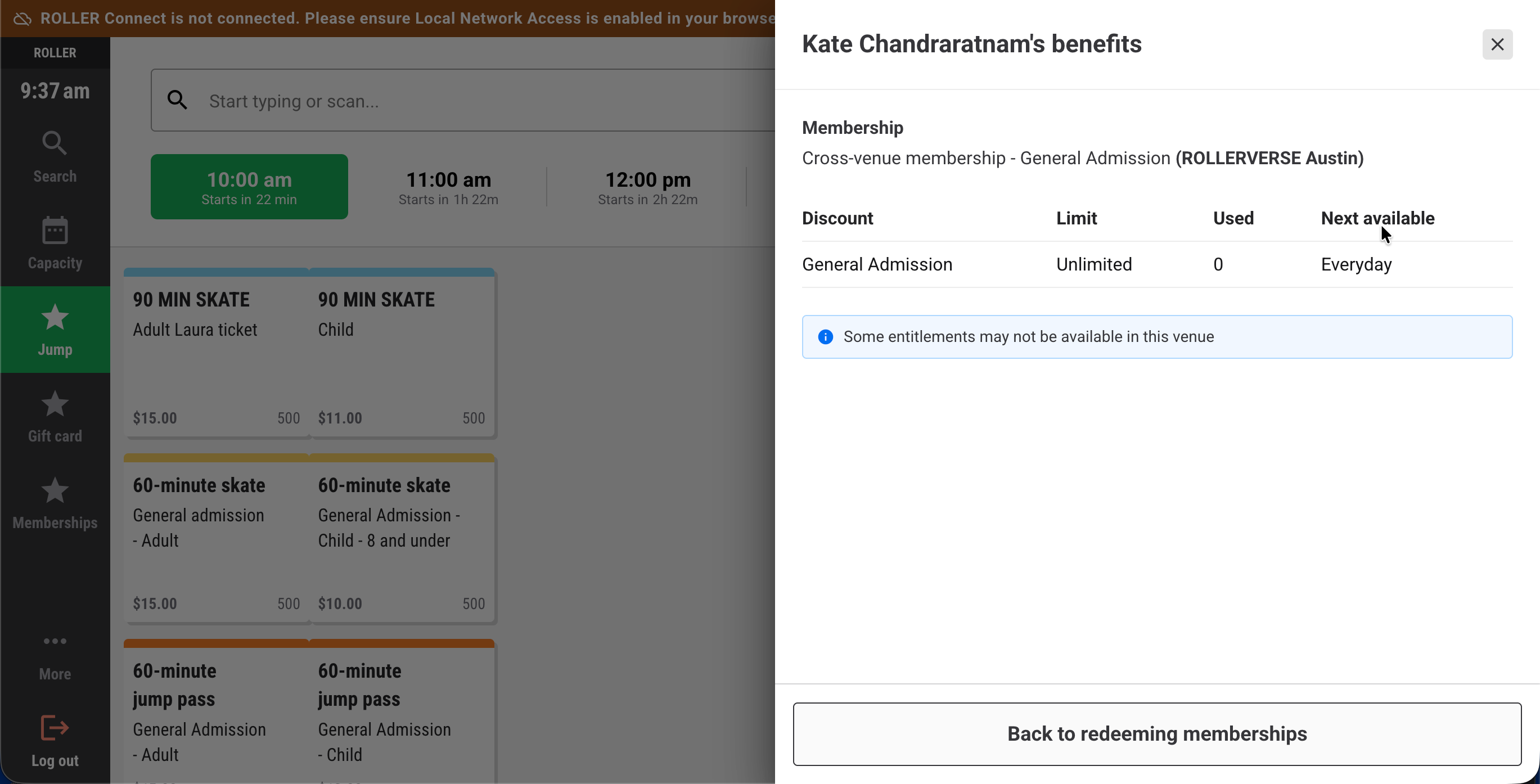
For visiting members, select View benefits to review what they're eligible for. Select Back to redeeming memberships to return to the Redeem membership panel.
Select Redeem membership to apply the benefits.
Add the membership products to the cart, then continue with the booking.
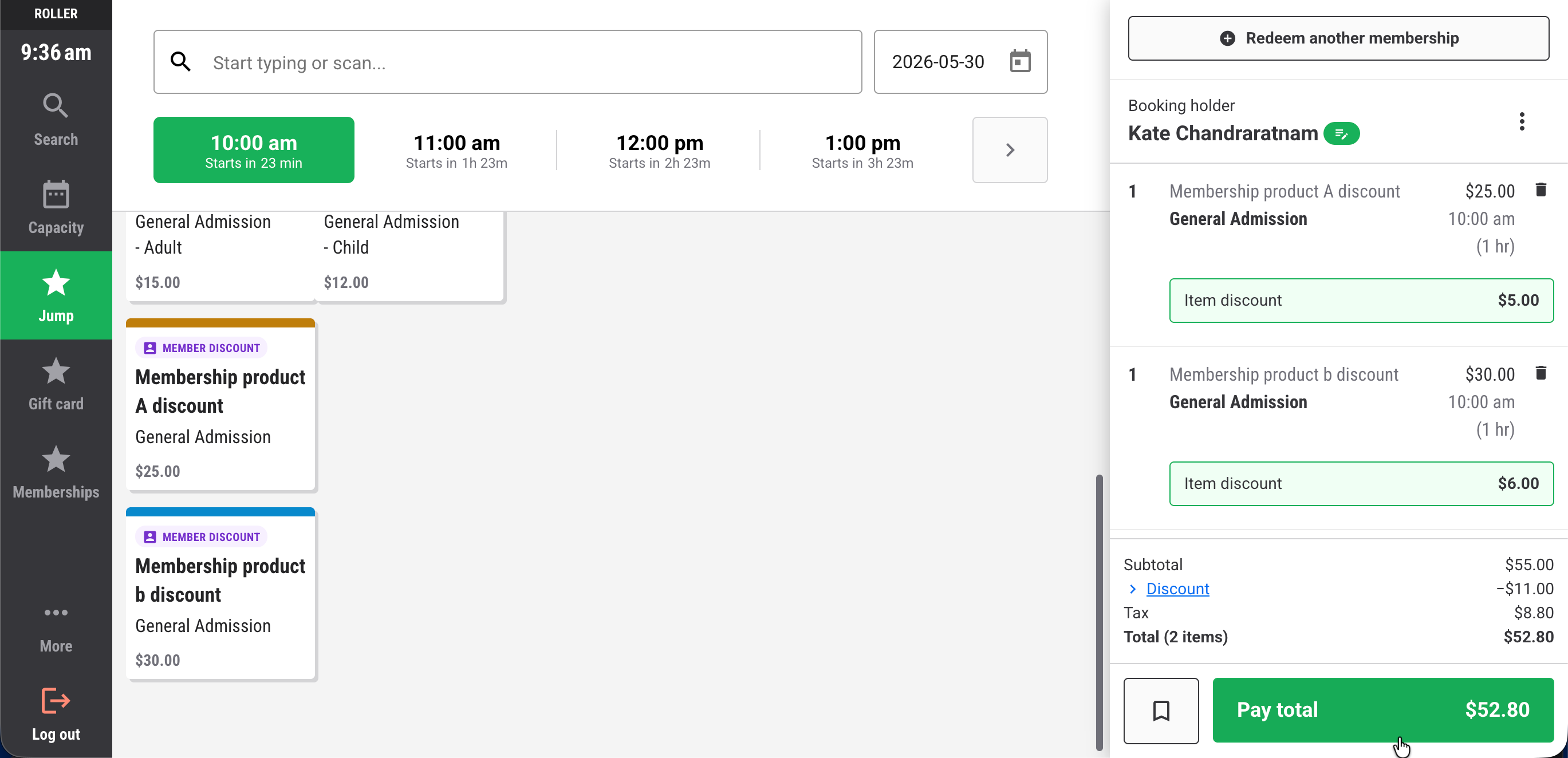
When staff redeem a visiting member's benefits, ROLLER checks for an existing guest with the same email at this venue. If one exists, it's used for the booking. If not, a new guest record is created. No duplicate is created either way.
Other ways to redeem
Members can redeem their multi-venue membership benefits without coming through POS.
Through Venue Manager
When members contact the venue to book, staff can make a booking for the relevant product and enter the member's membership number to apply their discount.
Through online checkout
The member enters their membership number at checkout and their discount is applied automatically.
FAQs
Can members use their membership at any venue in my group?
Only at the venues you selected in the HQ membership product setup. Adding a venue to your group doesn't automatically give it access — you need to add it to the Venues field on the membership product, and that venue needs to add the product to their venue.
Can I revert a managed venue's modified discounted membership inclusions to match HQ?
No. There's no resync. Each benefit change must currently be made manually at the venue level, one at a time.
Can the same guest be a current and visiting member?
Yes. If they're an existing guest of one venue and also hold a valid multi-venue membership from another venue, they'll show both CURRENT and VISITING labels.
A venue can't edit the membership — fields are greyed out. Why?
Venues require the venue permission to edit membership product settings and staff require the staff permission to edit products. See HQ venue permissions by feature and Permissions by feature and role.