Getting waivers signed before guests arrive helps reduce entry queues, speed up check-in and improve the guest experience. You can collect waivers at different points in the guest journey, including before the visit and on arrival.
Choose your method
Choose the methods that best fit your booking flow and guest journey:
Online bookings — guests sign after checkout or from order confirmation emails.
Phone or back-of-house bookings — staff send a waiver request from Venue Manager.
Pre-visit follow-up — send reminder emails before the booking.
On-site fallback — use POS, QR codes or waiver kiosks when waivers are still unsigned.
Before you start
Create your waiver in Venue Manager.
Enable waivers in the product settings for each product that needs one.
Customize the content, language and branding for the email templates you want to send.
Make sure the waiver add-on is enabled for your account.
Add-on feature
Protect your venue against liability and improve the guest experience with online waivers. To unlock the waiver add-on, contact your customer success manager or the support team.
Get waivers signed after online checkout
Use this option when guests book online and you want them to sign a waiver as part of the checkout journey.
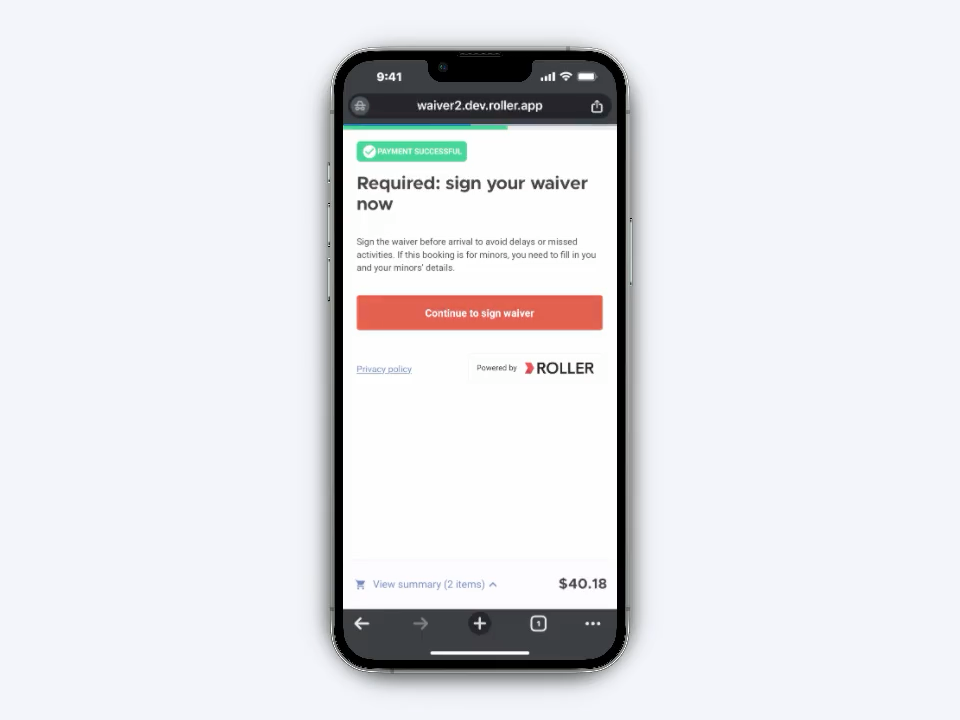
After guests pay for products that require waivers, they are prompted to complete their waiver as the next step in the booking flow. This helps get waivers signed before arrival without any manual follow-up.
To make this available for guests you must enable waivers in the product settings for each product that requires one.
What guests do next:
Complete their booking in the online checkout.
Select Continue to sign waiver.
Review the pre-filled waiver form.
Add their date of birth and details for any minors.
Select Share waiver with guests to send the booking’s unique waiver link to other participants.
Waivers signed this way are automatically linked to the booking in ROLLER. You can check waiver status from the booking in Venue Manager and quickly assign waivers when redeeming tickets at POS.
If loyalty is active for your venue, guests see a Join loyalty prompt right after signing, before continuing to the booking confirmation page. To learn more, see How guests join your loyalty program (early access).
Get waivers signed from order confirmation emails
Use this option when guests have already completed an online booking and you want the booking holder to sign and share the booking’s unique waiver link.
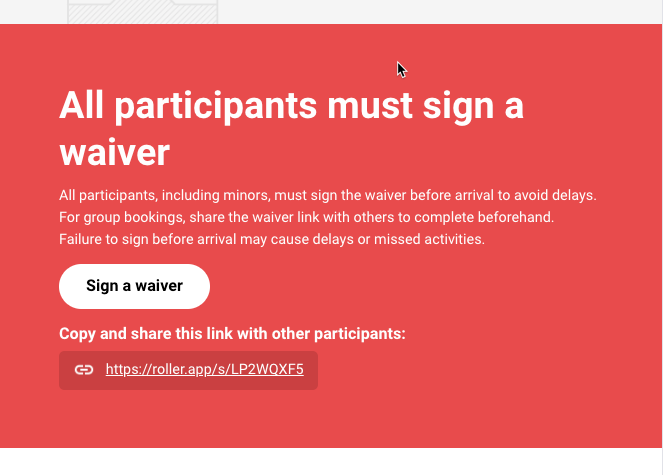
After purchasing products online, the booking holder automatically receives an order confirmation email. If the booking includes products that require waivers, the email includes a panel and prompt to sign a waiver.
The email helps the booking holder:
Sign their own waiver.
Add details for any minors.
Share the booking’s unique waiver link with other guests.
To make this available for guests:
Enable waivers in the product settings for each product that requires one.
Make sure the waiver is already created in Venue Manager.
Enable the waiver panel in the order confirmation email template.
Waivers signed using this link are automatically linked to the booking.
To customize the order confirmation email:
From Venue Manager, go to Settings > Design > Email templates.
Open the Order confirmation email template.
Make sure the order confirmation email template panel is enabled.
Update the waiver message to suit your venue.
Send a waiver request from Venue Manager
Use this option when staff need to manually follow up on a booking that requires waivers and want to send the booking holder a direct link to complete and share the waiver.
You can send a waiver request by text/SMS or email after creating the booking in Venue Manager.
This works for any booking that include products with waivers enabled, such as session pass bookings — not just party packages.
To send a waiver request from Venue Manager:
Open the booking in Venue Manager.
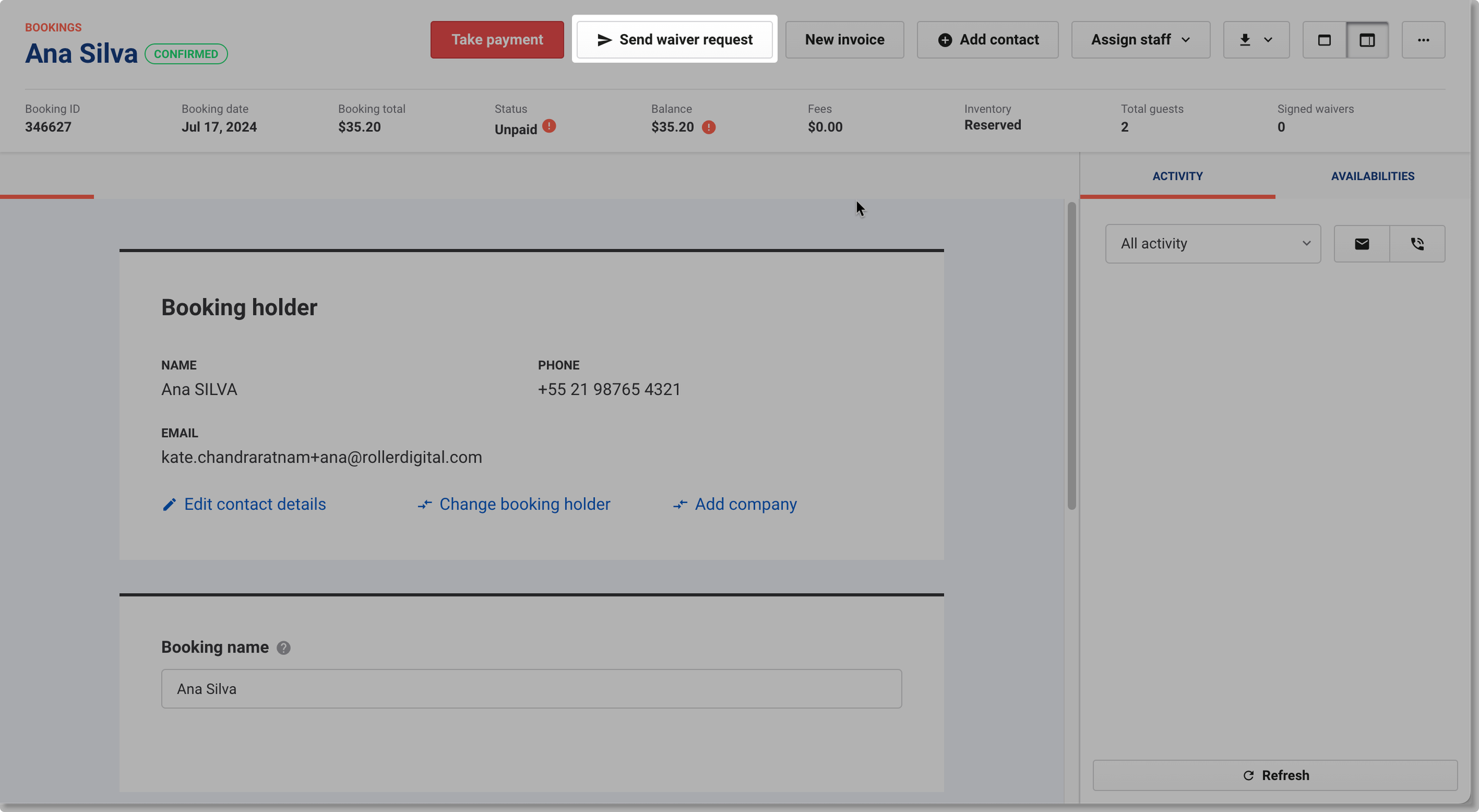
From the booking’s confirmation page, select Send waiver request.
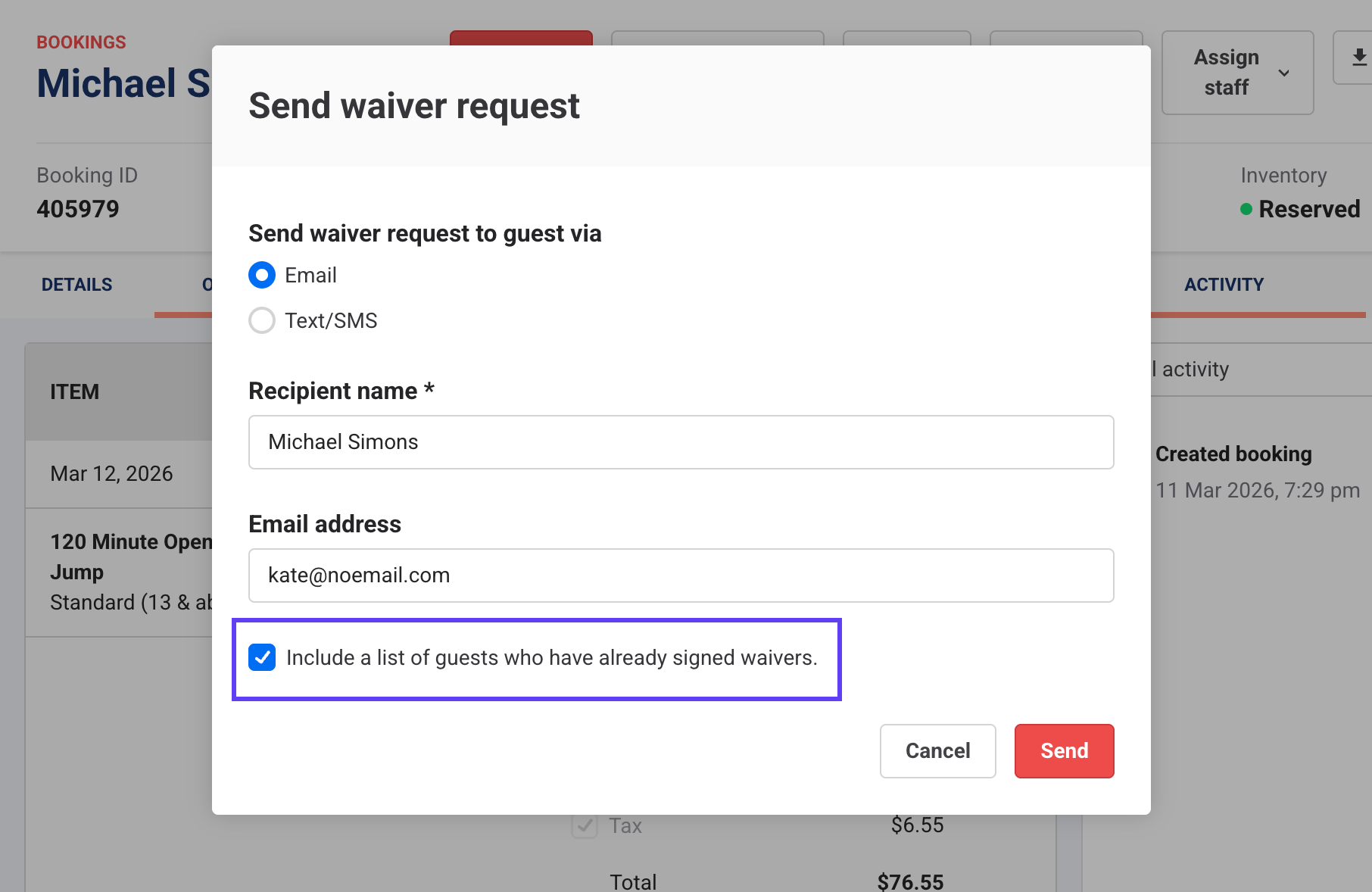
Choose whether to send the request by Email or Text/SMS.
(Optional) Select Include a list of guests who have already signed waivers.
Send the request to the booking holder.
Including the list of signed guests helps the booking holder quickly see who still needs to complete a waiver, making it easier to follow up — especially for large group bookings.
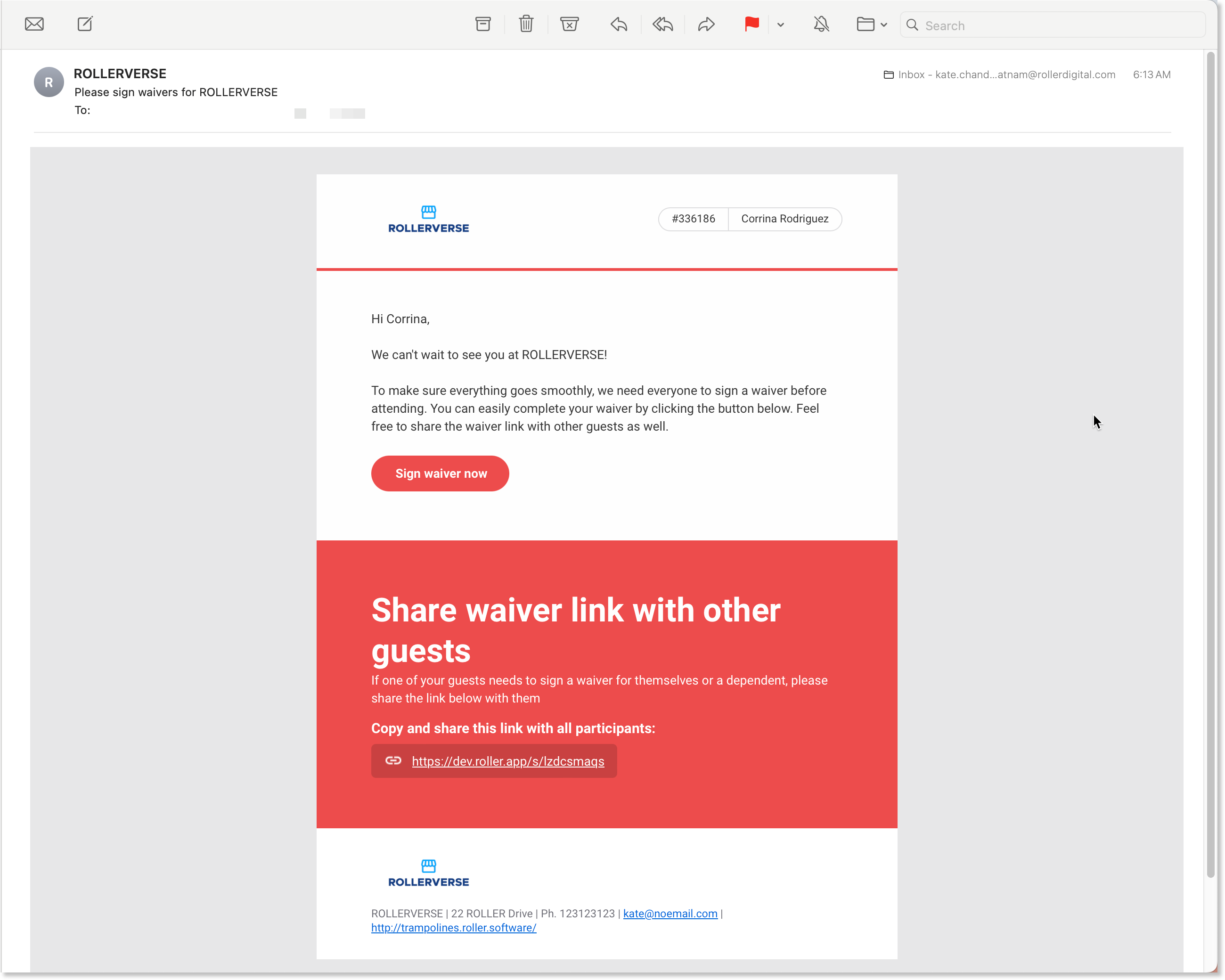
The message includes the booking’s unique waiver link, so the booking holder can complete their own waiver, share the link with other guests, and help you track waiver completions before arrival.
If sent by email, the request can also include:
Your venue logo, booking ID, and booking name
A Sign waiver now call to action
Instructions to share the waiver link with other guests
A list of guests who have already signed waivers, if selected when sending the request
Including the list of signed guests helps the booking holder quickly see who still needs to complete a waiver, which is especially useful for large group bookings.
To customize the waiver request email:
From Venue Manager, go to Settings > Design > Email templates.
Open the Waiver request email template.
Update the content as needed.
To learn more, see the guide Send waiver requests by text/SMS or email from Venue Manager.
Copy and share a waiver link from a booking
Use this option when you want to copy the booking’s unique waiver link and send it through your preferred communication method.
Copying the link lets you send it manually by email, text message or another channel. When guests sign using this link, the waiver is automatically linked to the booking.
To copy and share a waiver link:
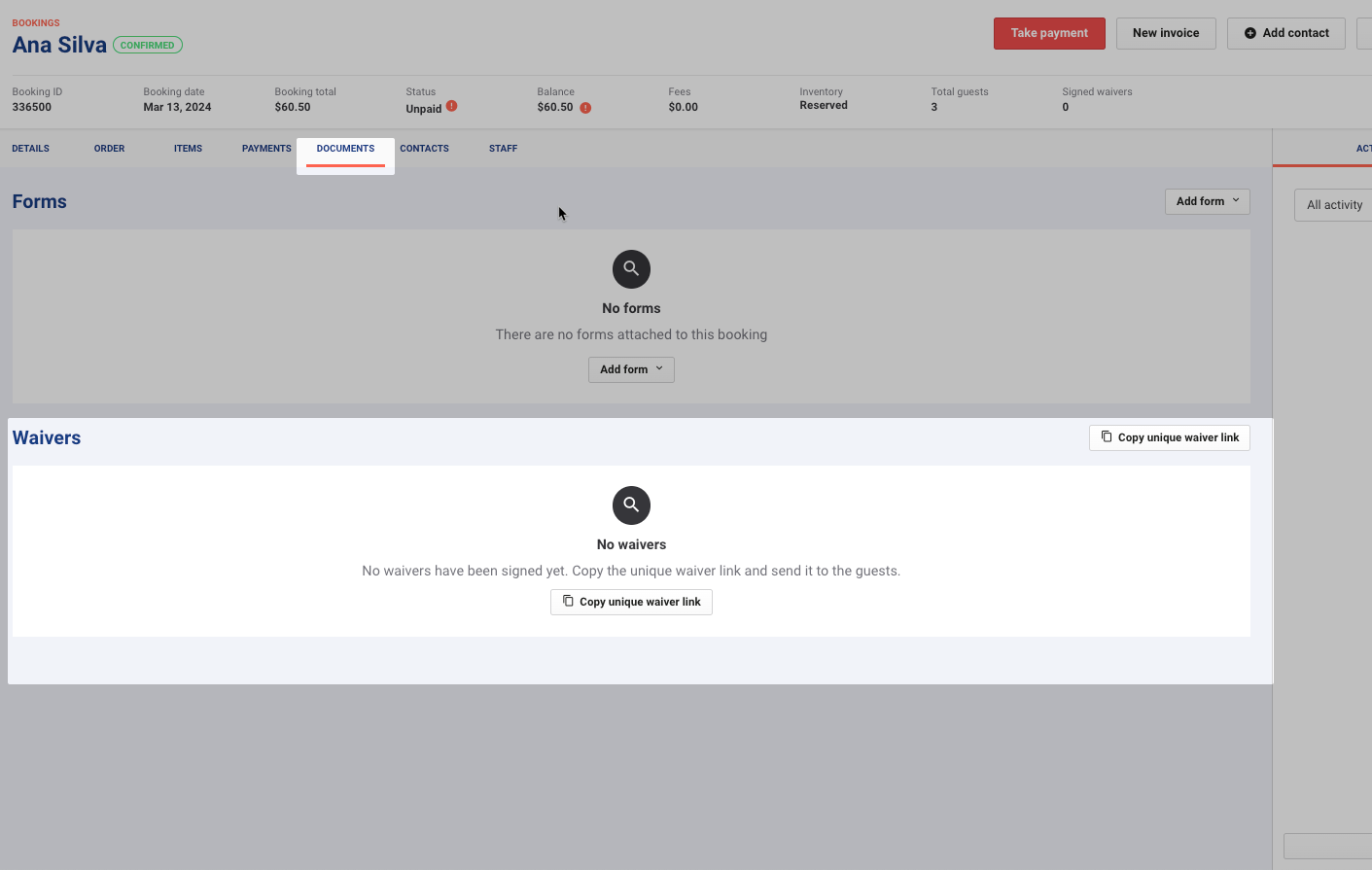
From the booking in Venue Manager, go to the Documents tab.
Select Copy unique waiver link.
Paste the link into an email, text message or your preferred communication method to send it to the booking holder.
To view signed waivers later, open the booking and go to the Documents tab.
Follow up before the visit with reminder emails
You can configure automatic guest email reminders in a product’s settings to help get more waivers signed before the event date.
Waiver reminder emails for party packages
Use this option for party bookings when you want to remind the booking holder to sign and share the booking’s unique waiver link before the event.
This reminder helps the booking holder follow up with invited guests before they arrive.
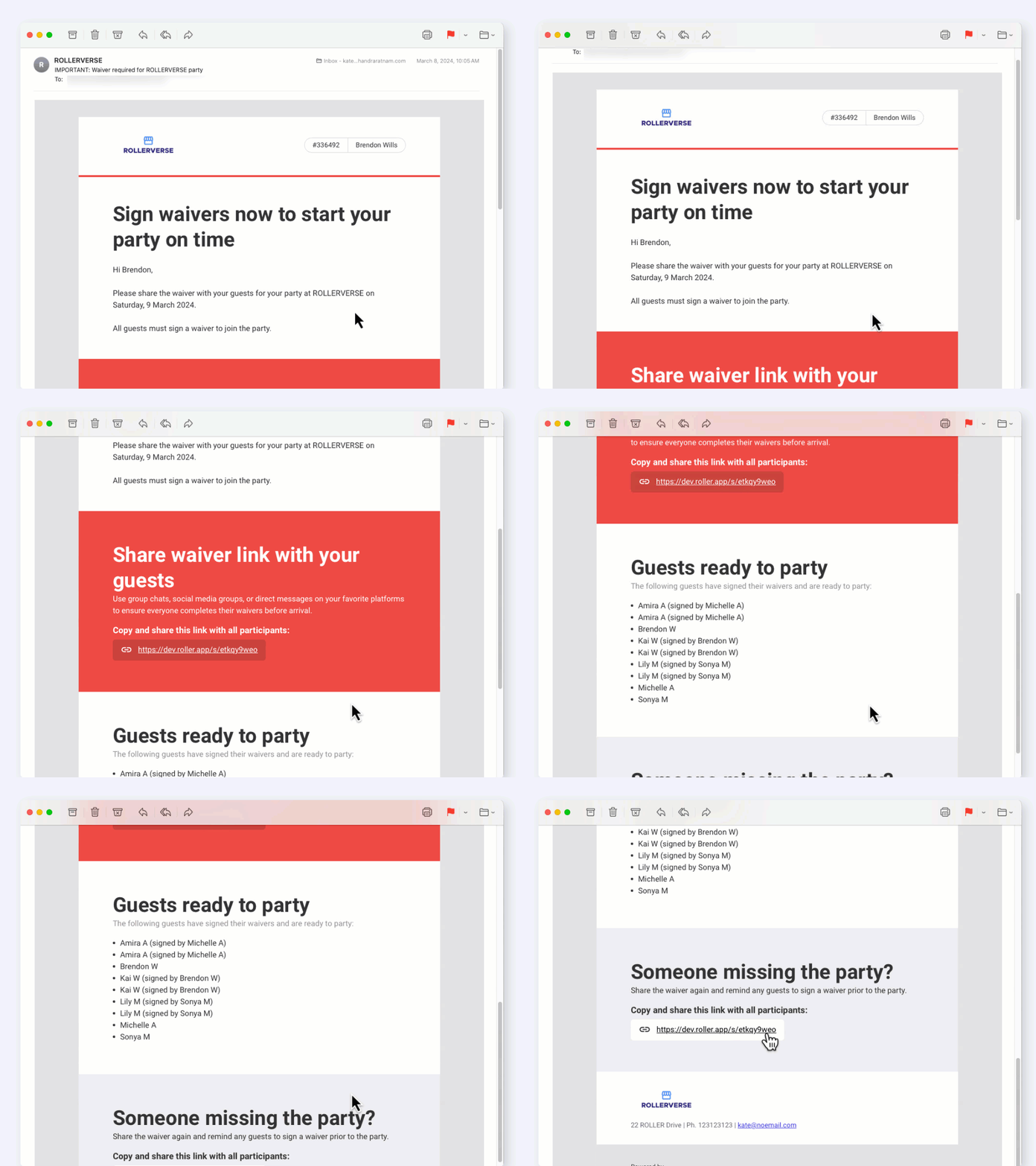
The email includes:
Your venue’s logo.
The booking ID and booking name.
Clear instructions for sharing the waiver.
An easy-to-share waiver link.
A list of guests who have already signed the waiver.
To turn on waiver reminder emails for party packages:
Open the party package product in Venue Manager.
In Additional options, enable Waiver.
Enable Waiver reminder.
Choose how many days before the event the email should be sent.
To customize the reminder email:
From Venue Manager, go to Settings > Design > Email templates.
Open the relevant reminder email template.
Update the content as needed.
Booking reminder emails (all plans except Lite Legacy)
Use this option when you want to automatically remind booking holders before their visit and prompt them to complete and share waivers for products that require them.
When enabled, the booking reminder email is sent before the booking to help guests prepare for their visit.
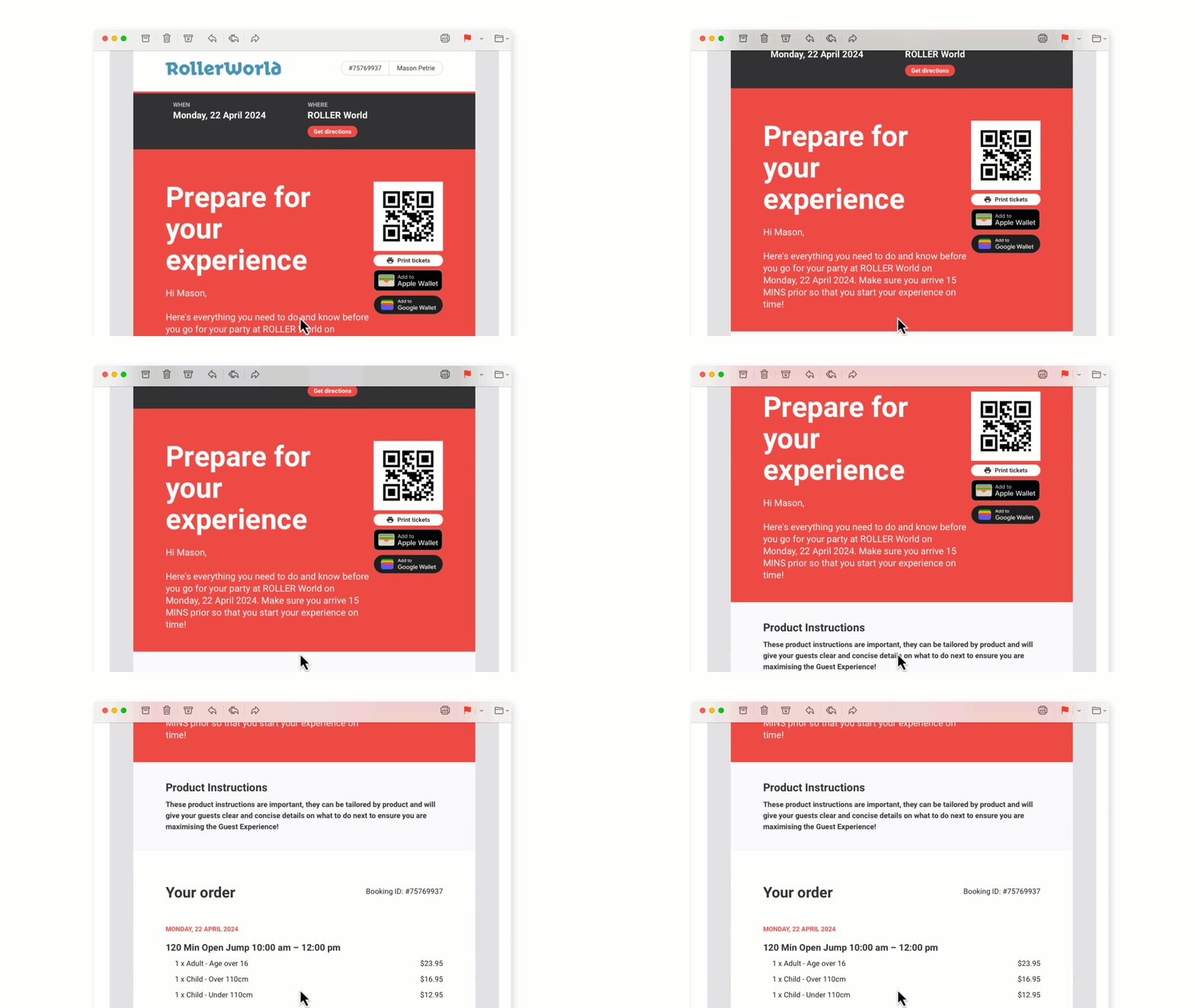
The email can include:
Time, location and directions.
A reminder to prepare for the event.
A QR code for ticket scanning and a link to download tickets.
Product-specific instructions entered in the product’s settings.
A detailed order breakdown.
A waiver prompt when the booking includes products that require waivers.
To turn on booking reminder emails:
Open the product in Venue Manager.
Scroll to Additional options.
Enable the booking reminder email.
Choose how long before the booking the email should be sent.
You can customize these emails in Settings > Design > Email templates.
Add a waiver link to your website
Use this option when you want to add a waiver link to your website so guests can sign before they buy or before they arrive.
This lets guests complete a waiver at any time. When the email they use matches a booking holder’s email, the waiver is automatically linked to the booking.
To get the online waiver link:
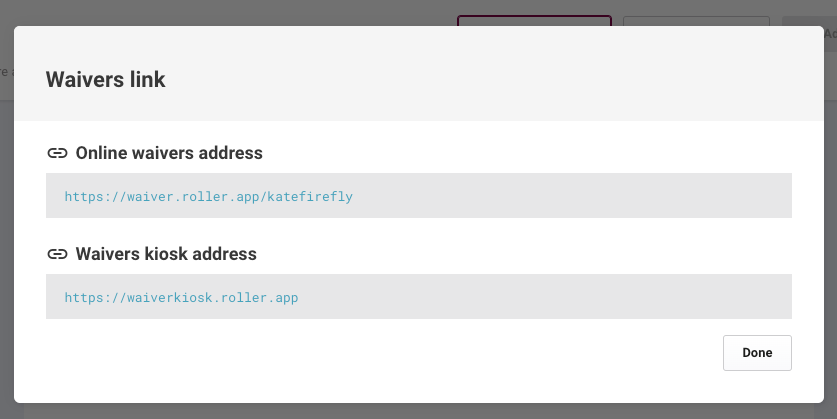
From Venue Manager, go to Documents > Waivers > Waiver details.
Select Get waivers link.
Copy the Online waivers address.
Add this address to a Sign waiver button on your website.
If loyalty is active for your venue, guests who sign from the online waiver link are prompted to join your loyalty program right after signing, then see the waiver complete page.
Help guests sign on arrival
Use these options when guests arrive without a completed waiver and staff need a fast way to help them sign before entry.
Send a waiver from POS
Scan a waiver QR code
Use a waiver kiosk
Use the self-serve kiosk flow
Send a waiver from POS when guests arrive
Use this option when guests arrive without a signed waiver and staff need to send the waiver link from POS when redeeming their tickets at POS.
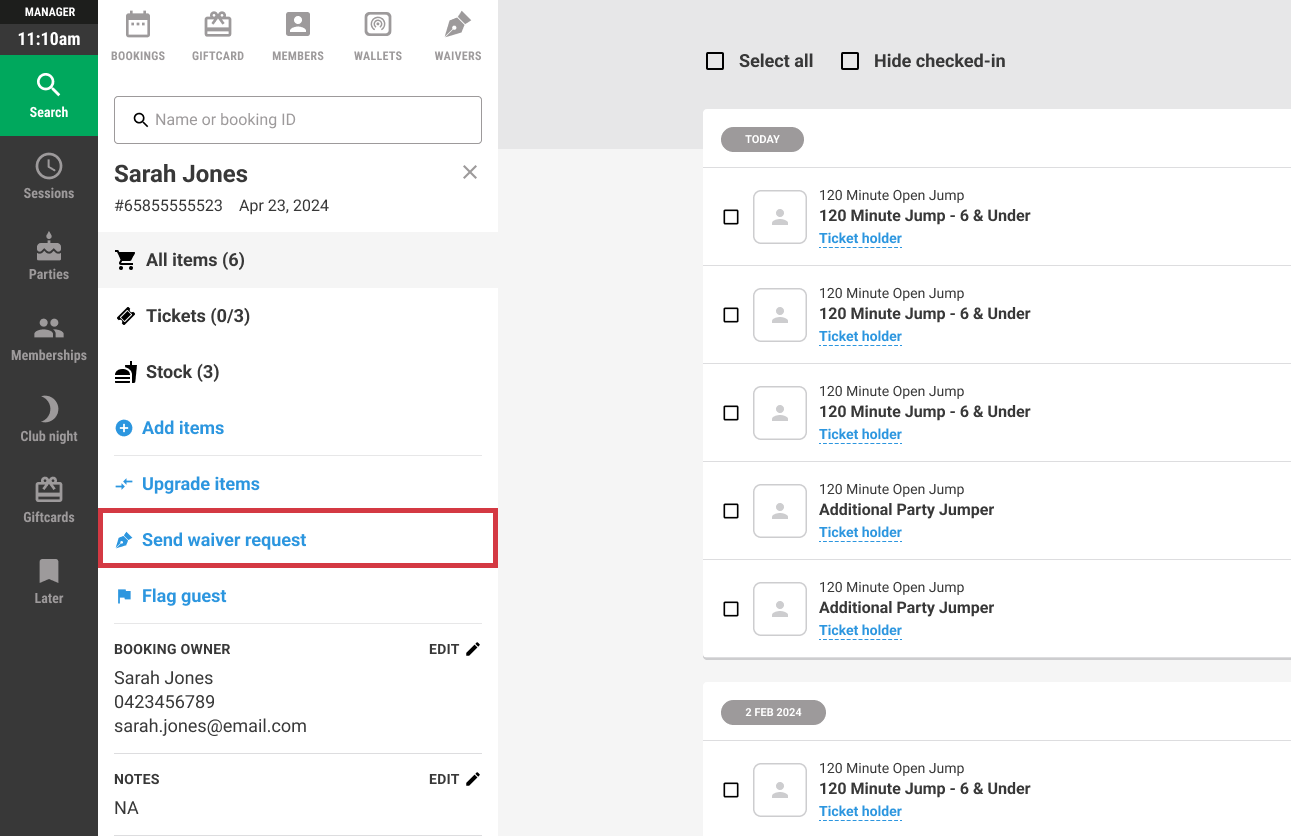
If a guest arrives without a signed waiver, staff can quickly send them a waiver link directly from POS.
To send a waiver from POS:
Open the guest booking in POS.
Select Send waiver request.
Confirm the guest details.
Select SMS waiver or Email waiver.
Scan a waiver QR code
Use this option when guests are already at your venue and need a fast self-service way to open the waiver on their phone.
By using a QR code on a poster you can allow your guests to use their own personal phones to sign waivers at your venue to improve the guest arrival flow.
To learn more, see the guide Create a waiver QR code sign for fast check-ins.
Use a waiver kiosk
Use this option when you want guests to complete waivers on-site using a dedicated device at your venue.
A waiver kiosk helps guests complete waivers on-site and stores the signed waiver in ROLLER for later use at check-in.
To get the waiver kiosk link:
From Venue Manager, go to Documents > Waivers > Waiver details.
Select Get waivers link.
Copy the waiver kiosk address.
Paste the address into Google Chrome on the device you want to use as a waiver kiosk.
To learn more, see the guides Set up a waiver kiosk and Set up and lock down a waiver kiosk.
Use the self-serve kiosk flow
Use this option when guests buy tickets at a self-serve kiosk and need to complete waivers during the purchase flow.
If you're using self-serve kiosks, guests are prompted to sign waivers during the purchase flow for standard pass and session pass tickets. This will help speed up time spent in the queue when redeeming tickets. To learn more, see the guide Create your Self-Serve Kiosk device.