The May release brings a new Multi-pass product type for repeat visits, faster POS workflows for capacity and custom ticket IDs, smarter kitchen operations, more flexible memberships and promotions, HQ analytics and scheduled, consolidated reporting and a new Google Things to do integration.
Preview new features and improvements in your Playground venue before they go live — see below for what's available to try out early. Not sure how to access Playground? The ROLLER Playground guide shows you how.
This page covers new and improved features with setup guidance, and goes live about a week before the full release. For the complete picture — every change, fix and behind-the-scenes improvement this month — see the release notes, published shortly after release.
We're always learning from venues like yours. Join our research panel to get early insights into new features and share your feedback to help shape what we build next.
Guest experience
Make it easier for guests to book, pay and enjoy their visit across checkout, memberships and on-site experiences.
Sell a multi-pass product for repeat visits (beta)
Plan: All
Preview release (Playground): No
Target release date: Tuesday 26 May (AET)
Create and sell multi-passes, giving guests a simple way to pre-purchase multiple visits and redeem them over time. This new product type encourages repeat visits and increases guest lifetime spend.
Previously, multi-passes had to be set up using workarounds like memberships or purchase-related discount codes. Now, there's a dedicated Multi-pass product type.
Guests can buy a multi-pass (for example, a 5-visit jump pack) online, at POS or through Venue Manager. When the guest books their visit, if the activity is covered in the multi-pass, the cost is automatically deducted and the remaining uses are tracked against the pass.
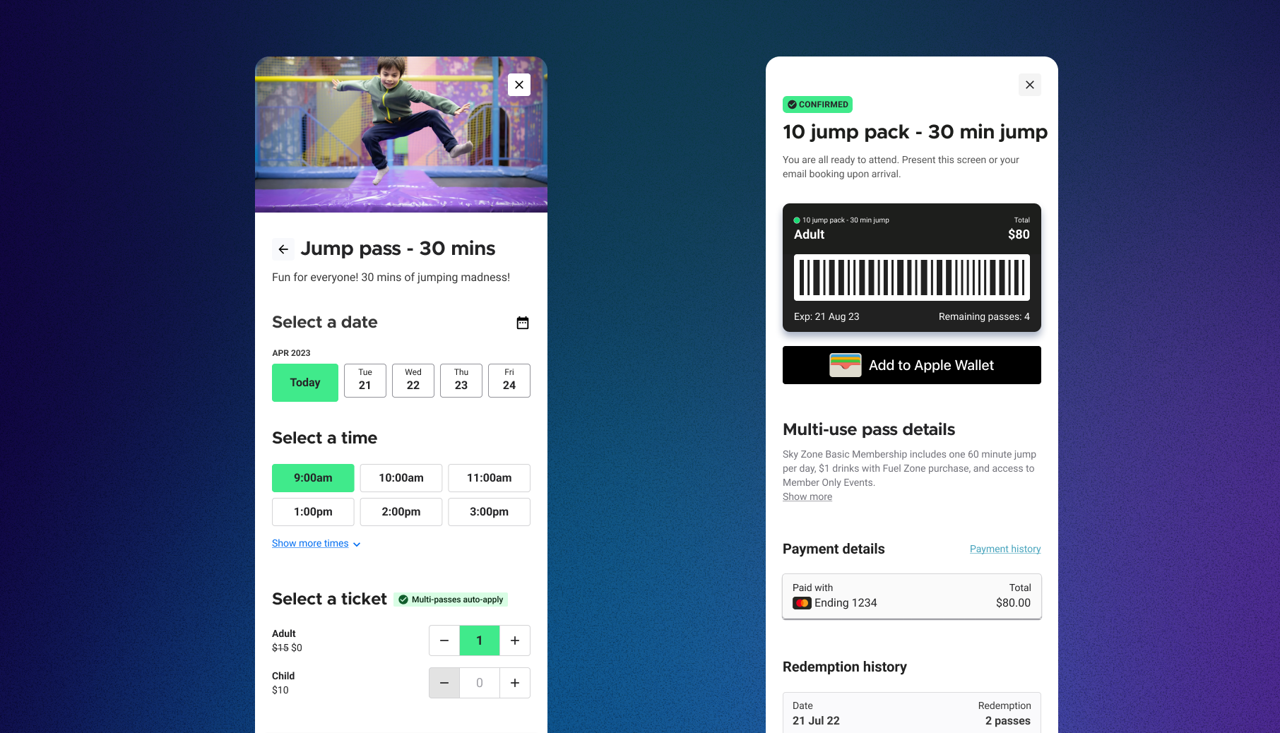
This feature is currently in beta. To enroll your venue, contact your customer success manager or our support team. To learn more, see the guide Create your multi-pass products.
Custom ticket ID workflow enhancements
Plan: All
Preview release (Playground): Yes
Target release date: Tuesday 26 May (AET)
Custom ticket ID assignment is getting workflow enhancements with this release. Venues running RFID wristbands, access control passes, vouchers or barcoded entry now have a faster way to update the Custom Ticket ID field at POS.
POS booking page enhancement
In POS, when viewing a booking, operators no longer need to click into a ticket and then into the Guest tab to reach the Custom Ticket ID field. The field is now clickable directly from the booking view by selecting the grey ticket ID number. After entering an ID, POS advances to the next empty Custom Ticket ID, so a group booking becomes an easier sequence to enter. This change requires no setup and applies to every venue.
Capture Custom Ticket ID at POS during the purchase flow
Products can now be configured with the new Custom ticket ID capture option. When enabled, the operator is prompted to scan or enter a custom ticket ID when the product is added to the cart at POS.
Each item shows the assigned ID as it's added, and by the time the order is checked out every ticket already has its Custom Ticket ID assigned — so operators don't need to go into the booking page to update. This is a workflow improvement for venues that always pair tickets (eg entry tickets) with a Custom Ticket ID.
How to set this up
From Venue Manager, go to Products.
Select the product you want to enable Custom ticket ID capture for.
Scroll down to the Additional options field and select the checkbox for Custom ticket ID capture.
Select Save.

At POS, when the product is added to the cart, the operator is prompted to enter or scan the custom ticket ID.
To learn more, see the guide Sell items and redeem discounts and memberships at POS.
End a booking early from POS Capacity View
Plan: All
Preview release (Playground): Yes
Target release date: Tuesday 26 May (AET)
When a bowling game or other resource-based session (escape room, axe throwing bay, VR room) finishes before its scheduled end time, you can now end the booking early from the Capacity View to free up capacity. The resources become available for the next booking straight away, so you can sell the next session sooner and maximize utilization.
The End session button appears 10 minutes after a session starts. The action ends the whole session, not individual resources within it — so if a booking is split over multiple resources, ending the session ends all active resources for that booking.
For the End session button to be available in Capacity View, the POS operator must have the new Can reschedule POS bookings permission enabled for their user role. This permission is included on the POS operator, booking agent, manager and administrator roles. It can also be added to custom roles.
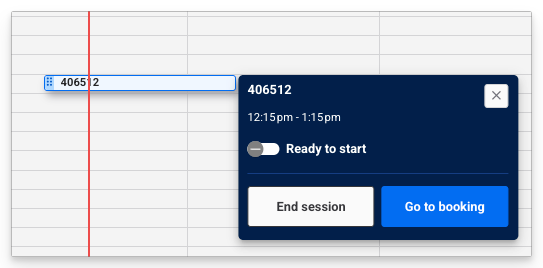
How to set up and use End session:
Enable the setting to allow operators to end sessions:
Go to Venue Manager, select Apps and Point of Sale.
Select Settings.
Scroll to the Booking management section and select the checkbox for Allow end session.

To end a session in POS capacity view:
Open Capacity View.
Select an active session that's been running for at least 10 minutes.
Select End session and confirm. This ends all resources allocated in the booking.
To learn more, see the guide Get started with POS Capacity View.
Custom session labels now appear in emails and tickets
Plan: All
Preview release (Playground): Yes
Target release date: Tuesday 26 May (AET)
Custom session labels previously only showed for guests in the online checkout — the booking confirmation email and ticket ignored the custom label and instead showed the literal start time.
From this release, if a custom session label is configured against the schedule, that label is reflected in both the confirmation email and on the ticket. Guests see consistent information across their journey. No setup is needed.
To learn more about custom sessions, see the guide Customize your ticket templates.
POS Capacity View is hidden when not in use
Plan: All
Preview release (Playground): Yes
Target release date: Tuesday 26 May (AET)
Venues that don't offer single-booking resource activities no longer see Capacity View in POS, freeing sidebar space for the features that are relevant to them.
To learn more, see the guide Get started with POS Capacity View.
New permission for POS operators to reschedule bookings
Plan: All
Preview release (Playground): Yes
Target release date: Tuesday 26 May (AET)
A new user-role permission — Can reschedule POS bookings — lets operators reschedule bookings, drag and drop in Capacity View and end sessions early, without you having to grant them full booking-edit access.
Previously, to update a booking's resource or start time (for example, to move a booking in POS Capacity View), an operator needed the Can edit booking permission. In some cases this provided more access than was needed.
To learn more, see the guide Permissions by feature and role.
The Can reschedule POS bookings permission is assigned by default to the POS operator role and can be added to custom POS roles. It's also enabled by default on the booking agent, manager and administrator system roles.
When the May release goes live, the Can reschedule POS bookings permission on any custom staff role will match the existing Can edit booking permission for that role so you won't experience unexpected permission changes.
Kitchen display system (KDS) now shows the sales channel
Plan: All
Preview release (Playground): Yes
Target release date: Tuesday 26 May (AET)
Previously, there was no way to tell where an order originated from on KDS — for example, POS or mobile checkout.
Color coding now shows on displays to indicate the sales channel each order came from, with a different color per channel. Kitchen staff can see at a glance where an order originated without checking with other team members.
You can also customize the default colours in KDS settings to suit what works best for your kitchen.
To learn more, see the guide Integrate with Fresh KDS and configure your devices.
New Stock Sales report
Plan: All
Preview release (Playground): Yes
Target release date: Tuesday 26 May (AET)
The new Stock Sales report gives you a dedicated view of merchandise and food & beverage sales over any date range. Use it to answer questions like "how much am I making on this item?". This report is helpful to discover higher-margin products to help boost revenue, or decide against discounting something that would eat into margin.
This is an operations report designed to support operational decisions. It isn't a financial report for accounting or tax reporting. See the Accounting section of the Reports page for financial reports.
For each stock product, the report shows:
Stock type: distinguishes between Food & beverage items and retail merchandise.
Qty sold: how many of the item were sold in the specified time period.
Unit price: how much the guest paid for the item at purchase.
Unit cost: how much it cost the venue to sell this item (the COGS value).
Total COGS: how much it cost the venue to sell the quantity of items over the specified period (Unit cost × Qty sold).
Gross profit: how much profit the venue made after the cost of goods sold on the quantity sold of this item over the specified period.
Margin: the difference between unit price and unit cost, shown as a percentage.
Gross sales: the sales revenue from selling the items before factoring in COGS.
You can also filter by product to show different variations of the same product (stock products only) or by stock type to drill down into just F&B or retail merchandise.
To access the report:
In Venue Manager, go to Reports.
Scroll to the Sales section.
Select Stock Sales.
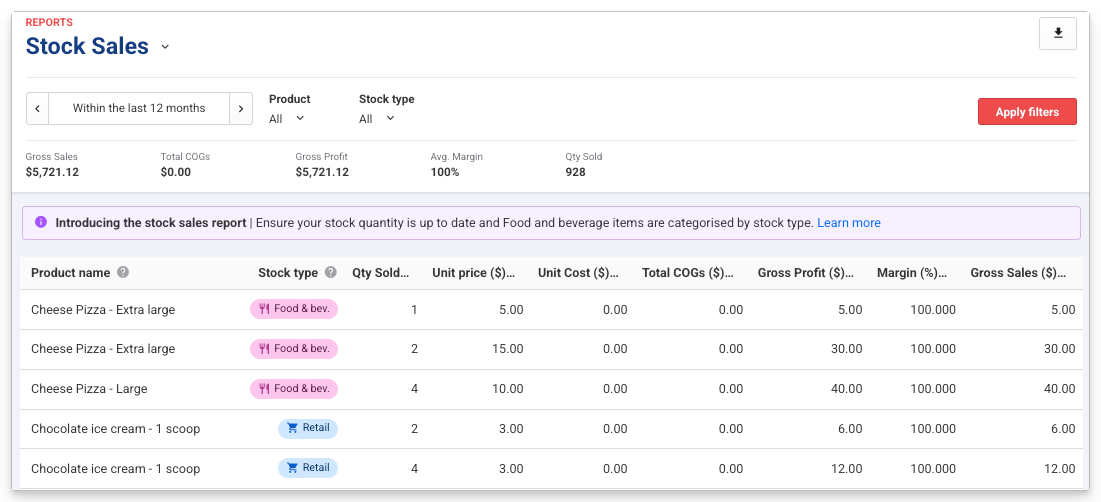
Make sure the report shows accurate data for your venue
To ensure the report is accurate, make sure the cost of goods is entered correctly on all stock products and that F&B items are classified as such. Without this, the profit, margin and stock-type values in this report will be misleading.
To track cost and margins for a stock item, make sure each stock variation has a COGS value entered:
From Venue Manager, go to Products > Stock.
Select the stock product to update.
Scroll to the Stock details section.
For each stock variation, check or enter a value in the COGS field.
Select Save.
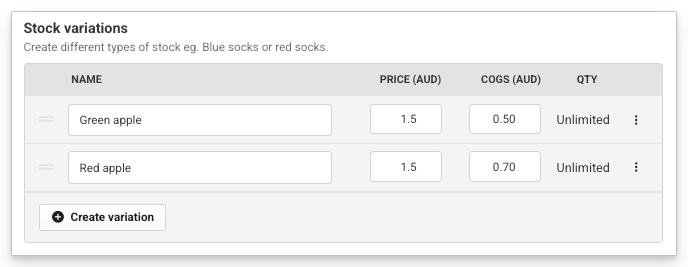
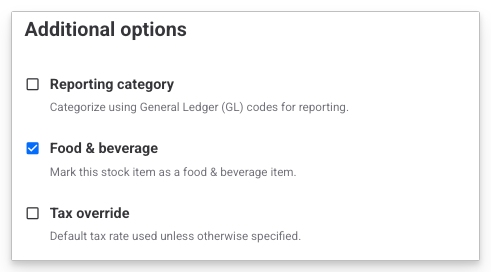
For each F&B product, make sure it's labeled as Food & beverage:
Scroll to the Additional options section of the product page.
Ensure the Food & beverage checkbox is selected.
Select Save.
To learn more, see the guide Stock Sales report.
Printed dockets now show the booking holder and sales channel
Plan: All
Preview release (Playground): Yes
Target release date: Tuesday 26 May (AET)
Previously, the way production dockets were laid out, the kitchen had no way to tell who an order was for or where it came from.
In this release, the docket header now shows:
The guest's name
The booking number
Sales channel: indicated by a POS or Online tag
Your kitchen can fulfill and call out orders, and know where each order came from, without checking with other team members.
Refreshed POS device settings layout
Plan: All
Preview release (Playground): Yes
Target release date: Tuesday 26 May (AET)
Settings for POS devices are now grouped under clearer section headings, so it's easier to find what you're looking for and understand how related toggles work together.
Other than the cash drawer enhancements (covered in the next item), the settings and their behavior are unchanged.
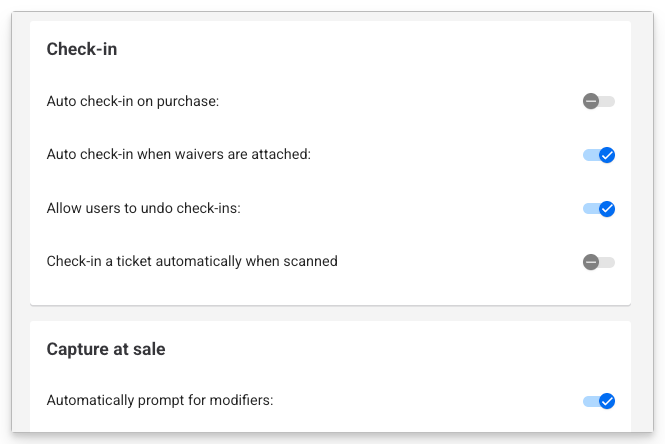
To learn more, see the guide Manage individual POS device settings.
Decouple cash drawer opening from receipt printing in POS
Plan: All
Preview release (Playground): Yes
Target release date: Tuesday 26 May (AET)
Previously, opening the cash drawer was tied to receipt printing — there was no way to prevent the cash drawer from popping each time a receipt was printed.
Now, the POS device settings page has been refreshed so you can control cash drawer behavior independently of receipt printing. This avoids cash drawers being exposed unnecessarily and reduces the risk of theft.
These settings are only available for venues using Cloud printing.
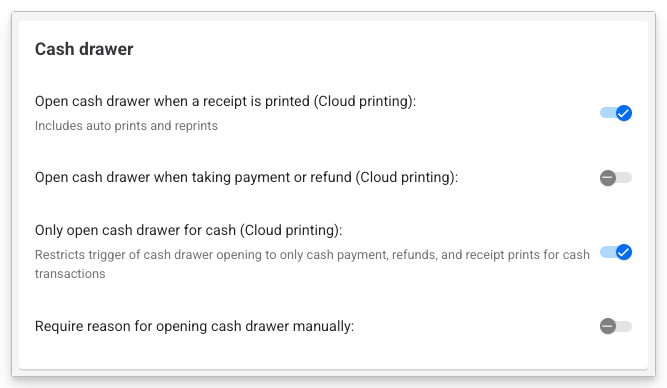
The refreshed settings give you more control over when the cash drawer should and shouldn't open:
Open cash drawer when a receipt is printed (Cloud printing) — new setting, enabled by default. Includes auto-prints and reprints. Controls all printing scenarios.
Open cash drawer when taking payment or refund (Cloud printing) — existing setting, renamed. Now independent from the auto-print receipt setting.
Only open cash drawer for cash (Cloud printing) — existing setting, renamed. Only relevant if one of the two settings above is enabled.
Require reason for opening cash drawer manually — unchanged. Switched off by default.
Update POS device settings
Launch the POS device you want to update.
Go to Settings and select Device.
Scroll to the Cash drawer heading and use the toggles to switch settings on and off.
Select Save.
Common scenarios
Default settings: the cash drawer only opens when a receipt is printed that's associated with a cash payment:
Open cash drawer when a receipt is printed (Cloud printing): on ✅
Open cash drawer when taking payment or refund (Cloud printing): off ❌
Only open cash drawer for cash (Cloud printing): on ✅
Cash drawer opens for all transactions (guest payments, refunds, and all receipt prints - auto, manual and reprints):
Open cash drawer when a receipt is printed (Cloud printing): on ✅
Open cash drawer when taking payment or refund (Cloud printing): on ✅
Only open cash drawer for cash (Cloud printing): off ❌
Cash drawer opens for all guest payments and refunds only (any payment method, but not for receipt printing):
Open cash drawer when a receipt is printed (Cloud printing): off ❌
Open cash drawer when taking payment or refund (Cloud printing): on ✅
Only open cash drawer for cash (Cloud printing): off ❌
Cash drawer opens for cash payments and cash refunds only:
Open cash drawer when a receipt is printed (Cloud printing): off ❌
Open cash drawer when taking payment or refund (Cloud printing): on ✅
Only open cash drawer for cash (Cloud printing): on ✅
To learn more, see the guide Manage individual POS device settings.
Set custom billing intervals for recurring memberships
Plan: All
Preview release (Playground): Yes
Target release date: Tuesday 26 May (AET)
You can now offer recurring memberships with custom billing intervals — for example, quarterly or multi-month memberships. This gives you flexibility to align payment frequency with guest behavior and business goals, without changing how memberships renew, bill or report.
Flexible intervals let you:
Offer memberships that renew every few days, weeks, months or years (eg every 3 months, every 2 weeks).
Create pricing models that support cash-flow predictability.
Match payment cadence to guest visit patterns.
Introduce new membership tiers without impacting existing memberships.
Keep existing memberships and reporting unchanged.
How flexible billing intervals work
Instead of selecting a fixed frequency (eg Monthly), you can define:
A multiplier (eg 3)
A time unit (Days, Weeks, Months, or Years)
For example:
3 × Months = a membership that renews every three months
6 × Months = a biannual membership
You can set intervals between 1 day and 3 years. Shorter or longer intervals aren't supported.
Behind the scenes, memberships continue to auto-renew, process recurring payments and appear consistently across POS, online checkout, guest accounts and emails.
To learn more, see the guide Create a membership product.
Recurring membership discounts
Plan: All
Preview release (Playground): Yes
Target release date: Tuesday 26 May (AET)
A recurring membership discount lets you set up a percentage or fixed-amount discount across a specified number of billing cycles on recurring memberships. Use this for sign-up intro offers, senior discounts, win-back offers and more. Applies to both group and individual membership products.
HQ venues can create recurring discounts for managed venues, available in online checkout and at POS.
How it works
The setup flow mirrors the standard discount code setup — availability, purchase limits and discount type. You can apply the discount as either a fixed amount or a percentage. A new option under Products lets you select the recurring memberships product type.
Then choose the discount duration:
Fixed duration — a fixed number of billing cycles (eg the first 2 recurring payments).
Indefinite — every payment for the lifetime of the membership.
Once saved, the discount type, value and duration are locked. Existing products on the discount can't be removed (new products can still be added). This is deliberate — it prevents an active membership from being modified mid-billing-cycle.
Example: set up a membership intro offer
A membership intro offer is set up as a recurring membership discount with a fixed duration of the first few billing cycles. In this example, the venue is offering 30% off for 3 months on a monthly Adult jump pass.
From Venue Manager, go to Products > Discount codes.
Select Create a discount code.
Add a discount name — for example, Intro offer: 30% off for 3 months.
In Discount type, select Percentage.
In the Value field, enter 30.
Under Products, select Recurring memberships.
Use the drop-down to select the monthly Adult jump pass product.
Under Discount duration, select Fixed duration and enter 3 in the billing cycles field.
Set Availability and Additional options, then select Save.
To learn more, see the guide Offer discounts on recurring memberships.
Venue operations
Run day-to-day operations across one or many locations, plus integrations to keep everything connected.
Apply early bird and time-based price rules to party packages (beta)
Plan: All
Preview release (Playground): No
Target release date: Phased rollout in beta from Tuesday 26 May (AET)
You can now apply early bird and time-based price rules to party packages, the same way you already can with session passes and standard passes. Reward guests who book ahead, or shape demand across the week with weekday, weekend or off-peak pricing, without manually creating separate party package products.
This is useful if you want to drive earlier party bookings, lift weekday utilization, or apply a premium to your highest-demand slots. Quantity-based price rules aren't supported for party packages in this beta.
To enable party package support for time-based and early bird price rules at your venue, reach out to your customer success manager or the support team.
To get started:
From Venue Manager, go to Products > Price rules and create an early bird or time-based rule, following the existing guides.
Open your party package product, scroll to the new Price rule section, and select your rule from the Price rule drop-down.
To learn more, see the guide Get started with price rules.
Bulk assign custom ticket IDs in Venue Manager
Plan: All
Preview release (Playground): Yes
Target release date: Tuesday 26 May (AET)
You can now bulk assign or remove custom ticket IDs across all tickets in a booking, instead of editing each one individually. From the Items tab on the booking details page in Venue Manager, set a starting ID and either an end ID or a quantity, and the tickets receive sequential IDs in one action. Use this option for large group bookings where manual wristband assignment can take hours.
To get started:
From Venue Manager, find and open the booking.
Open the Items tab.
Select Edit custom ticket IDs.
Under Product, choose the product these ticket IDs apply to. If there are multiple variations, please select one.
Select Assign custom ticket IDs.
Under Ticket ID range, enter a Start ID, then either an End ID or a Quantity. Custom IDs can be alphanumeric (eg TICKET01, TICKET02, TICKET03).
Select Assign ticket IDs.
Select Save.
Repeat with other products or variations in the booking.
Search the Attendance report by ticket ID
You can now search the Attendance report by ticket ID, and the Ticket ID column appears in the report by default. Previously, you could only search by booking name or booking ID.
To learn more, see the guide Bulk assign custom ticket IDs in Venue Manager.
Close online sales for session passes based on operating hours
Plan: All
Preview release (Playground): Yes
Target release date: Tuesday 26 May (AET)
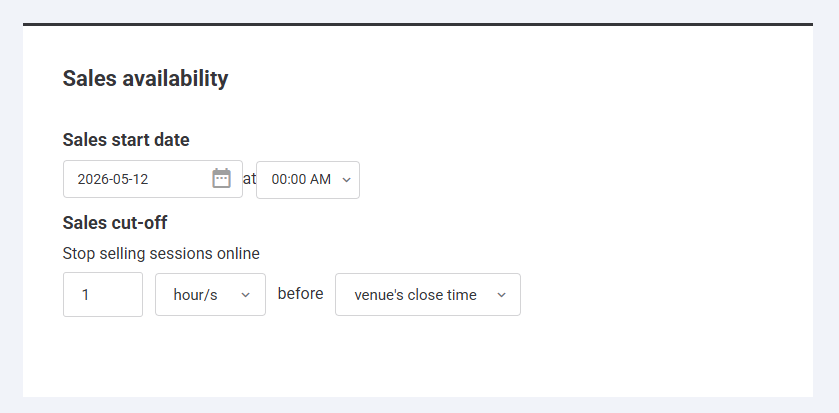
You can now base the online sales cut-off for a session pass on your venue's operating hours, not just session start time. Previously, the cut-off was always set a fixed amount of time before each session began. The new option closes online sales a set amount of time before your venue closes for the day.
This is useful when you want online sales to close a set amount of time before closing, to ensure guests get the maximum value out of their ticket. The venue's close time option is only available when you use operating hours.
To get started:
From Venue Manager, go to Products and open a session pass.
Scroll to Sales availability.
Under Sales cut-off, choose session start time or venue's close time.
Set how long before the chosen reference point online sales should close.
Save the product.
To learn more, see the guide Create your session pass products.
Set up guest segments at HQ and restrict discounts by segment
This release expands what you can do with guest segments in two ways. You can now set up segments at HQ and push them to your managed venues, keeping segment definitions consistent across your group. You can also restrict a discount so it's only redeemable by guests in selected segments, useful for targeted promotions like VIP-only deals, win-back offers, or member-only pricing.
Set up guest segments at HQ (beta)
Plan: Pro and above
Preview release (Playground): No
Target release date: Tuesday 26 May (AET)
Previously, segments could only be created at the individual venue level, because guests don't exist at HQ. With this release, you can now set them up centrally at HQ and have them automatically published to every managed venue in your group.
When you save a segment at HQ, it's pushed to your managed venues with an HQ tag, so venue staff can see which segments are managed centrally. ROLLER automatically maps existing guests at each managed venue to the new segment.
The staff permissions Can manage HQ guest segments and Can access segment settings are required.
To get started:
From Venue Manager at your HQ, go to Guest > Segmentation > Segments.
Select Create segment, or open an existing segment to edit.
Define your segment criteria (eg lifetime spend, visit frequency).
Select Save. The segment is pushed automatically to your managed venues with an HQ tag.
To enable HQ guest segments for your venue, contact your customer success manager or the support team.
Restrict a discount to specific guest segments
Plan: Pro and above
Preview release (Playground): Yes
Target release date: Tuesday 26 May (AET)
You can now limit a discount so it's only redeemable by guests in a selected segment. For the discount to apply, the guest needs to be identified: in Venue Manager, the booking holder information must be completed by venue staff; at online checkout, the guest needs to complete their information.
Pair this with HQ segments to roll out group-wide promos, or use it at the individual venue level to target your own segments.
To get started:
From Venue Manager, go to Products > Discount codes > All codes, then create a new discount or open an existing one.
Scroll to Additional options.
Select the Limit to specific guest segments checkbox.
Choose one or more segments from the drop-down.
Save the discount.
To learn more, see the Set up guest segments at HQ (beta) and Discount codes in ROLLER guides.
Set up game-based sessions and resource-based pricing for any venue
Plan: All
Preview release (Playground): Yes
Target release date: Tuesday 26 May (AET)
You can now set up two new options on session passes: a new session structure (game-based) and a new pricing model (resource-based). Choose the option that best suits your activity type:
Use game-based sessions when you want to charge per guest and have the session duration scale with group size (eg ten minutes per bowler). The more guests in the booking, the longer the session - no manual calculation needed.
Use resource-based pricing when you want to charge per resource regardless of guest count (eg a flat price to rent a whole lane, room or booth).
Game-based sessions: session duration scales automatically with group size
A game-based session has a duration that scales with the number of guests, and pricing is charged per guest. The more guests in the booking, the longer the session runs and the more the booking costs. For example, a session set to 10 minutes per guest with a booking of six guests is automatically allocated 60 minutes. Use this when each guest needs their own time on the resource, like a fixed time per player on a bowling lane or in an axe throwing booth.
To get started:
From Venue Manager, go to Products > Create product > Session pass.
Complete the relevant details and scroll to Session pass details.
Via the Resource list, assign a single-booking resource (eg lanes, bays, rooms). Multi-booking resources are not currently supported for game-based sessions.
Under Session duration, enter the duration in mins, then select per guest from the drop-down.
Save the product.
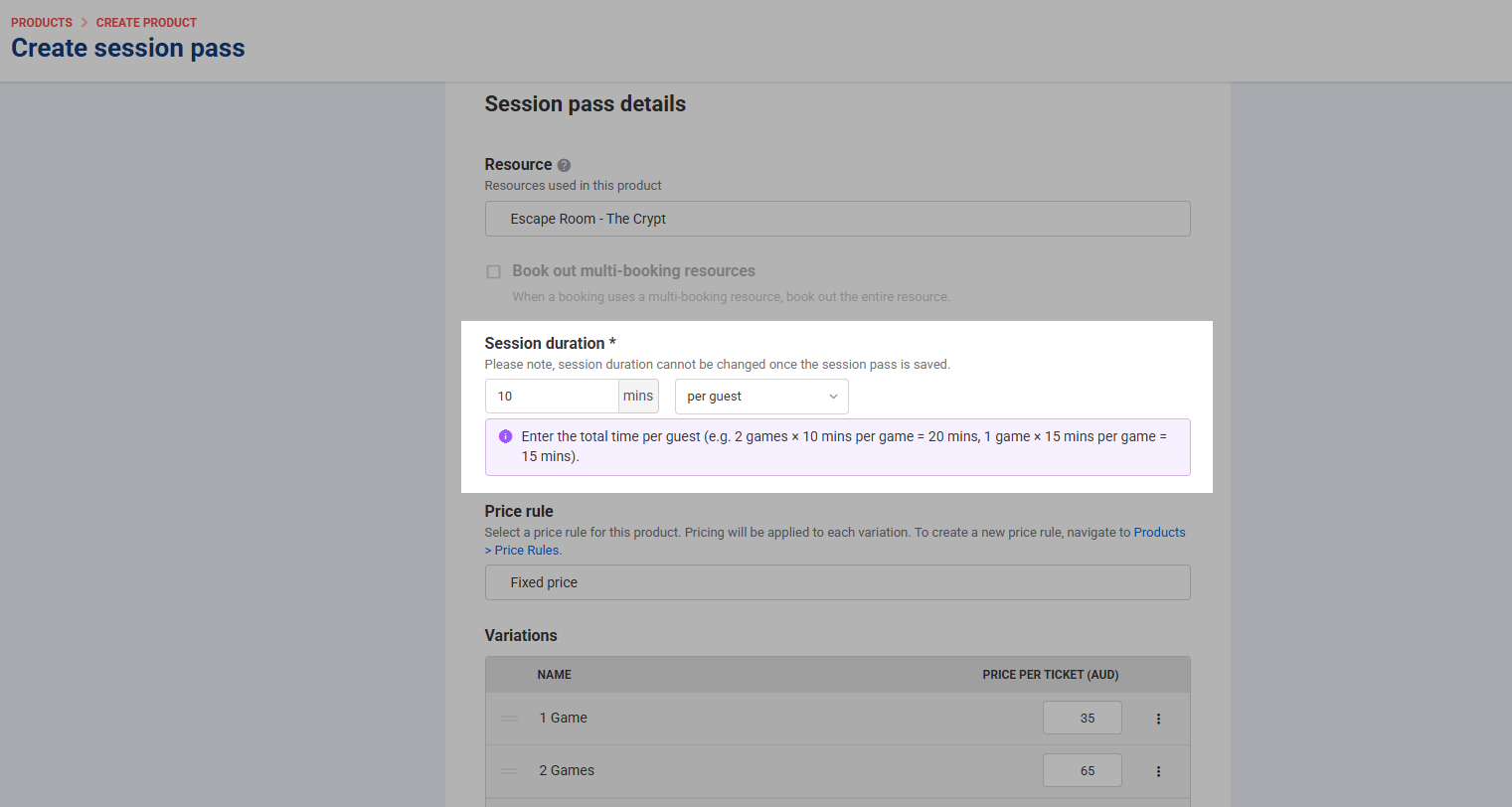
The session duration can't be changed once the session pass is saved, so confirm the length and session type before saving.
When a group is bigger than a single resource can hold, ROLLER automatically splits the booking across adjacent resources. All split resources share the same end time, so the whole group finishes together regardless of which resource each guest ends up on. Bookings only succeed when enough adjacent resources are available; overbooking isn't allowed.
Resource-based pricing: charge per resource, not per guest
Resource-based pricing on a session pass charges per resource (lane, bay, room, course, booth) rather than per guest.
ROLLER works out how many resources are needed based on guest count, but the price is fixed per resource regardless of how many guests are in each group. Use this when you want to rent out whole areas at a flat rate, like one lane for up to six bowlers, one karting heat for up to twelve racers, or one escape room slot for up to eight guests.
To set up resource-based pricing, set Session duration to per session and configure the Group ticket section to define how guests pick a group size at checkout. The Group ticket section is only available when the session duration is set to per session.
To get started:
From Venue Manager, go to Products > Create product > Session pass.
Complete the relevant details and scroll to Session pass details.
Via the Resource list, assign one or more resources (eg lanes, bays, rooms, courses, booths).
Under Session duration, enter the duration in mins and select per session from the drop-down. If you attach a multi-booking resource, per session is selected automatically.
Scroll to Group ticket and choose how groups are sold:
Number of groups is selected at time of purchase: guests pick how many resources (groups) they want to book. Use the Admit guests field to set the capacity per resource (eg six bowlers per lane).
Number of guests is selected at time of purchase: guests pick how many people are attending, and ROLLER calculates how many resources are needed automatically.
Save the product.
In both Group ticket modes, pricing is charged per resource. The two modes only change how guests enter the booking quantity at checkout.
To learn more, see the Create your session pass products guide.
Turn Google searches into bookings with the Google Things to do integration
Plan: All
Preview release (Playground): No
Target release date: Tuesday 26 May 2026 (AET)
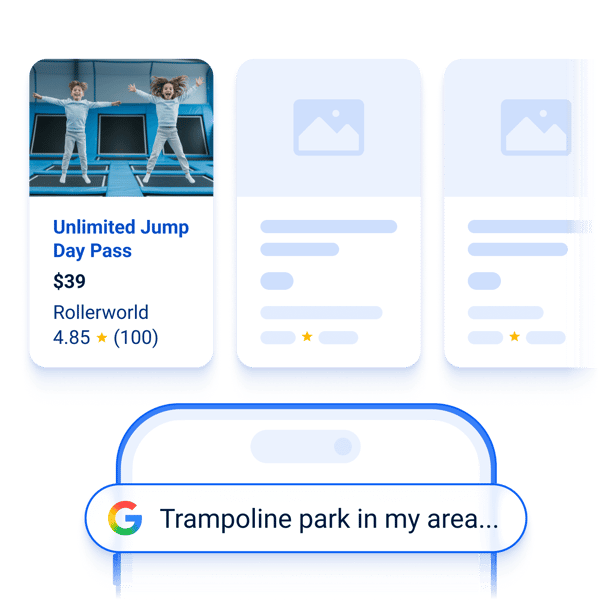
Guests are already searching for things to do on Google — now your venue can show up where they're looking. With the Google Things to do integration, your ticketed experiences appear directly on Google Search, Maps and Travel, with a link straight to your ROLLER checkout. No extra marketing spend. No third-party booking fees.
When a guest searches for an attraction near them, your listed products appear with your venue name, ticket price and an Official Site tag. Selecting a ticket takes them straight to your checkout to complete the booking.
To use this integration, your venue needs to be on ROLLER Payments with progressive checkouts. The integration is free — there are no Google commission costs for direct bookings through your checkout.
To get started:
From Venue Manager, go to Settings > Integrations > Channel partners.
Select the Google Things to do tab, then select Activate feature.
Accept Google's supplementary terms — you must be the account owner to do this.
Search for and select your venue's Google Maps location to generate your Place ID.
Open each product you want to list, scroll to Additional options, select Google Things to do.
Choose the product variation (Adult if available) and checkout, then select Save.
Google reviews your feed before listings go live. Once live, you can check performance, impressions and clicks in Google's Actions Center.
To learn more, see the guide ROLLER + Google Things to do integration.
Retrieve bookings by ticket ID with the ROLLER API
Plan: All plans with API access
Preview release (Playground): No
Target release date: Tuesday 26 May (AET)
A new ticket ID parameter has been added to the ROLLER GetBookings API. Integrated systems such as gate and access control can now search for a booking using either a ROLLER-generated ticket ID or a custom ticket ID — for example, the ID encoded on a pre-printed custom wristband.
Where a custom ticket ID has been assigned to multiple tickets at POS, all associated bookings are returned.
If no match is found, the API returns an empty result rather than an error. The parameter can also be combined with other filters such as date, product or location to narrow results further.
Merge cashless card balances
Plan: All plans (except Legacy)
Preview release (Playground): No
Target release date: Tuesday 26 May (AET)
Guests often end up with multiple cashless cards — from a lost card replacement, a return visit or a split purchase. Your staff can now consolidate those balances onto a single card at POS, without workarounds or manual overrides.
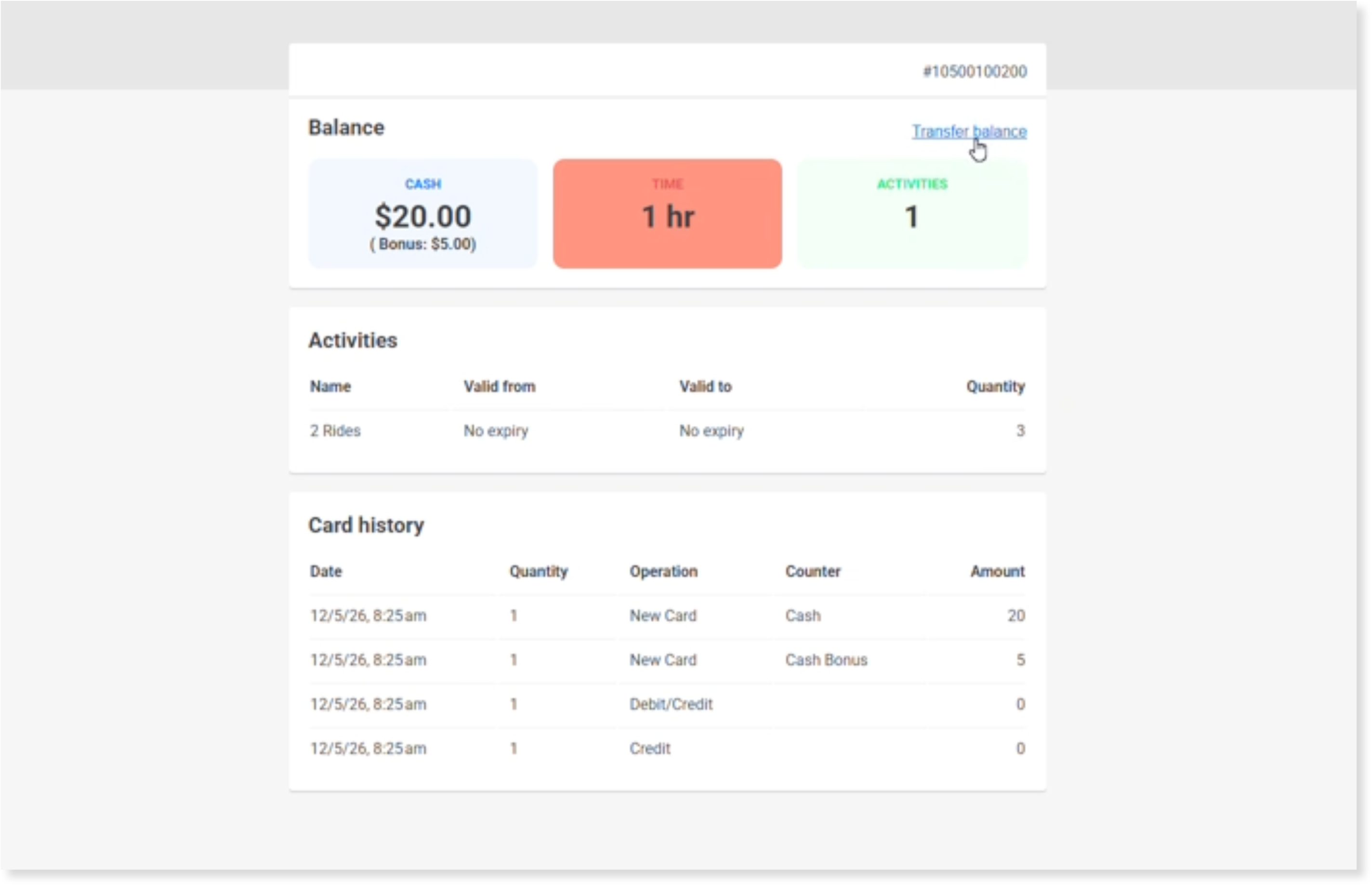
From the cashless card record at POS, select the transfer balance option, enter the destination card and ROLLER moves all balances — cash, time and activities — across in one action. The destination card's history records the consolidation so you have a full audit trail. This feature is available for venues using Sacoa and Intercard.
To get started:
From POS, open the guest's cashless card record.
Select Transfer balance at the top right.
Review the current card's balances shown.
Enter the destination card details.
The destination card opens, showing the updated balance and a card consolidation entry in the card history.
To learn more, see Sell and manage cashless cards.
Assign cashless cards to a whole group at once
Plan: All plans (except Legacy)
Preview release (Playground): No
Target release date: Tuesday 26 May (AET)
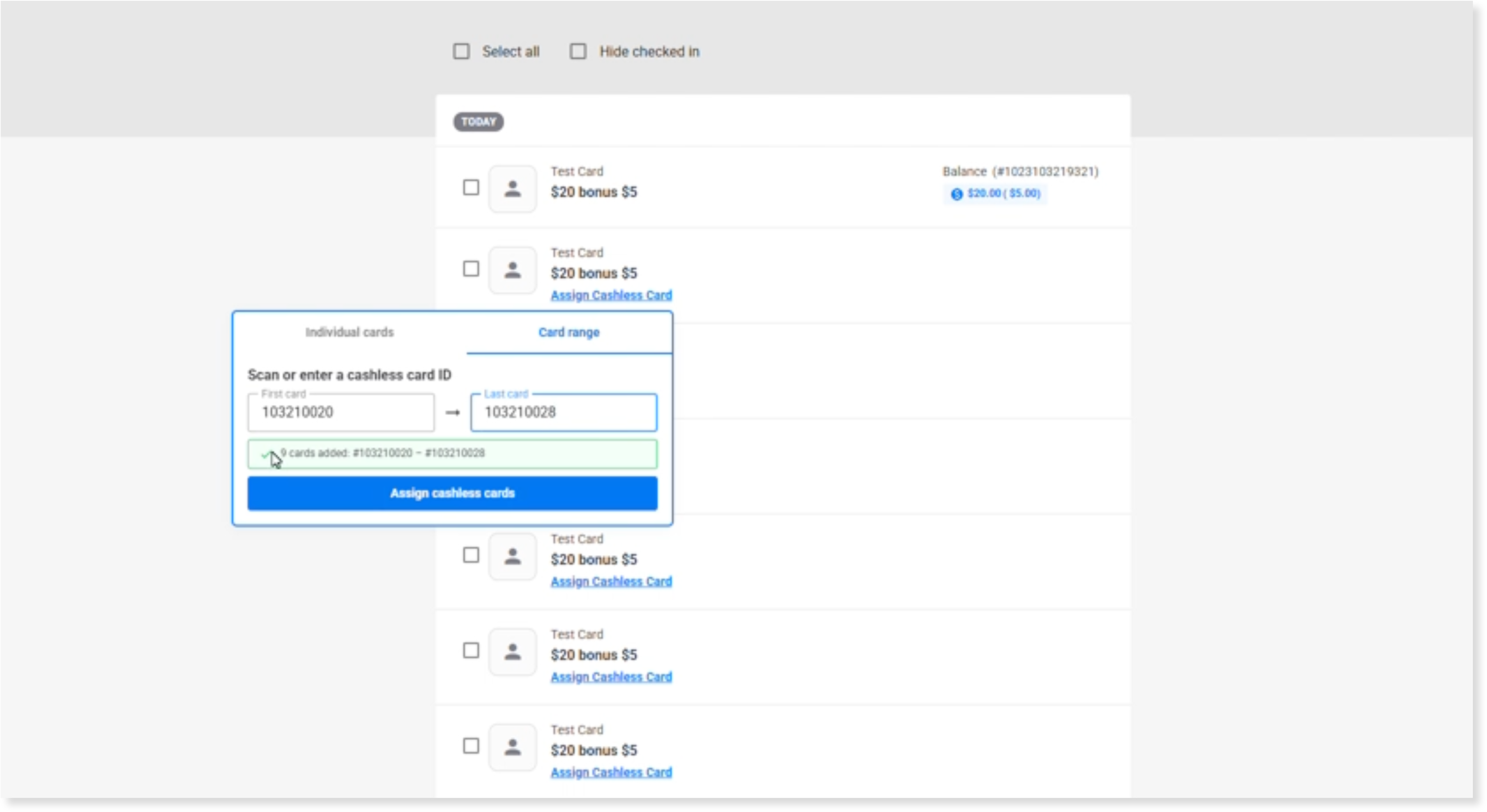
Assigning cashless cards to large group bookings just got a lot faster. POS now includes a bulk card assignment option — so instead of scanning and assigning cards one by one for every item in a booking, your staff can assign an entire range of cards in a single action.
Cards typically come in sequential sleeves with a first and last card number. Staff scan the first and last card in the sleeve, and POS automatically assigns every card in the range to the booking — all at once. This works for both new bookings sold at POS and existing online group bookings being handled at the front desk. For bookings where cards aren't sequential, staff can still assign cards individually using the same process. The feature works across Sacoa, Intercard and Amusement Connect.
To get started:
Open the booking at POS.
Select Assign cashless card for the first cashless card item listed.
In the popup, choose to assign individual cards or a card range.
For a range: scan or enter the first card number, then the last.
Confirm the card count and select Assign cashless cards.
All cards are automatically assigned.
For individual assignment: scan or enter the card number and confirm.
To learn more, see Sell and manage cashless cards.
View Sacoa kiosk sales in ROLLER (beta)
Plan: All (except Legacy)
Preview release (Playground): No
Target release: Tuesday, 26 May 2026 (AET)
Sacoa kiosk sales now sync into ROLLER every hour, so you can view kiosk revenue alongside your other transactions without manual reconciliation.
When a guest purchases at a Sacoa kiosk, the sale appears in ROLLER as a booking — annotated with the Sacoa POS name and invoice number, and including the external booking ID and payment records. Filter by Cashless card provider in the Channel filter of your Detailed Transactions report to see kiosk revenue separately from other sales.
To use this feature, a cashless card product must be set up for your venue in ROLLER. The sync uses the tax rate on that product to create bookings.
To learn more, see the guide ROLLER + Sacoa integration. To enable the sync, contact your customer success manager or the support team.
Sell activity-based cashless card products for Amusement Connect and Intercard
Plan: All (except Legacy)
Preview release (Playground): No
Target release: Tuesday, 26 May 2026 (AET)
Following activity support for Sacoa cashless cards, you can now sell activity-based cashless card products through ROLLER for Amusement Connect and Intercard. Set quantity rules per activity — single-use or multi-use — and tie access to a session window or party package duration. Activities are configured in your provider's system and synced to ROLLER, where you can link to them in the cashless card product setup, then sell them at POS, through online checkout or bundled into a party package.
To learn more, see Get started with cashless cards.
HQ analytics: Make more impactful decisions with your data in one place
Plan: Available to all HQ venues
Preview release (Playground): No
Target release date: Tuesday 26 May (AET)
HQ analytics is out of beta and available to all HQ venues — pre-built dashboards and reports that pull performance data from all your managed venues into one view, without exports or spreadsheets.
Instead of running reports venue by venue, you can track performance trends, compare locations side by side, and monitor key metrics across revenue, guest activity and product sales.
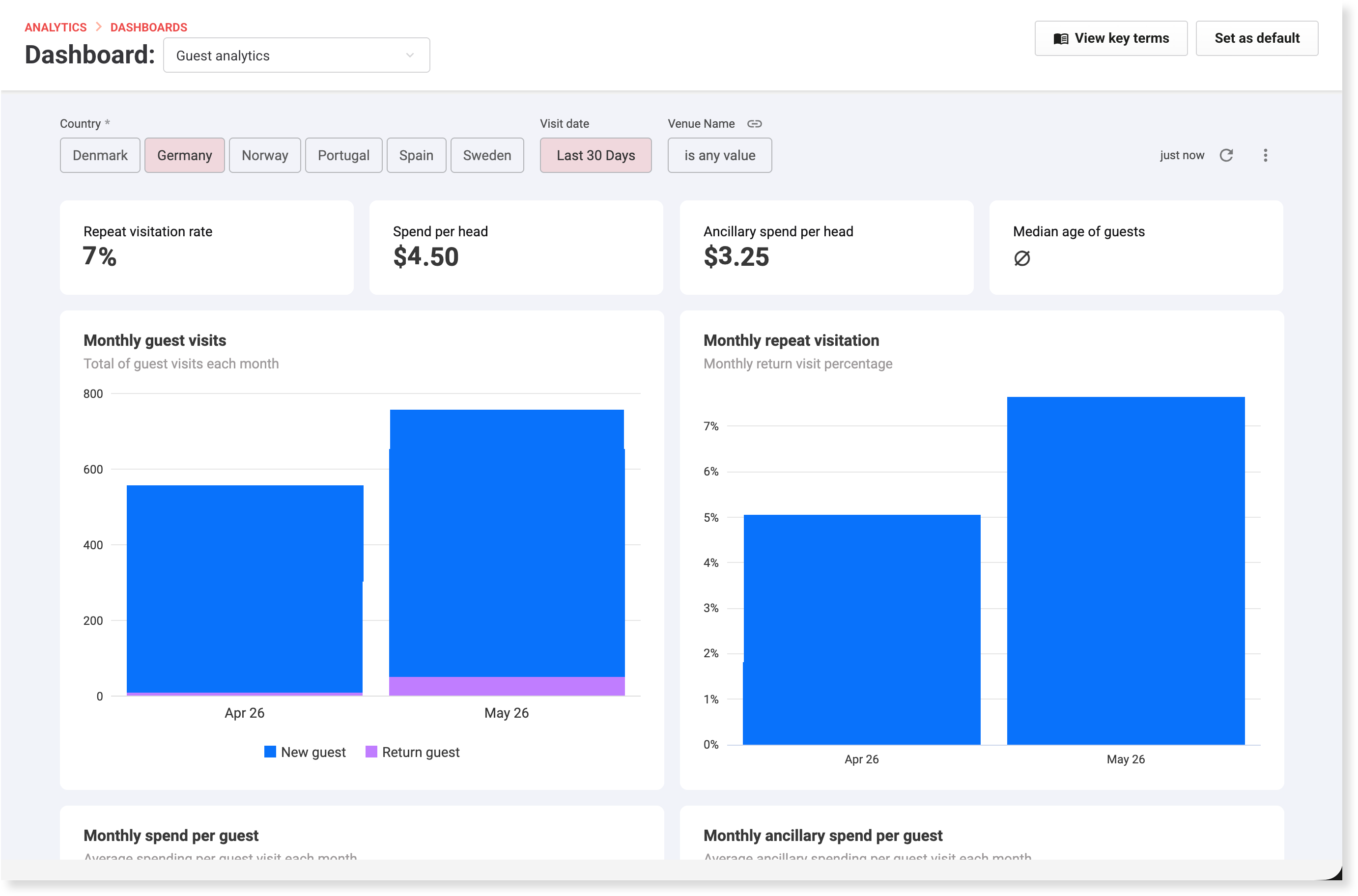
For groups operating across multiple countries, country filtering is available across all dashboards and reports so you can view performance by region and account for currency differences.
Country filters are required to load data — no data appears until you select at least one country. By default, no countries are selected. When comparing venues across countries, select venues that share the same currency. Currency amounts are displayed using the dollar symbol regardless of local currency.
Track group performance with pre-built dashboards
Get a top-line view of group performance — revenue, guest visits, memberships and party bookings — in the HQ performance summary dashboard.
Monitor how those metrics trend over time in the HQ performance trends dashboard.
Compare top-line performance between venues side by side in the Venue performance comparison dashboard — including revenue by product type, sales channel, and guest redemptions.
Track online revenue, order sizes and your most popular products in the Online checkout revenue dashboard.
See individual staff member sales and overall sales distribution from POS and Venue Manager in the Staff sales insights dashboard.
Understand guest preferences, demographics and spending habits to inform your marketing and guest experience decisions in the Guest analytics dashboard.
Monitor membership acquisition and retention metrics in the Recurring membership overview dashboard.
Dig into the detail with reports
View net revenue and sales broken down by product across the group in the Net revenue & sales by product report.
See product sales and revenue by venue in the Venue product sales & revenue report.
View net revenue and sales broken down by reporting category in the Revenue by reporting category report.
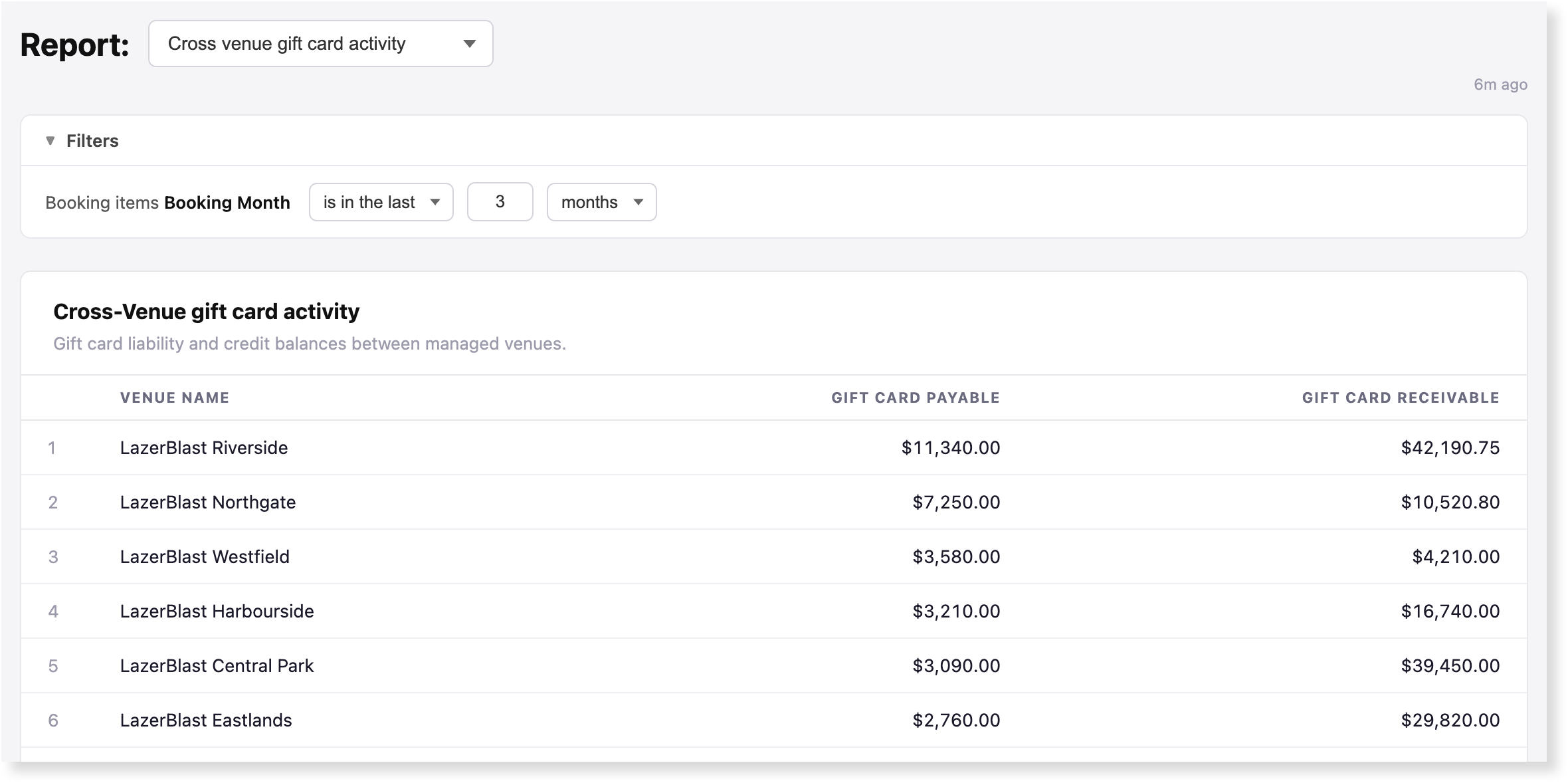
Reconcile cross-venue gift card balances in the Cross-venue gift card activity report — see what each venue owes and is owed for a selected date range, without running the revenue recognition report at each venue separately. Available to HQ venues using multi-venue gift cards.
To get started, from your HQ venue, go to Analytics.
Spotlight: Cross-venue gift card activity report
If your group sells gift cards that can be redeemed at any venue, the Cross-venue gift card activity report gives you a clear picture of the liability and credit balances sitting between your venues — so your HQ can see where gift card revenue originates and where it's being redeemed.
To access it, go to Analytics > Reports > Cross-venue gift card activity.
Filters: Set a booking date range to view activity for a specific period.
Columns:
Gift Card Payable — for the selected dates, the value of gift cards sold at this venue and redeemed at other venues in the group.
Gift Card Receivable — for the selected dates, the value of gift cards redeemed at this venue that were originally sold by another venue.
How the date filter works
The booking date filter applies to activity across both sales and redemptions within the selected period. How this appears depends on when the gift card was sold versus when it was redeemed.
Sold and redeemed in the same period — both the Payable and Receivable columns will show the same amount for that venue.
Sold in a prior period, redeemed in the selected period — the Payable amount will show as $0 and the Receivable column will show the full redemption value.
Sell gift cards that can be redeemed across multiple venues in your group — and unlock a new revenue stream in the process. Beta customers have seen a 22.5% increase in gift card revenue, driven by a 21.5% rise in sales volume. One customer, grew gift card sales by 20% year on year and attributed the result directly to multi-venue gift-card redemption. Reach out to your customer success manager or the support team to get started.
Schedule consolidated multi-venue reports from HQ
Plan: Available to all HQ venues
Preview release (Playground): No
Target release date: Tuesday 26 May (AET)
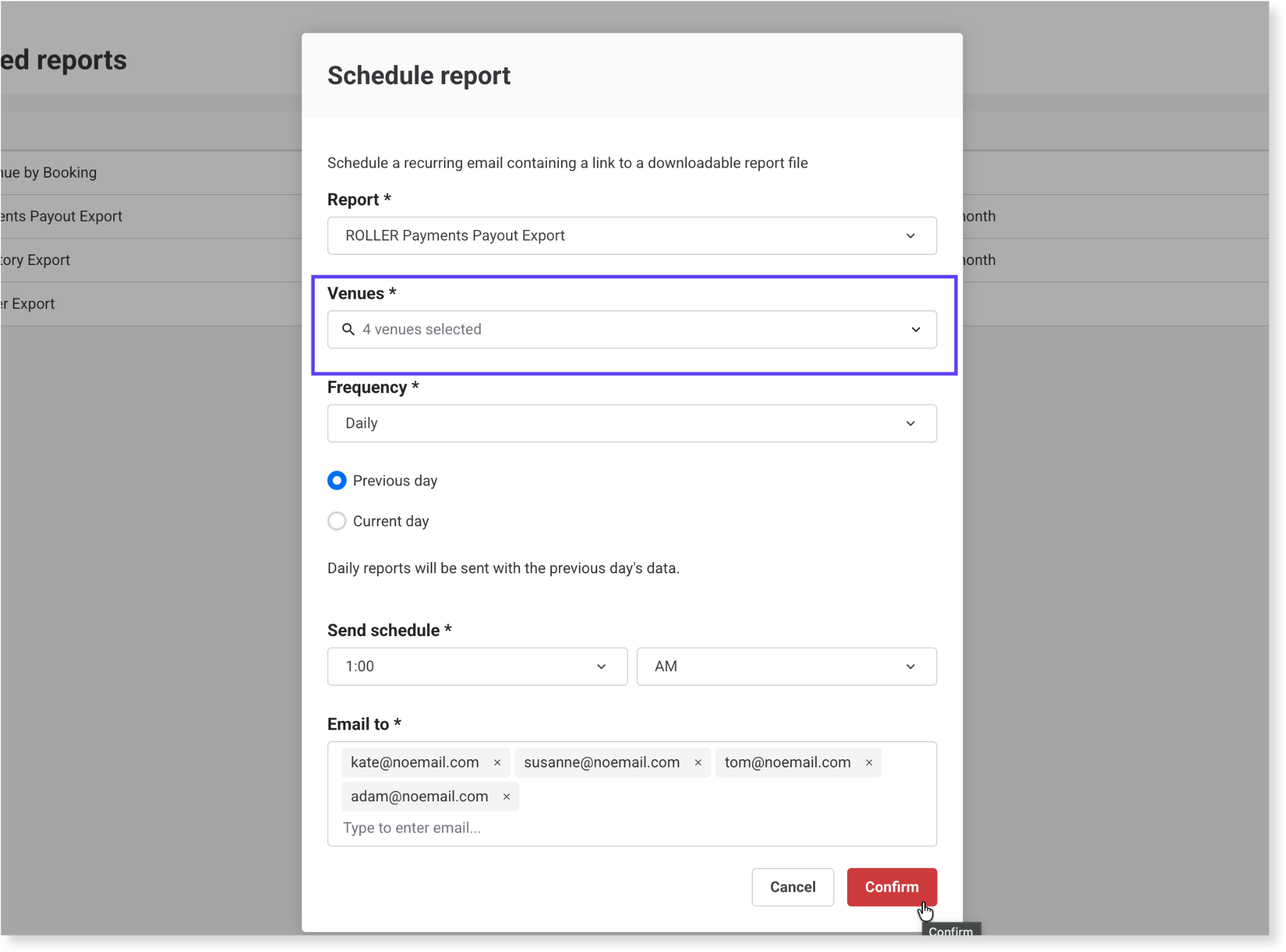
Stop pulling venue reports one by one. With scheduled multi‑venue reports, your consolidated data arrives in your inbox automatically — ready to import into your finance platform, data warehouse or BI tool.
Four report types are available for consolidation and scheduling:
Deferred revenue by bookings
ROLLER Payments payouts
NetSuite inventory export
NetSuite ledger report
To get started:
From HQ, go to Reports > Scheduled reports.
Create a new scheduled report.
Select one of the four supported report types.
Use the venues drop-down to select individual venues or venue tags.
Configure the schedule, send time and recipient email.
Once confirmed, the report runs automatically on the schedule you set and send a consolidated CSV to the email addresses you added.
Let guests use memberships, gift cards and discount codes across your managed venues
Plan: HQ
Preview release (Playground): No
Target release: Tuesday, 26 May 2026 (AET)
HQ multi-venue redemptions are now available to all HQ customers. Members can use their entitlements at any eligible venue in your group, guests can spend gift cards wherever they visit, and HQ discount codes can be capped with a single limit that counts across all selected venues — not per venue. Benefits and rules are managed once at HQ and tracked centrally, so your group delivers a consistent experience without duplicating setup at every location.
To get started, from HQ:
Open or create an HQ membership product, choose the eligible venues, then select Multi-venue redemption.
Open or create an HQ gift card product, select the eligible venue tags, then select Multi-venue redemption.
Open or create an HQ discount code, select the venues, then select Usage limits apply across selected venues and set the total limit.
To learn more, see the guides Sell and redeem HQ memberships across multiple venues, Sell and redeem HQ gift cards across multiple venues and Create HQ discounts with cross-venue redemption limits.
Switch back to HQ faster from any managed venue
Plan: Available to all HQ venues
Preview release (Playground): No
Target release date: Tuesday 26 May (AET)
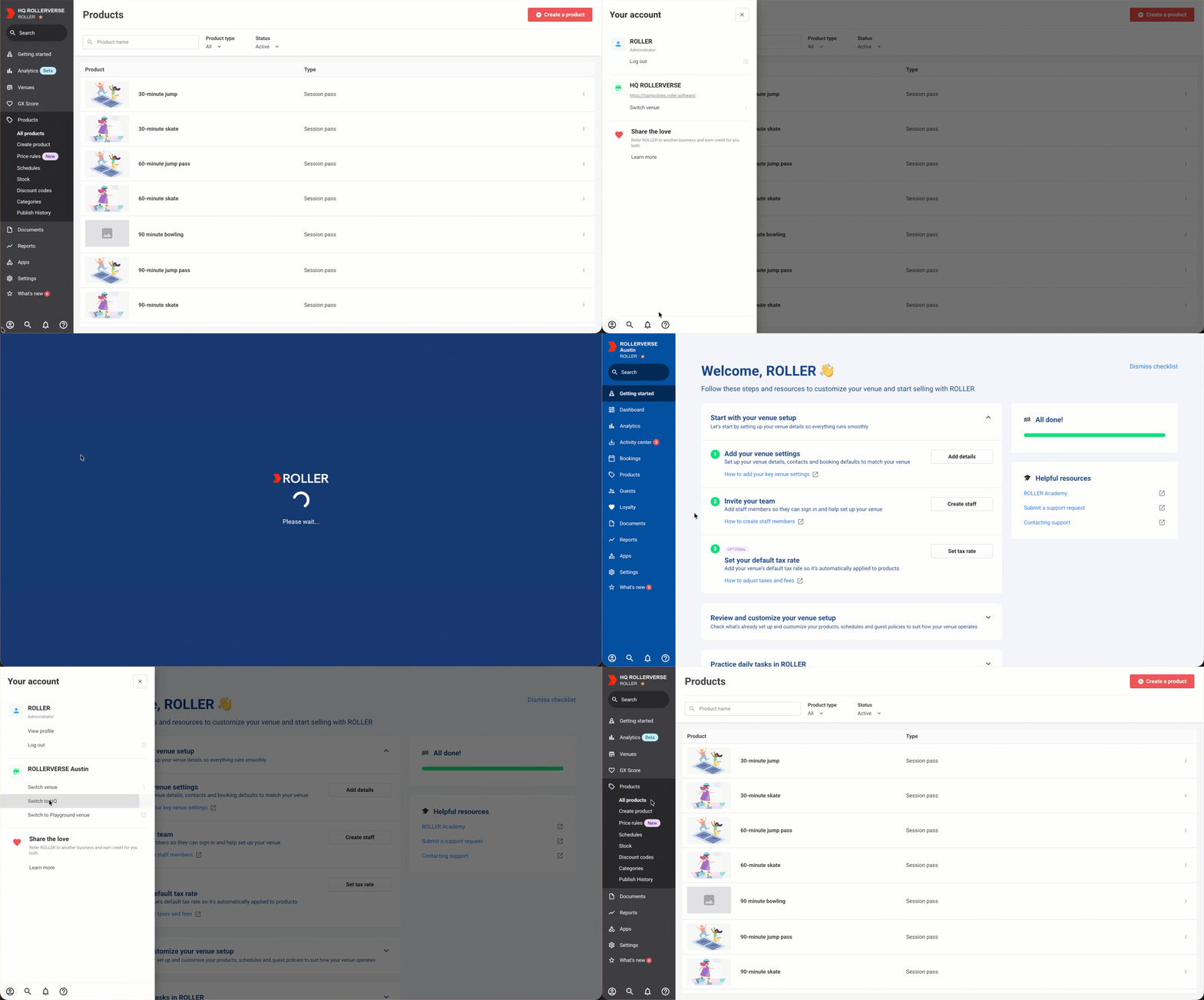
If you manage multiple venues, it's now easier to get back to HQ when you need to. A new Switch to HQ option appears in the Your account panel whenever you're viewing a controlled venue, so you can jump back to HQ in a single click — no scrolling through your full venue list required.
We've also pinned your HQ venue to the top of the Switch venue list, so it's always the first option you see when you do use the full list. The Switch to HQ shortcut only appears when you're in a managed venue and your user account has access to HQ — it won't show up when you're already there.
Marketing and promotions
Make it easier for venues to attract, engage and retain guests through loyalty, promotions, guest communications and marketing automations.
Print issued discount codes on guest receipts
Plan: All
Preview release (Playground): Yes
Target release date: Tuesday 26 May (AET)
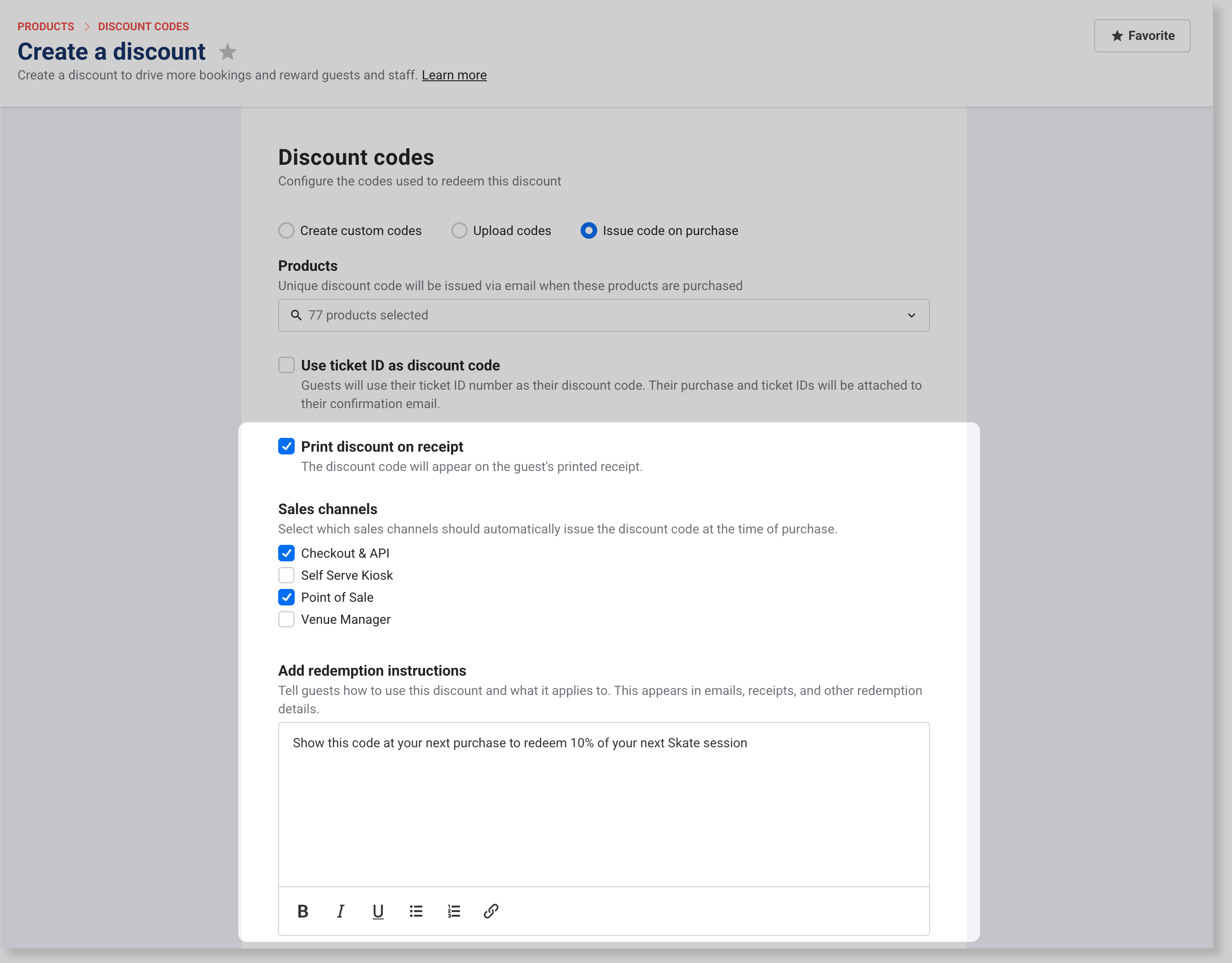
Give guests a reason to return before they leave your venue. When a guest purchases eligible products at a qualifying sales channel, their issued discount code prints automatically on their receipt — including a QR code, redemption instructions and expiry date — so they have everything they need for their next visit.
This works with discounts set to Issue code on purchase, which generate a unique code when a guest buys a specific product or products. Printing the code on the receipt at POS means guests have it in hand before they leave — no email required.
You also choose which sales channels generate and issue the code at the time of purchase.
Printing issued discount codes on receipts work with cloud printing and ROLLER Connect (Windows Service and ROLLER Connect).
To get started:
From Venue Manager, go to Products > Discount codes.
Create or open an existing discount code and select Issue code on purchase.
Choose which products trigger the code.
Turn on Print discount on receipt.
Under Sales channels, choose which channels should generate and issue the code.
Add redemption instructions to describe when and how guests can use their discount.
If Receipts can be emailed from POS is enabled in your global POS settings, the issued discount code is also included in the receipt (PDF) sent to guests after a POS purchase.